The Unidentified Driving Events page displays an overview of all unidentified driving events recorded by the application. Unidentified Driving Events are events that are automatically recorded by the application if the device has been in motion for more than three (3) minutes while there is no driver logged in. They are assigned under the driver <AccountNumber>.unidentifiedDriver. Under this page, you can reassign these events to the appropriate driver so that they can accept/reject them when they log in.
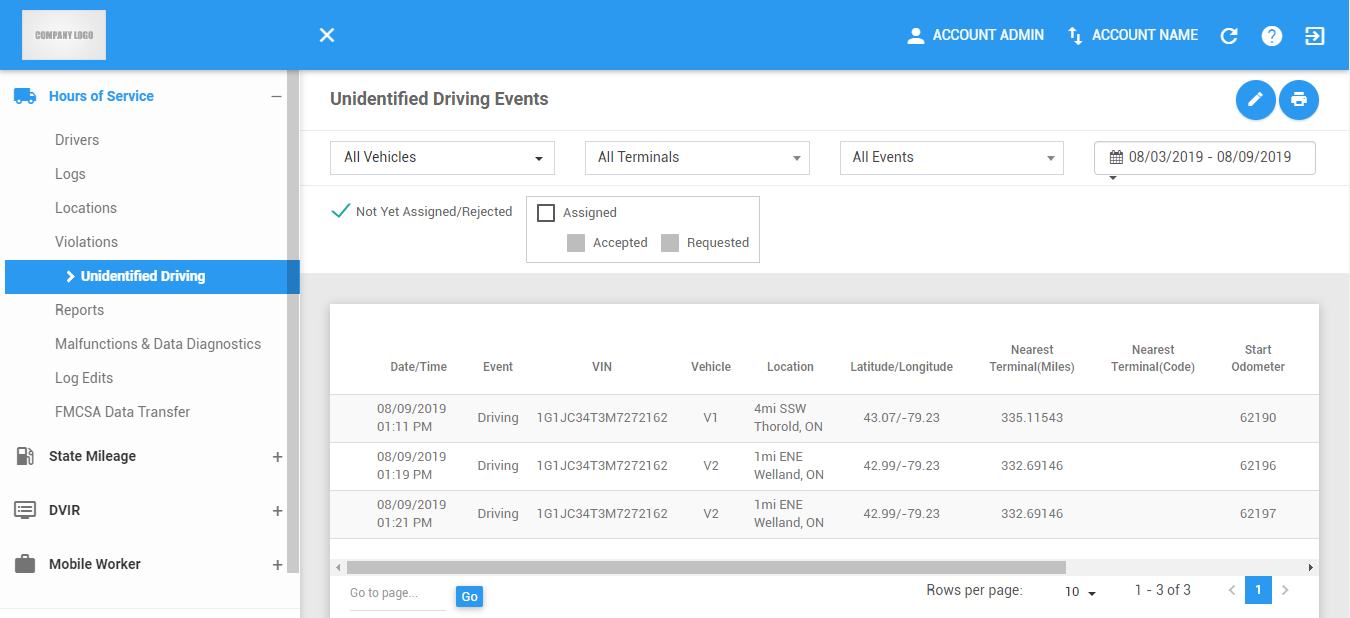
The Unidentified Driving Events page can be manually refreshed using the Refresh button within the site header.

Printing a report of the Unidentified Driving Events table
Click on the Export button to print a report of the unidentified driving events.

The Export File dialog will then appear.
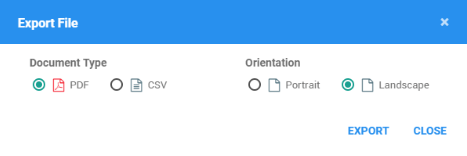
Select a document type and orientation of the PDF report.
Click Export button to print a report of the events.
The report will be saved as a PDF file when you selected PDF, and as a CSV file when you selected CSV. Click here for a sample PDF report.
Filtering the Unidentified Driving Events table
1. Filter by Vehicles
1.1 Select Vehicles in the drop-down list.

1.2 The Unidentified Driving Events table will then be updated to only show the specific results which fall under the applied filter.
2. Filter by Terminals
2.1 Select a Terminal in the drop-down list.

2.2 The Unidentified Driving Events table will then be updated to only show the specific results which fall under the applied filter.
3. Filter by Event Type
3.1 Select an Event Type on the drop-down list.
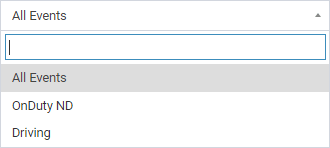
3.2 The Unidentified Driving Events table will then be updated to only show the specific results which fall under the applied filter.
4. Filter by Date
4.1 Select a Date in the the date-picker.

4.2 The Unidentified Driving Events table will then be updated to only show the specific results which fall under the applied filter.
5. Filter by Status
5.1 Check one or two from the Status to filter specific events through their status.
5.2 Events that have not yet been assigned to drivers or events that have been rejected by drivers.

5.3 Assigned events. You can further choose to filter out assigned events based on whether they have been accepted or requested.
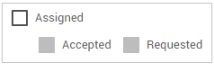
5.4 The Unidentified Driving Events table will then be updated to only show the specific results which fall under the applied filter.
Unidentified Driving Events table
1. Reassigning an Unidentified Driving Event
1.1 Click on the Reassign Driver icon of a specific unidentified driving event.

1.2 The Reassign Event dialog will then appear.
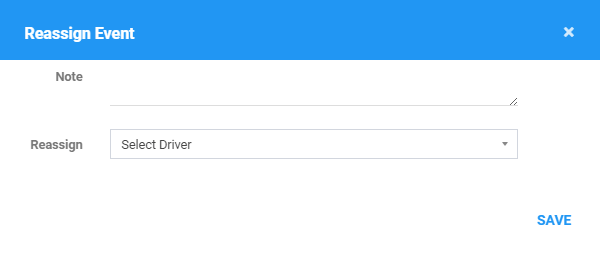
1.3 Enter an optional Note when you assign an event to an authenticated driver.

1.4 Select the Driver to whom you want the event to be reassigned.

1.5 Click the Save button successfully reassign the event. Click the X button of the modal to cancel the reassignment.

1.6 Once an Unidentified Driving Event has been reassigned to a driver, it's status will change to Assigned and the edit icon will be disabled.

Note: After doing updates on the Unidentified Driving Events, the updates on the portal will then reflect to the app (Refer to image below).
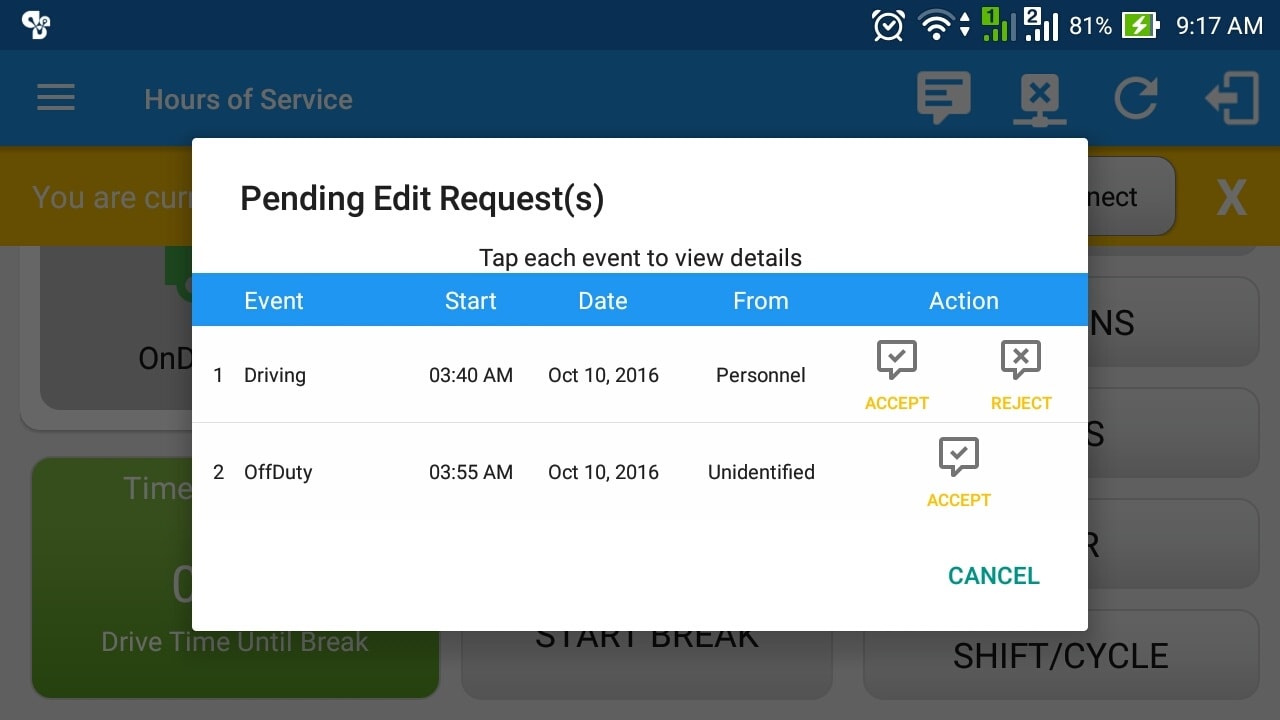
2. Reassigning Multiple Unidentified Driving Events
2.1 Click on the Multiple Reassign button.

2.2 The Multiple Reassign Event dialog will then appear.
Note: Multiple Reassign Event dialog only shows what’s currently on unidentified driving page table.
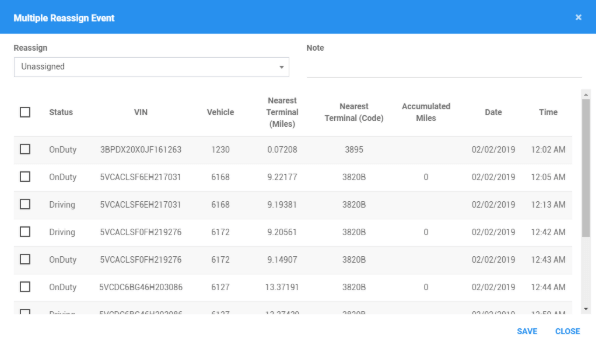
2.3 Select specific driver on Reassign dropdown list you wish to assign unidentified events.

2.4 For the events that you want to reassign to the selected driver, check the specific unidentified events (OnDuty or Driving) under the Status column. For the events that you don’t want to reassign, leave the checkbox unchecked.
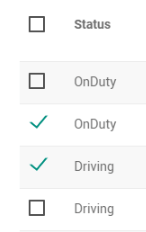
2.5 The Note field is required for events you want to reassign.

2.6 Reassigned events will be displayed in the table and app the same way as individually reassigned events
3. Viewing Reassigned Events
3.1 Reassigned events have subrows which tracks all attempts of reassigning the event. To view the subrows click the rows which have the + icon in them to expand them.

4. Viewing End Odometer and Accumulated Miles
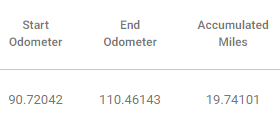
4.1 Click the "eye" icon in the event's End Odometer column.

4.2 If the End Odometer is available, it will be shown and the Accumulated Miles will be calculated and shown.
5. Unidentified Driving Events Pagination
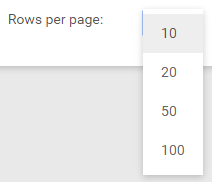
5.1 The table only shows the first 10 unidentified driving events according to the sorted column, and the rest will be on different pages.

5.2 Click and choose from the dropdown to change the number of records to be displayed per page.
5.3 Click on the navigation buttons below the table to jump to a specific page.

5.4 Enter a page number and Click Go to jump directly to a specific page.

Was this article helpful?
That’s Great!
Thank you for your feedback
Sorry! We couldn't be helpful
Thank you for your feedback
Feedback sent
We appreciate your effort and will try to fix the article