The Violations page displays an overview of all violations made by a selected driver. The Violations tab also gives users the ability to upload a PDF acknowledgement form which captures any action taken by a driver and fleet manager in relation to incurred violations.
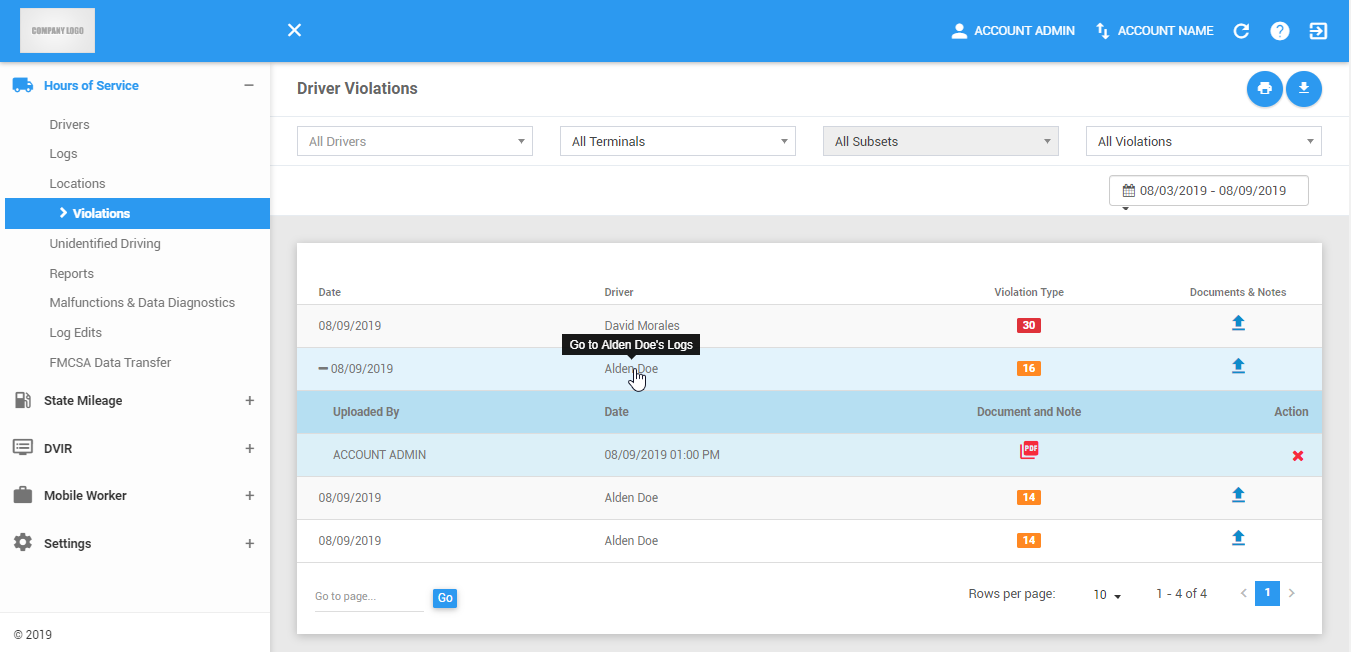
The Violations page can be manually refreshed using the Refresh button within the site header.

Violation Actions
1. Printing the Violation Lists
1.1 Click on the Print button to print a report of the filtered violations.

1.2 The Export File dialog will then appear.
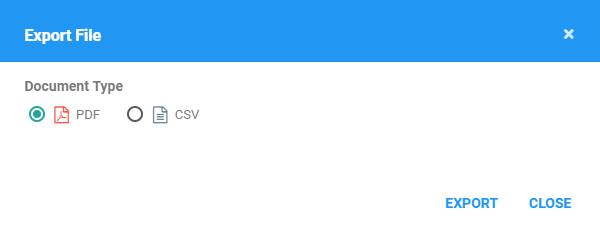
1.3 Select a document type and click Export button to print a report of the current log entry.
1.4 The report will be saved as a PDF file when you selected PDF, and as a CSV file when you selected CSV. Click here for a sample PDF report.
2. Download the Acknowledgement Form
2.1 Click on the Acknowledgement Form button to view the current log entry that has been certified by the driver.

2.2 The acknowledgement form will be downloaded.
Filtering the Violations table
1. Filter by Driver
1.1 Click on the All Drivers drop-down list.

1.2 Select the driver's name in the drop-down list. Drivers are grouped by their respective terminals. If a driver has an alias or Driver ID, it is shown before his/her name.
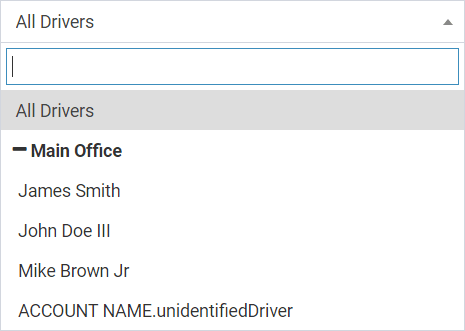
1.3 The Violations table will then be updated to only show the specific results which fall under the applied filter.
2. Filter by Date
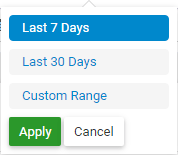
2.1 Click on the Date Picker. Select a date.

2.2 The Violations table will then be updated to only show the specific results which fall under the applied filter.
3. Filter by Terminal
3.1 Click on the All Terminals drop-down list.

3.2 Select the terminal's name in the drop-down list.
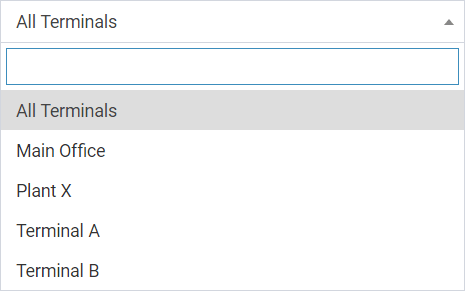
3.3 The Violations table will then be updated to only show the specific results which fall under the applied filter.
4. Filter by Subsets
4.1 Click on the All Subsets drop-down list. Subsets filter is only enabled once a terminal is selected.

4.2 Select the subset in the drop-down list.
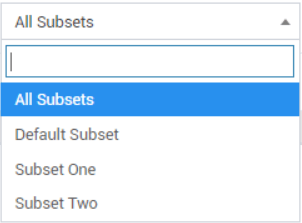
4.3 The Violations table will then be updated to only show the specific results which fall under the applied filter.
5. Filter by Violations
5.1 Click on the All Violations drop-down list.

5.2 Select a violation.
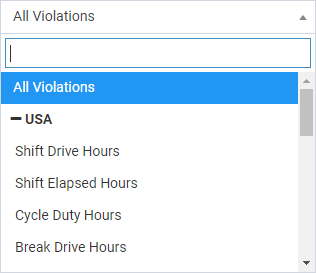
5.3 The Violations table will then be updated to only show the specific results which fall under the applied filter.
Violations table
1. Displaying the Violation
1.1 Hover over a violation to display the violation code within a tooltip.
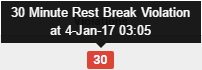
1.2 Click on the violation icon. The Violations pop-up dialog will then appear. This will display all violations of the driver.
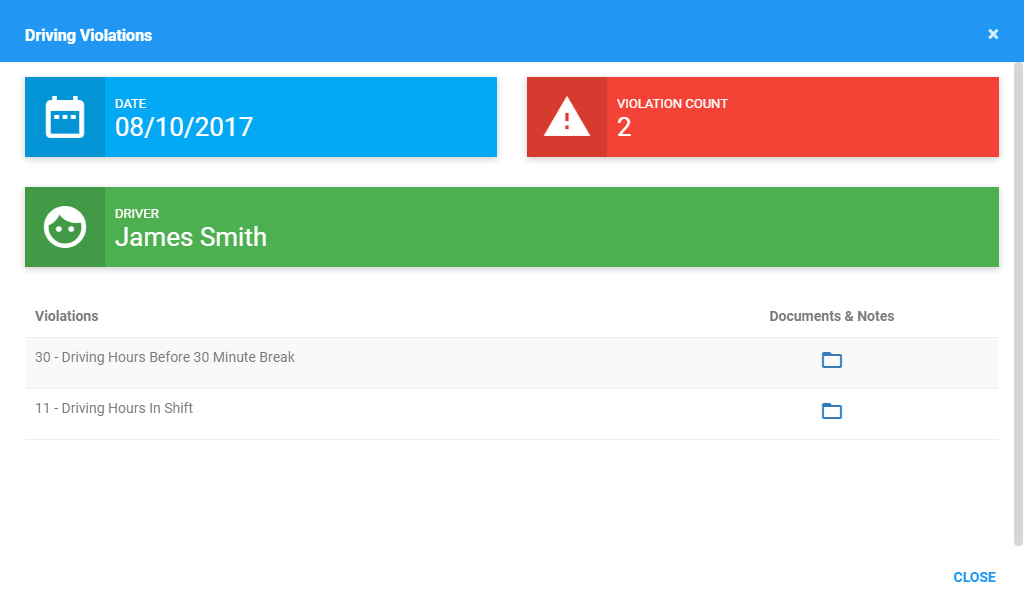
1.3 Click on the Folder icon of a specific violation to upload files and notes available on the selected violation.

NOTE: You can upload the following file types in the documents:
- MS Word file
- PDF file
- Image files
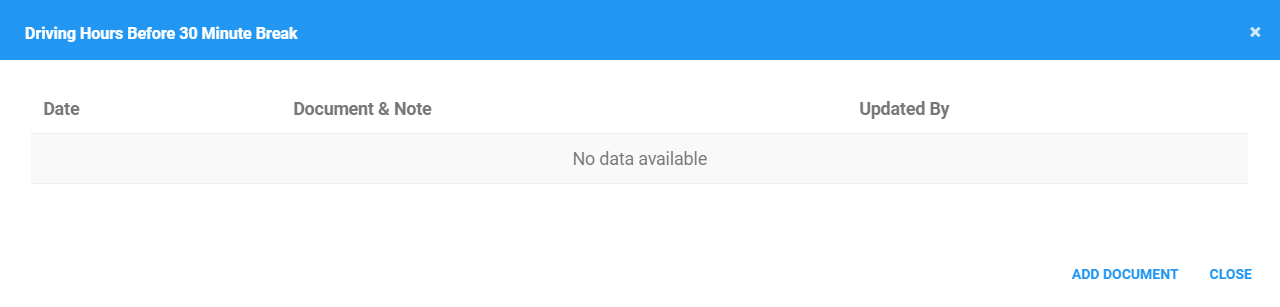
1.4 After clicking the folder, a pop-out dialog will then appear, that let’s you upload pdf files for the selected violation. Click Add Document button.
1.5 The File Upload dialog will appear. Choose a file to upload. You can also add add a note for the file that will be uploaded.
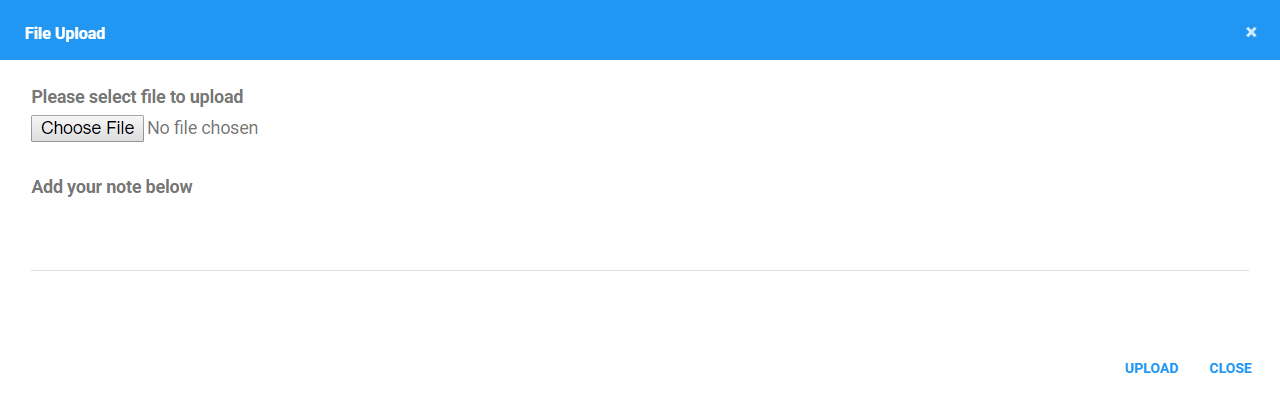
1.6 Click the Upload button.

2. Uploading the File on a single violation
2.1 Click on the Folder icon of a specific violation to upload an open PDF and notes available on the selected violation.

2.2 The File Upload dialog will appear. Choose a file to upload. You can also add add a note for the file that will be uploaded.
2.3 Click the Upload button.
3. Viewing the Violation Documents
3.1 A violation with documents is shown with a + sign. Click on the row of a violation to view them.
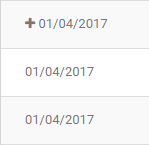
3.2 The row will then expand to show the uploaded documents on subrows.
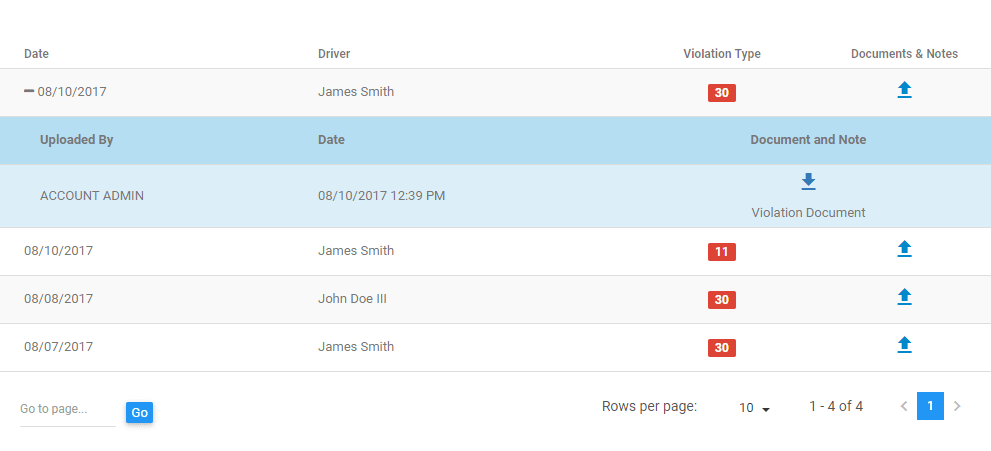
3.3 Click on the file icon to view the uploaded violation document on a new tab.
Note: Users can only add/upload documents & notes if the permission to edit portal violations tab is enabled.
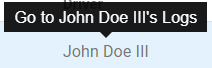
3.4 Click on the Driver’s Name to navigate into the logs information of the driver.
4. Violations Pagination
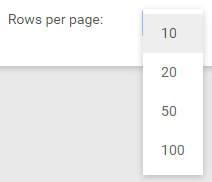
4.1 The table only shows the first 10 violations according to the sorted column, and the rest will be on different pages.

4.2 Click and choose from the dropdown to change the number of records to be displayed per page.
4.3 Click on the navigation buttons below the table to jump to a specific page.
4.4 Enter a page number and Click Go to jump directly to a specific page.

Was this article helpful?
That’s Great!
Thank you for your feedback
Sorry! We couldn't be helpful
Thank you for your feedback
Feedback sent
We appreciate your effort and will try to fix the article