The Locations page is where we can see where the account’s vehicles are located based on the last time a driver used them. It will also show additional information regarding the status of the driver that last used them.
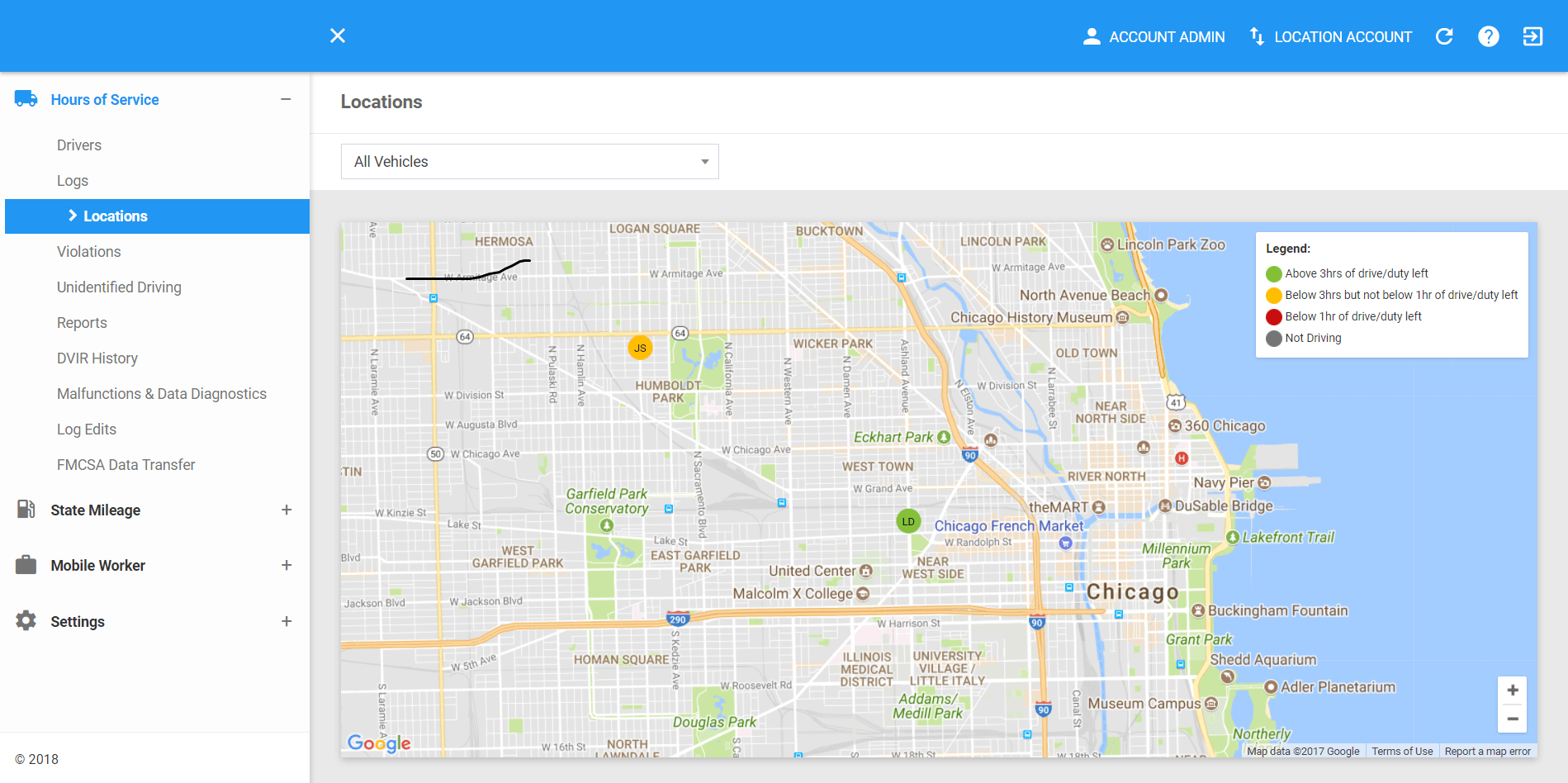
The Locations page can be manually refreshed using the Refresh button within the site header.

Filtering the Locations Map
1. Filter by Vehicle
1.1 Click on the All Vehicles drop-down list. Select the vehicle's name in the drop-down list.

1.2 The Locations Map will then be updated to only show and zoom in to the specific vehicle which fall under the applied filter.
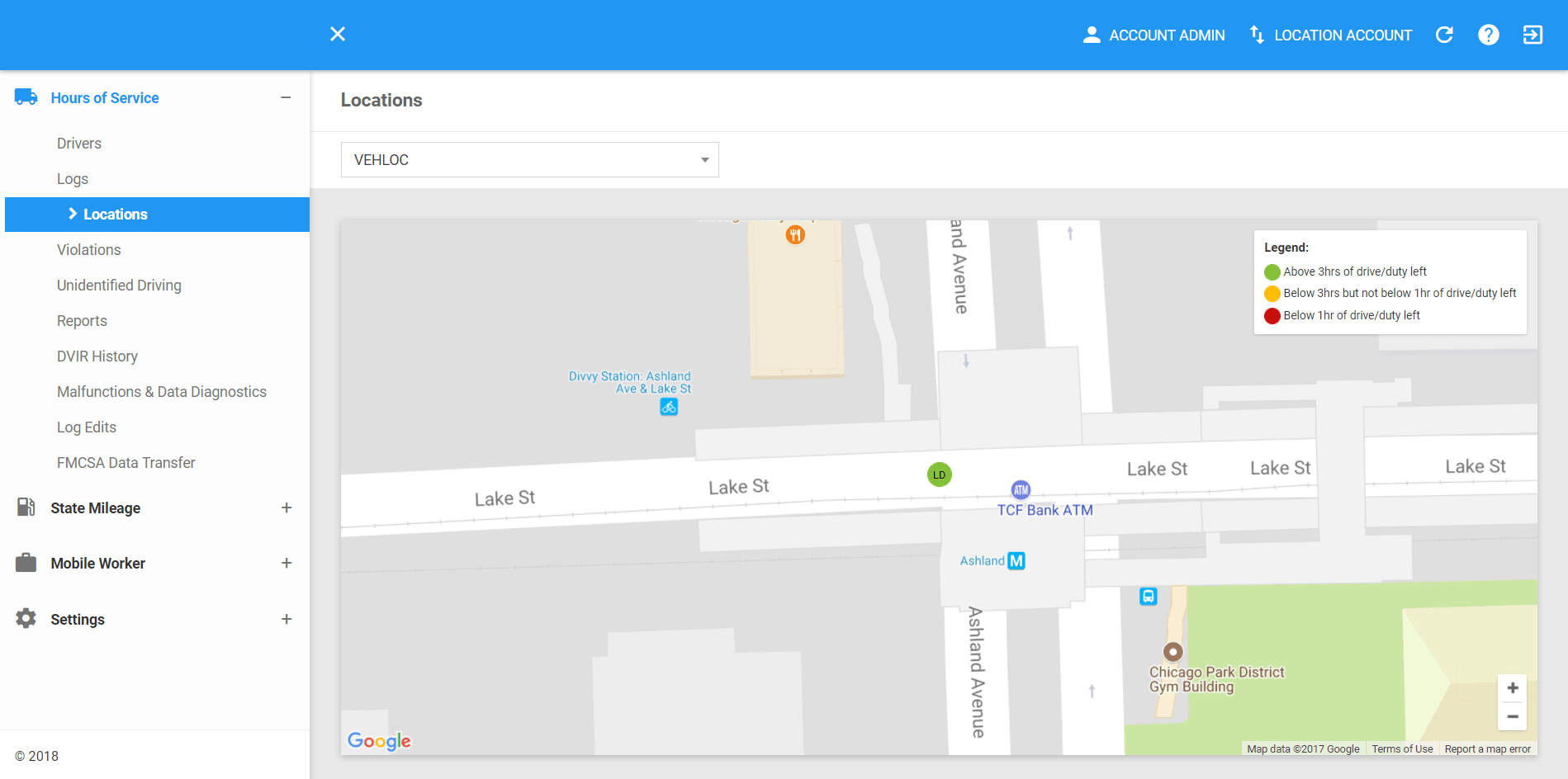
Locations Map
1. Navigating through the Map
1.1 Click and drag over the Map to pan left and right, top and bottom.
1.2 Scroll up or click on the + button on the bottom right to zoom in.
1.3 Scroll down or click on the - button on the bottom right to zoom out.
2. Viewing the Vehicle and Driver Details
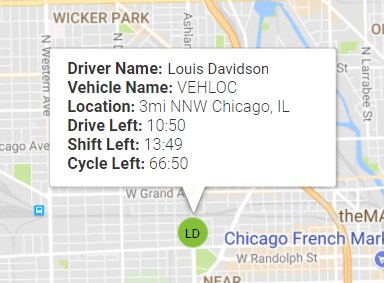
2.1 Hover over a marker of a vehicle to automatically pan the map to it and view the driver details.
Was this article helpful?
That’s Great!
Thank you for your feedback
Sorry! We couldn't be helpful
Thank you for your feedback
Feedback sent
We appreciate your effort and will try to fix the article