The DVIR Forms Page shows the list of all DVIR Forms in a specific account. This page allows you to create, edit and delete customized DVIR forms as well.
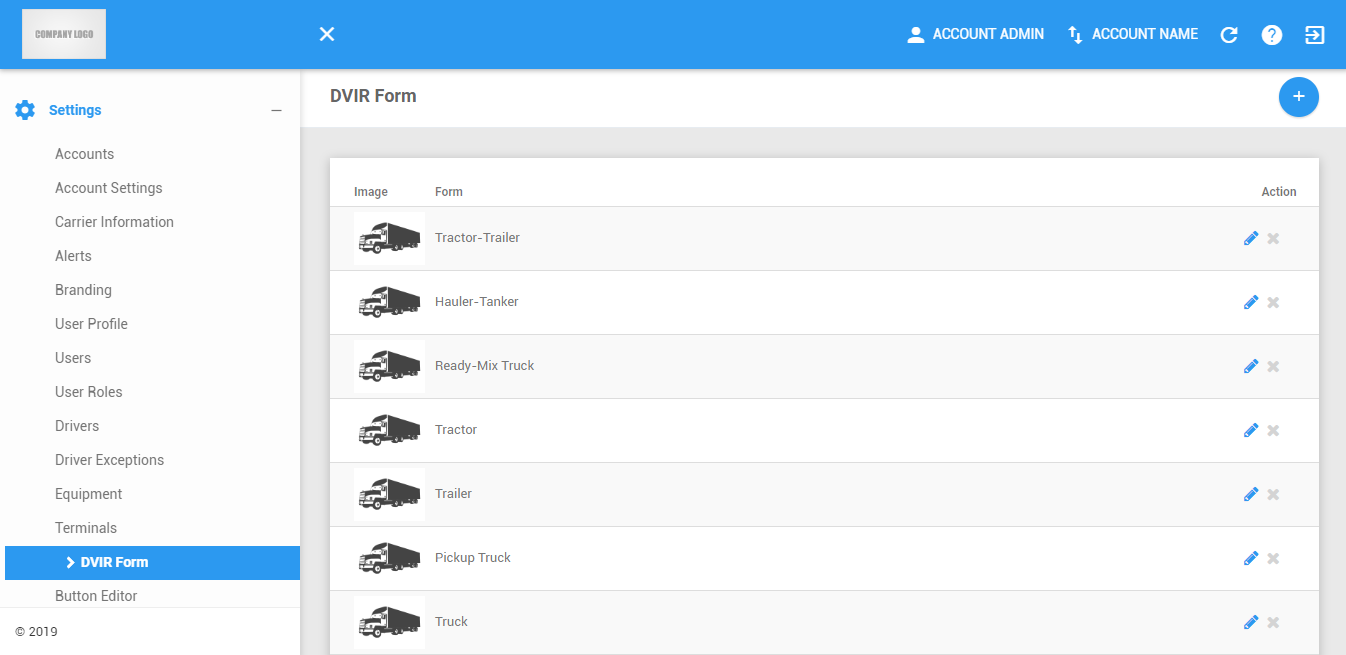
The Drivers page can be manually refreshed using the Refresh button within the site header.

Creating New DVIR Form
1. Click on the Add DVIR Form button.

2. The Create Form dialog appears
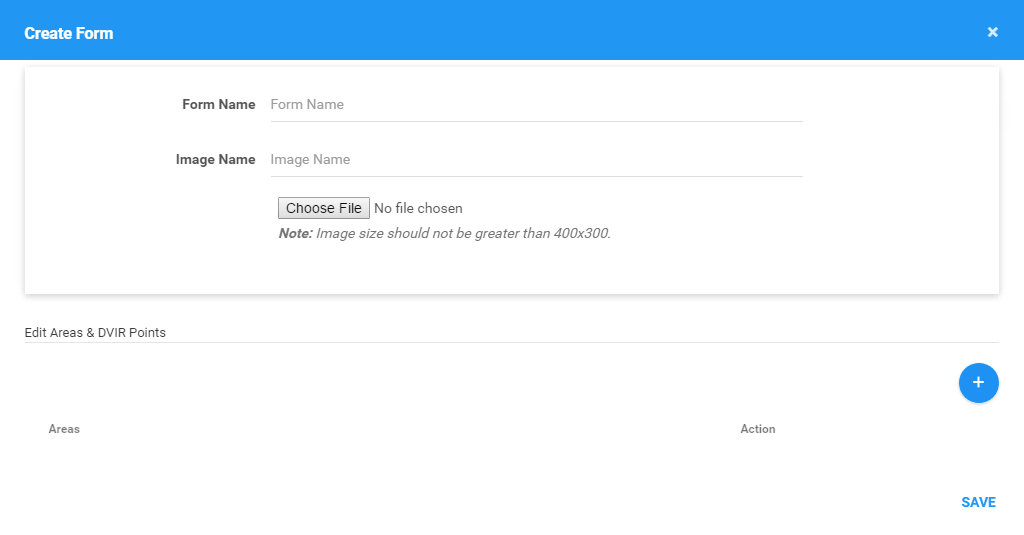
3. Enter the a name of the Form. A form name must be unique from all other forms in an account.
4. Enter a name for the image and upload an optional image that will be associated for the form.
5. Click the Add DVIR Area. DVIR Areas are used to group points that will be inspected in the application.

5.1 The Create Area dialog appears. Enter a name for the area. Area names but be unique from all other areas in a form.

5.2 Click the Save button to add the Area.
6. DVIR Area Actions
6.1 Create Another Area

6.2 Create a Point inside the Area. Proceed to Section 7.1

6.3 Edit the Area

6.4 Delete the Area

7. Click the Create DVIR Point. Points are grouped according to areas and will be inspected in the application.
7.1 The Create Point dialog appears. Enter a name for the point. Point names but be unique from all other points in an area.
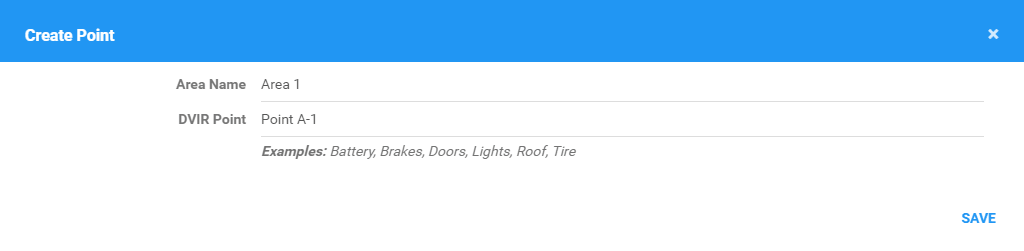
7.2 Click the Save button to add the Point.
8. DVIR Point Actions
8.1 Create another Point inside the Area.

8.2 Edit the Area

8.3 Delete the Area

9. Click the Save button to create the DVIR Form.

Editing a DVIR Form
1. Click on the Edit icon of a particular DVIR Form on the data table. Default forms can only be viewed, not deleted.

2. Update the areas and points with the new information for the DVIR Form. Input the updates the same way as creating a new DVIR form.
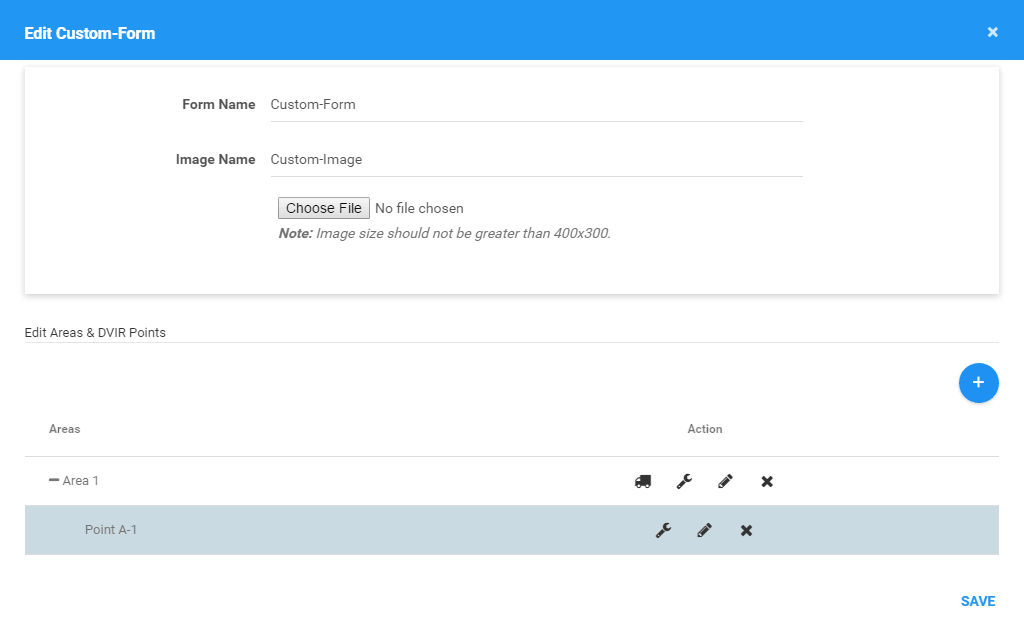
3. Click the Save button to save the updates to the DVIR Form.
Deleting a DVIR Form
1. Click on the Delete icon of a particular DVIR Form. Default forms cannot be deleted.

2. A confirmation dialog will then appear.
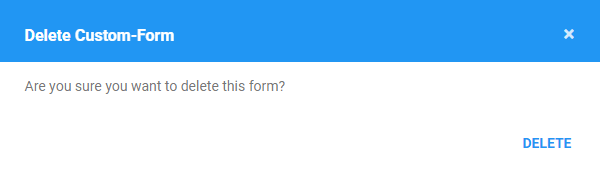
3. You can then click the Delete button to delete the DVIR Form.

Was this article helpful?
That’s Great!
Thank you for your feedback
Sorry! We couldn't be helpful
Thank you for your feedback
Feedback sent
We appreciate your effort and will try to fix the article