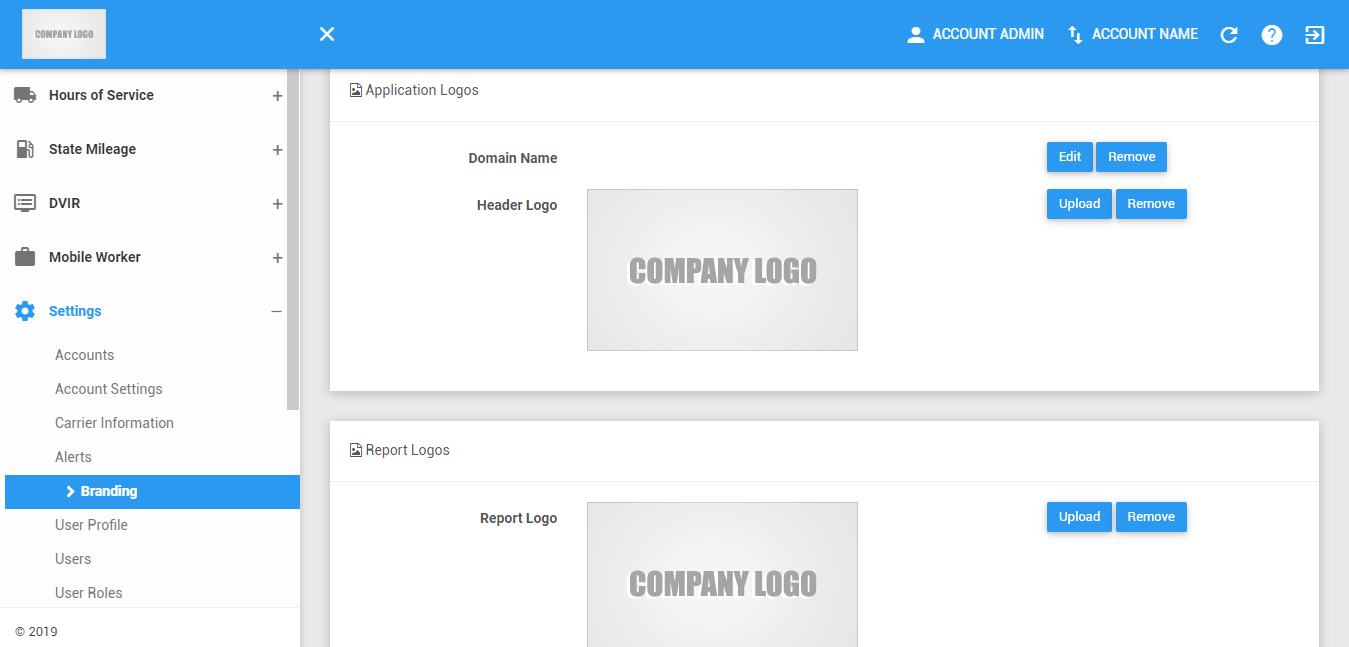
The Branding and Configuration Page is where the user could be able to customize his/her systems’ interface. This page also allows the user to upload their company logo.
Application Logos
This tab allows you to change the domain name and the application logos.
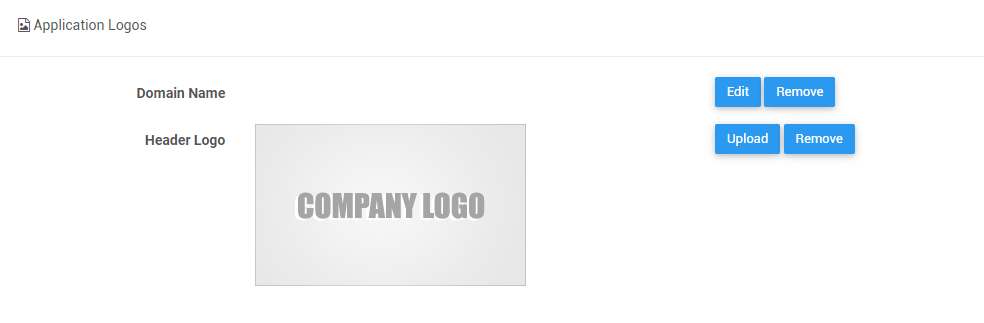
1. Set Domain Name
1.1 Click Edit then a dialog will then appear
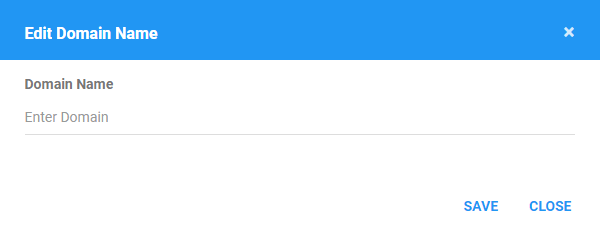
1.2 Type the domain and select from the given options.
1.3 Click Save to save the setup. Click Cancel to cancel edit. You can also click on the Remove button to remove the domain name setting.
2. Set Header Logo
2.1 Click Upload then a dialog will then appear

2.2 Choose a file to upload.
2.3 Click Upload to upload the image. Click Cancel button to cancel the uploading of the image.
2.4 Click Remove button beside Upload button to delete the uploaded header logo.
Report Logos
This tab allows you to change the logos that appear on generated reports.
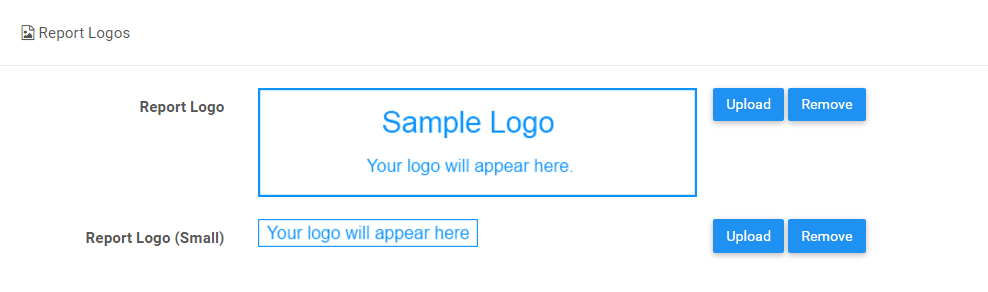
1. Set Report Logo
1.1 Click Upload then a dialog will then appear

1.2 Choose a file to upload.
1.3 Click Upload to upload the image. Click Cancel button to cancel the uploading of the image.
1.4 Click Remove button beside Upload button to delete the uploaded report logo.
2. Set Report Logo (small)
2.1 Click Upload then a dialog will then appear

2.2 Choose a file to upload.
2.3 Click Upload to upload the image. Click Cancel button to cancel the uploading of the image.
2.4 Click Remove button beside Upload button to delete the uploaded small report logo.
Was this article helpful?
That’s Great!
Thank you for your feedback
Sorry! We couldn't be helpful
Thank you for your feedback
Feedback sent
We appreciate your effort and will try to fix the article