The FMCSA Data Transfer page allows you to submit driver logs to FMCSA. You can choose which drivers and vehicles to submit their logs to.
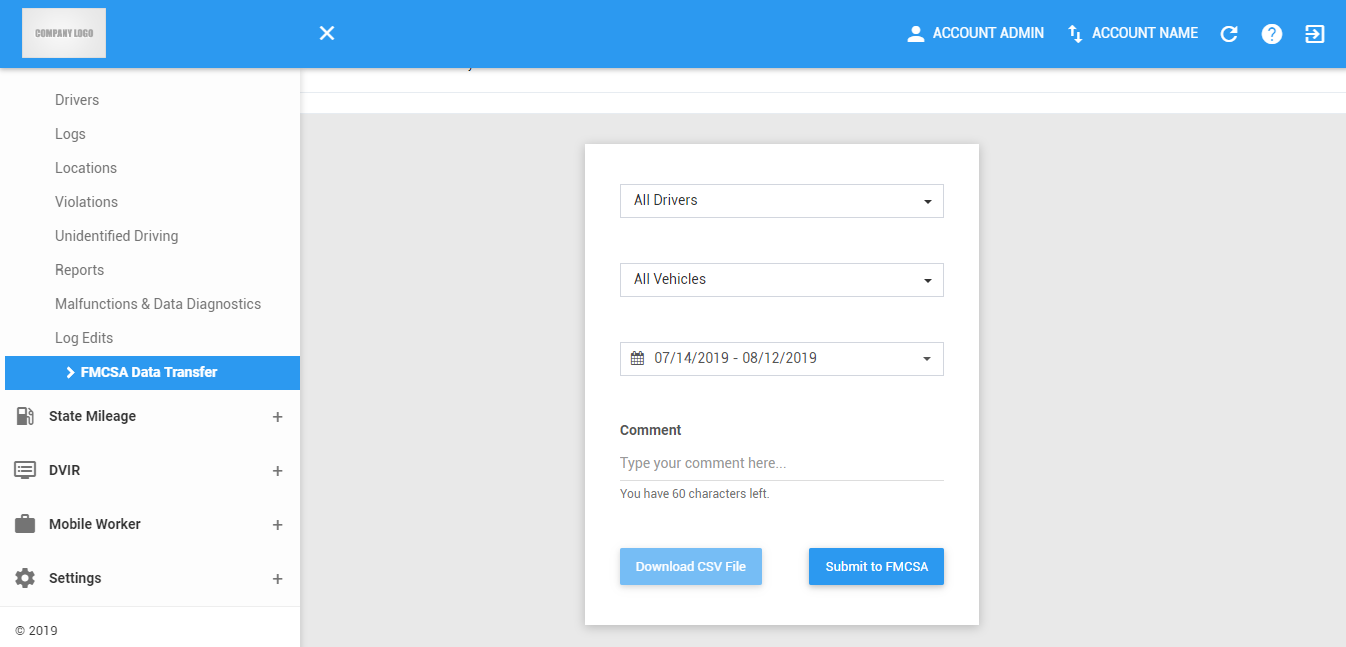
FMCSA Data Transfer Actions
1. Download CSV file
1.1 Click on the All Drivers drop-down list.

1.2 Select 1 or more drivers driver in the drop-down list. Drivers are grouped by their respective terminals. If a driver has an alias or Driver ID, it is shown before his/her name.
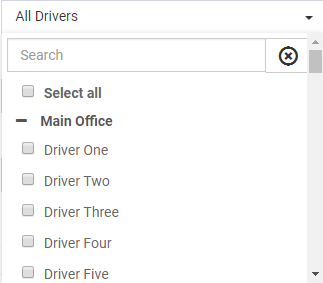
1.3 The Download CSV File button will then be enabled.

Note: If you select 2 or more drivers, the button will be disabled as this feature is only meant for 1 driver only.
Click on the Download CSV File button to proceed with downloading the CSV file of the selected driver.
2. Submit to FMCSA
2.1 Click on the All Drivers drop-down list.
2.2 Select 1 or more drivers driver in the drop-down list. Drivers are grouped by their respective terminals. If a driver has an alias or Driver ID, it is shown before his/her name.
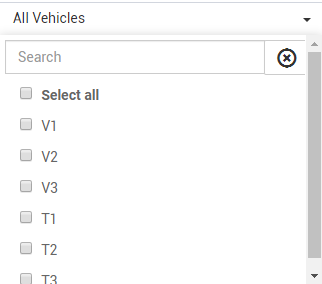
2.3 Click on All Vehicles drop-down list
2.4 Select at least 1 or more Vehicles in the drop-down list.
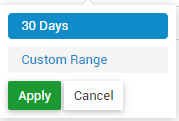
2.5 Select a Date in the date-picker.
2.6 Click on the Submit to FMCSA button to submit logs.

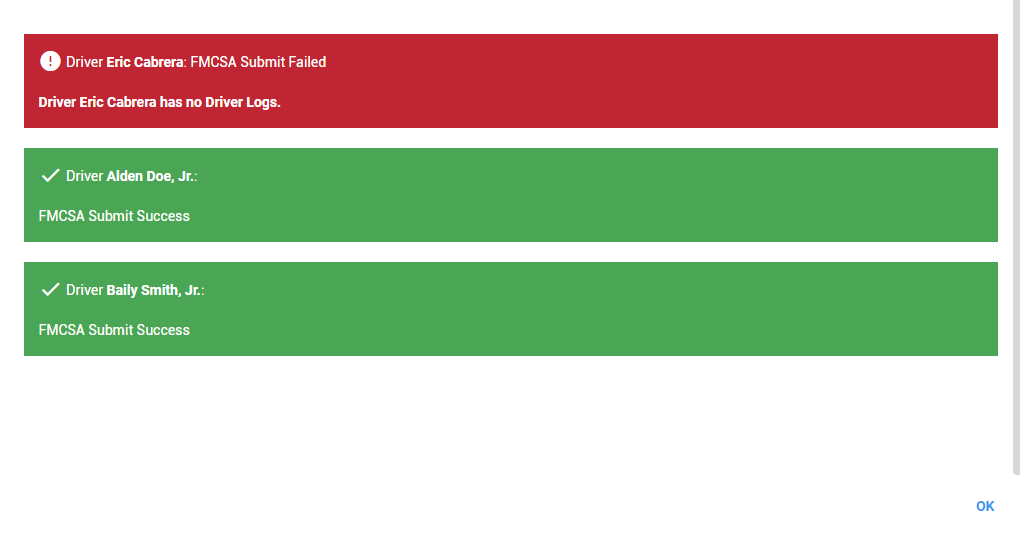
2.7 A dialog popup will then appear containing the result for each of the driver selected on submission.
Was this article helpful?
That’s Great!
Thank you for your feedback
Sorry! We couldn't be helpful
Thank you for your feedback
Feedback sent
We appreciate your effort and will try to fix the article