The Data Transfer page allows you to submit driver logs to the appropriate regulatory authority based on the region selected. You can choose FMCSA for the United States or CCMTA for Canada. The selected option determines the ELD output file standard used for data transfer.
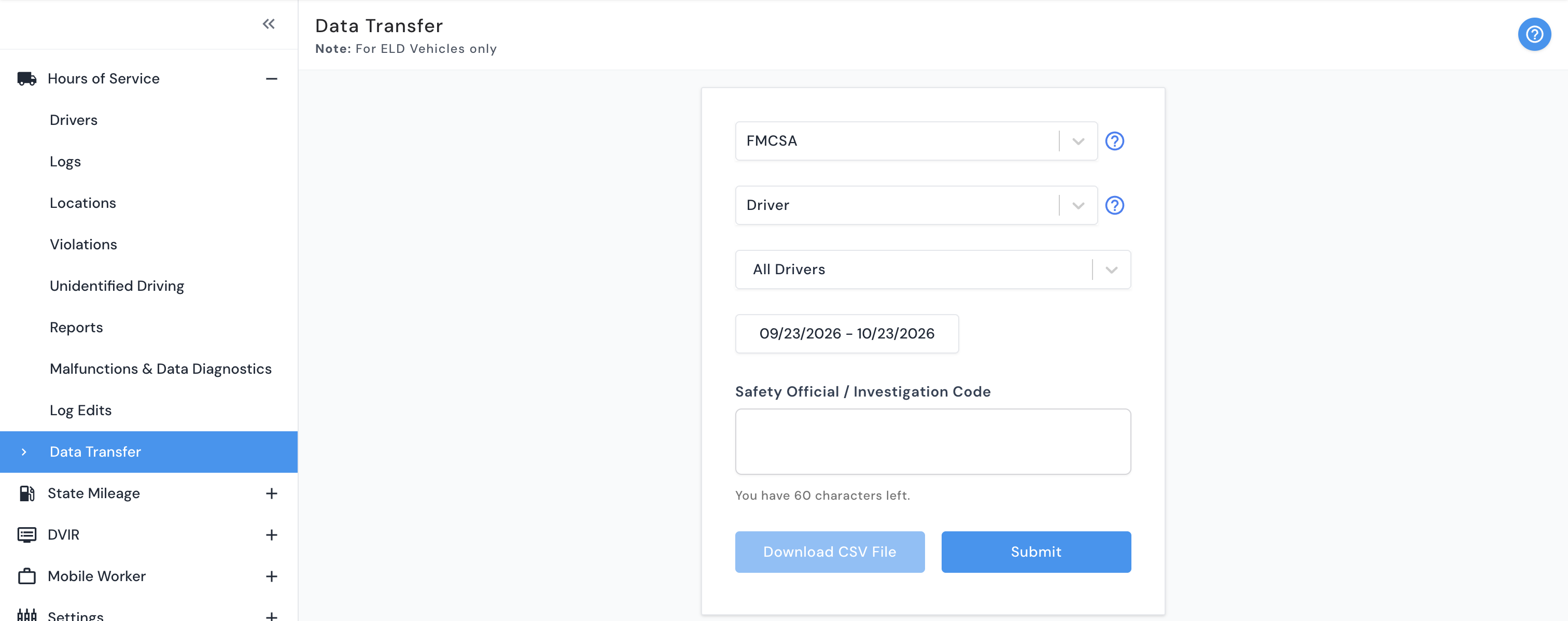
You can select the applicable data transfer type, choose a driver, specify the date range, and submit the logs. You can also download a CSV file for an individual driver when this option is available.
A. Data Transfer Options
Select the Data Transfer Standard
- Navigate to the Data Transfer page.
- Select the applicable option from the first dropdown:
- FMCSA: Uses the USA ELD Output File Standard.
- CCMTA: Uses the Canada ELD Output File Standard.
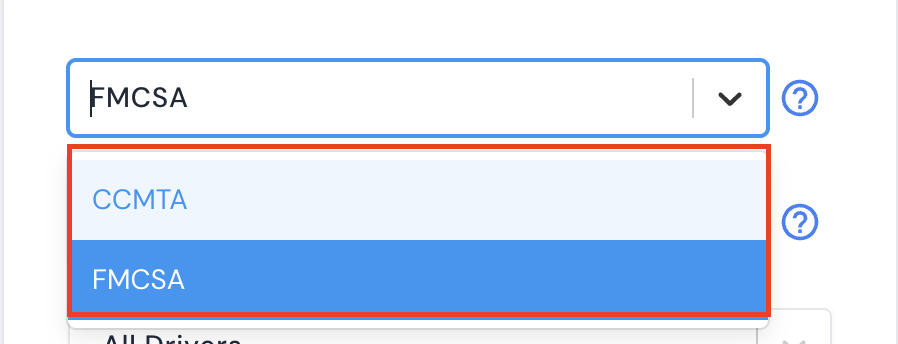
- Configure the remaining fields based on the selected standard.
Download CSV File
The Download CSV File option allows you to download the applicable data in CSV format for an individual driver, where supported.
- Select FMCSA or CCMTA from the data transfer standard dropdown.
- Select the Driver or Vehicle option from the next dropdown, if applicable.
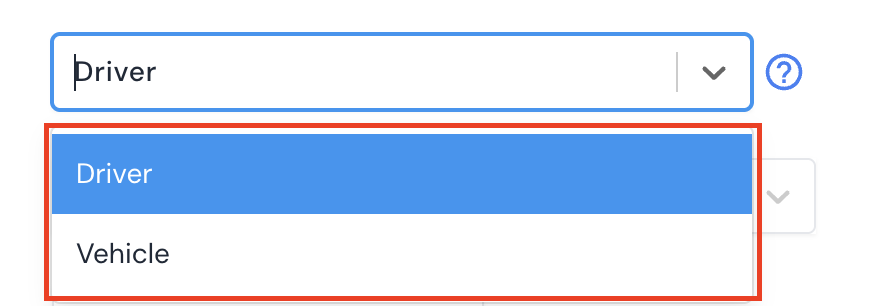
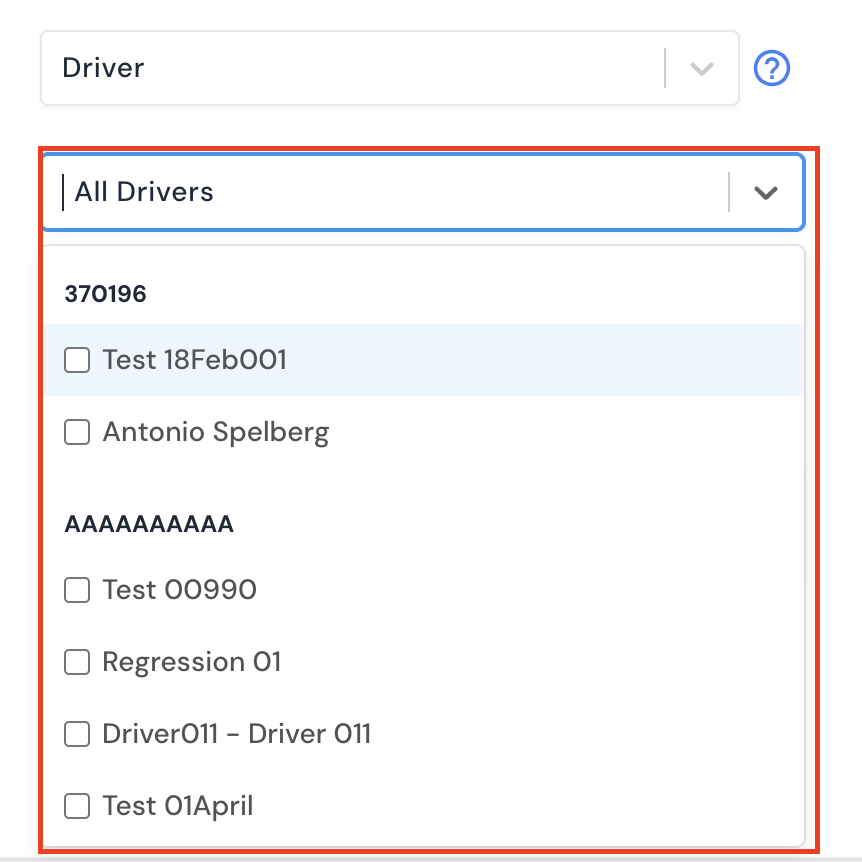
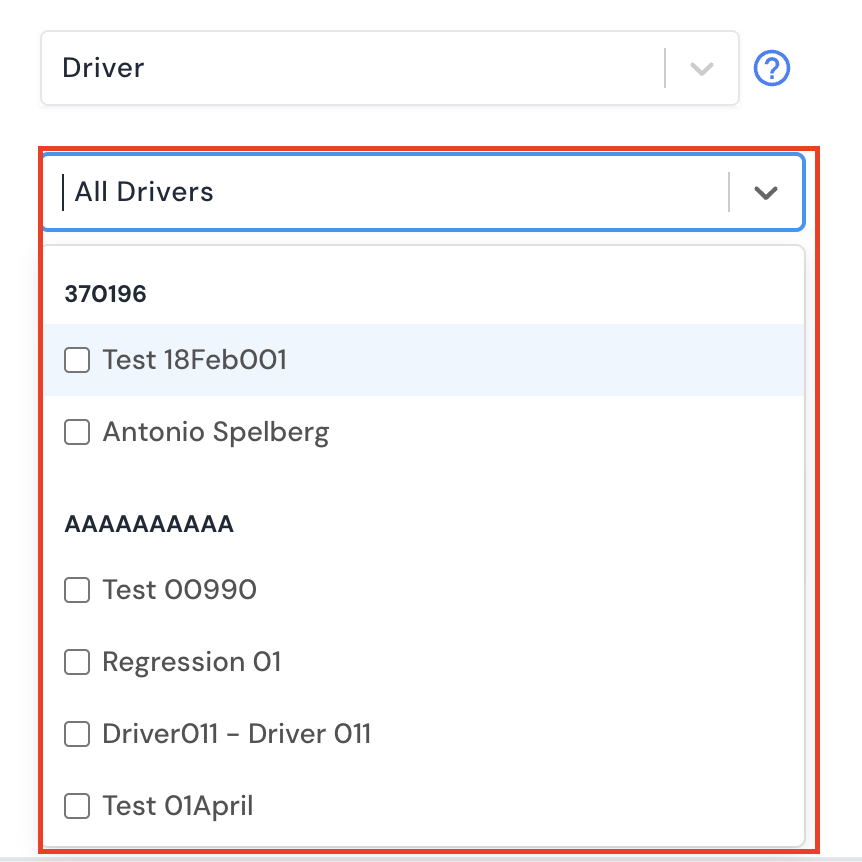
- Open the All Drivers dropdown.
- Select one driver. Drivers are grouped by their respective terminals. If a driver has an alias or Driver ID, it appears before the driver's name.
- Once a single driver is selected, the Download CSV File button becomes available.
- Click Download CSV File to download the selected driver's CSV file.

Note: The CSV download option is intended for a single driver. It is disabled when multiple drivers are selected.
Submit Logs to the Regulatory Authority
Use this option to submit driver logs according to the selected regulatory standard.
- Select the appropriate data transfer standard:
- FMCSA for the United States.
- CCMTA for Canada.
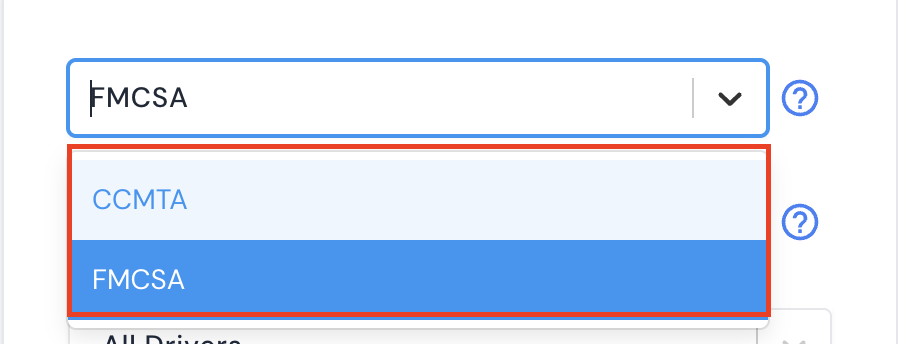
- Select the Drive or Vehicle transfer option from the next dropdown, if available.
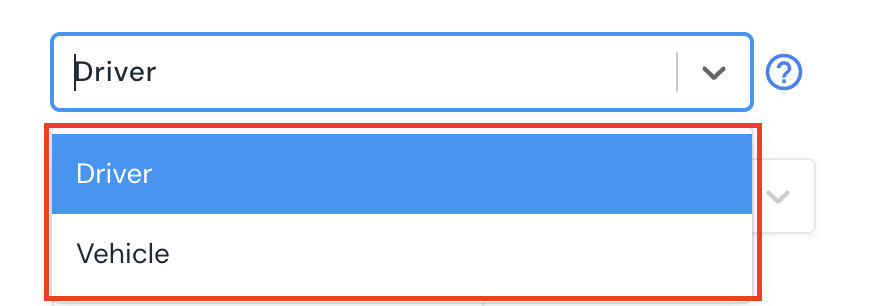
- Open the Driver or Vehicle selection dropdown.
- If Driver is selected in selection dropdown. Select one or more drivers. Drivers are grouped by their respective terminals. If a driver has an alias or Driver ID, it appears before the driver's name.
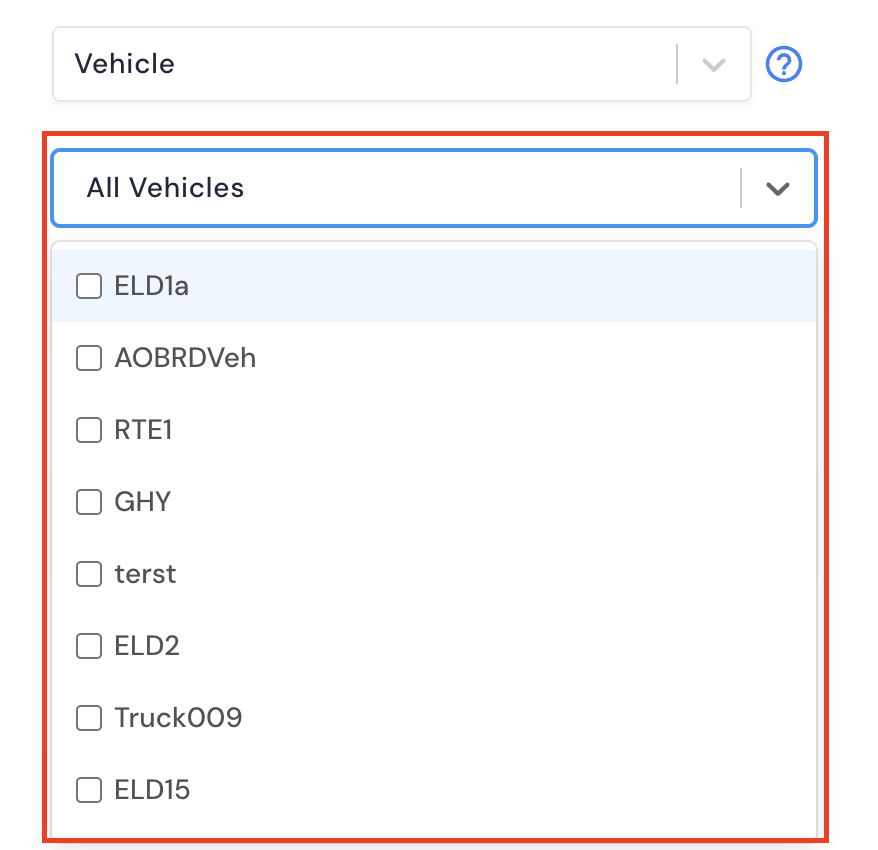
- If Vehicle is selected in selection dropdown. Select one or more vehicles.
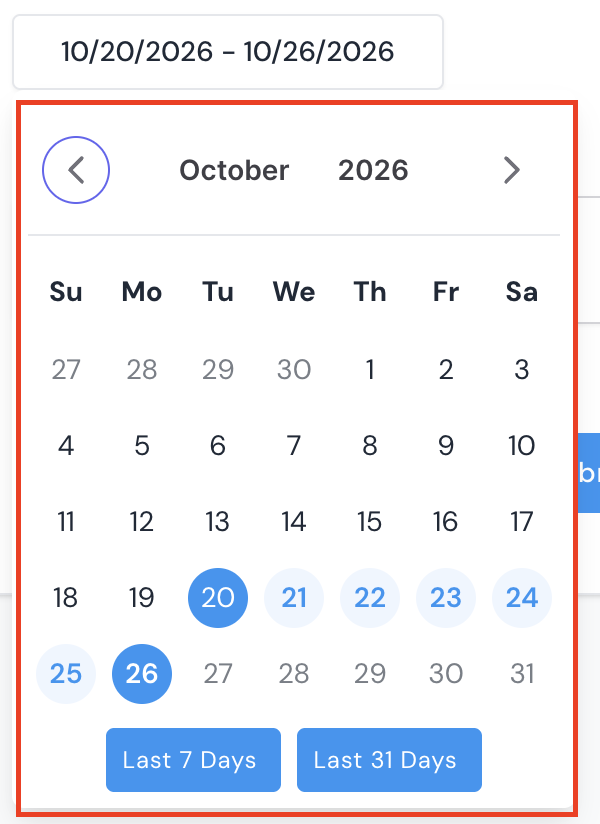
- Select the applicable date range using the date picker. If required, click on the Last 7 Days or Last 31 Days button to easily choose the date range as applicable.
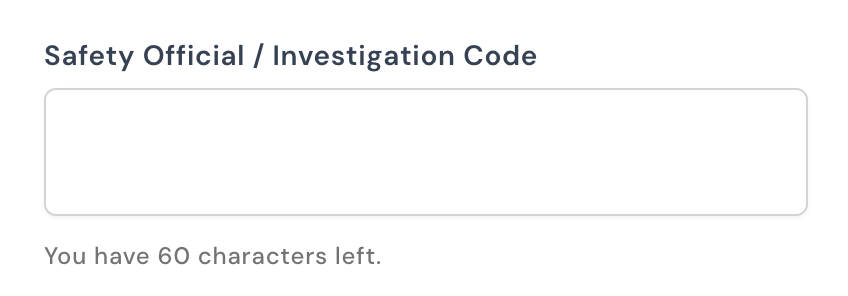
- Enter the Safety Official / Investigation Code (example: Comments), if required for the selected transfer standard.
- Click Submit to initiate the data transfer.

Important Note:

1. FMCSA: After clicking Submit, a success message appears to confirm the submission.

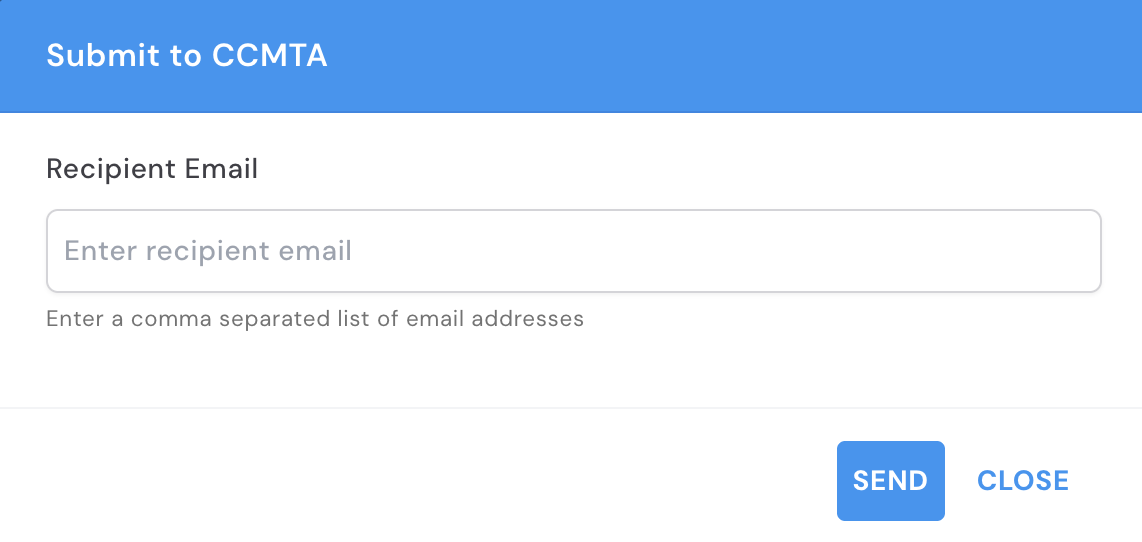
2. CCMTA: After clicking Submit a popup appears, enter at least one recipient email address. To send the data to multiple recipients, separate the email addresses with commas. Click Send to complete the submission.
9. A dialog displays the submission results.
Was this article helpful?
That’s Great!
Thank you for your feedback
Sorry! We couldn't be helpful
Thank you for your feedback
Feedback sent
We appreciate your effort and will try to fix the article