The Log Edits page is where we can see the list of edited UDE logs and their annotations. You can also see the date/time of the edit and the name of the personnel who changed the event.
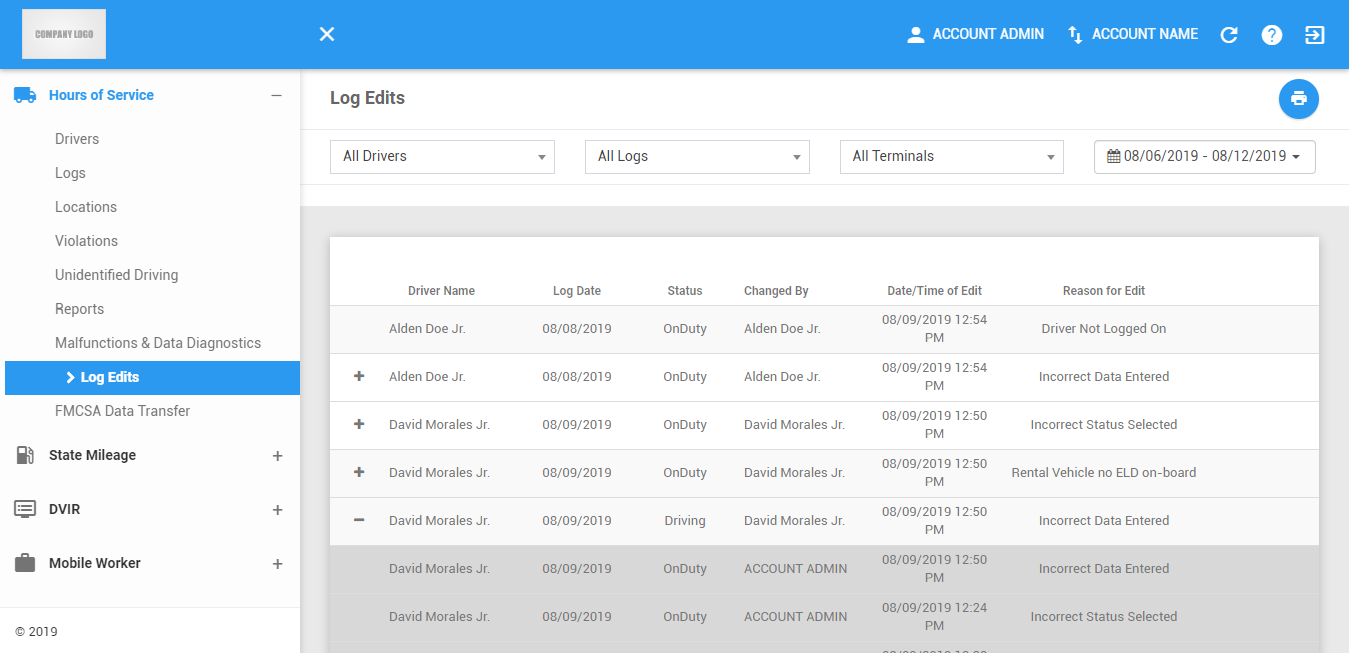
The Log Edits page can be manually refreshed using the Refresh button within the site header.

Printing a Report of the Log Edits table
Click on the Export button to print a report of the log edits.

The Export File dialog will then appear.
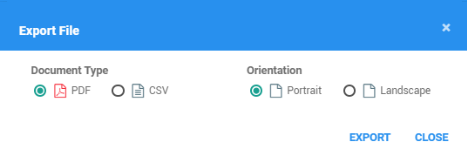
Select a document type and orientation of PDF report.
Click on the Export button to print a report of the events
The report will be saved as a PDF file when you selected PDF, and as a CSV file when you selected CSV. Click here for a sample PDF report.
Filtering the Log Edits table
1. Filter by Driver
1.1 Click on the All Drivers drop-down list.

1.2 Select the driver's name in the drop-down list. Drivers are grouped by their respective terminals. If a driver has an alias or Driver ID, it is shown before his/her name.
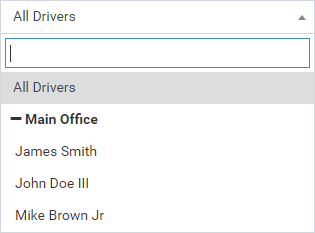
1.3 The Log Edits table will then be updated to only show the specific results which fall under the applied filter.
2. Filter by Log Status
2.1 Click on the All Logs drop-down list.

2.2 Select a log status from the list.
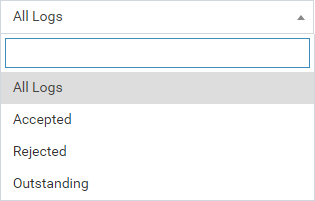
2.3 The Log Edits table will then be updated to only show the specific results which fall under the applied filter.
3. Filter by Terminal
3.1 Click on the All Terminals drop-down list.

3.2 Select a terminal in the drop-down list.
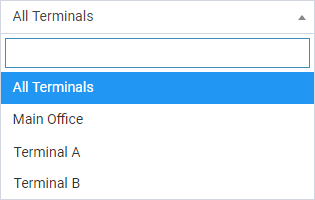
3.3 The Log Edits table will then be updated to only show the specific results which fall under the applied filter.
4. Filter by Date
4.1 Click on the Date Picker. Select a date.
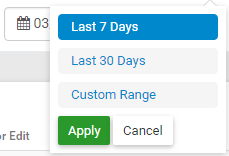
4.2 The Log Edits table will then be updated to only show the specific results which fall under the applied filter.
5. Enable Filter by Driver ID
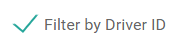
When an account has drivers with Driver IDs, this option will be available and checked by default. When this option is not available or is unchecked, the Select Drivers drop-down list will show all drivers.
5.1 Click on the Filter by Driver ID option to toggle the list into the driver IDs.
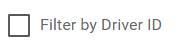
5.2 The Select Drivers drop-down list will then be updated to show the driver IDs and names of the drivers with aliases.
Log Edits table
1. Viewing the Annotations
1.1 Click the PLUS icon of a row to expand details on the selected record.

1.2 Click the MINUS icon of a row to collapse details on the selected record.

2. Log Edits Pagination
2.1 The table only shows the first 10 log edits according to the sorted column, and the rest will be on different pages.

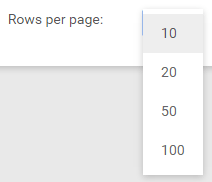
2.2 Click and choose from the dropdown to change the number of records to be displayed per page.
2.3 Click on the navigation buttons below the table to jump to a specific page.
2.4 Enter a page number and Click Go to jump directly to a specific page.

Was this article helpful?
That’s Great!
Thank you for your feedback
Sorry! We couldn't be helpful
Thank you for your feedback
Feedback sent
We appreciate your effort and will try to fix the article