The User Roles Management Page shows the list of user roles that are available for portal users. The admin will be able to create new user roles for specific users in this page. This user roles will then be used in user management page.
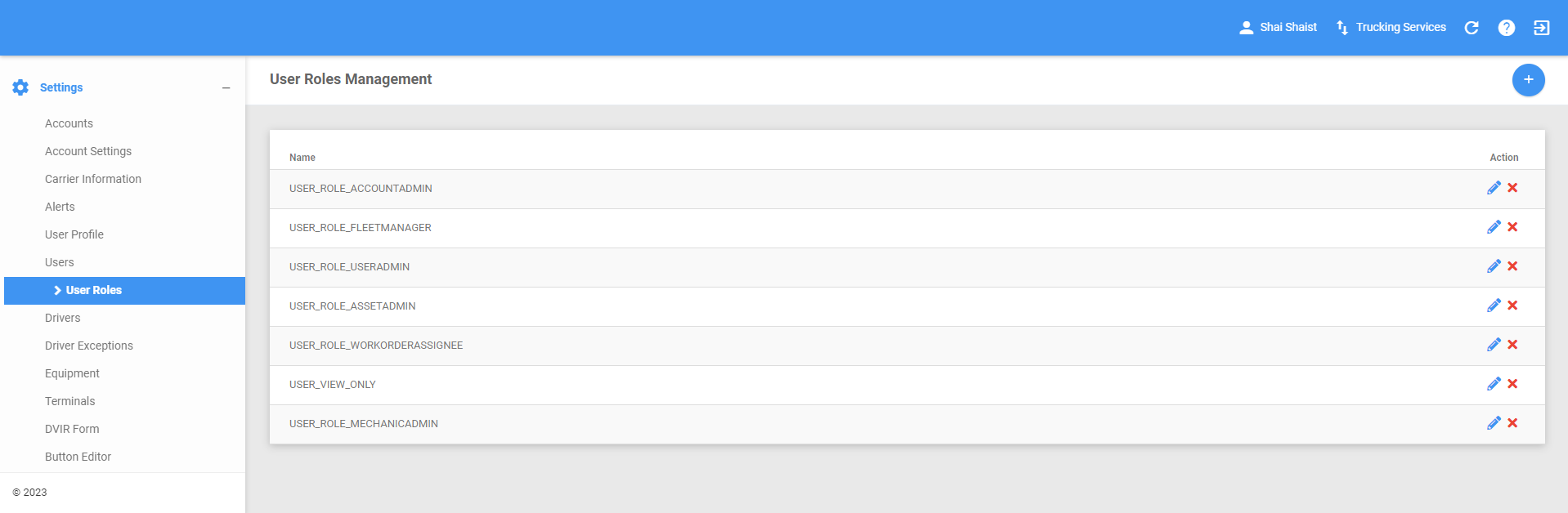
The User Roles page can be manually refreshed using the Refresh button within the site header.

Creating New User Roles
You can add user roles using the Add New User Role button. The newly created user role will then be added to the data table.
1. Click on the Add New User Role button.

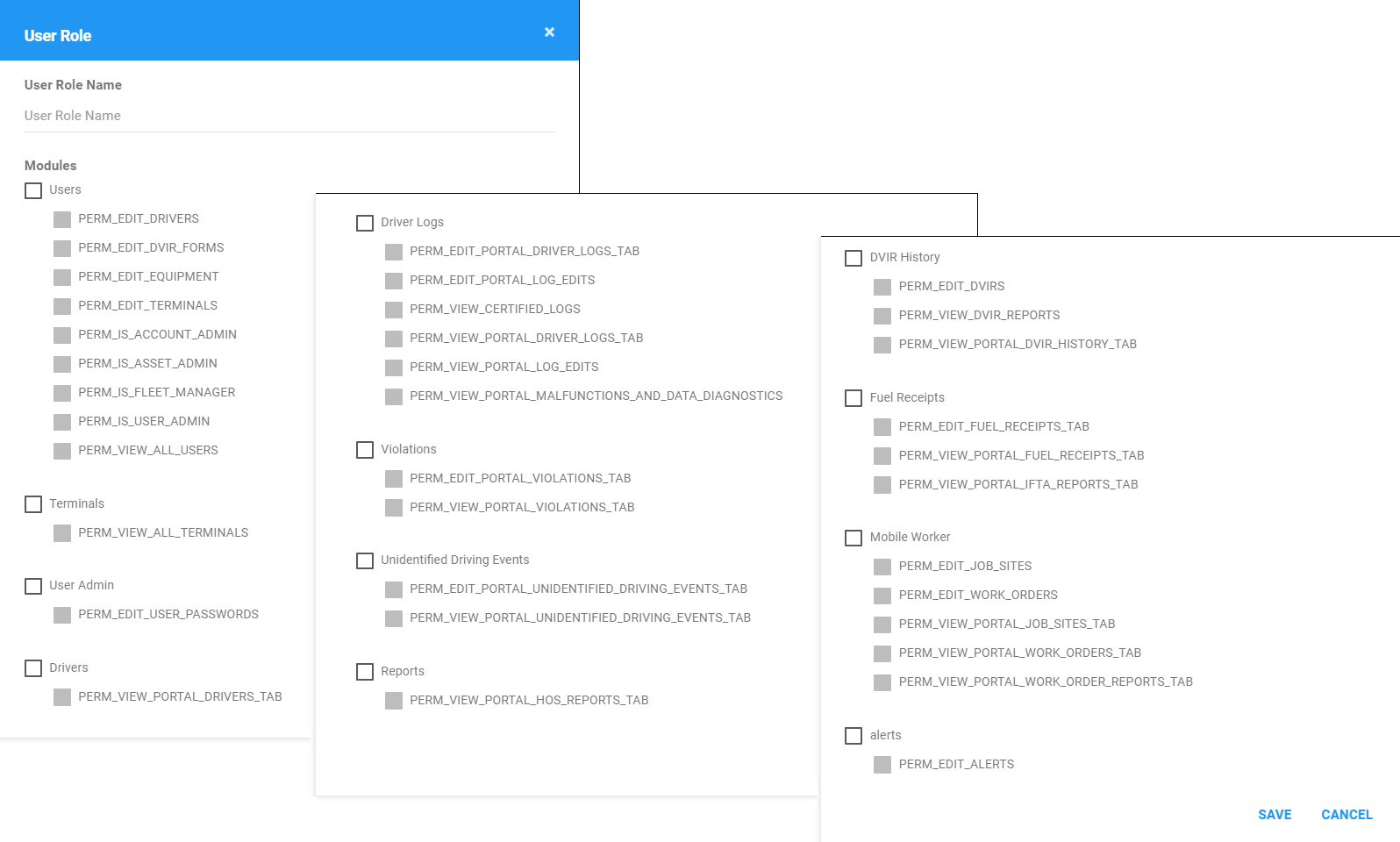
2. Fill in the User Role Information and set the appropriate user roles that is intended for a user.
NOTES:
If the current user has one of the user administration permissions then user will be able to see admin page and driver admin page:
PERM_IS_ACCOUNT_ADMIN
PERM_IS_FLEET_MANAGER
PERM_IS_USER_ADMIN
If the current user has PERM_EDIT_USER_PASSWORDS and one of the user administration permissions listed in #1, then the user will be able to see admin page and driver admin page.
If the current user has PERM_EDIT_USER_PASSWORDS but none of the user administration permissions listed in #1, then show the user admin page and driver admin page but has limited access:
The Create button and delete buttons are disabled.
Only the user/driver’s password are editable when attempting to edit a user. A dialog will appear with two textboxes for changing the user/driver’s password.
If the account has Mobile Worker enabled in its Default User Preference settings, then the USER_ROLE_WORKORDERASSIGNEE and PERM_IS_WORK_ORDER_ASSIGNEE will be available.
If the current user has PERM_EDIT_DRIVERS only then user will be able to see the drivers page. User will then be able to add, delete and update drivers information.
3. Click on the Save button to save the User Role. You can also click on the X button to cancel adding the user role.

Updating a User Role
1. Click on the Edit icon of a particular user. Edit the user’s information as you would in creating a user role.

2. Click on the Save button to save the updates made to the User Role. You can also click on the X button to cancel the updates made.

Deleting a User Role
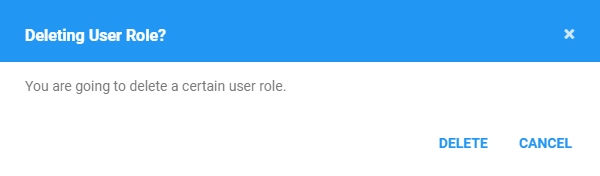
1. Click on the Delete icon of a particular user role. You can then click the Delete button to delete the user role.
Was this article helpful?
That’s Great!
Thank you for your feedback
Sorry! We couldn't be helpful
Thank you for your feedback
Feedback sent
We appreciate your effort and will try to fix the article