Overview
New Features:
- We've enhanced the Program and Fleet dashboards with new fleet status indicators, providing greater visibility into fleet activity and data reporting status across your insurance programs..
- SafetyIQ now supports Partner Business Reports for quarterly, half yearly, annual reviews, enabling users to generate comprehensive Quarterly Business Review (QBR) reports for both fleet level and program level analysis. Users can customize report content, include an optional AI-generated Executive Summary, and export a single consolidated PDF report.
- Introducing our enhanced version of AI Insights, a new and improved AI powered analytics feature that automatically transforms telematics data into actionable safety and operational insights. With a single click, users can generate summaries, identify high risk vehicles, benchmark performance, and receive targeted recommendations to support risk mitigation efforts.
Improvements:
- Enhanced backend automation for direct fleet account provisioning in SafetyIQ.
- Camera related events are now successfully ingested and available within SafetyIQ.
Deep Dive
Dashboard Status Enhancements
We've enhanced the Program and Fleet dashboards with new fleet status indicators, providing greater visibility into fleet activity and data reporting status across your insurance programs.
Understanding whether a fleet is actively participating in a program, reporting data, or has become inactive is essential for effective program management. These new status indicators help in quickly identifying fleet health, monitoring data availability, and take action when reporting issues arise
Where to Access
Program Dashboard updates:
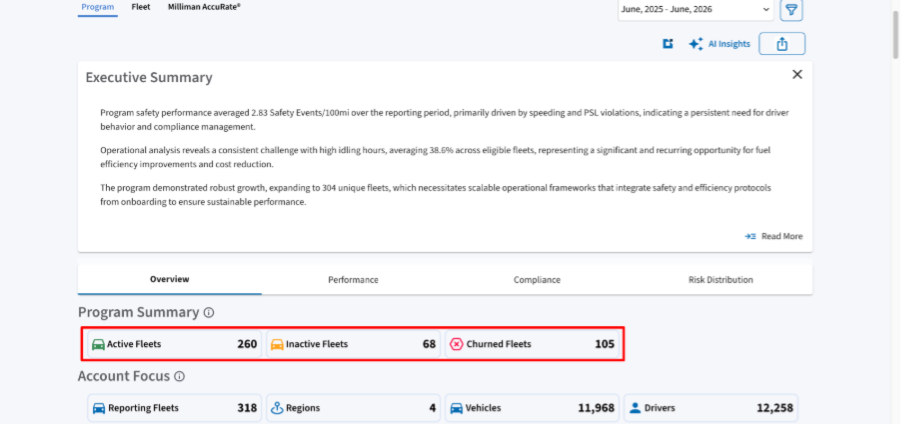
- Under the dashboard tab, click on Program
- scroll down to the program summary section
Fleet Dashboard updates:
- Click on the Fleet tab
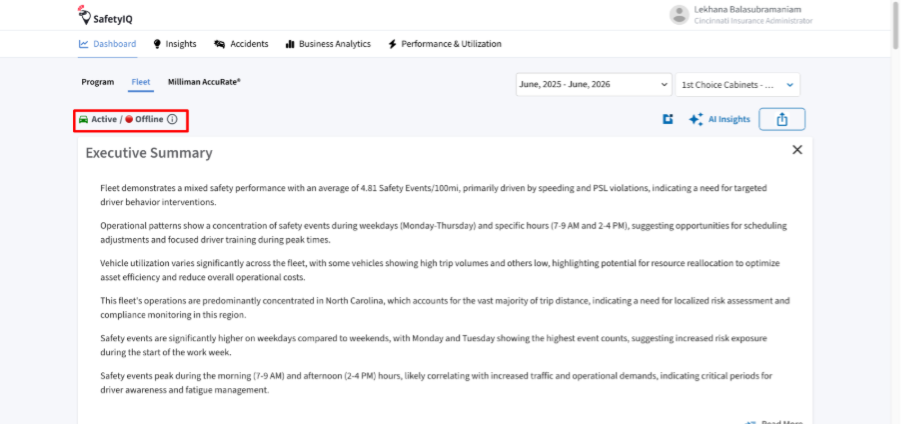
- The status is displayed above the Executive summary
What’s New
Program Dashboard Status Summary
The Program Dashboard now provides an at a glance summary of fleet status across the selected program, including:
- Active Fleets: Fleets currently participating in the program.
- Inactive Fleets: Fleets that have completed their program period and are retained for reporting purposes.
- Churned Fleets: Fleets that are no longer part of the program.
- Reporting Fleets: Total fleets currently available for reporting.
This provides a quick overview of program participation and fleet distribution.
Fleet Dashboard Connection Status
The Fleet Dashboard now displays the operational status of individual fleets using three distinct indicators:
- Active / Online: The fleet is active and has reported data within the last 24 hours.
- Active / Offline: The fleet is active but has not reported data within the last 24 hours.
- Inactive: The fleet has reached the end of its program period and is no longer ingesting new data.
These indicators help users quickly determine whether a fleet is actively reporting data or may require further investigation.
Partner Business Reports
SafetyIQ now supports Partner Business Reports for quarterly, half yearly, annual reviews, enabling users to generate comprehensive Quarterly Business Review (QBR) reports for both fleet level and program level analysis. Users can customize report content, include an optional AI-generated Executive Summary, and export a single consolidated PDF report.
Preparing QBRs previously required exporting multiple dashboards individually and manually combining them into a single report. This enhancement streamlines the entire process, making it faster and easier to create professional reports for customers and stakeholders.
Where to Access
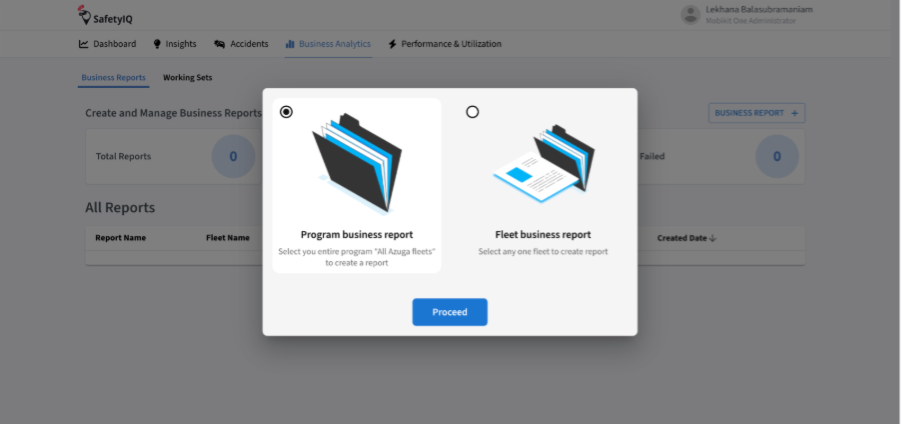
- Under the Business Analytics tab, navigate to the Business Reports section.
- Select either Program business report or Fleet business report and click on Proceed
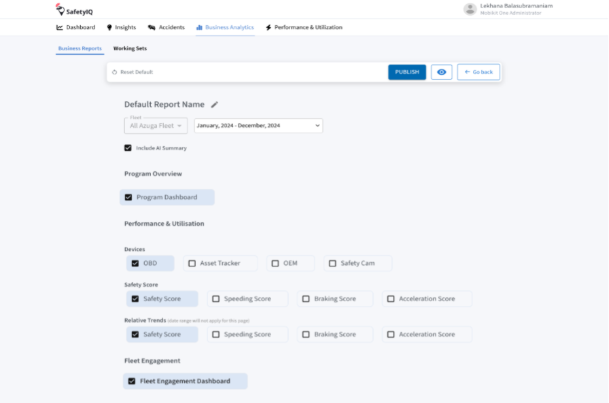
- Choose the dashboards to include in the report.
- (Optional) Click on the checkbox to include the AI Summary.
- Click on Publish
Once the published report appears on Business Analytics homepage, click on the download icon to download a PDF copy of the report
What’s New
Fleet Level & Program Level Reporting
Generate QBR reports at both levels:
- Fleet Level Reports: Review the performance, safety, and operational insights for an individual fleet.
- Program Level Reports (New): Analyze consolidated insights across all fleets within an insurance program.
This provides the flexibility to create reports for individual customers or present an overall program performance review.
Customizable QBR Reports
Create QBR reports by selecting the dashboards and pages you want to include. Supported report sections include:
- Program Dashboard
- Device Dashboards (OBD, SafetyCam, and other supported devices)
- Performance & Safety dashboards
- AI generated Executive Summary (optional)
This allows users to tailor reports to specific customers and business review requirements.
Automated PDF Generation
Once a report is published, it appears on the Business Analytics homepage, you can click on the download icon to download a PDF copy of the report.
Fleet AI Insights v2.0 (Vehicle focus)
Introducing our enhanced version of AI Insights, a new and improved AI powered analytics feature that automatically transforms telematics data into actionable safety and operational insights. With a single click, users can generate summaries, identify high risk vehicles, benchmark performance, and receive targeted recommendations to support risk mitigation efforts.
Insurance and risk management teams often spend significant time reviewing telematics data to identify trends and prioritize interventions. AI Insights simplifies this process by automatically surfacing the most important safety, compliance, and operational findings.
With the help of AI Insights, users can:
- Identify high risk vehicles faster.
- Benchmark vehicle performance across the fleet.
- Uncover key safety and operational trends.
- Implement proactive loss prevention initiatives.
- Share insights through downloadable reports.
Where to Access
- Go to Safety IQ dashboard
- Click on the Fleet tab
- Click on AI insights
- To download the report click on the download icon next to the AI Insights
What’s New
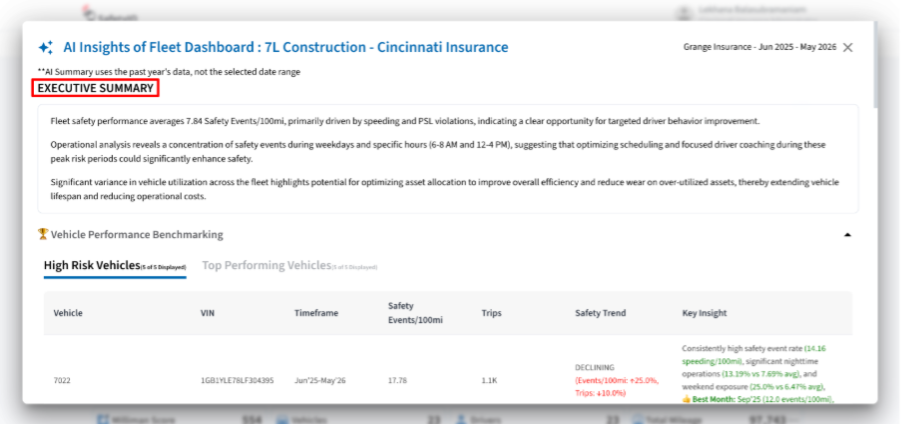
AI Generated Executive Summary
AI automatically analyses vehicle and fleet performance data to generate a concise executive summary highlighting key safety trends, operational patterns, and areas for improvement.
The summary provides a high level overview of program performance without requiring manual review of multiple reports.
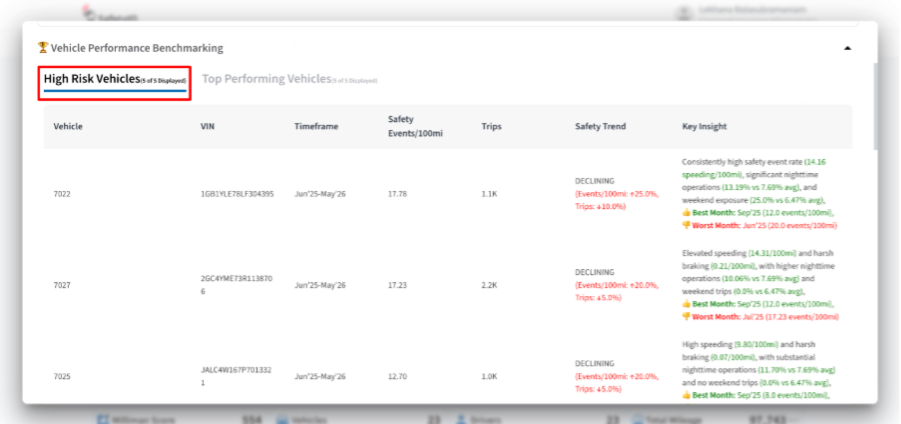
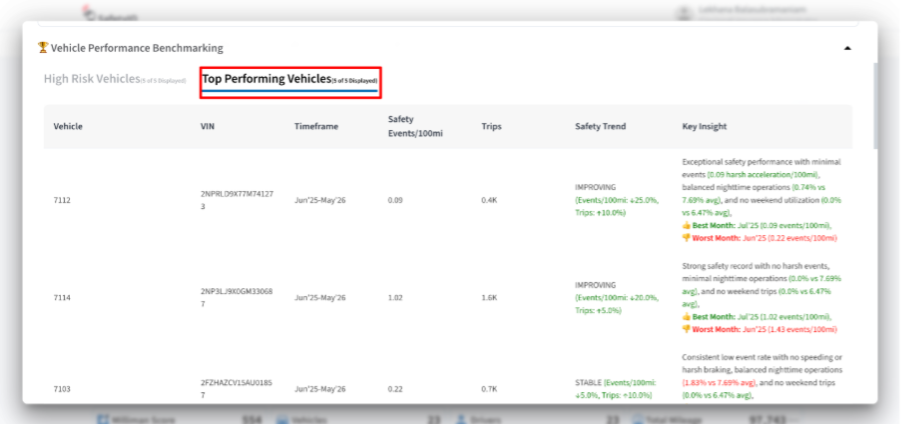
Vehicle Performance Benchmarking
Helps users automatically identify high risk and top performing vehicles based on safety performance, utilization, and trend analysis.
Key insights include:
- Safety Events per 100 miles
- Trip activity
- Performance trends
- AI generated risk insights
Download AI Summary Report
Export AI generated insights to a PDF report for sharing with underwriting teams, risk managers, safety consultants, and insured customers.
The report includes:
- Executive Summary
- Vehicle Benchmarking
- Safety & Compliance Analysis
- Strategic Recommendations
- Risk Insights
Trend Classification & Risk Scoring
AI classifies vehicle performance as Improving, Stable, Volatile, or Declining and prioritizes high risk vehicles using a transparent scoring methodology.
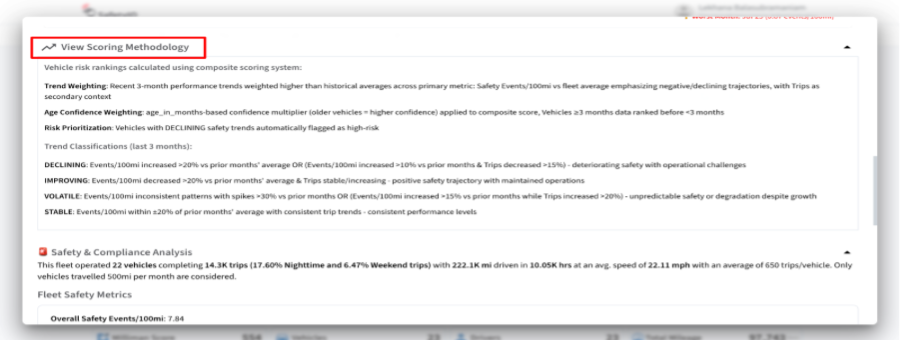
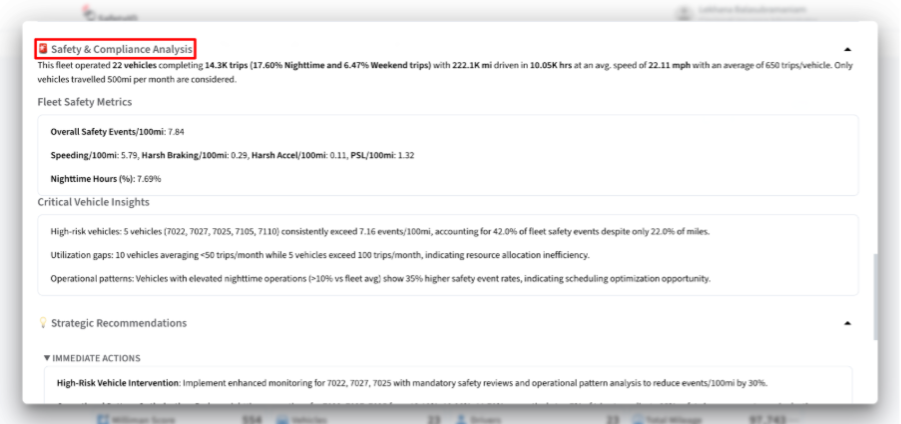
Safety & Compliance Analysis
View AI generated analysis of key safety metrics, including speeding, harsh driving events, PSL violations, night time driving, and vehicle utilization patterns.
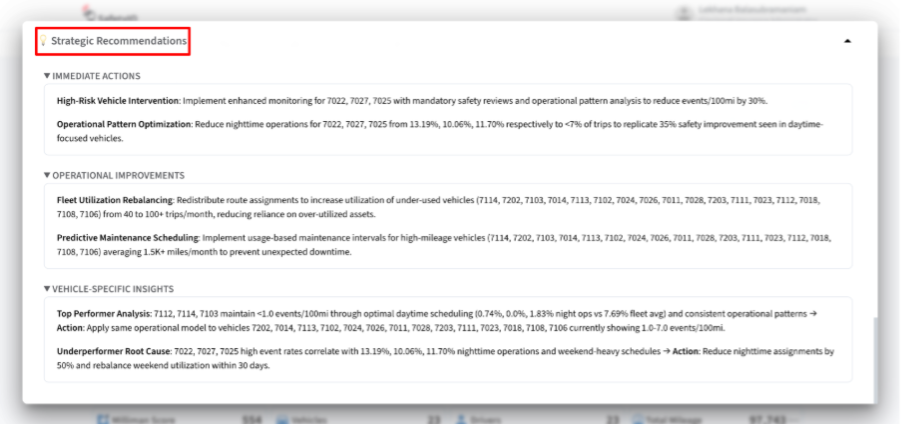
Strategic Recommendations
Receive actionable recommendations designed to improve safety outcomes, optimize vehicle utilization, and reduce overall risk exposure.
Was this article helpful?
That’s Great!
Thank you for your feedback
Sorry! We couldn't be helpful
Thank you for your feedback
Feedback sent
We appreciate your effort and will try to fix the article