New Features:
- We've introduced a redesigned Drivers and Users management experience to make it easier to manage your fleet personnel, assign vehicles, and control portal access all from a more intuitive interface.
- Searching for the right vehicle just got easier. We've enhanced the Search & Filter experience to help you quickly locate vehicles and refine results with greater precision, especially when managing larger fleets.
- Introducing Ask Azuga, an AI-powered product assistant designed to help you get the information you need, right when you need it. Whether you're learning a feature, looking for guidance, or trying to complete a task, Ask Azuga is ready to assist directly within the Azuga platform.
- We are introducing Automated VIN Decoding to simplify vehicle onboarding and improve data accuracy when adding new vehicles.
- We've made it significantly easier to review requested video footage from start to finish by introducing a set of usability improvements. These enhancements improve visibility into multi part requested videos and reduce the risk of incomplete footage review
Other Updates:
- We’re excited to announce the launch of the new Resource Center experience for all Azuga Direct customers.
Deep Dive
New Drivers & Users Management Experience
We've introduced a redesigned Drivers and Users management experience to make it easier to manage your fleet personnel, assign vehicles, and control portal access all from a more intuitive interface.
The updated experience provides faster navigation, improved visibility, and simplified workflows, helping administrators complete everyday tasks more efficiently.
What's New?
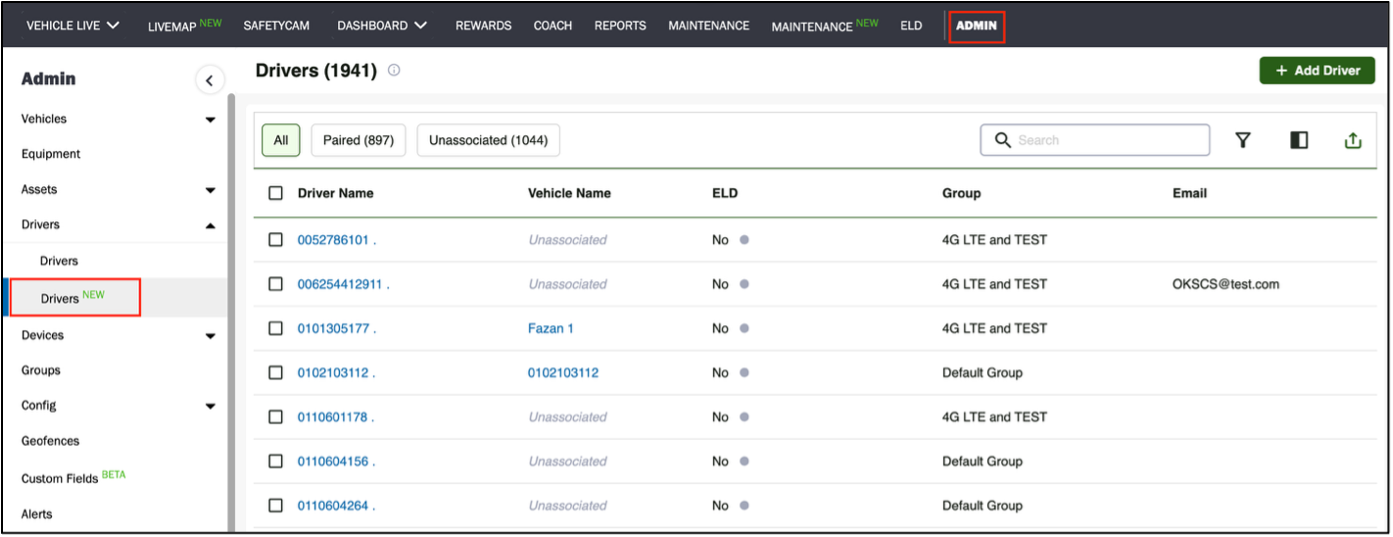
Drivers:
Navigation: Admin → Drivers → Drivers (New)
- View all drivers along with their vehicle association and ELD status.
- Quickly identify Paired and Unassociated drivers using built in filters.
- Search, create, edit, and manage driver records with an improved interface.
- Access important driver information faster with enhanced visibility.
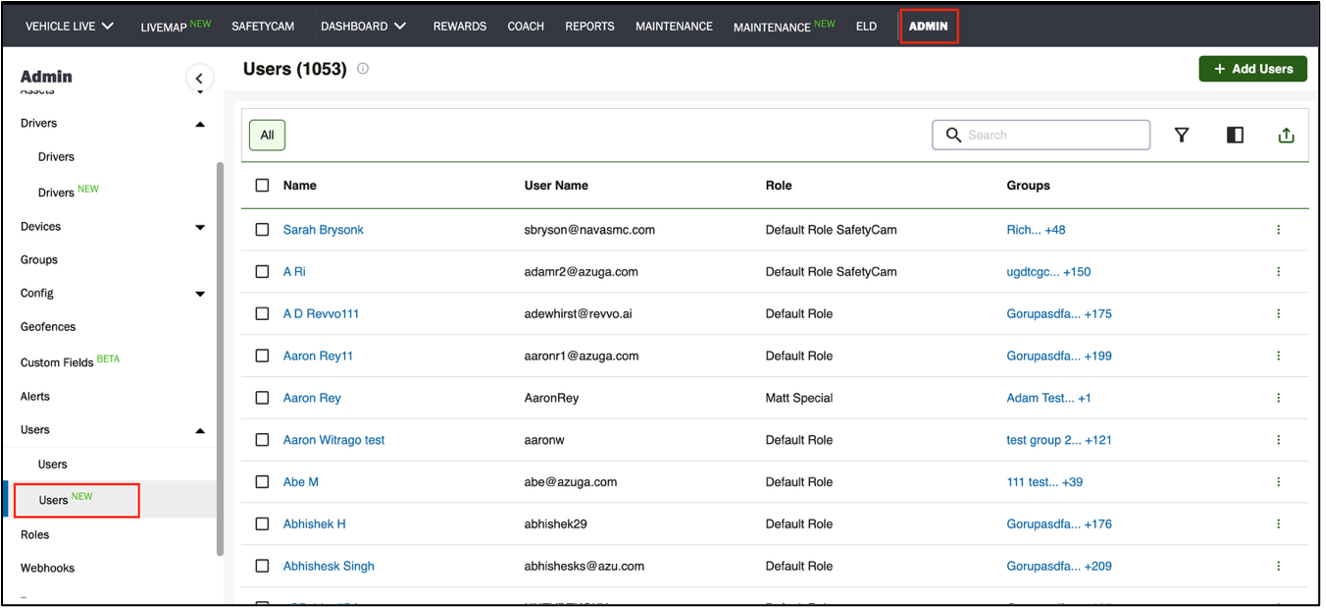
Users:
Navigation: Admin → Users → Users (New)
- View all portal users along with their assigned roles and group associations.
- Quickly search and filter users.
- Create new users and assign roles and permissions with ease.
- Manage user access and group visibility from a centralized location.
Benefits
- Modern and intuitive user interface
- Faster search and filtering
- Streamlined driver and user management workflows
- Improved visibility into driver assignments and user access
- Centralized management of people, roles, and permissions
This enhancement helps fleet managers save time while making it easier to manage drivers, users, and access across their organization.
For more detailed information about the feature refer to [Customer] User Guide – New Admin
Find Vehicles Faster with the Enhanced Search & Filter Experience
Whether you're looking for a specific vehicle, filtering by custom attributes, or frequently using the same search criteria, the new experience helps you get to the information you need faster.
What’s New
Navigation: Admin → Vehicles
Smarter Search:
- Search across all columns at once or narrow your search to a specific column.
- View real time search results as you type.
- Easily identify matching values with highlighted search results.
More Powerful Filtering:
- Filter vehicles using a wide range of criteria, including supported custom fields.
- View a clear summary of all applied filters before searching.
- Quickly modify or remove filters without starting over.
Saved Filters:
- Save frequently used filter combinations for one click access.
- Reuse saved filters to simplify repetitive tasks and maintain consistency across your team.
Key Benefits:
- Find vehicles faster with flexible search options.
- Narrow results more efficiently using advanced filters.
- Reduce repetitive work by saving commonly used filter combinations.
- Improve productivity with a faster and more intuitive search experience.
- Easily manage large fleets with greater visibility and control.
The enhanced Search & Filter experience is designed to help you spend less time searching and more time managing your fleet.
Reference Guide: For more information, refer to the New Search and Filter .pdf
Meet Ask Azuga Your AI-Powered Product Assistant
Introducing Ask Azuga, an AI-powered product assistant designed to help you get the information you need, right when you need it. Whether you're learning a feature, looking for guidance, or trying to complete a task, Ask Azuga is ready to assist directly within the Azuga platform.
What Can Ask Azuga Help You With?
- Get instant answers to product related questions.
- Learn how to use features and complete common workflows.
- Find answers to frequently asked questions.
- Access relevant help articles without leaving the application.
Why You'll Love It
- Resolve questions faster without searching through documentation.
- Learn the platform with guided, on demand assistance.
- Become productive more quickly with self service support.
- Stay focused by getting help exactly where you're working.
- Enjoy a more seamless and efficient product experience.
Automated VIN Decoding
We are introducing Automated VIN Decoding to simplify vehicle onboarding and improve data accuracy when adding new vehicles.
This enhancement automatically populates the vehicle's Make, Model, and Year after a valid 17-character VIN is entered, reducing manual data entry and helping maintain consistent vehicle information across your fleet.
What's New
- Automatic decoding of a valid Vehicle Identification Number (VIN)
- Auto populates Make, Model, and Year when those fields are empty
- Real time VIN validation with visual confirmation
- Existing Make, Model, and Year values are preserved if already entered
- Continue completing the vehicle form while VIN decoding occurs in the background
Where to Access
- Go to Admin → Vehicles
- Click Add Vehicle
- Enter a valid 17-character VIN
- Move to the next field to trigger VIN validation and decoding
- Review the automatically populated Make, Model, and Year
- Complete the remaining required fields and click Save
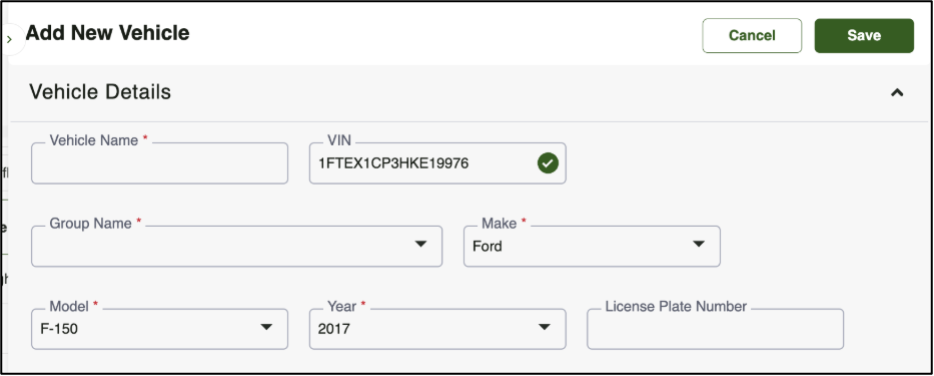
Note: VIN decoding only populates the Make, Model, and Year fields when they are empty. If these fields already contain values, they will not be overwritten.
Benefits
- Reduce manual data entry during vehicle onboarding
- Improve the accuracy and consistency of vehicle information
- Speed up the vehicle creation process
- Minimize data entry errors with automatic VIN validation
- Save time by eliminating the need to manually look up vehicle details
Multi part request video experience enhancement
We've made it significantly easier to review requested video footage from start to finish by introducing a set of usability improvements. These enhancements improve visibility into multi part requested videos and reduce the risk of incomplete footage review.
Users can now:
- Clearly identify when additional footage exists
- Move between parts of the video more efficiently
- Understand playback continuity at a glance
- Review requested footage with greater confidence and accuracy
Where to Access
- Click on the Safetycam tab
- Navigate to the “Requested Videos” section under the “Segments” panel
- Click on the video you would like to view
What’s New:
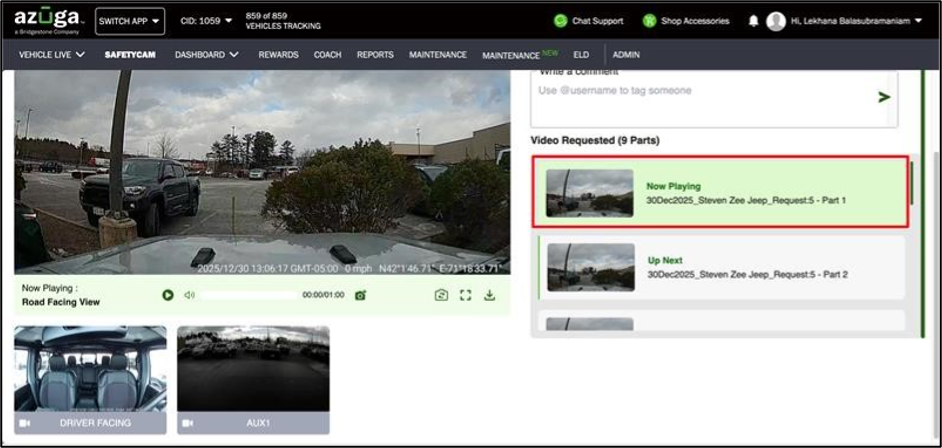
A playlist now appears on every requested video page.
- Clearly highlights the part currently being viewed
- Identifies the next part in sequence using an “Up next” indicator
- Supports independent scrolling without affecting the overall page
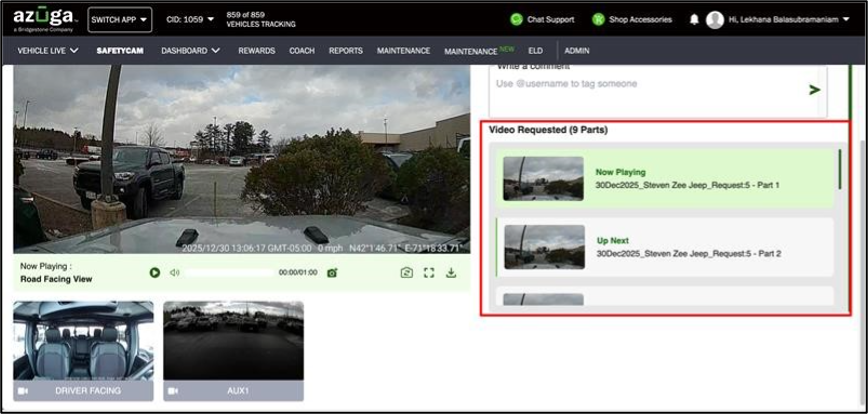
In addition to this, the media player also clearly shows which camera view you’re watching, such as Driver Facing View or Road Facing View across requested videos, event videos, and both default and full screen modes.
The part currently being viewed is also highlighted in the playlist, making it easier to follow along and navigate between video parts
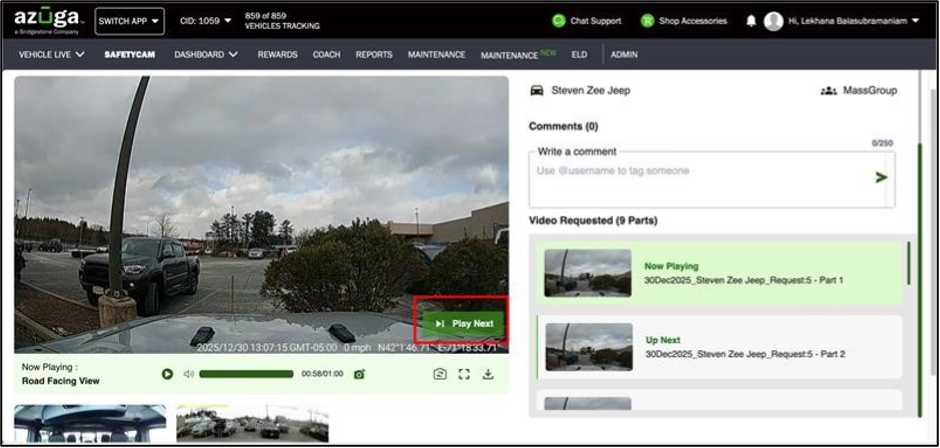
A Play Next button now appears as an overlay in the bottom right corner of the media player during the last 5 seconds of any part that has a follow up
New Resource Center Experience
We’re excited to announce the launch of the new Resource Centre experience for all Azuga Direct customers.
What’s Improved
- Faster and easier access to help content
- Cleaner and more intuitive user experience
- Improved navigation and article discovery
- Better organization of FAQs and support resources
This enhancement is designed to help customers quickly find answers and improve overall self service experience across the platform.
For PDF copy : [Customer] Fleet Web Release Notes - July_v26.1.pdf
Was this article helpful?
That’s Great!
Thank you for your feedback
Sorry! We couldn't be helpful
Thank you for your feedback
Feedback sent
We appreciate your effort and will try to fix the article