New Features
- Managing a fleet often means jumping between multiple screens to understand what is happening with a vehicle. The enhanced Vehicle Drawer brings key vehicle information together in one centralized view, helping you quickly understand vehicle status, investigate issues, and take action without leaving the vehicle workflow.
- We're excited to introduce the Optional Extension Cable for the SafetyCam Plus Square Auxiliary Camera. This enhancement provides customers with the ability to extend auxiliary camera installations up to 30 meters, offering more flexibility for larger vehicle setups.
Improvements
- SafetyCam events are now organized into expandable sections with vertical scrolling, making it easier to browse and locate specific events, especially when managing high event volumes.
- Events is now available as a dedicated dimension under the SafetyCam filter, allowing users to select specific event types. The events displayed are based on the account configuration and history, including events with media uploaded in the past one year and events currently enabled for media.
- Video request statuses are now consolidated into three clear categories:Request Queued, Request Failed, and Request Completed. Users can understand the status of a video request at a glance and quickly determine whether further action is required.
- Users can now hover over the comment icon on a video tile to view all associated comments in chronological order without leaving the current views.
- Unassociated camera events can now display location information using the camera’s own GPS, providing additional context when reviewing and investigating events.
Deep Dive
Enhanced Vehicle Drawer Experience
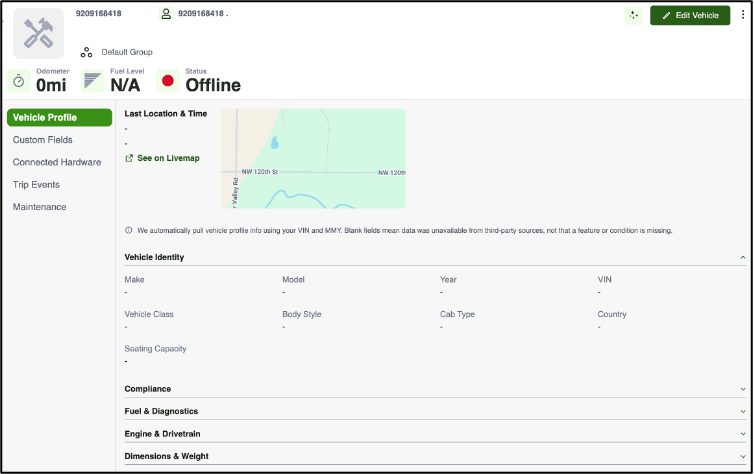
Managing a fleet often means jumping between multiple screens to understand what is happening with a vehicle. The enhanced Vehicle Drawer brings key vehicle information together in one centralized view, helping you quickly understand vehicle status, investigate issues, and take action without leaving the vehicle workflow.
What’s included
Navigation: Admin → Vehicles → Vehicles New → Select a vehicle.
- Vehicle Profile – View essential vehicle information, including location, status, odometer, fuel and diagnostic details.
- Active DTCs – Quickly identify active Diagnostic Trouble Codes and get visibility into vehicle issues.
- Custom Fields – Access important fleet-specific information configured for the vehicle.
- Connected Hardware – View connected device and hardware information to help verify vehicle connectivity.
- Trip Events – Review recent trips, locations, trip details, and associated events in one place.
- Maintenance – View service history, maintenance status, reminders, and spend details.
- AI Summary – Get a concise overview of key vehicle information and insights to help you understand the vehicle faster.
- Direct Access to Modules – Navigate to the relevant Azuga module when you need a deeper investigation or additional action.
Why it matters:
With the enhanced Vehicle Drawer, you can spend less time searching across modules and more time managing your fleet. Get the context you need to identify an issue, understand what happened, and take the next step all from a single vehicle view.
New Square Auxiliary Camera with Extendable Cable
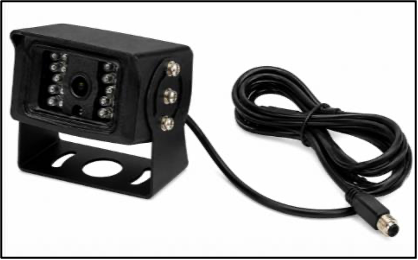
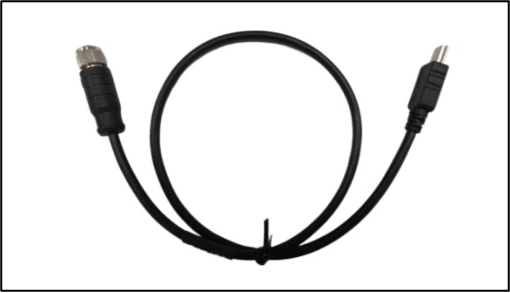
We're excited to introduce the Optional Extension Cable for the SafetyCam Plus Square Auxiliary Camera. This enhancement provides customers with the ability to extend auxiliary camera installations up to 30 meters, offering more flexibility for larger vehicle setups.
The new Square Auxiliary Camera supports an optional extension cable of up to 30 meters (98 ft). The cable connects between the auxiliary camera and the USB-C adapter, providing additional reach when the standard cable length is not sufficient.
What's New?
This added flexibility makes it easier to position the camera where needed while supporting a wider range of vehicle sizes and installation configurations.
- Supports cable lengths of up to 30 meters (98 ft)
- Provides greater flexibility for longer or more complex cable routing
- Connects between the Square Auxiliary Camera and USB-C adapter
- Optional accessory, sold separately
- Does not change the camera’s functionality or performance
- In short: More installation flexibility, with the same reliable SafetyCam Plus camera experience.
What Stays the Same?
Although the optional Extension Cable adds more installation flexibility, the overall camera experience remains unchanged.
- Same Square Auxiliary Camera
- Same functionality and performance
- Same installation process (with one optional extension cable step)
- Same camera connectivity
- No changes to camera operation or troubleshooting
Product Details
- Product Name: Extension Cable for SafetyCam Plus Square Auxiliary Camera
- Compatibility: SafetyCam Plus
- Packaging: Optional accessory, sold separately
Easier Event Navigation
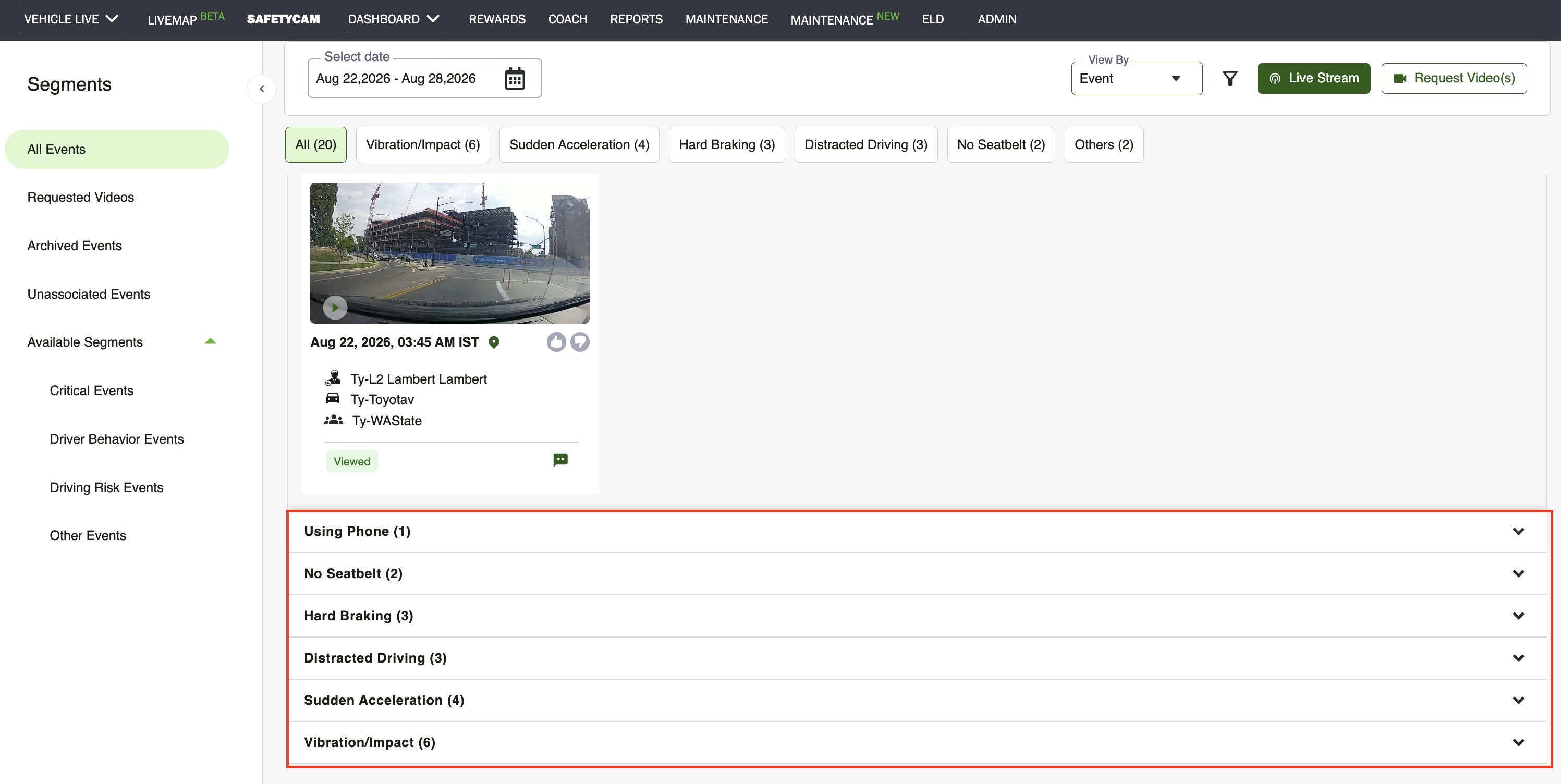
SafetyCam events are now organized into expandable sections with vertical scrolling, making it easier to browse and locate specific events, especially when managing high event volumes
Users can quickly navigate through large numbers of events, making event review faster and more intuitive
What's New?
SafetyCam events are now organized into expandable sections with vertical scrolling, replacing the previous horizontal scrolling experience. Users can expand the sections they need and quickly browse through available events in a more intuitive layout.
This is especially helpful for fleets with a high volume of events, making it easier to scan through event information and locate a specific event without navigating across the screen.
Events Added to SafetyCam Filters
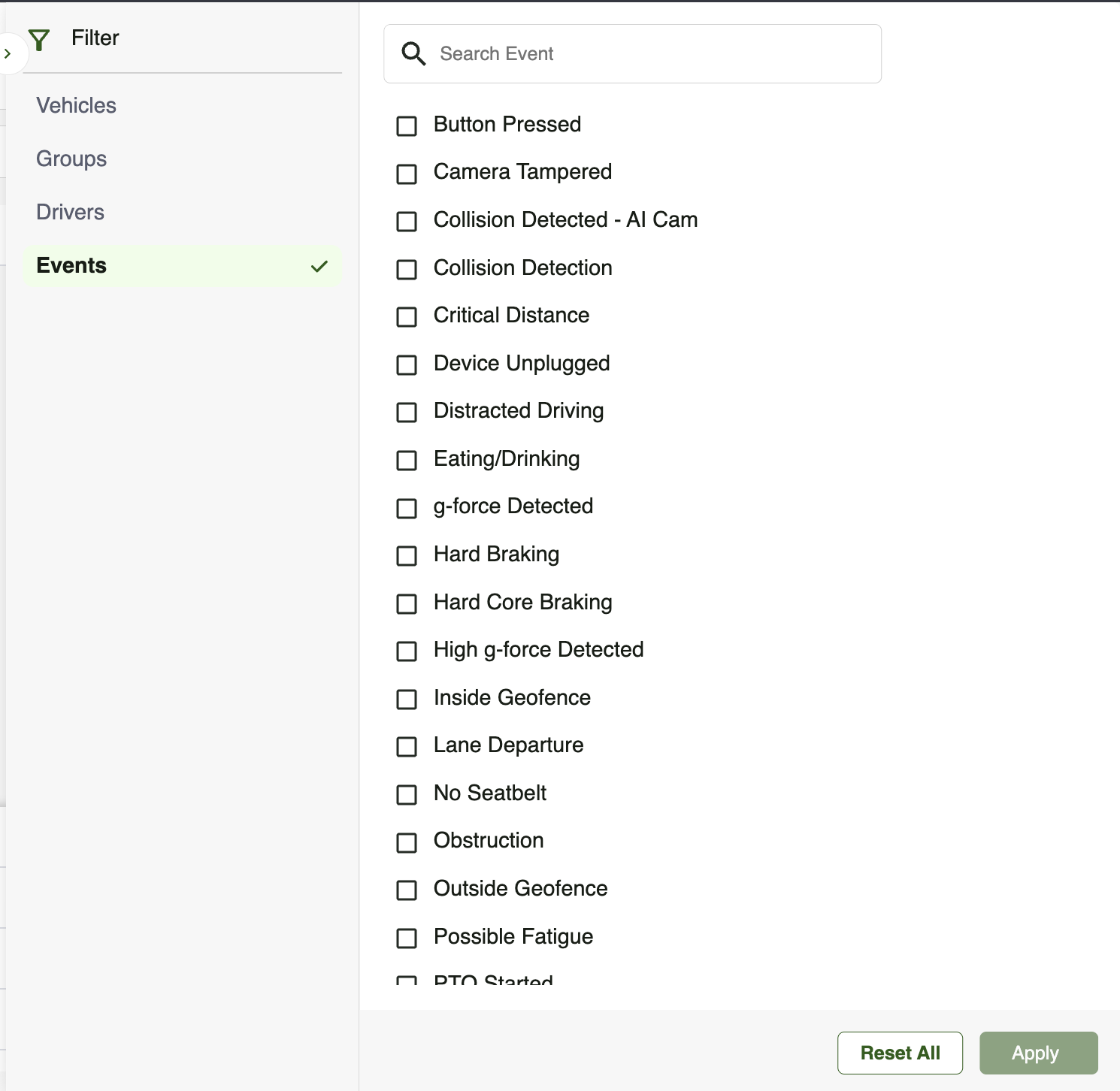
Events are now available as a dedicated dimension under the SafetyCam filter, allowing users to select specific event types. The events displayed are based on the account configuration and history, including events with media uploaded in the past one year and events currently enabled for media.
Users can quickly navigate through large numbers of events, making event review faster and more intuitive
What's New?
Events are now available as a dedicated dimension under the SafetyCam filter, allowing users to select specific event types.The events displayed are based on the account’s configuration and history, including events with media uploaded in the past one year and events currently enabled for media. As a result, available event options may vary by account.
Vehicles are also now available as a filter dimension, making it easier to narrow results by specific vehicles. A highlight and enable experience to have also been introduced for Group selection, making it easier to identify and select available groups.
Simplified Video Request Statuses
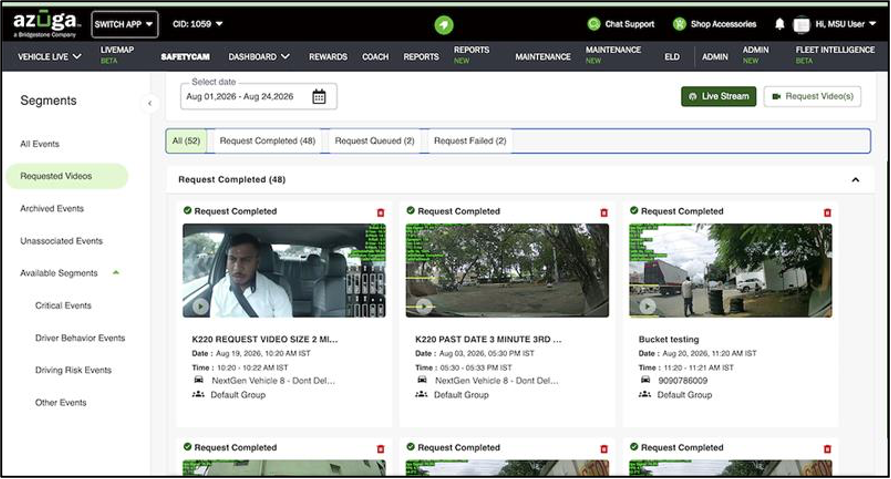
Video request statuses are now consolidated into three clear categories: Request Queued, Request Failed, and Request Completed. Users can understand the status of a video request at a glance and quickly determine whether further action is required.
Users can understand the status of a video request at a glance and quickly determine whether further action is required.
What's New?
Video request statuses have been simplified into three clear categories:
- Request Queued
- Request Failed
- Request Completed
This provides a more consistent and straightforward way to understand the status of video requests.
Where to Access
- Click on the SafetyCam tab on the Web Fleet appliication
- Click on the Requested Videos on the left side panel
- All the Requested Videos along with their status will be displayed
Easier Comment Viewing
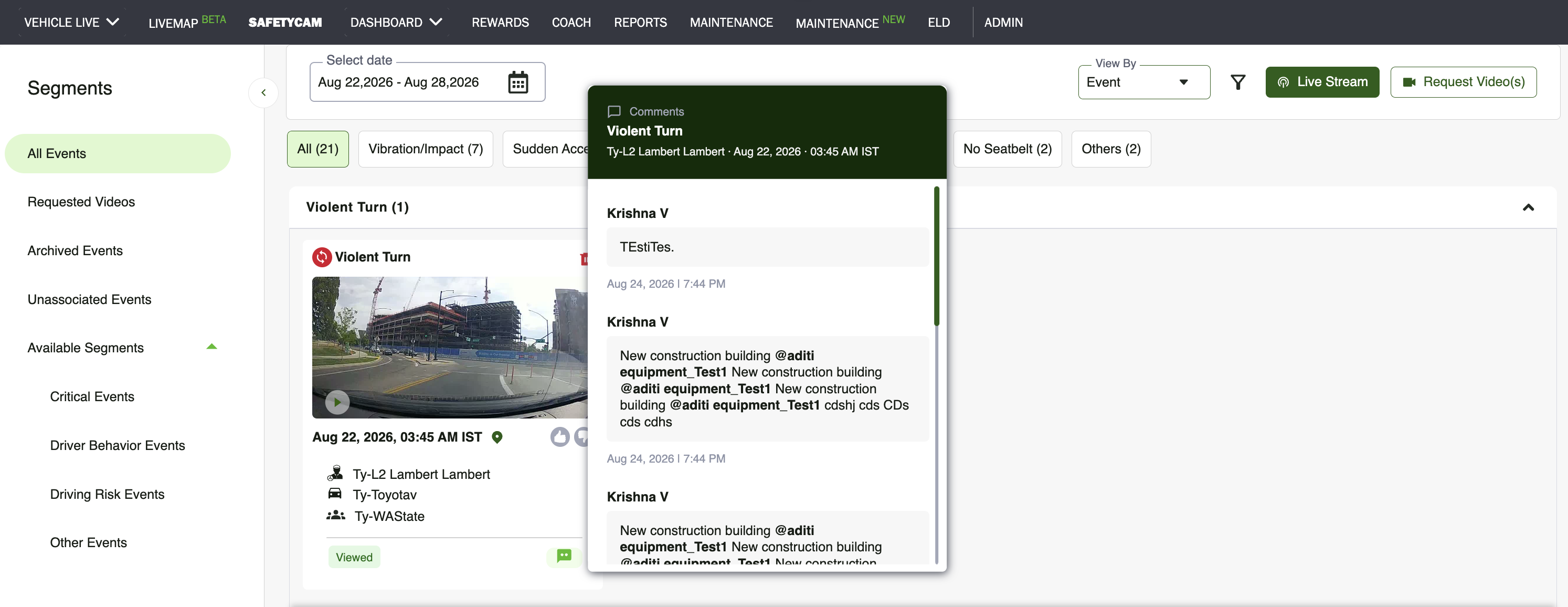
Users can now hover over the comment icon on a video tile to view all associated comments in chronological order without leaving the current views..
This provides quick access to the full context surrounding a video without requiring users to open additional screens.
What's New?
Comments associated with a video can now be viewed directly from the video tile. Hover over the comment icon to open a modal displaying all comments in chronological order.
Maps for Unassociated Camera Events
Unassociated camera events can now display location information using the camera’s own GPS, providing additional context when reviewing and investigating events.
This enhancement provides additional location context for unassociated events and supports a more complete event investigation.
What's New?
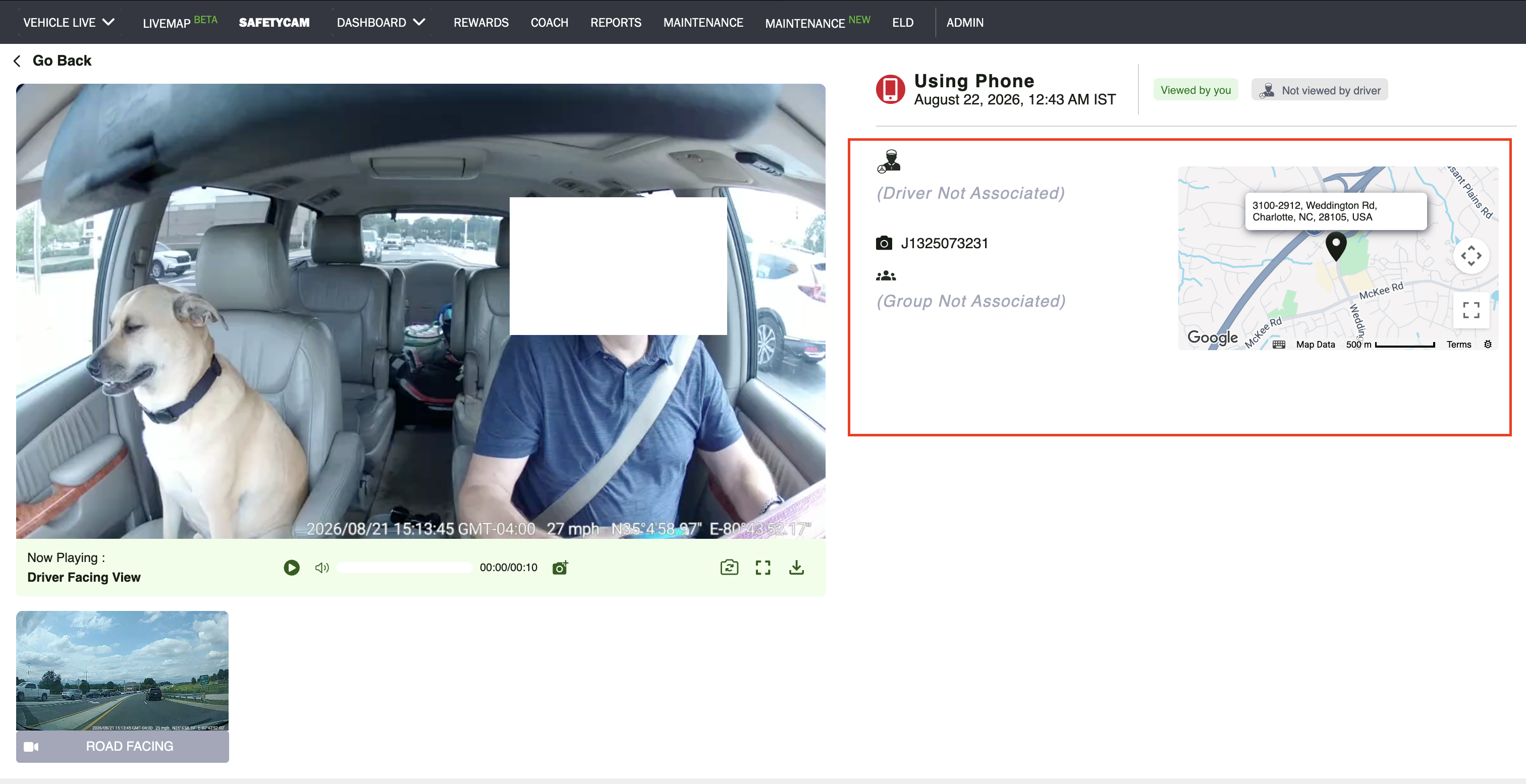
Unassociated camera events now include map and location information sourced from the camera’s GPS. Previously, these events did not display a map because location information relied on OBD/OEM data.
Where to Access
- Click on the SafetyCam tab on the Web Fleet application
- Click on Unassociated Events on the side panel
- This displays all the unassociated events
- Click on any of the video tile, this displays all the event details along with the map acquired from the camera’s GPS
For PDF version: [Customer] Fleet Web Release Notes - August_v26.1.pdf
Was this article helpful?
That’s Great!
Thank you for your feedback
Sorry! We couldn't be helpful
Thank you for your feedback
Feedback sent
We appreciate your effort and will try to fix the article