Improvements:
- Azuga API documentation now provides a secure login experience, ensuring that only authorized users can access Swagger documentation. This enhancement helps protect API information while allowing authorized users to explore available APIs and find the information they need.
- Managing reports is now more convenient with scheduled delivery for supported reports. Instead of manually generating and downloading reports whenever they are needed, users can configure a schedule and have reports automatically generated and emailed to designated recipients.
Deep Dive
Enhanced Security for Swagger API Documentation
Azuga API documentation now provides a secure login experience, ensuring that only authorized users can access Swagger documentation. This enhancement helps protect API information while allowing authorized users to explore available APIs and find the information they need.
What’s Improved
- Secure Access: Sign in with valid credentials to access Swagger API documentation.
- Account Verification: Access is available only to users with valid, active, and verified accounts.
- Easy Navigation: Once signed in, navigate between API groups and explore documentation without having to log in again during the same browser session.
- Session Protection: You may need to sign in again when starting a new browser session.
Benefits
- Improved API Security: Helps prevent unauthorized users from accessing API specifications and documentation.
- Protected API Resources: Adds an authentication layer to Swagger documentation endpoints.
- Better Developer Experience: Enables authorized developers to explore API documentation and work with API specifications without repeated authentication prompts during an active browser session.
How It Works
Open the Swagger API documentation and sign in when prompted. Once authenticated, you can browse available APIs and review their documentation. If your credentials are invalid or your account is inactive or unverified, you will not be able to access the documentation.
This enhancement provides a more secure and convenient way for authorized users to access Azuga API documentation.
Schedule Certified and Uncertified Reports
Managing reports is now more convenient with scheduled delivery for supported reports. Instead of manually generating and downloading reports whenever they are needed, users can configure a schedule and have reports automatically generated and emailed to designated recipients.
This enhancement helps administrators and compliance teams maintain regular access to important report data, reduce repetitive manual work, and simplify reporting across supported areas of the platform, including Hours of Service (HOS), State Mileage, and Driver Vehicle Inspection Reports (DVIR), wherever scheduling is available.
What’s New
1.Schedule Supported Reports
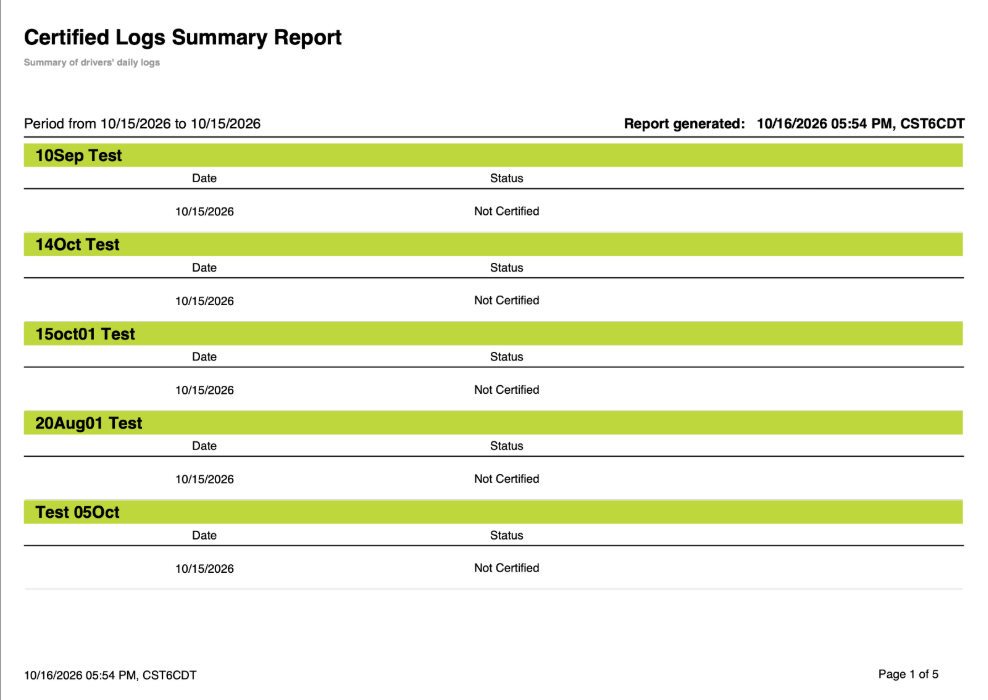
Users can schedule supported reports directly from the relevant Reports section. For example, the Certified Logs Summary and Uncertified Logs Summary reports can be scheduled from the HOS Reports section, making it easier to establish recurring reporting routines and keep stakeholders informed.
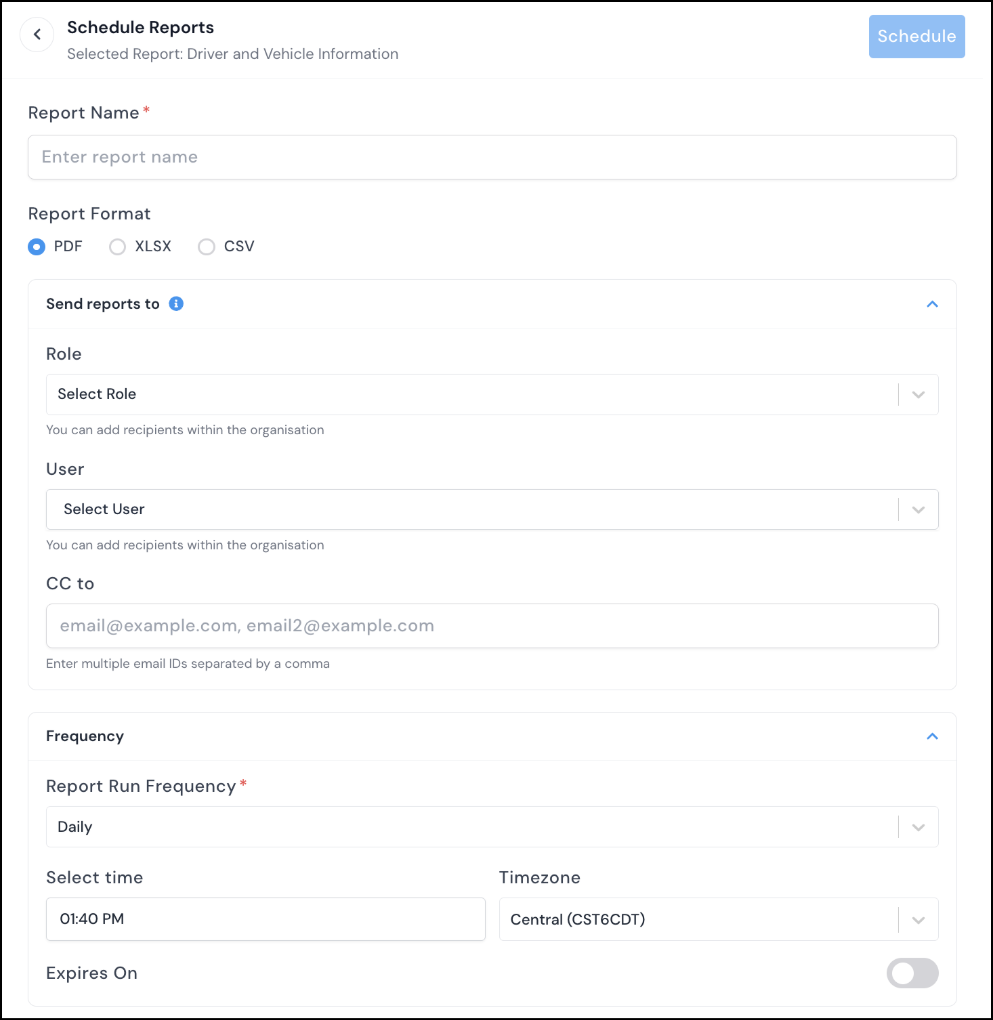
2. Flexible Report Configuration
Customize each scheduled report to suit your operational needs.
- Report Name: Assign a meaningful name to identify and manage the schedule.
- Report Format: Choose from PDF, XLSX, or CSV, where supported.
- Report Filters: Apply available filters, such as drivers and terminals, to focus on the information relevant to your fleet.
3. Configurable Recipients
Control who receives each scheduled report.
- Send Reports To: Select system users within your organization as recipients.
- CC To: Add additional email addresses, including recipients who are not system users. Multiple email addresses can be entered as a comma-separated list.
4. Flexible Scheduling Options
Choose a delivery frequency that matches your reporting requirements:
- Daily
- Weekly
- Monthly
- Quarterly
You can also specify the delivery time. The scheduler displays its time zone so you know when the report is expected to be sent.
5. Schedule Expiration
Set an optional expiration date and time to determine when a recurring schedule should stop. This is useful for temporary reporting requirements, time-bound compliance reviews, or periodic operational initiatives.
6. Manage Scheduled Reports
View and manage existing schedules in the Scheduled Reports tab. Review available details, such as the report type, schedule name, frequency, last run, next run, and expiration date. You can also edit or delete schedules as your reporting needs change.
Benefits
- Save time: Reduce the need to generate and distribute recurring reports manually.
- Improve reporting consistency: Establish regular delivery for supported reports across different fleet management areas.
- Keep stakeholders informed: Automatically distribute reports to designated recipients.
- Simplify report distribution: Include organizational users and additional email recipients.
- Support different workflows: Configure report formats, filters, delivery frequency, time zone, and expiration based on the available options.
How to Get Started
- Navigate to the relevant Reports section.
- Select the scheduled report creation option available for the report.
- Choose the report type, where multiple options are available.
- Configure the report name, format, filters, recipients, frequency, delivery time, and optional expiration, as supported.
- Save the schedule to enable recurring report delivery.
Once configured, scheduled reports are generated and distributed according to the saved settings, helping your team spend less time on routine reporting and more time managing fleet operations and compliance.
Was this article helpful?
That’s Great!
Thank you for your feedback
Sorry! We couldn't be helpful
Thank you for your feedback
Feedback sent
We appreciate your effort and will try to fix the article