Fleet Managers have the control to set geofence tracking hours based on their Fleet’s needs. You can choose between 2 different options to either track the vehicle 24/7 or set your own custom hours based on the Fleet’s operation hours. This allows you to track the vehicles entering and exiting the geofence during the tracking hours selected and send alert notifications accordingly.
For a video explanation of the Geofences section, please refer to the following link:
To set up your tracking hours:
- Navigate to ADMIN >> Geofences.
- Click on the icon to open an existing geofence or Click Add Geofence to create a new one.
- Scroll down the open window to the Time Frame section.
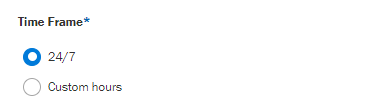
If you would want to track the address during the entire day select 24/7 or select Custom hours and enter the day and timeframe for address detection based on your Fleet's operation.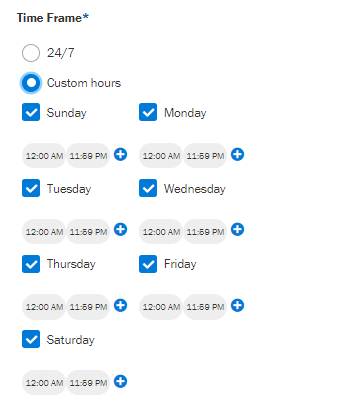
Was this article helpful?
That’s Great!
Thank you for your feedback
Sorry! We couldn't be helpful
Thank you for your feedback
Feedback sent
We appreciate your effort and will try to fix the article