The Mobile Worker Reports page provides access to various detailed reports on Work Orders. Simply Click on the buttons to display the dialog corresponding to the report you want to generate.
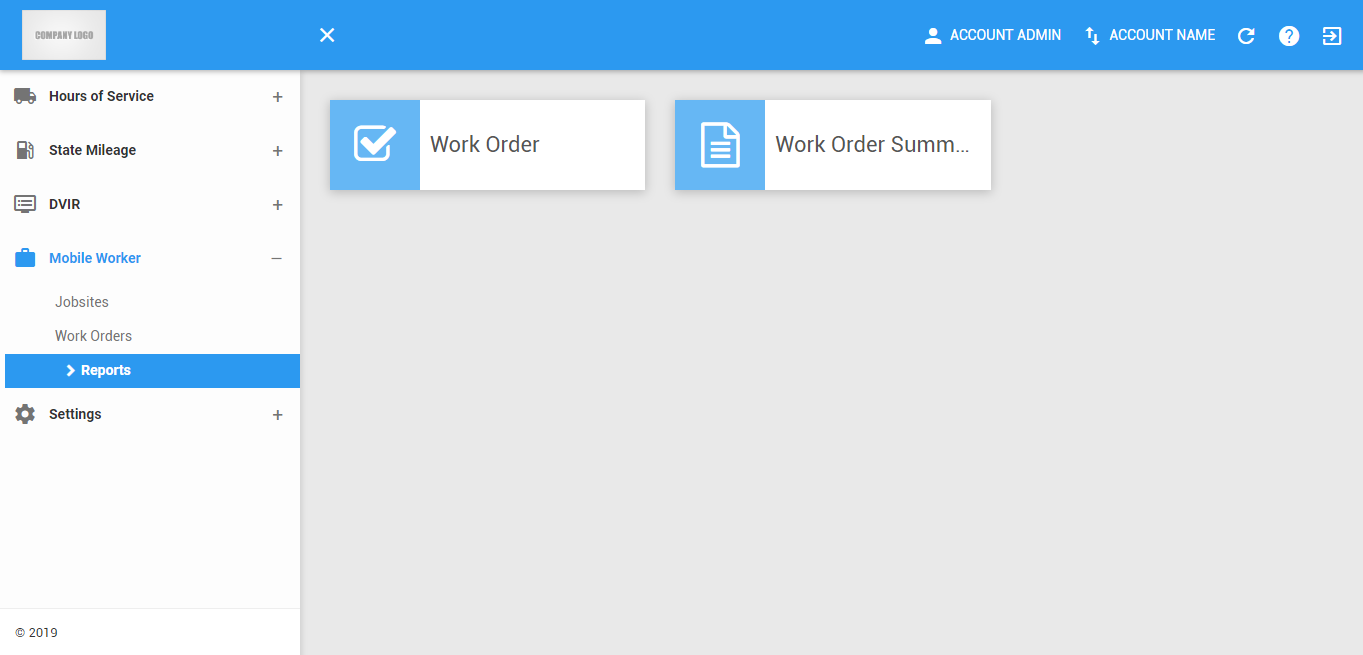
Note: This page can only be accessed if the user has a permission to view the portal work orders reports tab.
Work Order Completion Report (for accounts with Mobile Worker product)
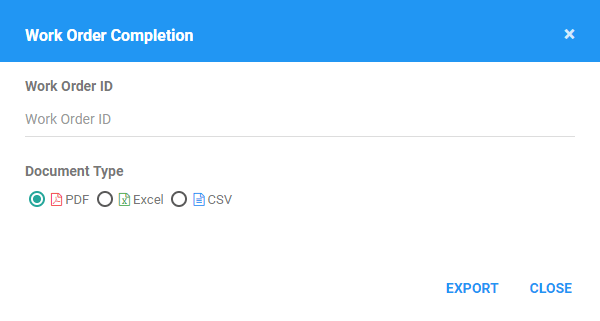
1. Work Order ID
Enter the Work Order ID of a completed work order.

2. Completion Report Output Format
Choose the file format of the output file.
3. Click the Export button.
Work Order Completion Summary (for accounts with Mobile Worker product)
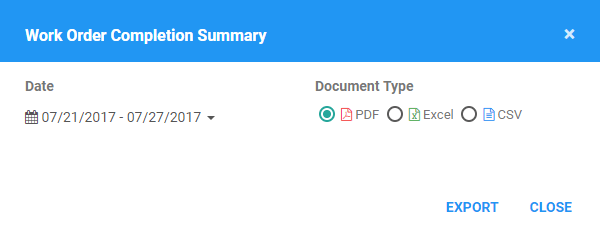
1. Completion Summary Filters
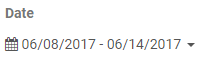
Click on the Date From and Date To Date Picker. Select the date range for the report you want to generate.
2. Completion Summary Report Output Format
Choose the file format of the output file.
3. Click the Export button.
Was this article helpful?
That’s Great!
Thank you for your feedback
Sorry! We couldn't be helpful
Thank you for your feedback
Feedback sent
We appreciate your effort and will try to fix the article