The Certify / Decertify Logs page provides overview of the driver’s certified and uncertified log entries giving users ability to certify and decertify log entries directly from the displayed list. The page has file export feature that enable users to download bulk/individual summary report of the certified logs.
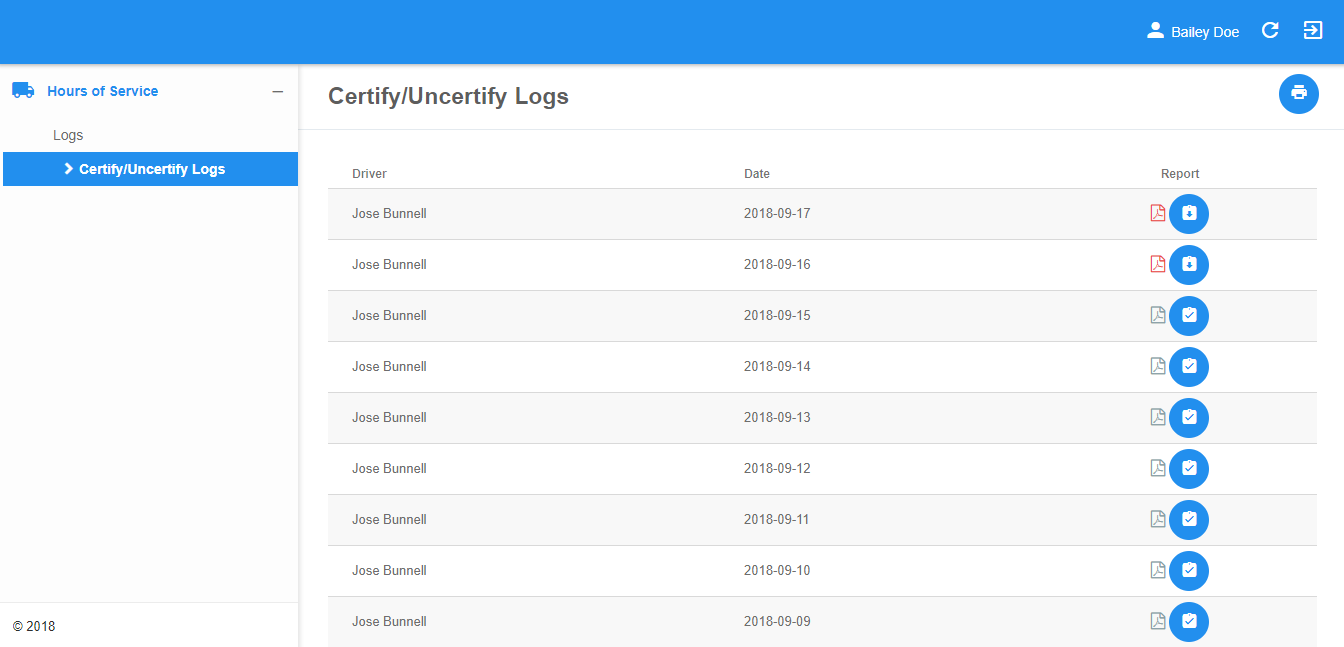
The Certify / Decertify Logs page can be manually refreshed using the Refresh button within the site header.

Certify/Decertify Logs Table
1. Column Header
1.1 The Driver who owns each log entry.
1.2 The Date each logs were created.
1.3 The Report summary of each logs with options to view PDF of certified logs and to certify/decertify a certain log entry.
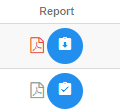
Log Entry Report Actions
1. Certifying Log Entry
1.1 Click on the Certify Logbutton under the report to certify a certain log entry.

1.2 The Certify Log dialog will then appear.
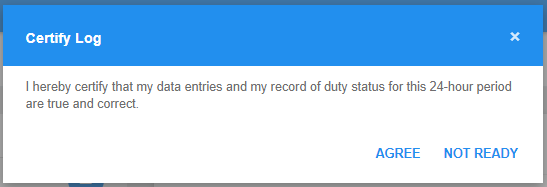
1.3 Click Agree button to confirm certifying a daily log.
1.4 Choose Not Ready button to cancel certifying a log.
1.5 The log entry will be certified. PDF file can be viewed and the action button of certain log entry will update to ‘Uncertify Log’.

2. Decertifying Log Entry
2.1 Click Decertify Log button under the report to decertify a certain log entry and reopen it for editing.

2.2 The Decertify Log dialog will then appear.
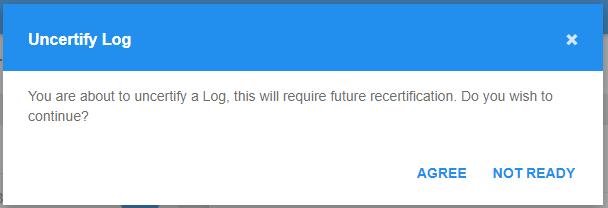
2.3 Click Agree button to confirm decertifying a daily log.
2.4 Choose Not Ready button to cancel decertifying a log.
2.5 The log entry will be uncertified. PDF file cannot be viewed unless log is certified by the driver. Appearance of action button will update to ‘Certify Log’.

3. Viewing the Certified Log Entry
3.1 Click on the PDF export button to view a certain log entry that has been certified by the driver.

3.2 The log will be opened in a new tab as aPDF file
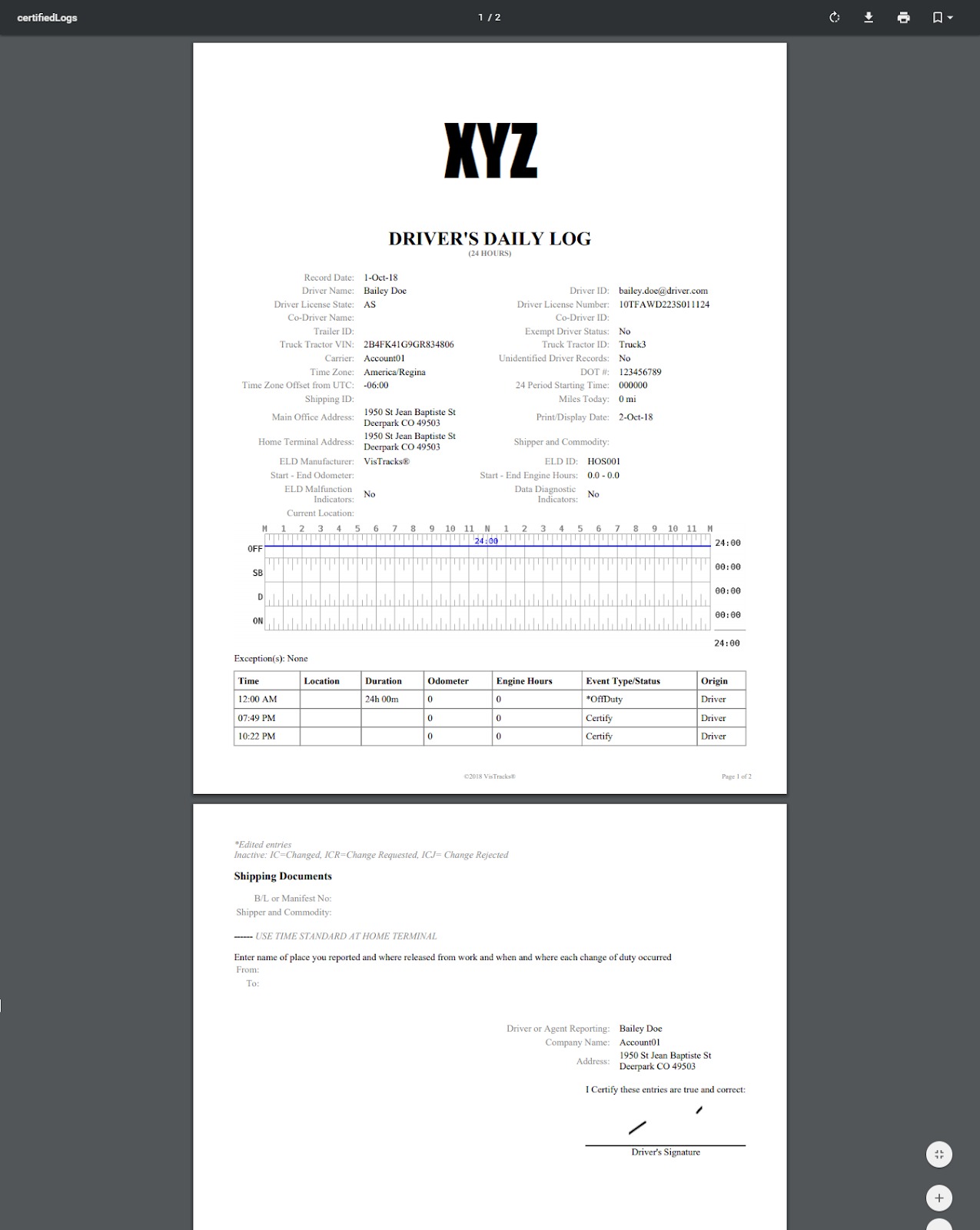
3.3 Click on the download icon to download the file.

Certify Log Report
1. Exporting Certified Log Report
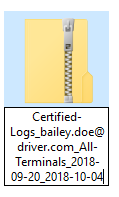
1.1 Click on the Export button to download a zip file containing all the available certified logs.

1.2 PDF reports of the certified logs will be exported in one zip file.
Note: Only the certified logs report from the previous 14 days will be included in the export.
Was this article helpful?
That’s Great!
Thank you for your feedback
Sorry! We couldn't be helpful
Thank you for your feedback
Feedback sent
We appreciate your effort and will try to fix the article