The Logs page provides the ability to view all of your driver's daily driving logs and documentation. This tab also allows you to create, update, and delete records as needed in addition to printing driving logs. Any changes made within this tab are updated and synced in near real time to the VisTracks app for the affected driver.
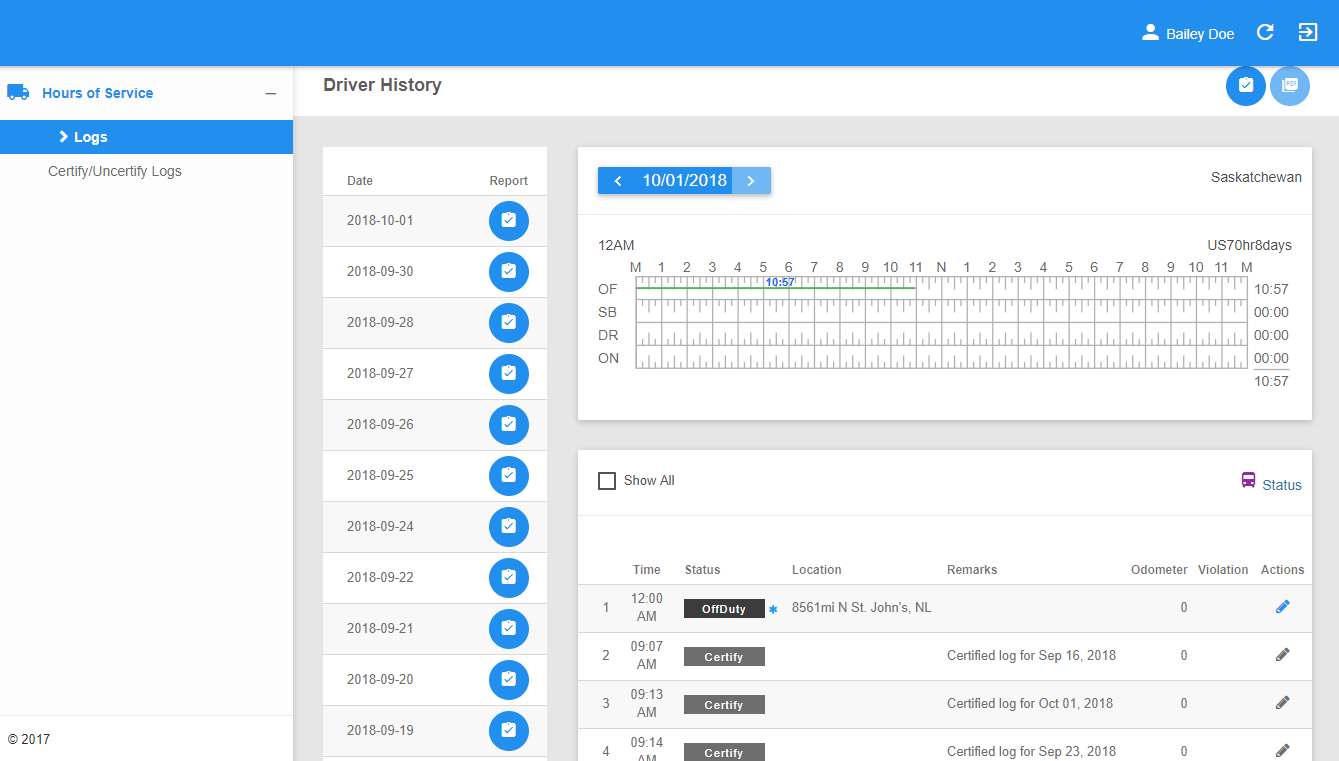
The Logs page can be manually refreshed using theRefresh button within the site header.

Log Entry Actions
1. Certifying Log Entry
1.1 Click on the Certify Log button to certify current log entry on the grid chart or a particular log entry from the list of uncertified logs.

1.2 Select the Certify Now button, if the current status is Driving, a dialog will pop-up to confirm changing the status to off duty.
1.3 Choose the Cancel button to cancel changing the status.
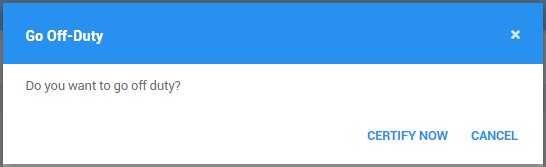
1.4 The Certify Log dialog will then appear.
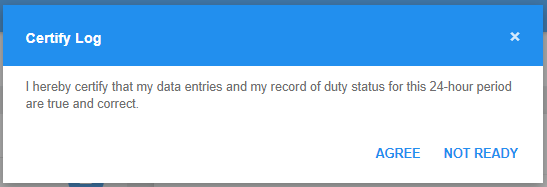
1.5 Click Agree button to confirm certifying a daily log.
1.6 Choose Not Ready button to cancel certifying a log.
1.7 The Daily Log PDF report will then be generated.

The log entry will be certified and the appearance of action button will switch to ‘Decertify Log’. PDF file export can be available and certain log entry will no longer display on the list of uncertified logs.
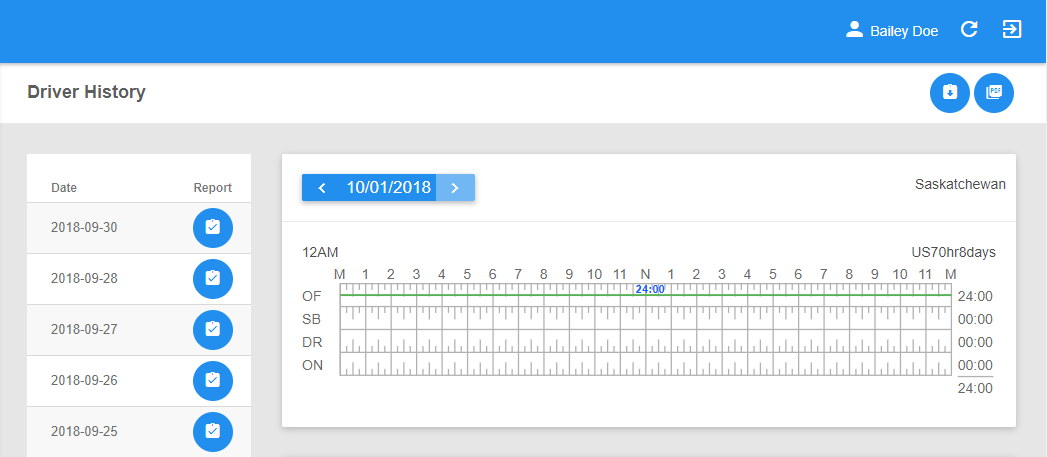
2. Decertifying Log Entry
2.1 ClickDecertify Log button to decertify the selected daily log and reopen the said log for editing.

Note: Only driver logs that have not yet been certified can be edited, If a user wants to edit an entry for a day that’s already certified, a warning dialog will launch the “Uncertify Log” dialog before letting the edit occur.
2.2 The Decertify Log dialog will then appear.
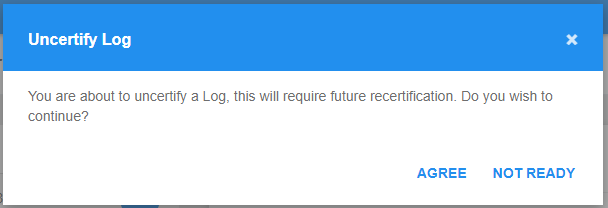
2.3 Click Agreebutton to confirm decertifying a daily log.
2.4 Choose Not Readybutton to cancel decertifying a log.
The log entry will be uncertified and the appearance of action button will switch to ‘Certify Log’. PDF file cannot be viewed unless log is certified by the driver.
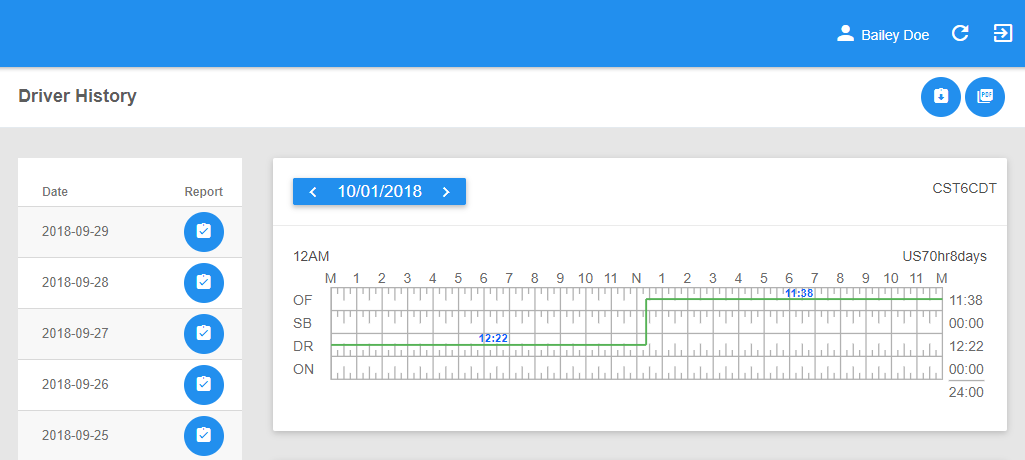
3. Viewing the Certified Log Entry
3.1 Click on the PDF button to view the current log entry that has been certified by the driver.

3.2 The log will be opened in a new tab as aPDF file
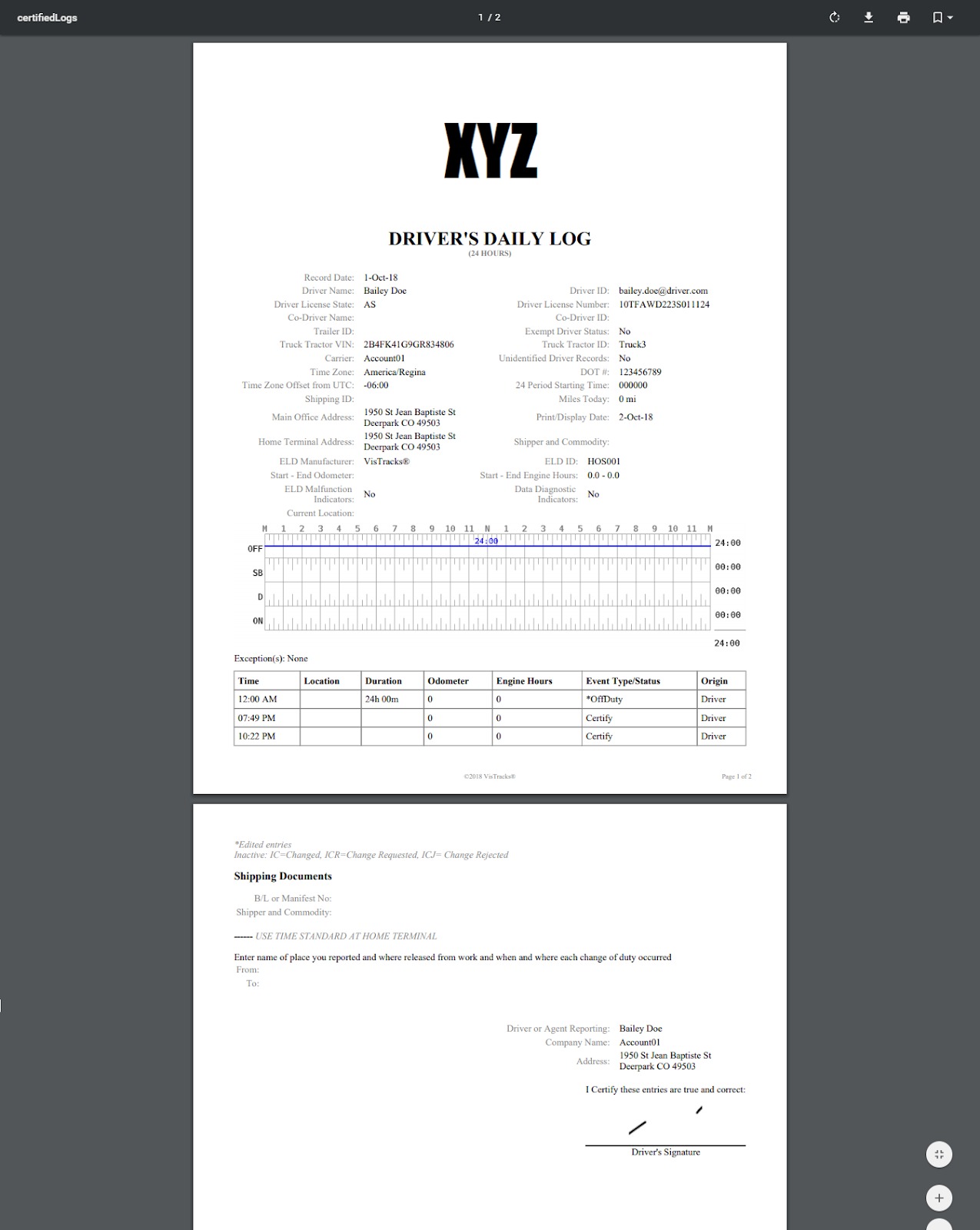
3.3 Click on the download icon to download the file.

Filtering the Logs
1. Filter by Date
1.1 Select a date from the Date Picker.
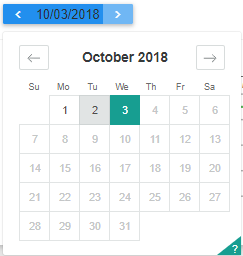
1.2 The Logs page will then be updated to only show the specific results which fall under the applied filter.
2. Filter by Event Types
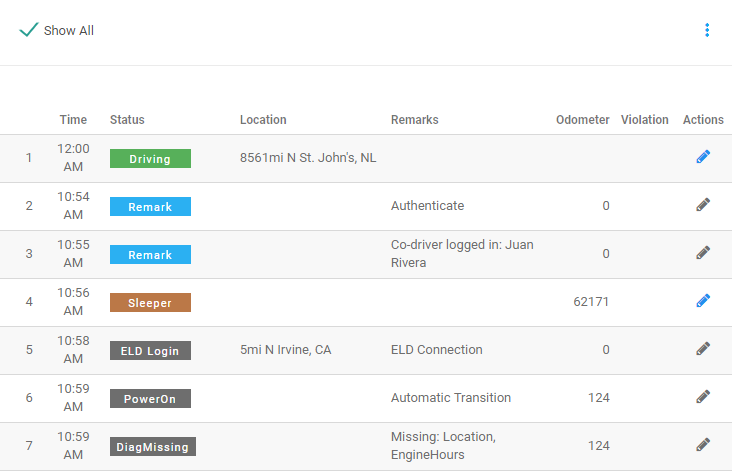
2.1 By default, allSecondary Events are not displayed in the logs data table. These secondary events include: MalTimeClear, DiagMissingClear, DiagSync, PowerOff, DiagMissing, MalSync, ClearYM, MalSyncClear, MalRecord, ClearPCYM, MalPos, ClearPC, MalPowerClear, DiagSyncClear, MalTime, MalPosClear, DiagUnidentified, PowerOn, ClearPCorYM, MalPower. Only Primary or Driving Eventsare shown by default. These events include: OnDuty, Remark, SleeperBerth, Certify, OffDuty, YardMoves, WaitingAtSite, OffRoad, Login Driving, PersonalUse, OnRoad, Logout, PowerOffRP, PowerOnRP, Inter, InterRP.
2.2 Click on the Show Allfilter to toggle the display of Secondary Events. Unchecking the option will filter back to Primary or Driving Events.

2.3 The Logs page will then be updated to show results which fall under the applied filter.
Current Log’s Grid Chart
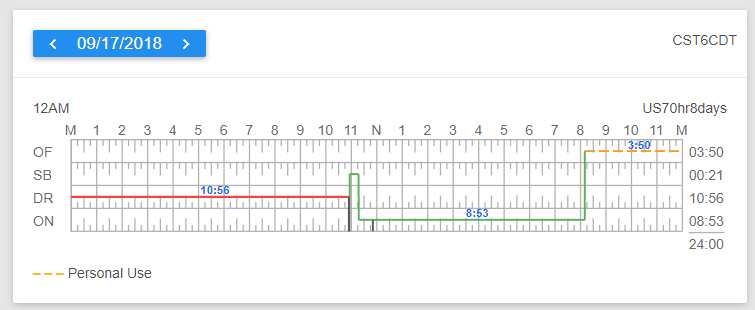
The Grid Chart is the visual representation of the series of events that have occurred over the current log period. Events are recorded as lines on the grid chart with respect to the time it occurred, ended and its duration. Below are the contents of the Grid Chart.
1. Header
1.1 The Start Time of Day of the Current Log.

1.2 The Cycle used by the driver.
2. Grid Chart
2.1 Contains the line over time representation of the events. The line color varies per the following conditions:
- Solid Green is the default line color.
- Solid Red lines denote violations that occur under the US Region.
- Solid amber lines denote violations that occur under the Canada Region.
- Dashed amber lines denote Personal Conveyance events.
- Dotted amber lines denote Yard Moves events.
2.2 Personal Use andYard Moves legend

2.3 Exceptions for the current log

3. Events History List
3.1 Corresponding events in the Grid Chart are displayed on the Event History List
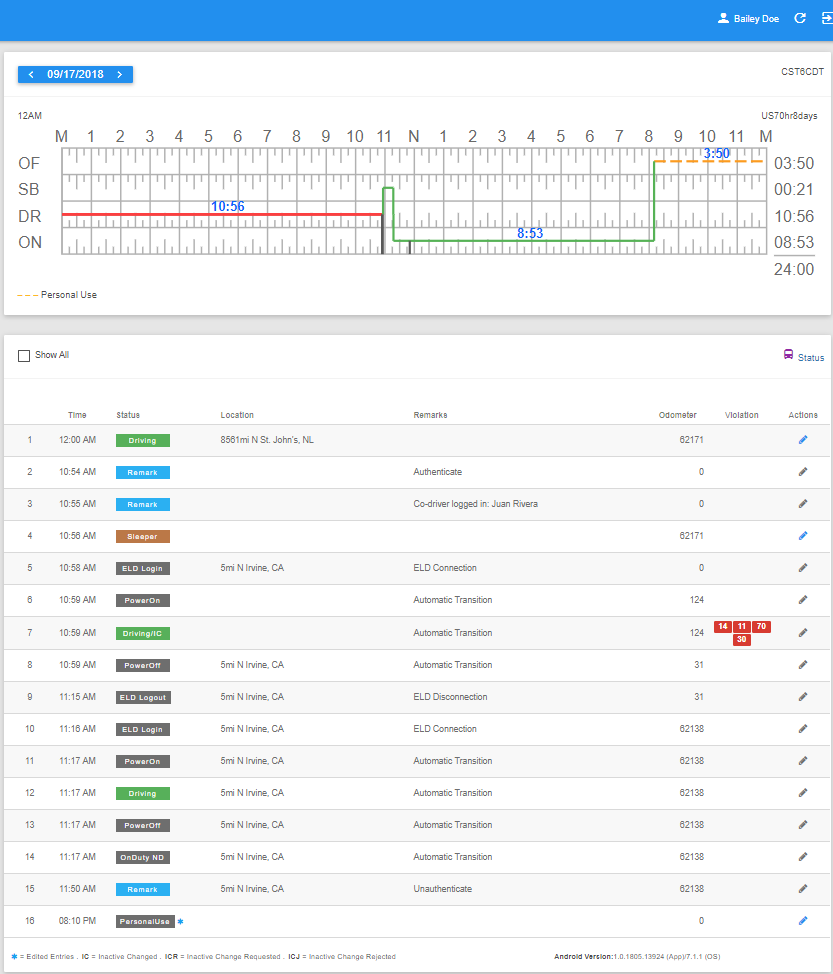
3.2 Hover over a Violation Icon to show its description.

4. Adding Status
4.1 Click Status to add new event on the log.

4.2 The Create Status pop-up dialog will then show.
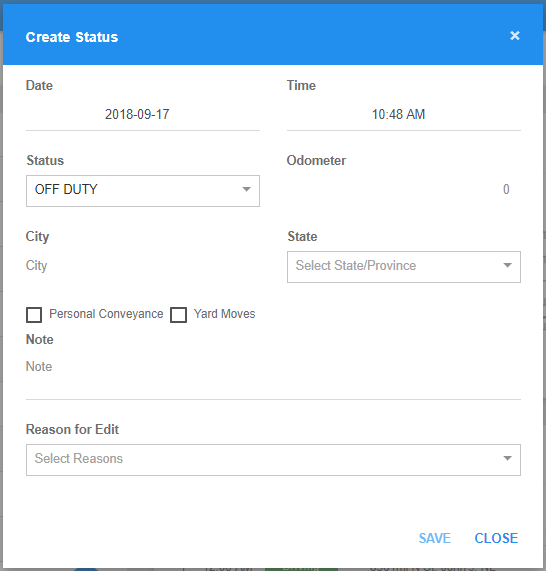
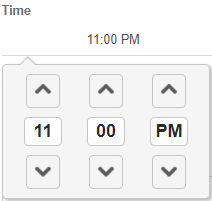
4.3 Select the Time for the status.
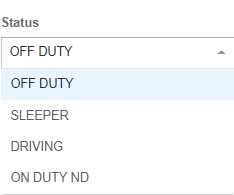
4.4 Select the Status from the drop-down list.
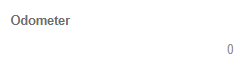
4.5 Add a value for the Odometer field. This is required for Drivingevents.
4.6 Fill in the City field. This is required to enable the Statefield.

4.7 Select the name of the State from the drop-down list.
4.8 You can check the following options to enable special driving events.
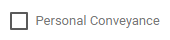
Personal Conveyance - Once checked the Yard Moves checkbox will be disabled. Selection of this option will be recorded within the events history.
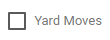
Yard Moves - If this is enabled, the status will be set to Off Duty automatically and will disable the Personal Conveyance check box. selection of this option will be recorded within the events history.
Note: These events can also be cleared from the portal, disabling these options will record the following in the events history list accordingly: ClearYM/IC and ClearPU/IC.
4.9 Fill in the Note field

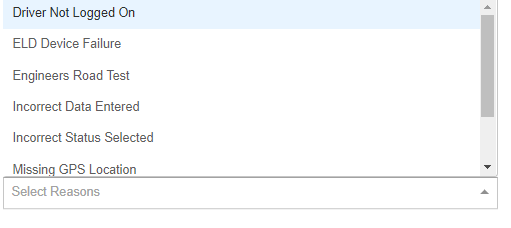
4.10 Select a Reason Code from the drop-down list.
4.11 Click on the Save button to successfully add the status. Click Close button to discard the adding of status.
4.12 The Status will then be added on the events history list.
5. Editing Status
5.1 Click on the Edit Status icon. Automatic events created by the app are not editable except for Driving event.

5.2 The Update Status dialog will then show. Modify the fields as you would do in Adding Single Status.
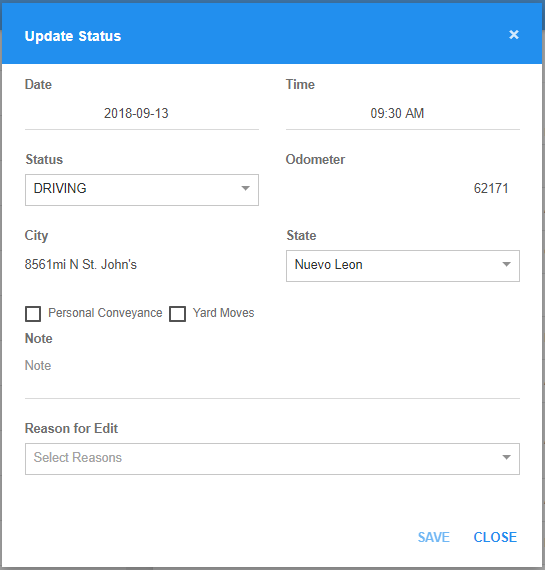
5.3 Click on the Save button to successfully update the status. Click Close button to discard the edit.
6. Events Legend
6.1 When the Motor Carrier requests an edit or add on the driver's records electronically, it informs the driver by displaying the Pending Request(s) dialog in the app. Modified events marked with an (*)cannot be edited unless accepted by the driver on the HOS Application.
6.2 However in the portal, the added or edited event displays on the Events Historywith these marks:

Inactive Change Request (ICR) - means the the requested event still needs an approval from the driver.
Inactive Change Rejected (ICJ) - means that the requested edit has been rejected by the driver.
Inactive Change (IC) - means that these events have been edited and replaced by the driver in the app, hence they are inactive.
6.3 When a driver used an android application, the Android operating system and HOS application versions will appear beside the event legend. If a driver used an iOS operating system and HOS application versions will appear beside the event legend.
Was this article helpful?
That’s Great!
Thank you for your feedback
Sorry! We couldn't be helpful
Thank you for your feedback
Feedback sent
We appreciate your effort and will try to fix the article