1. Introduction
Finding the right vehicles becomes increasingly difficult as your fleet grows, and more information is stored across standard and custom fields.
To make searching and filtering faster and more intuitive, Azuga introduces an enhanced Search and Filter experience. You can now choose exactly which fields to search, filter vehicles using custom fields, and quickly locate the information you need all while keeping the experience simple and efficient. Whether you're looking for vehicles by VIN, license plate, group, or custom attributes, the new search and filter capabilities help you find results more accurately with fewer clicks.
2. Enhanced Search Experience
The search bar now allows you to control where your search is performed. Instead of searching across predefined fields, you can choose the columns you want to include in your search.
By default, All Columns is selected, allowing you to search across all supported vehicle information. When you already know which field contains the information you're looking for, you can narrow your search to specific columns for more precise results.
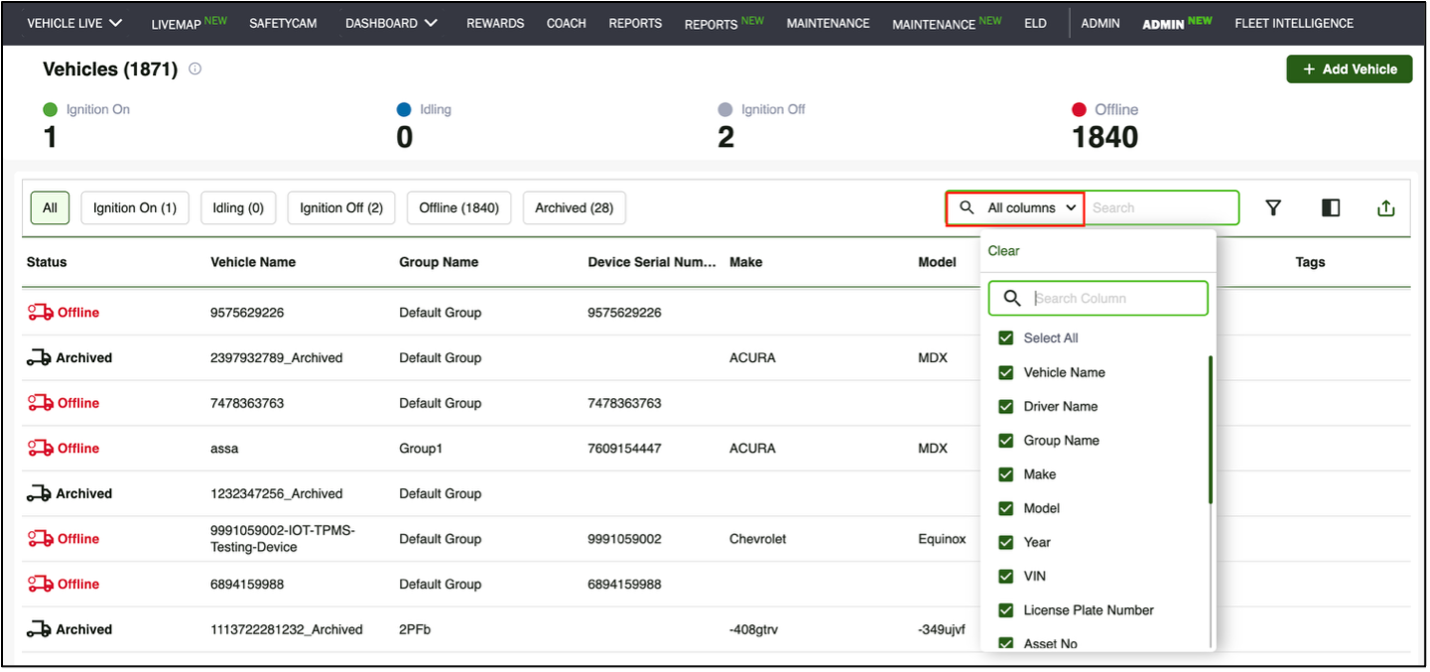
Click the All Columns drop down to view the list of searchable columns. You can:
- Search across all supported columns or select only the columns you want to search.
- Use Select All to include every searchable column.
- Use Clear to remove all selected columns.
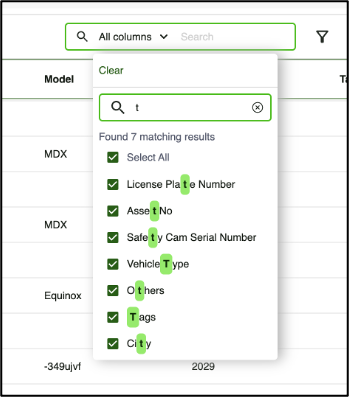
- Search within the column list to quickly find a specific field. Matching column names are highlighted as you type.
- When you reopen the column selector, your previously selected columns appear at the top for easier access.
2.1 Instant Search Results
Simply start typing in the search box there's no need to press Enter or click a search button. As you type:
- Matching vehicles are displayed instantly.
- Matching text is highlighted in the visible columns.
- A Found matching results message shows the number of matching records.
2.2 Searching Hidden Fields
You can also search using supported fields that are not currently visible in the vehicle table, such as supported custom fields. If a match is found in a hidden field:
- The matching vehicle is still included in the search results.
- The Found matching results message indicates that matching records were found.
- Since the matching field is not visible in the table, no highlighted text is displayed for that field.
Note: Long text fields are currently excluded from search to maintain optimal performance.
4. Enhanced Filter Experience
Filtering helps you narrow large vehicle lists so you can focus only on the vehicles that matter. The enhanced filtering experience now supports both standard fields and supported custom fields, making it easier to locate vehicles based on your organization's unique data.
4.1 Find the Right Vehicles Faster
The enhanced filter experience helps you quickly narrow down large vehicle lists using the information that matters most to your organization. Whether you're filtering by vehicle, group, driver, or supported custom fields, you can combine multiple filters to find exactly what you're looking for.
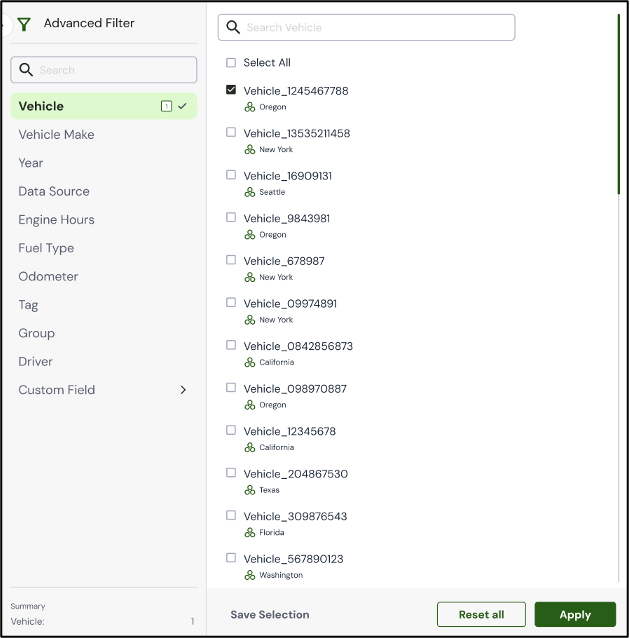
1. Use Advanced Filters
Click the Advanced Filter icon to open the filter panel. All available filter categories are displayed on the left, and you can quickly find a filter by using the search box. As you select filter values, the Summary section updates automatically, giving you a quick overview of your current selections before applying the filter.
2. Filter by Group
Browse your group hierarchy or search for a specific group or vehicle within the hierarchy.
- Matching search results are highlighted.
- Use Expand Results to automatically expand groups containing matching vehicles.
- If Expand Results is turned off (default), matching groups remain collapsed.
3. Filter by Driver
Quickly locate vehicles assigned to specific drivers. Drivers are displayed along with their associated groups, making it easier to identify the correct driver. No drivers are pre-selected by default.
4. Filter by Custom Fields
Filter vehicles using supported custom fields configured for your organization. Select the Custom Field category to view available custom fields and choose the values you want to filter on.
5. Save and Reuse Filters
Frequently used filter combinations can be saved for future use. After selecting your filters, click Save Filter to save and automatically apply the filter.
If your filtering requirements change, simply modify the saved filter by adding or removing filter criteria, then click Update Filter to save your changes.
5. Things to Know
- Search is available within the filter categories to quickly locate a filter.
- Multiple filter categories can be combined for more precise results.
- The filter summary updates automatically as you make selections.
- Group searches highlight matching results and provide an option to expand matching groups.
- Supported custom fields are available as filter criteria.
- Saved filters can be updated whenever needed
Was this article helpful?
That’s Great!
Thank you for your feedback
Sorry! We couldn't be helpful
Thank you for your feedback
Feedback sent
We appreciate your effort and will try to fix the article