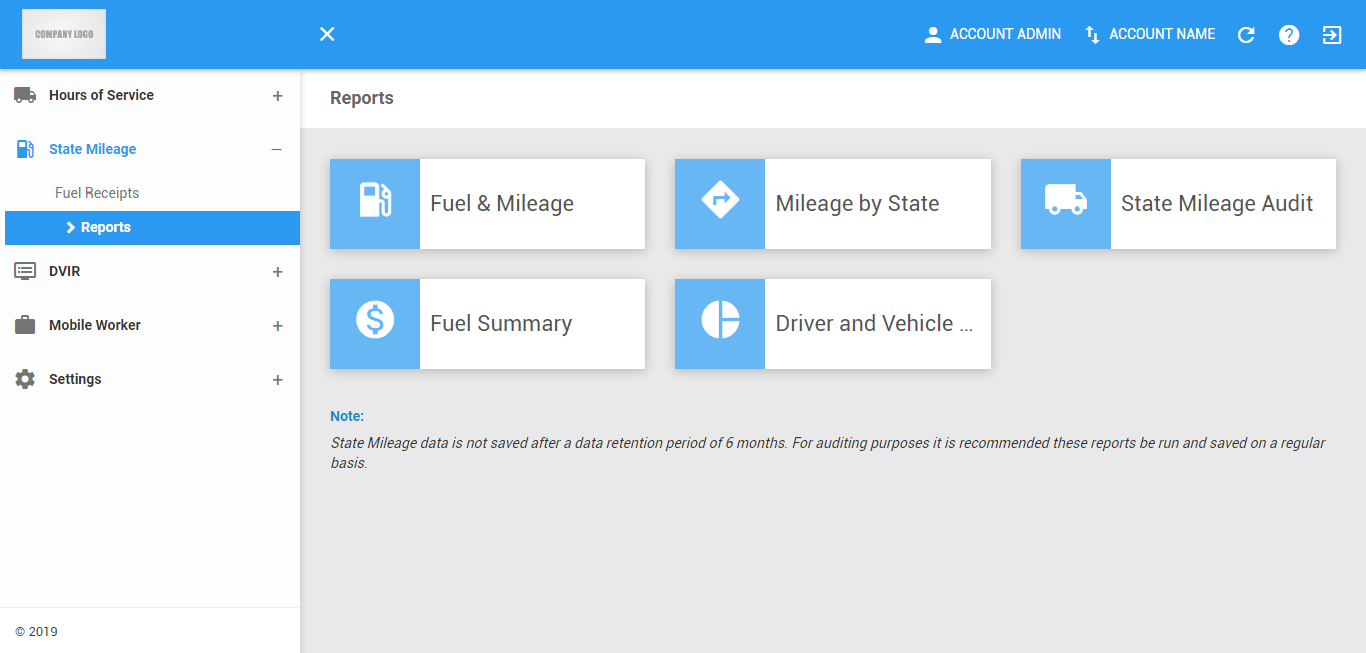
The State Mileage Reports page provides access to various detailed reports based on International Fuel Tax Agreement. Simply click on the available buttons to display the dialog corresponding to the report you want to generate.
Note: This page can only be accessed if the user has a permission to view the portal State Mileage reports tab.
Fuel and Mileage Report
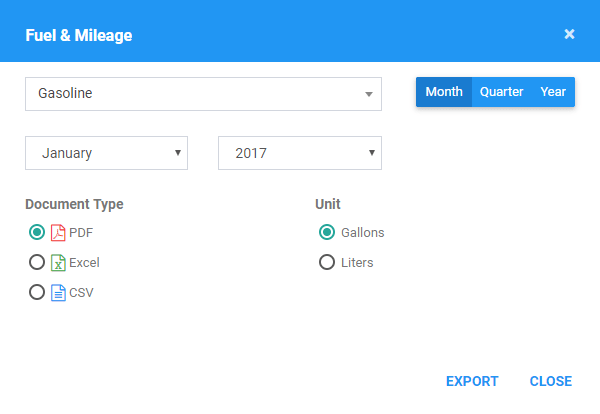
For a more detailed explanation on the State Mileage computations and report generation, see the State Mileage User Guide
1. Fuel and Mileage Filters
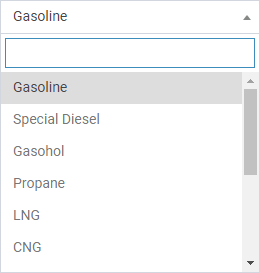
1.1 Click on the Fuel Type drop-down list. Select the fuel type in the drop-down list.
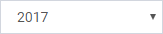
1.2 Click on the Date Picker. Select the date range for the report you want to generate. There are three options:
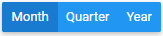
By Month

By Quarter

By Year
2. Fuel and Mileage Report Output Format
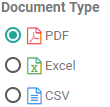
2.1 Choose the file format of the output file.
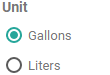
2.2 Choose the unit of measurement in the output file.
3. Click the Export button.
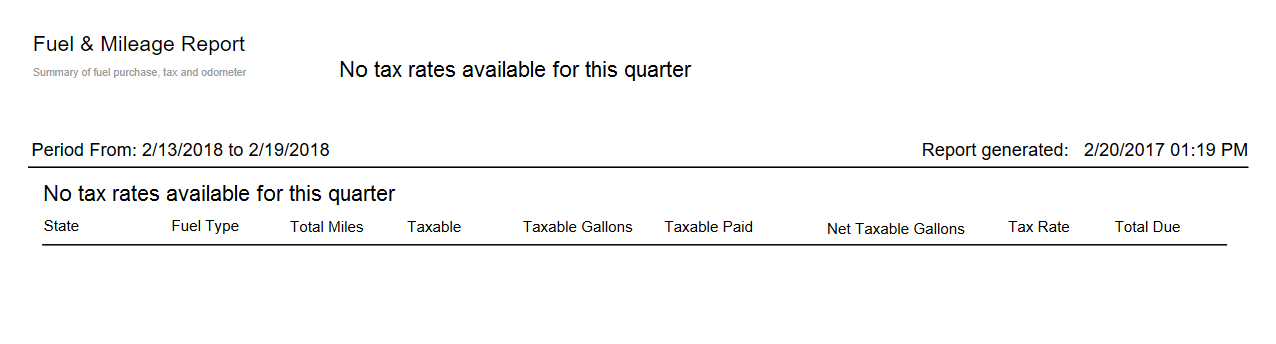
NOTE: A message will appear on the report when tax rate is either available or not yet available for the selected month/quarter/year.
Mileage By State Report
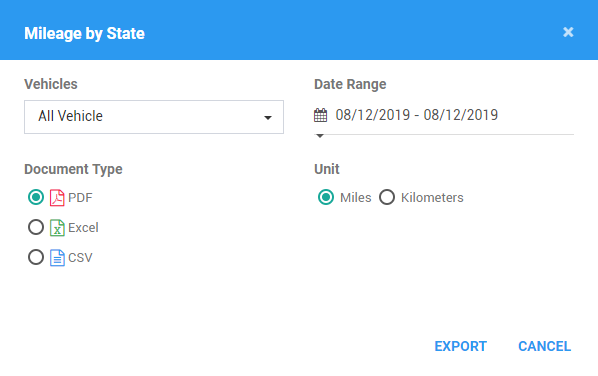
1. Mileage by State Filters
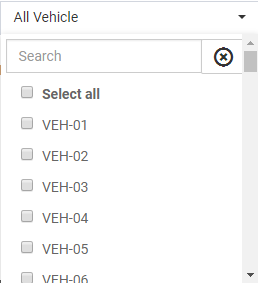
1.1 Click on the All Vehicle drop-down list.Select at least 1 of more vehicle in the drop-down list.
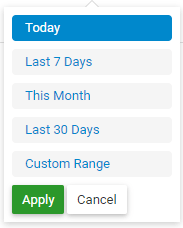
1.2 Click on the Date Picker. Select the date range for the report you want to generate.
2. Mileage by State Output Format
2.1 Choose the file format of the output file.
2.2 Choose the unit of measurement in the output file.
3. Click the Export button.
State Mileage Audit Report
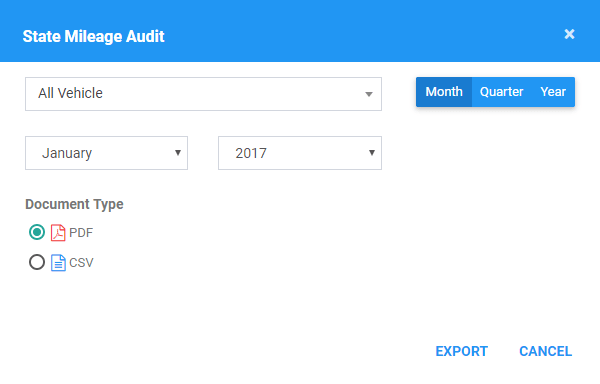
1. State Mileage Audit Report Filters
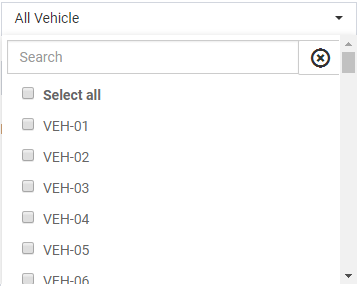
1.1 Click on the All Vehicles drop-down list. Select at least 1 or more Vehicles in the drop-down list.
1.2 Click on the Date Picker. Select the date range for the report you want to generate. There are three options:
By Month
By Quarter
By Year
2. State Mileage Audit Report Format
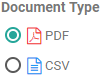
2.1 Choose the file format of the output file.
3. Click the Export button.
Fuel Summary Report
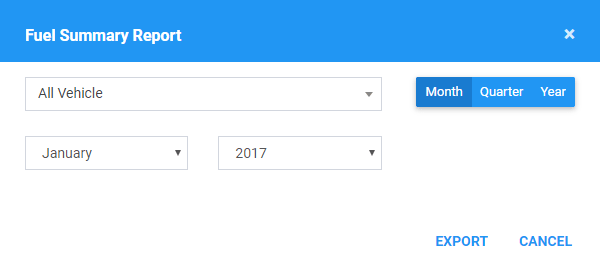
1. Fuel Summary Report Filters
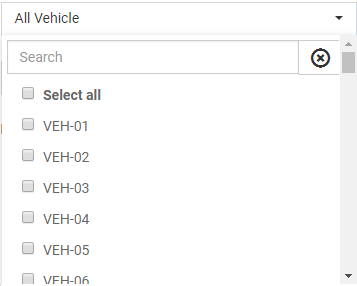
1.1 Click on the All Vehicles drop-down list. Select at least 1 or more Vehicles in the drop-down list.
1.2 Click on the Date Picker. Select the date range for the report you want to generate. There are three options:
By Month
By Quarter
By Year
2. Click the Export button.
Driver and Vehicle Segment Report
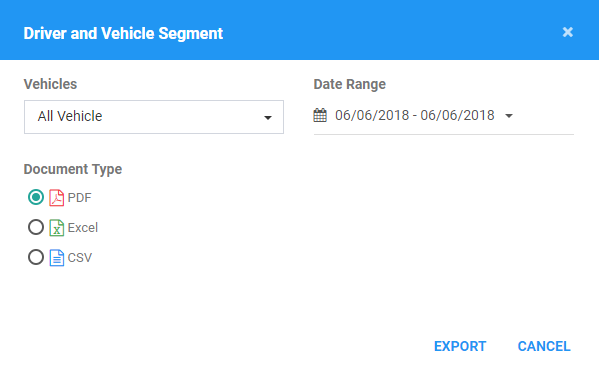
1. Driver and Vehicle Segment Report Filters
1.1 Click on the All Vehicles drop-down list. Select at least 1 or more Vehicles in the drop-down list.
1.2 Click on the Date Picker. Select the date range for the report you want to generate.
2. Driver and Vehicle Segment Output Format
2.1 Choose the file format of the output file.
3. Click the Export button.

Was this article helpful?
That’s Great!
Thank you for your feedback
Sorry! We couldn't be helpful
Thank you for your feedback
Feedback sent
We appreciate your effort and will try to fix the article