For a video explanation of the Maintenance section, please refer to the following link:
To add multiple service entries at once:
1. Log in to the Azuga Fleet Web application.
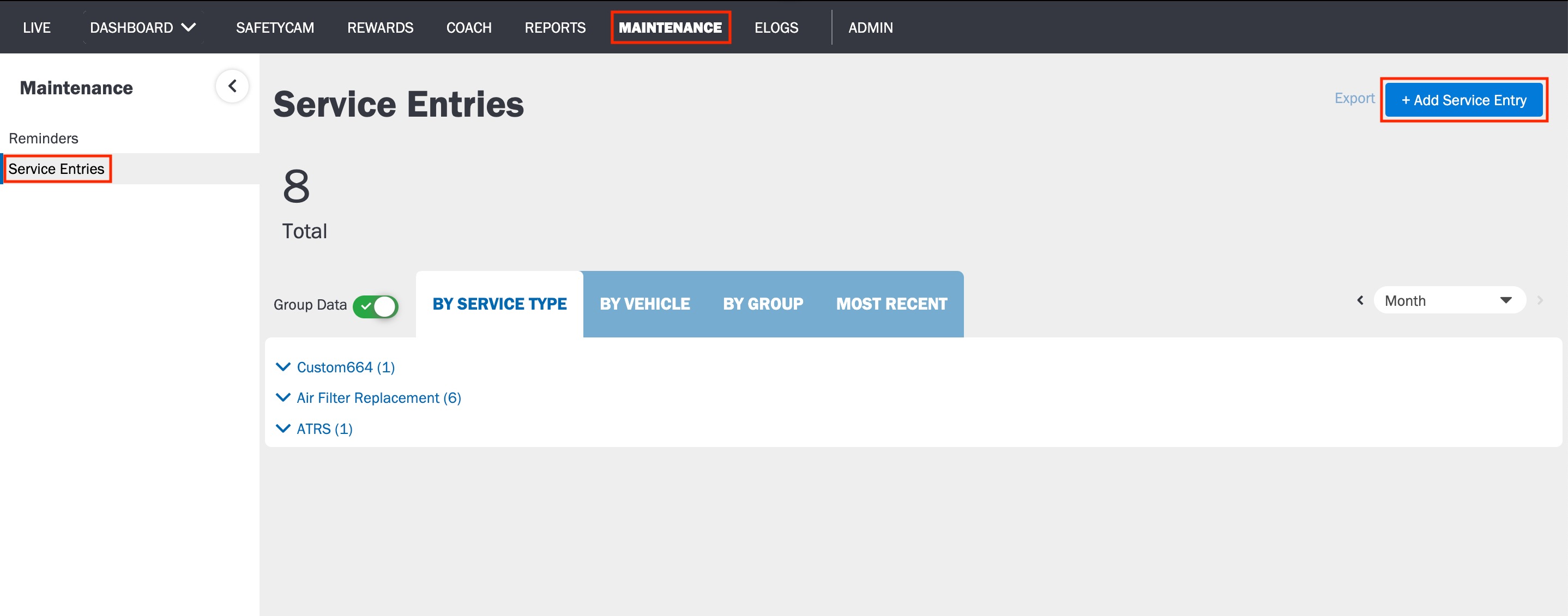
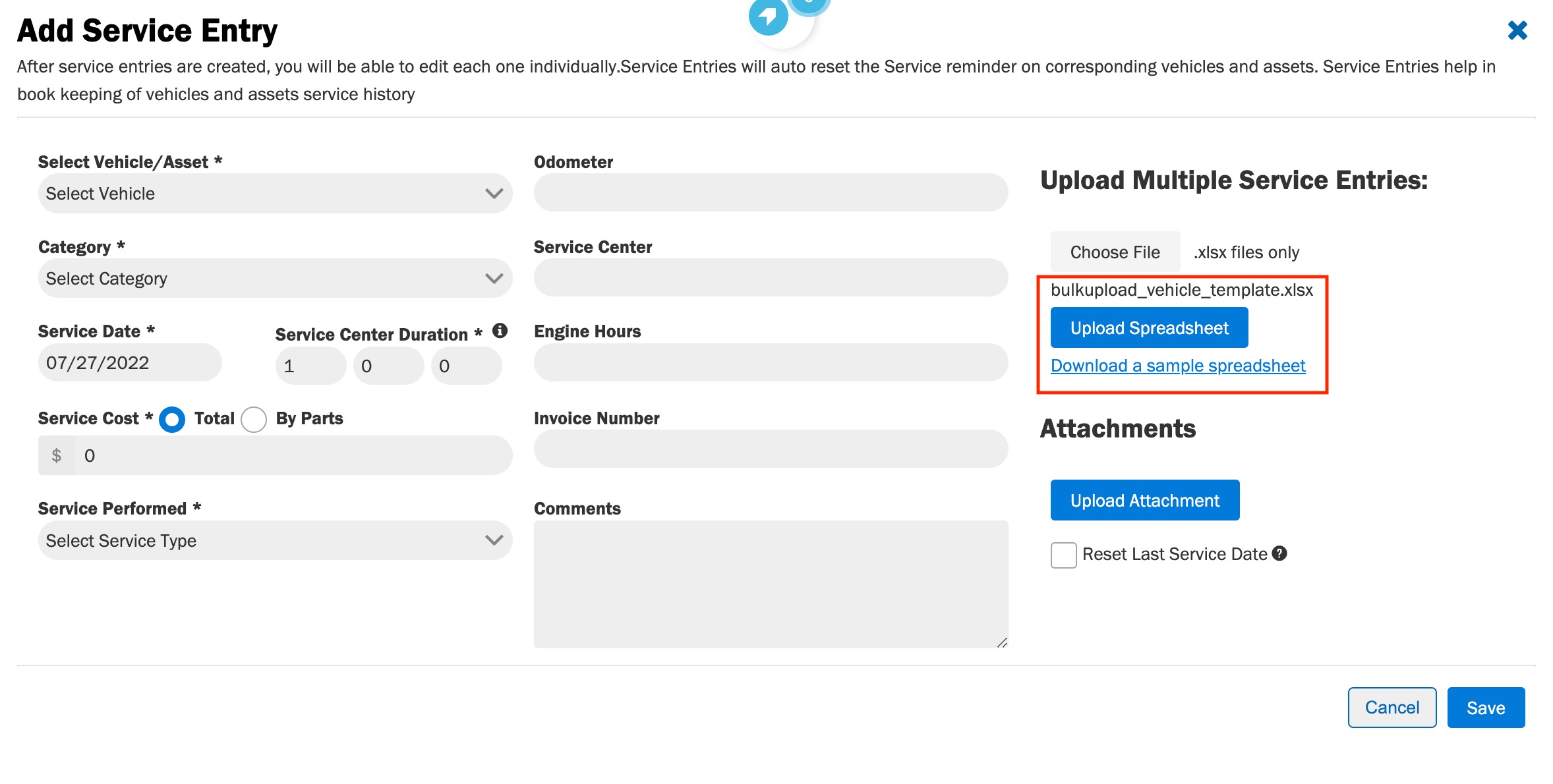
2. Navigate to the Service Entries page, under MAINTENANCE.
3. Click Add Service Entry.
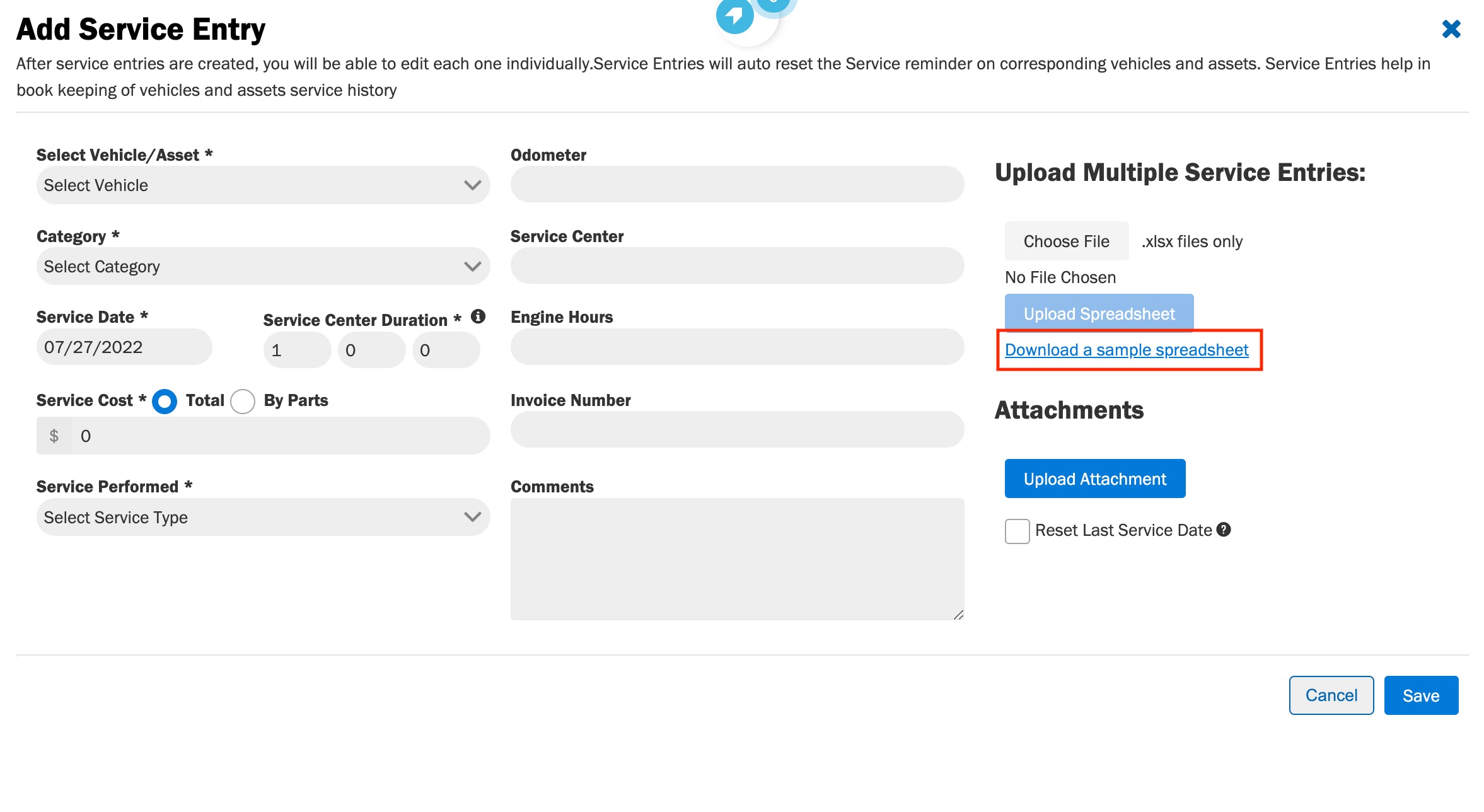
4. Click Download a sample spreadsheet. The sample spreadsheet will be downloaded to your system.
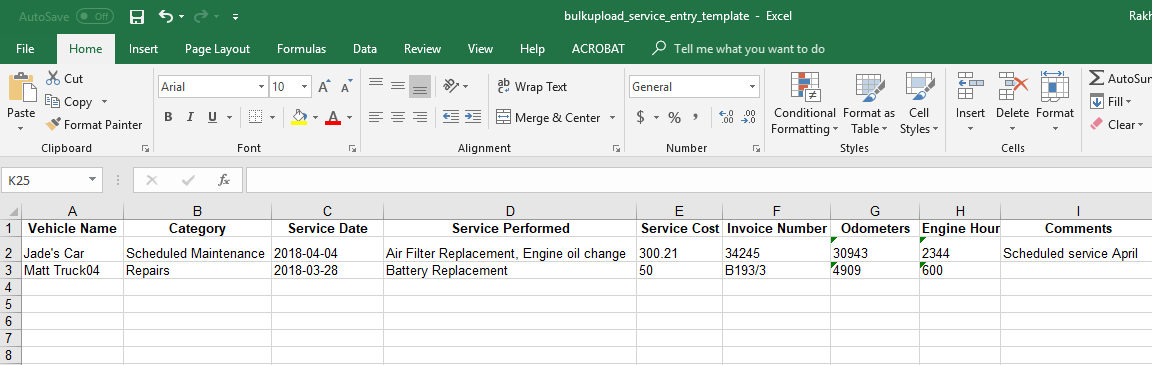
5. Open this file in a spreadsheet application.
6. Enter the details of the service records in the spreadsheet. Ensure that you input the details in the correct format.
7. Save the spreadsheet.
8. Upload this sheet back to the Azuga app. (Click Choose File and select this spreadsheet using the file chooser.)
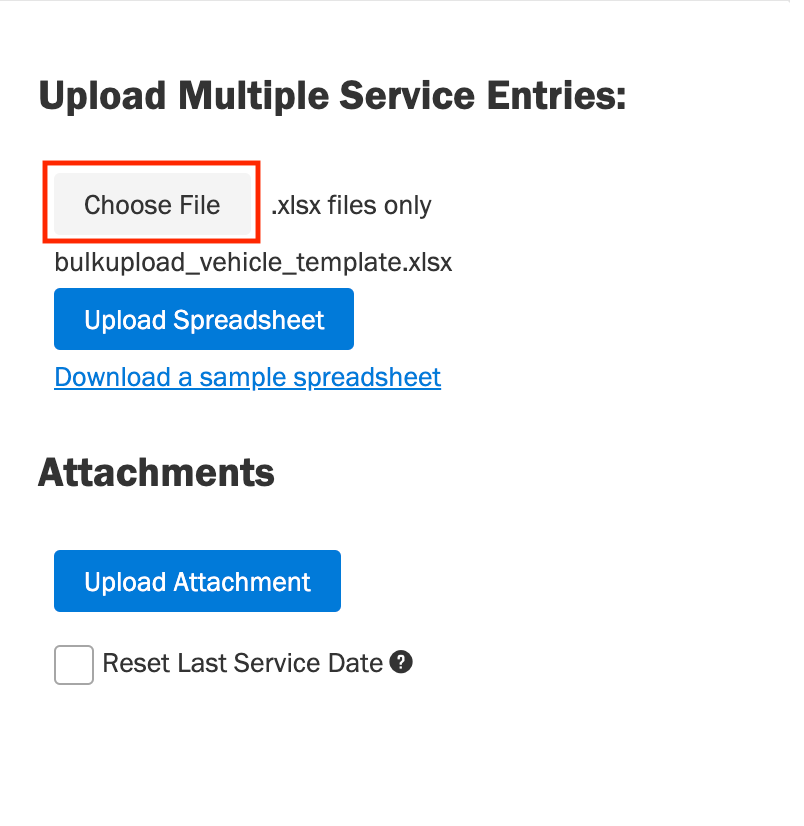
9. Once the excel file is selected, click Upload Spreadsheet to upload the spreadsheet. Once it is successful, the records will be available in the app.
Was this article helpful?
That’s Great!
Thank you for your feedback
Sorry! We couldn't be helpful
Thank you for your feedback
Feedback sent
We appreciate your effort and will try to fix the article