Key Considerations for Association:
- The SafetyCam - Vehicle Association process is crucial for enabling data access and functionality on Azuga platforms (both mobile and web).
- Only associated cameras will have their data accessible on the platform, which is necessary for Live Streaming later. Ensure proper association to seamlessly use these features.
Steps to Associate a SafetyCam with a Vehicle via Azuga Fleet Web:
- Login to Azuga Fleet Web:
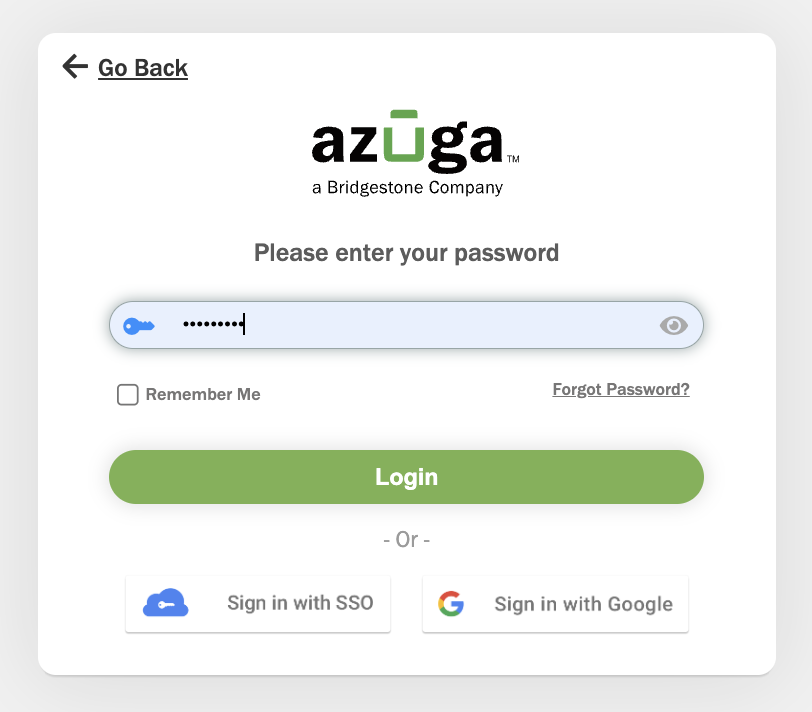
- Navigate to the Azuga login page.
- Enter your username and password to access your account.
- Associate your SafetyCam with your Vehicle via the SafetyCam tab:
| Note: Ensure that you have recorded the Vehicle ID or Device Serial Number, as well as the SafetyCam Serial Number installed in the vehicle. |
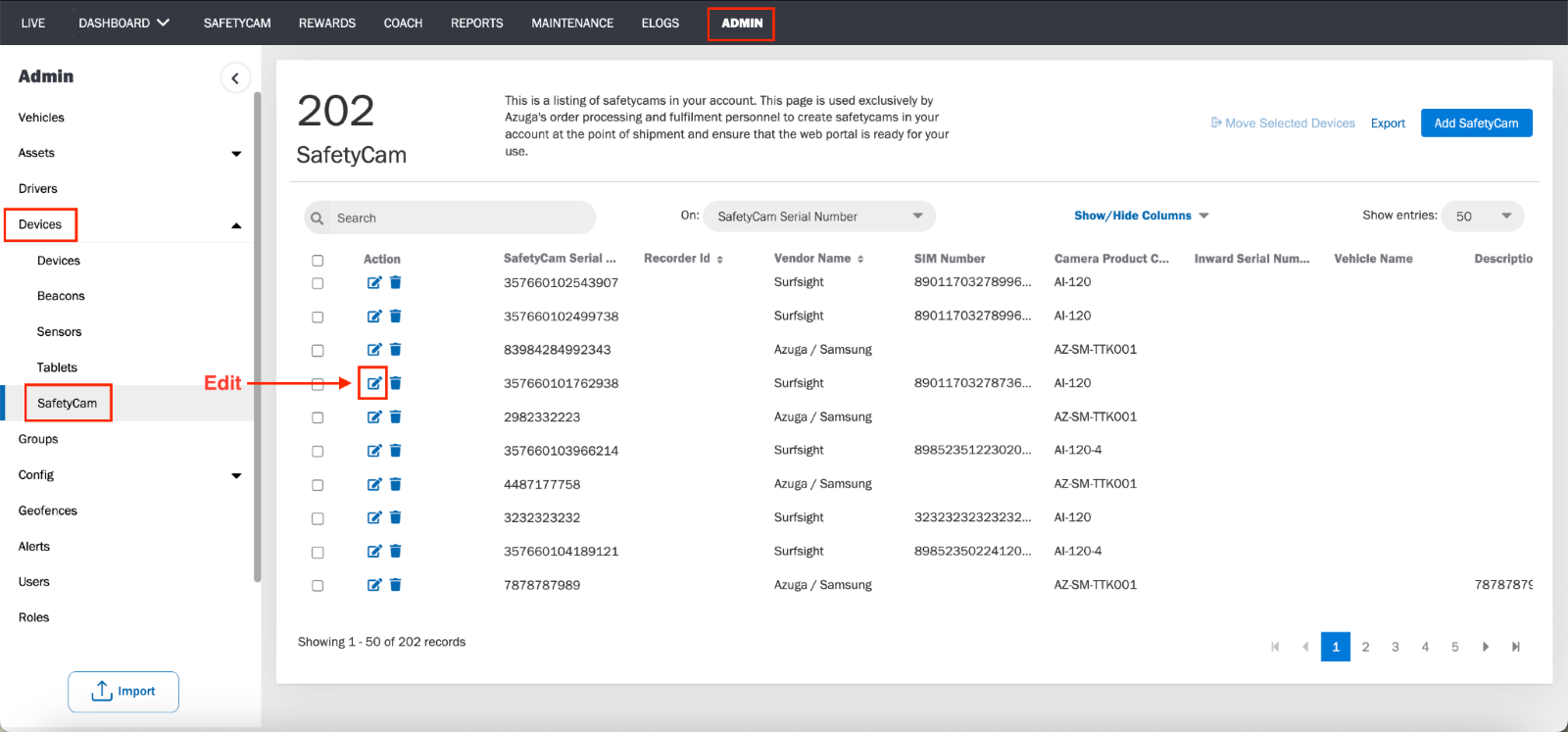
- Go to Admin >> Devices >> SafetyCam.
- Select the SafetyCam from the list that you want to associate with your vehicle.
- Click the Edit (pencil icon) next to the SafetyCam Serial Number.
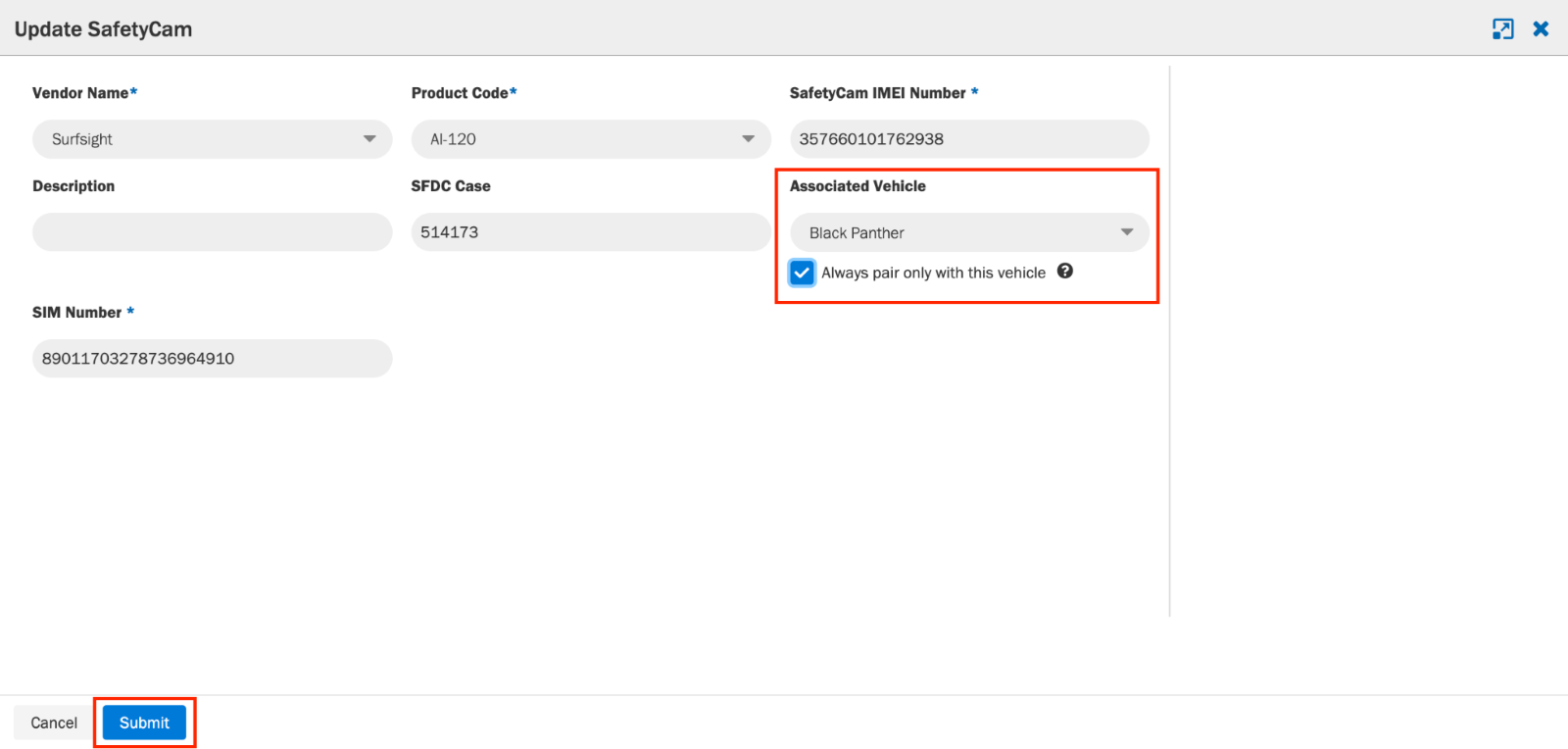
- In the Update SafetyCam screen:
- Locate the Associated Vehicle field.
- Select the Vehicle ID from the drop-down list.
- Check the box for “Always pair only with this vehicle”.
- Click Submit to complete the association.
Was this article helpful?
That’s Great!
Thank you for your feedback
Sorry! We couldn't be helpful
Thank you for your feedback
Feedback sent
We appreciate your effort and will try to fix the article