The New SafetyCam Experience on Azuga Fleet Mobile (AFM) App
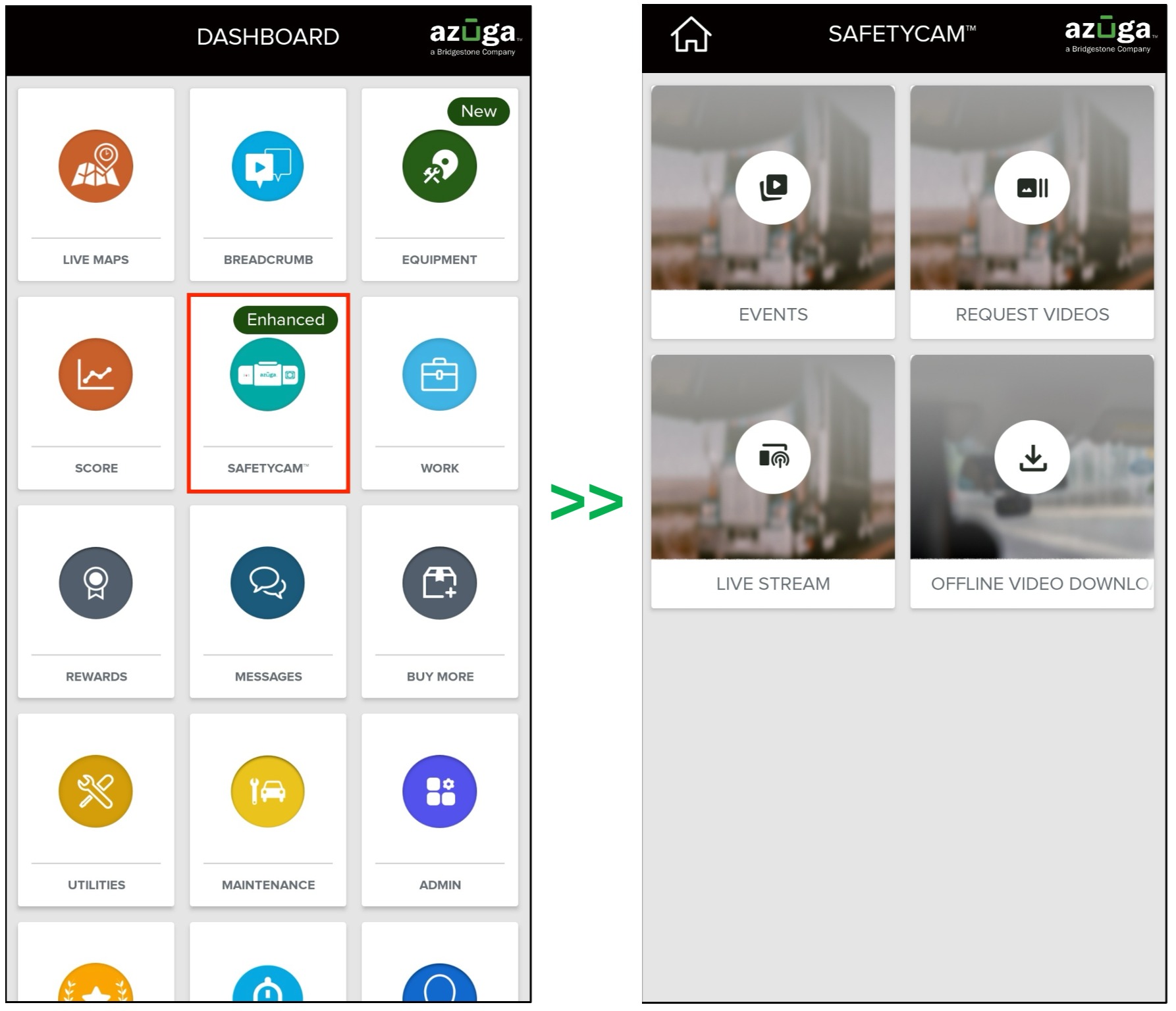
- Go to Dashboard/App home screen >> SafetyCam tile.
- Explore the Events, Request Videos, and Live Stream tiles.
Accessing the Events Tile:
- Select the Date:
The default date range is the last 7 days, including the current day, based on the user's time zone.
Restriction: Future dates cannot be selected, and past dates older than 365 days are restricted.
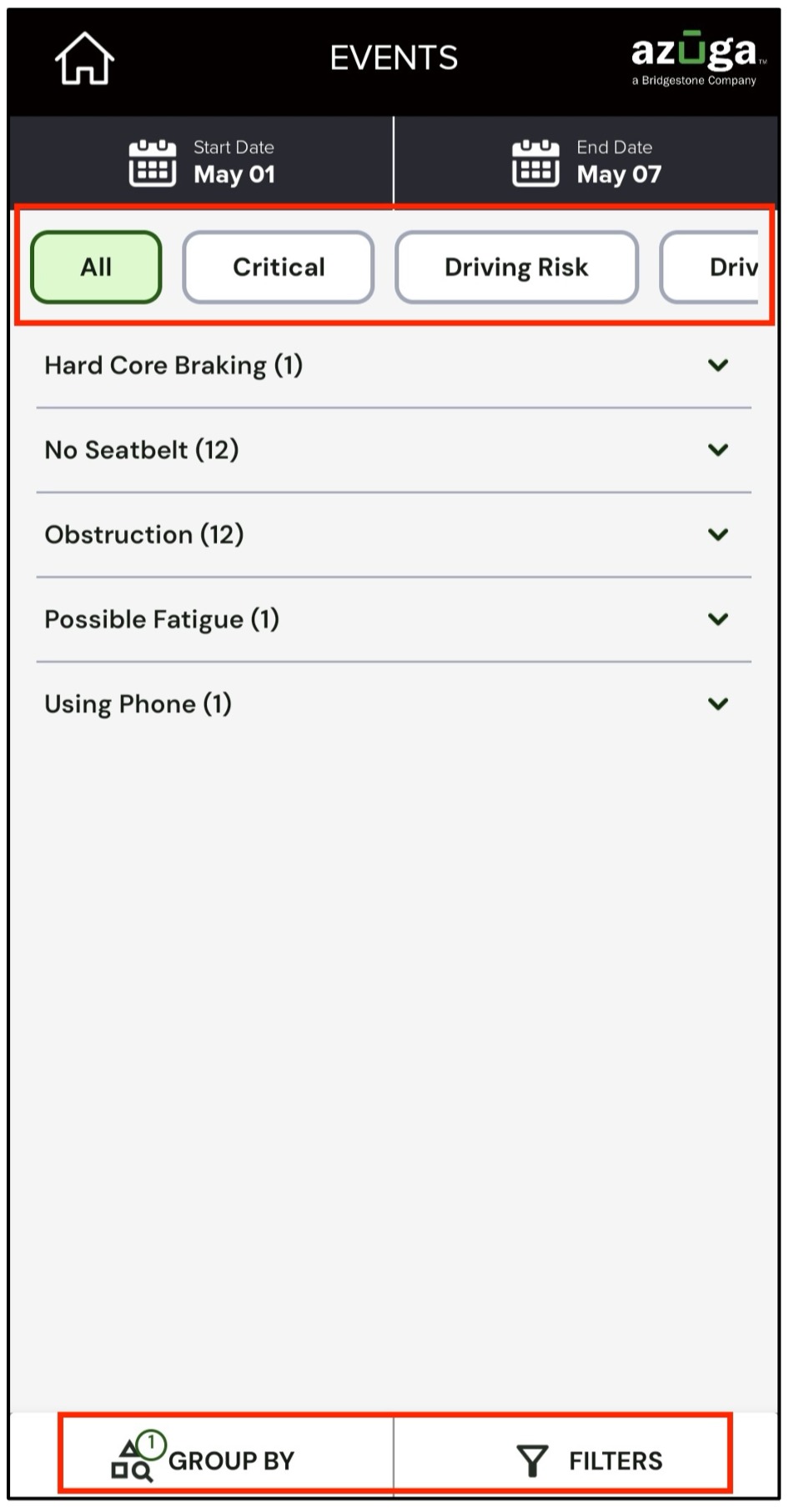
Filter Events:Events are categorized into the following segments:
- All
- Critical
- Driving Risk
- Driver Behavior
Others
If a segment contains no events, a "No videos found" message will be displayed.
Group By and Filter Events:Located at the bottom of the page, this feature includes:
- Group By: Event, Date, Driver, Vehicle, and Group
- Filter By: Events, Drivers, Group & Vehicle
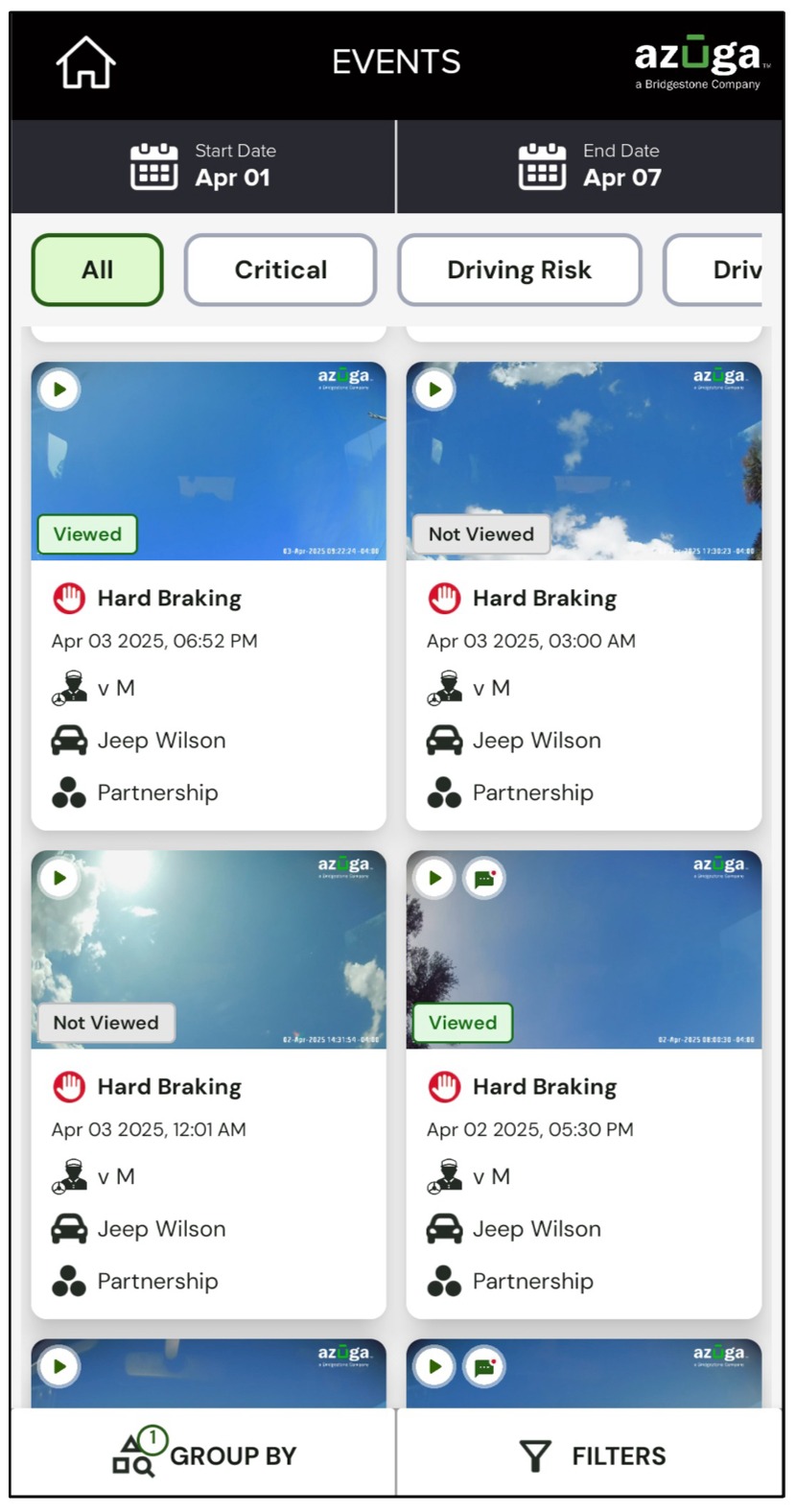
- View Event Details: Each Event card contains the following details:
Thumbnail:
Videos: A play button is displayed.
Snapshots: No play button.
Viewed Status:
- Viewed: If the user has watched the video.
- Not Viewed: If the user has not watched the video.
- Comment Icon: Appears on the thumbnail if comments have been added, making it easy to identify commented videos.
- Event Name: Displayed along with the corresponding event icon.
- Date & Time: Displayed in the user's time zone.
- Driver Information: The driver's name is displayed (if available).
- Vehicle & Group: Displays the associated vehicle and group information.
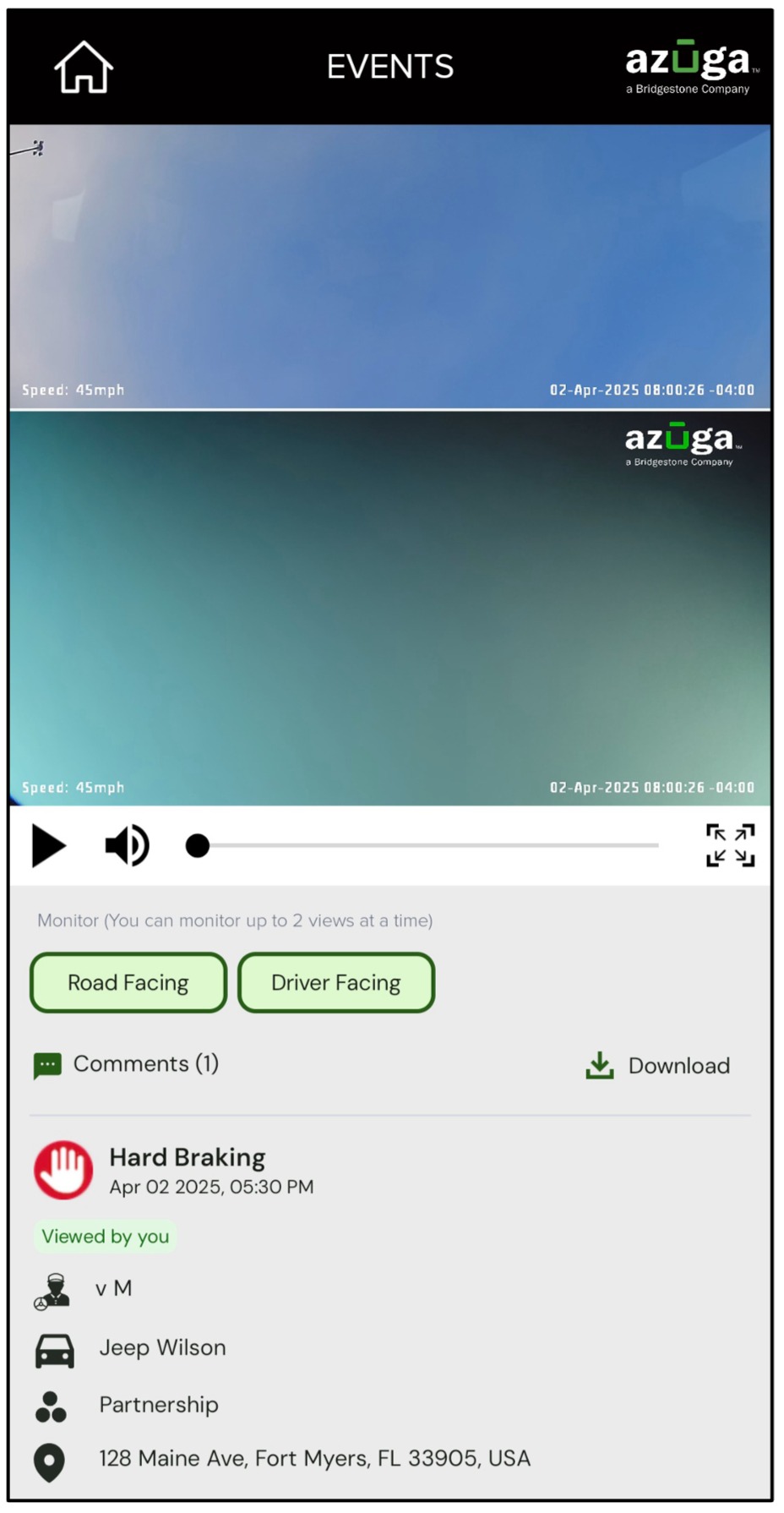
- Access further information by drilling down into the Event card:
Road-facing, Driver-facing, and Auxiliary view (if available).
Event name, Date, and Time information.
Location Information:
- A location icon appears if location data exists.
The location icon remains hidden if location data is unavailable.
Comments Section:
- Users can add comments.
Users can view all previously added comments on the event video/snapshot.
Download Button:
- Users can download Road-facing, Driver-facing, and Auxiliary footage (if available), or choose to download all videos at once.
- Driver, Vehicle, and Group information.
Accessing the Live Stream Tile:
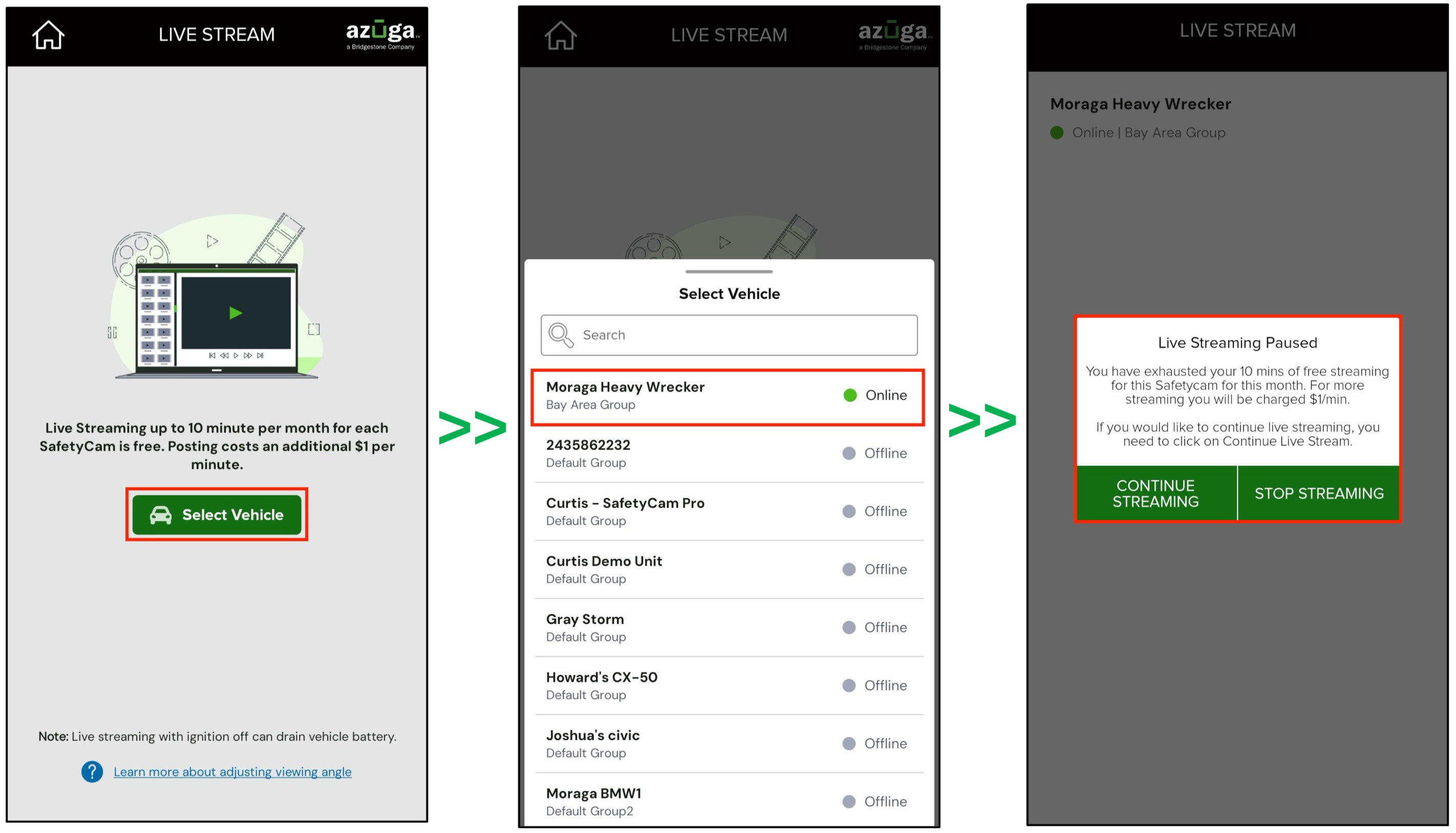
- Click the Live Stream tile >> Select Vehicle >> choose a vehicle from the available list that supports live streaming.
Note: Live Streaming is available only if the user has access to devices that support this feature. |
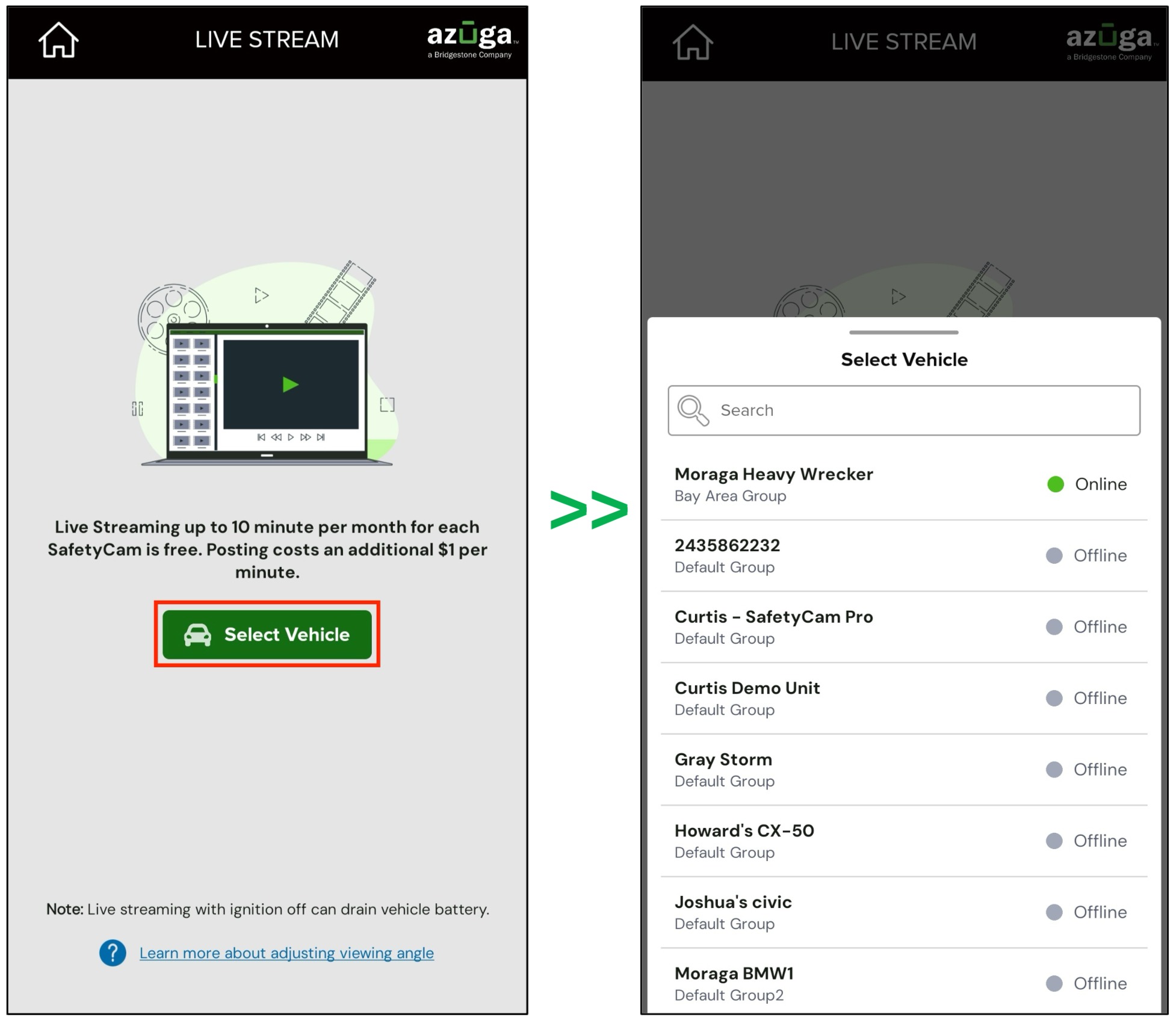
- Each vehicle is displayed with the following details:
- Group Name
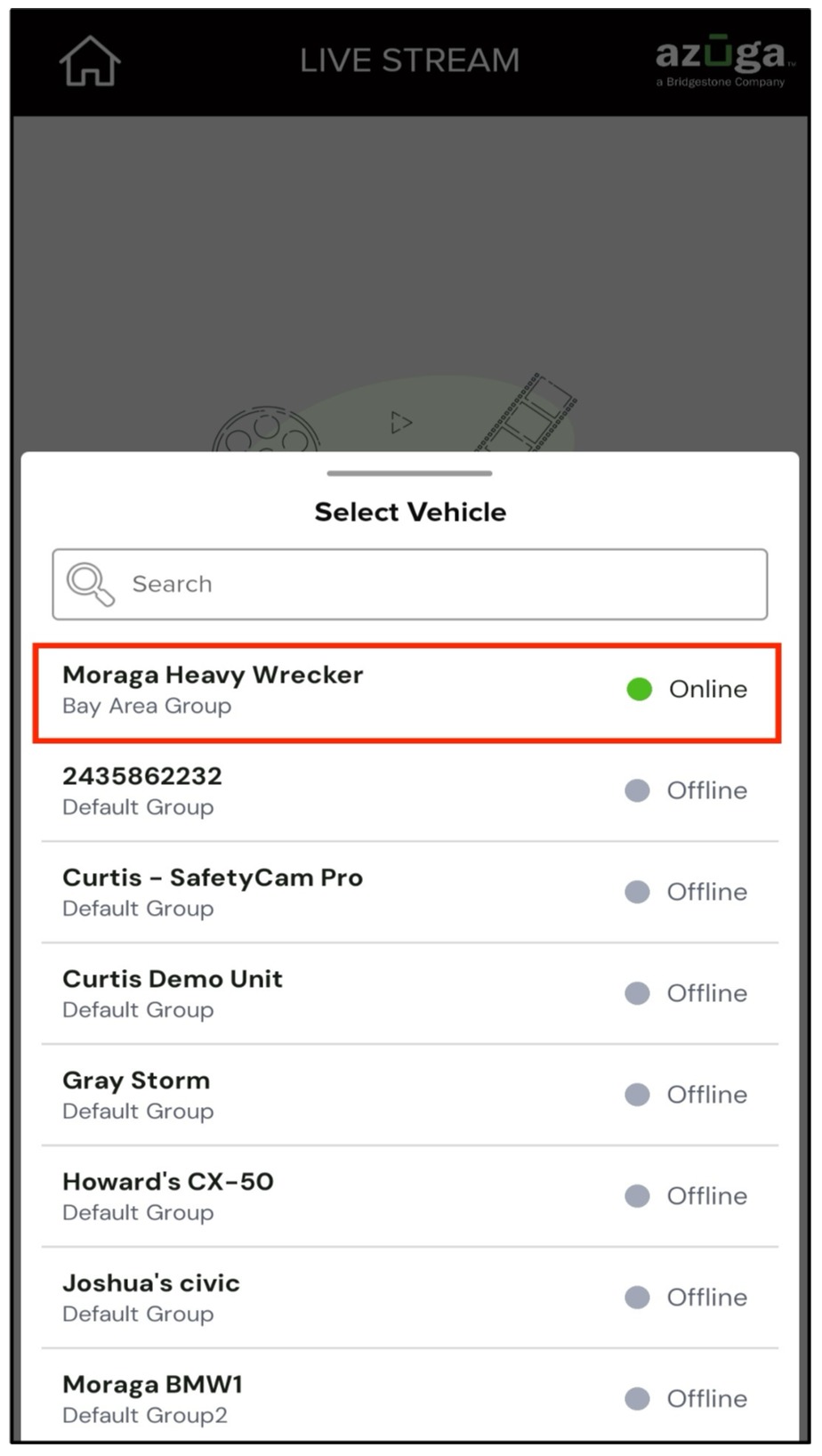
- Camera Status (Online, Offline, Standby, or No Status)
- Vehicles with no camera status are listed at the bottom of the list
Camera Status Definitions:
|
NOTE: Users must select a vehicle with a camera status of Online or Standby to start live streaming. |
- Monitor Live Streaming:
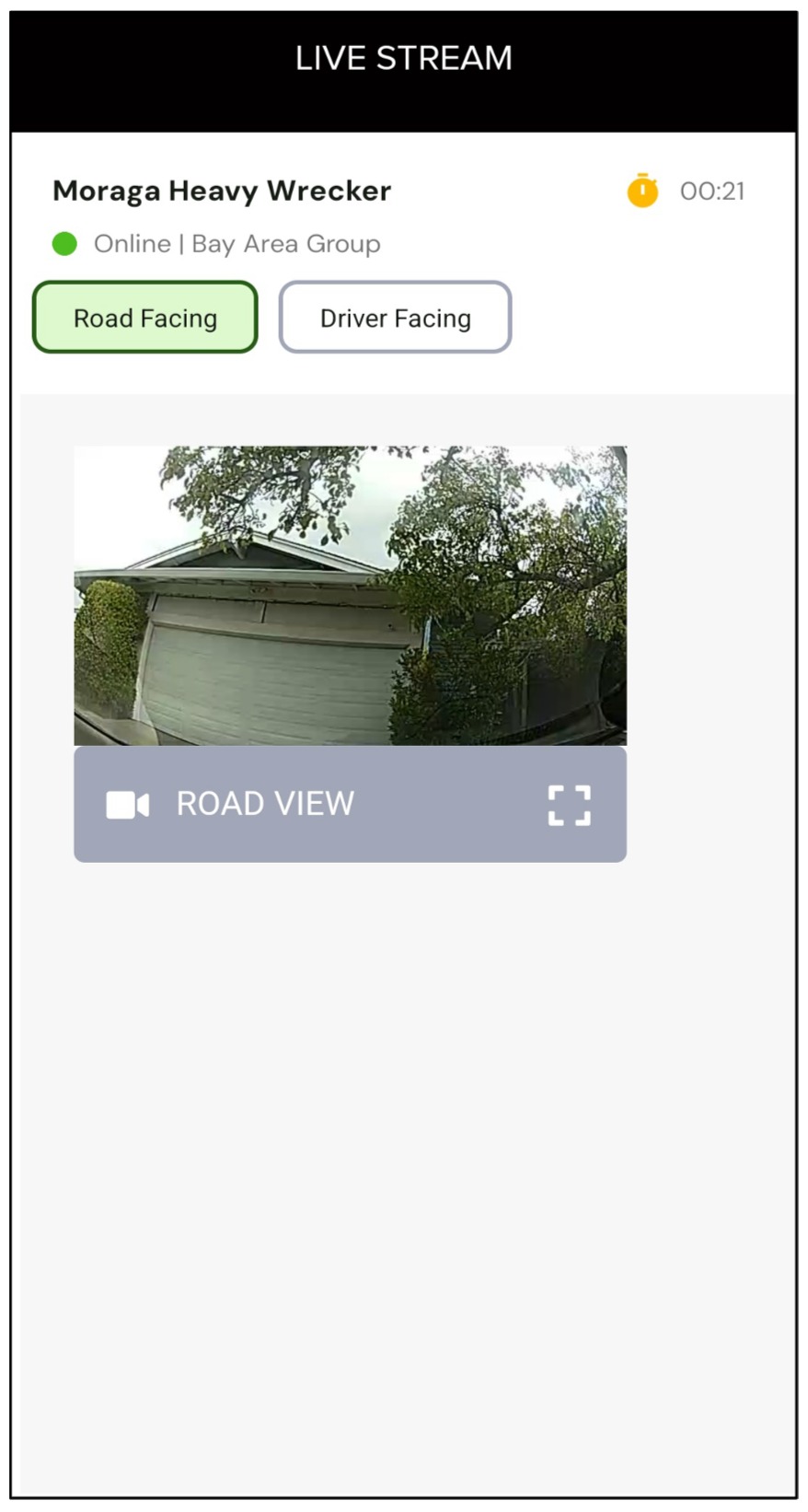
Users can monitor live streams from different camera views, including Road-facing, Driver-facing, and Auxiliary (if available).
Additional details include:
- Vehicle Name
- Group
- Camera Status
- Streaming Timer
- Live Stream Duration & Charges:
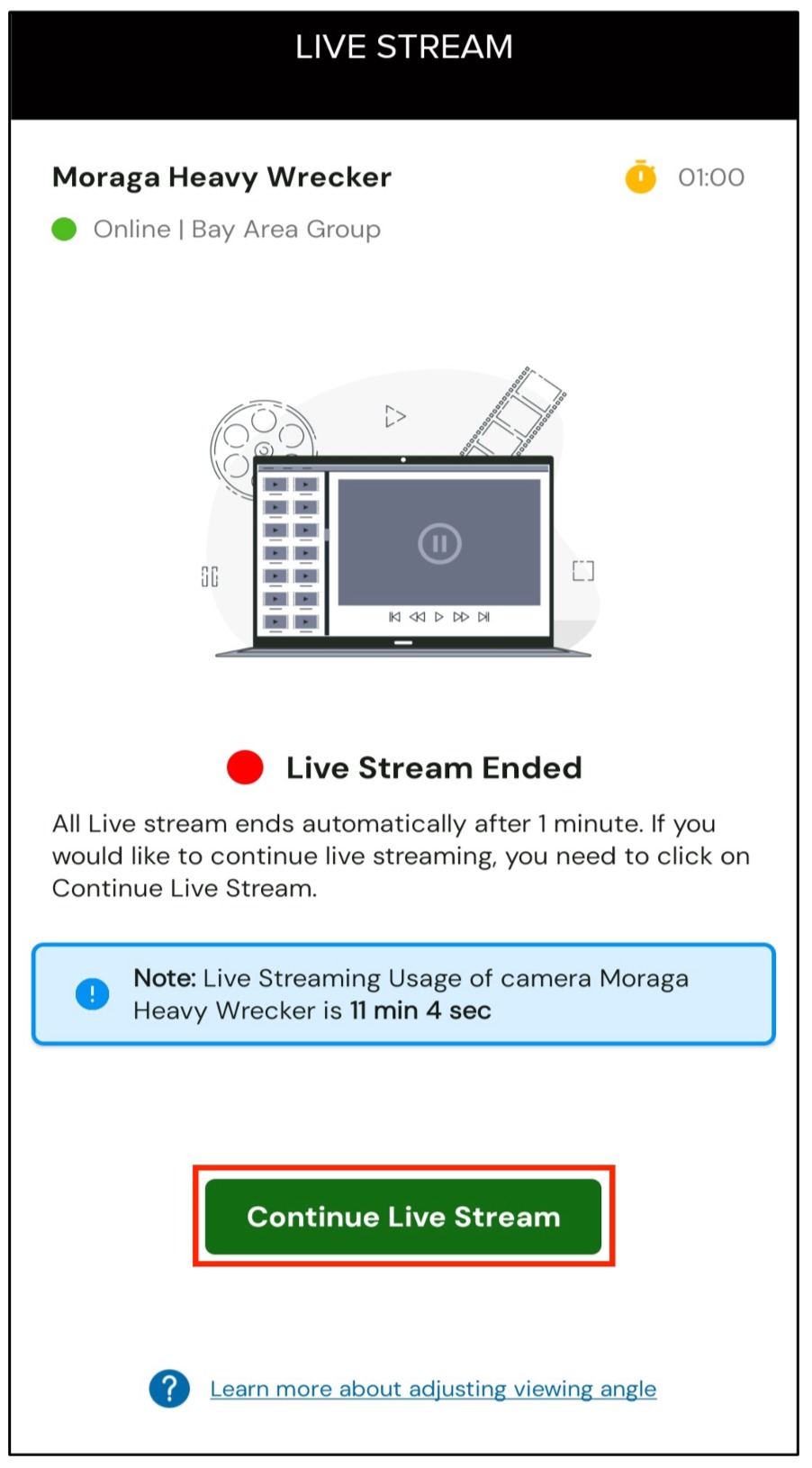
- Each live stream session automatically stops after 1 minute. If users wish to continue streaming, they can click Continue Live Stream to extend the session.
- The total live streaming time for the selected vehicle for the current month is also displayed, helping users track their usage.
c. Once the monthly limit of 10 minutes of free live streaming per vehicle is reached, a pop-up notification appears whenever an attempt is made to live stream that vehicle again within the same month.
Live Streaming Paused You have exhausted your 10 minutes of free streaming for this SafetyCam for this month. For more streaming you will be charged $1/min. If you would like to continue live streaming, you need to click on Continue Live Stream |
d. When the pop-up notification appears, users can either:
- Continue streaming the same vehicle, or
- Stop streaming
Accessing the Request Videos Tile:
Click the Request Videos tile in the SafetyCam module.
By default, users can view up to the last 7 days of requested videos.
Select the Date:
The default date range is the last 7 days, including the current day, based on the user's time zone.
Restriction: Future dates cannot be selected, and past dates older than 365 days are restricted.
If no requested videos are available for the selected duration, a message stating "No video request for the selected filter" will be displayed.
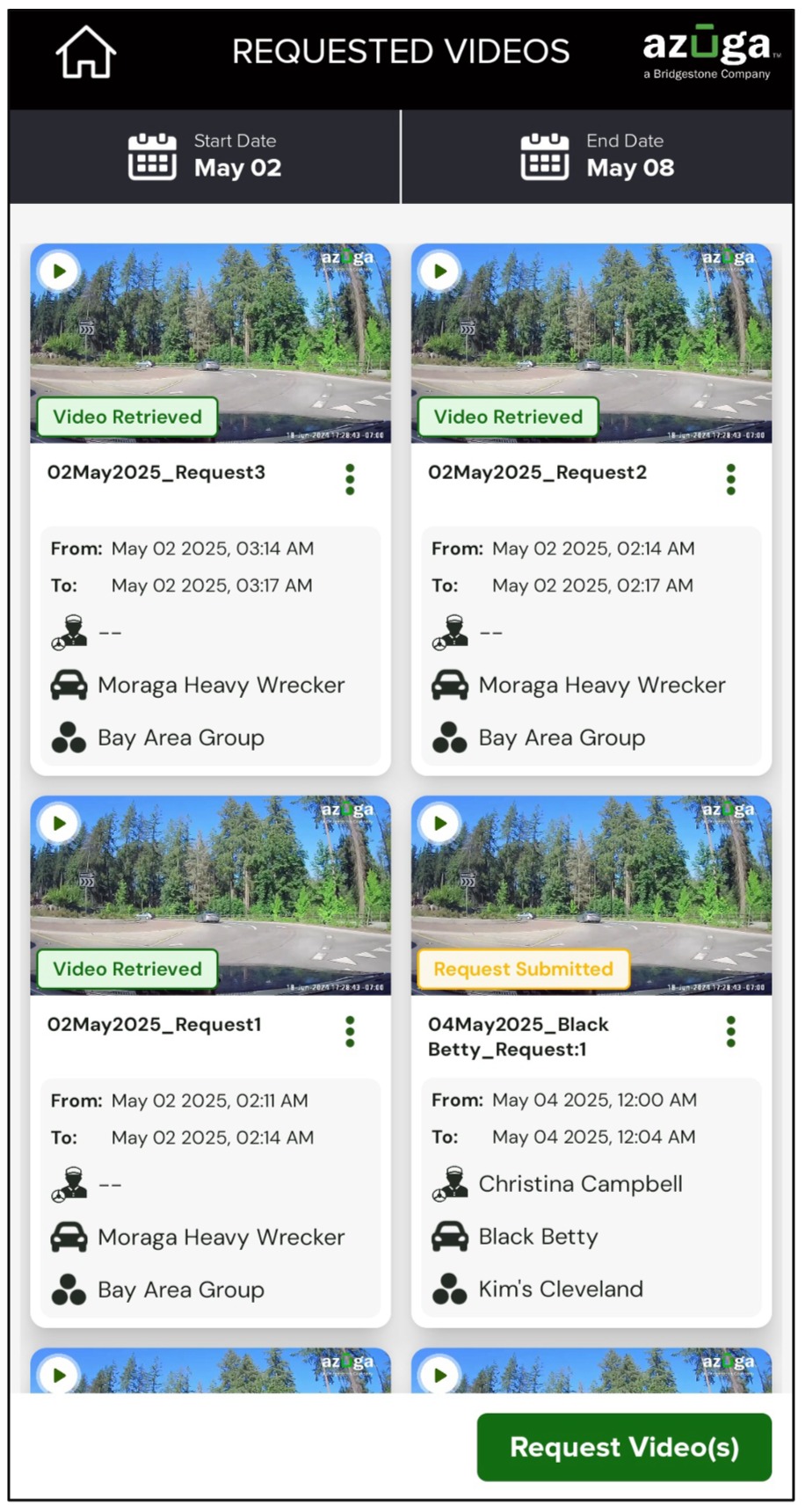
View the Requested Videos card:
Each requested video card includes the following details:
- Status of the requested video for the selected time frame. The video can be played once the status is “Retrieved”.
- Request Name
- Request From and To information
- Driver, Vehicle, and Group Name
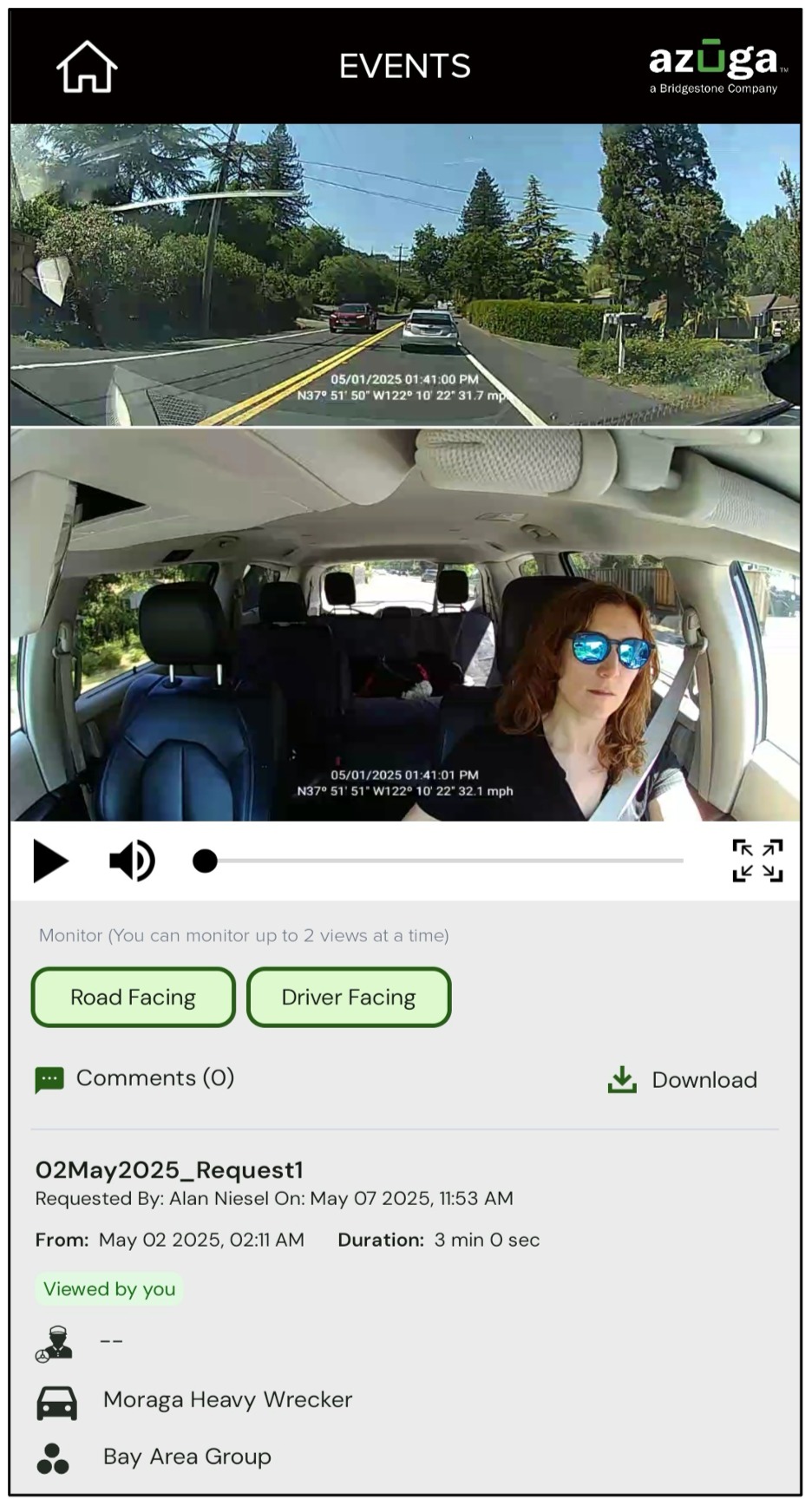
- Requested Video: Road-facing, Driver-facing, and Auxiliary view (if available)
- Request Name
- Requested By and Requested On details
- From Date and Time details
- Video duration
- Comments section: Users can add comments and view all previously added comments on the video.
- Download Button: Users can download Road-facing, Driver-facing, and Auxiliary footage (if available), or choose to download all videos at once.
- Driver, Vehicle, and Group Name
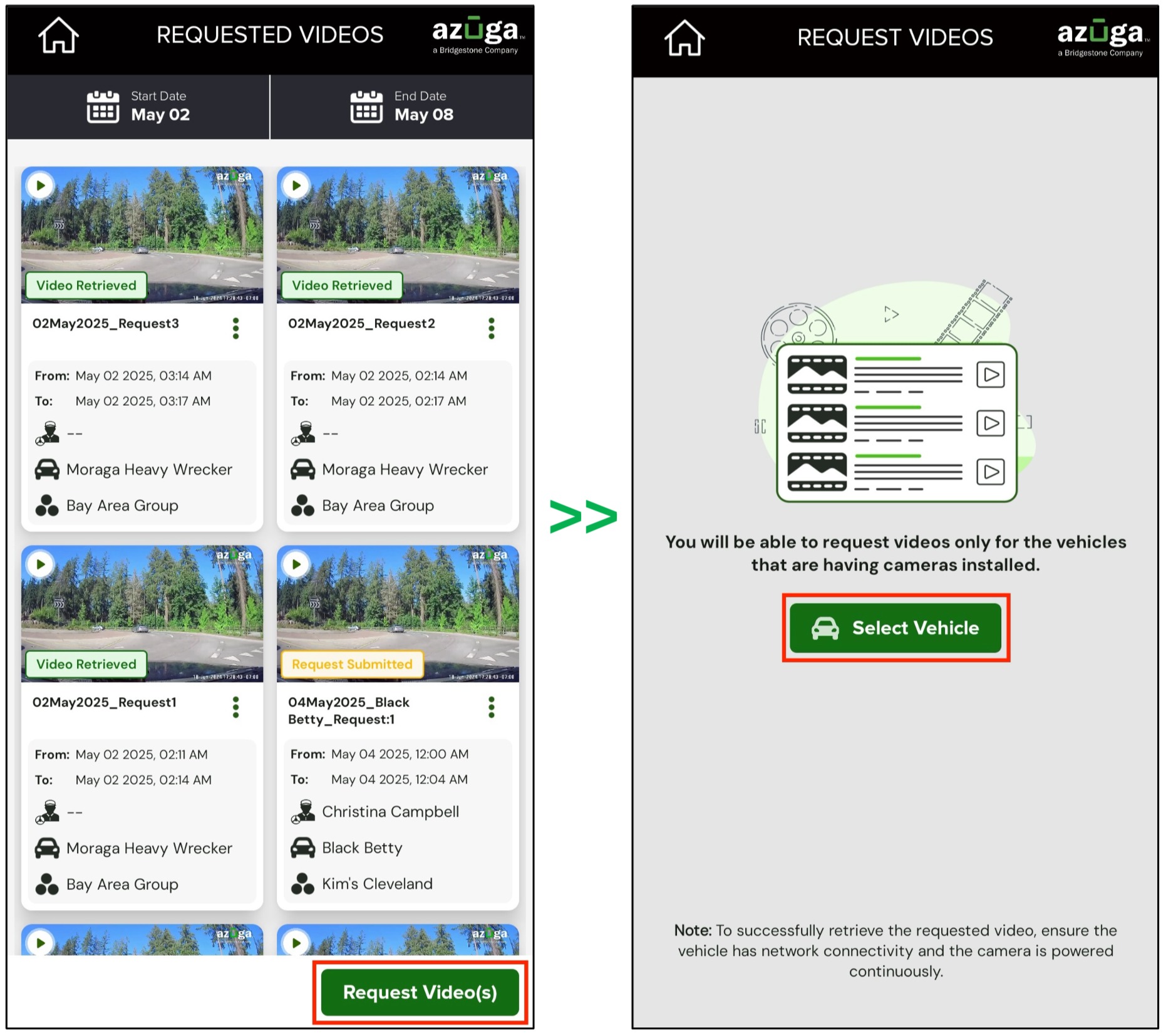
- Request a Video:
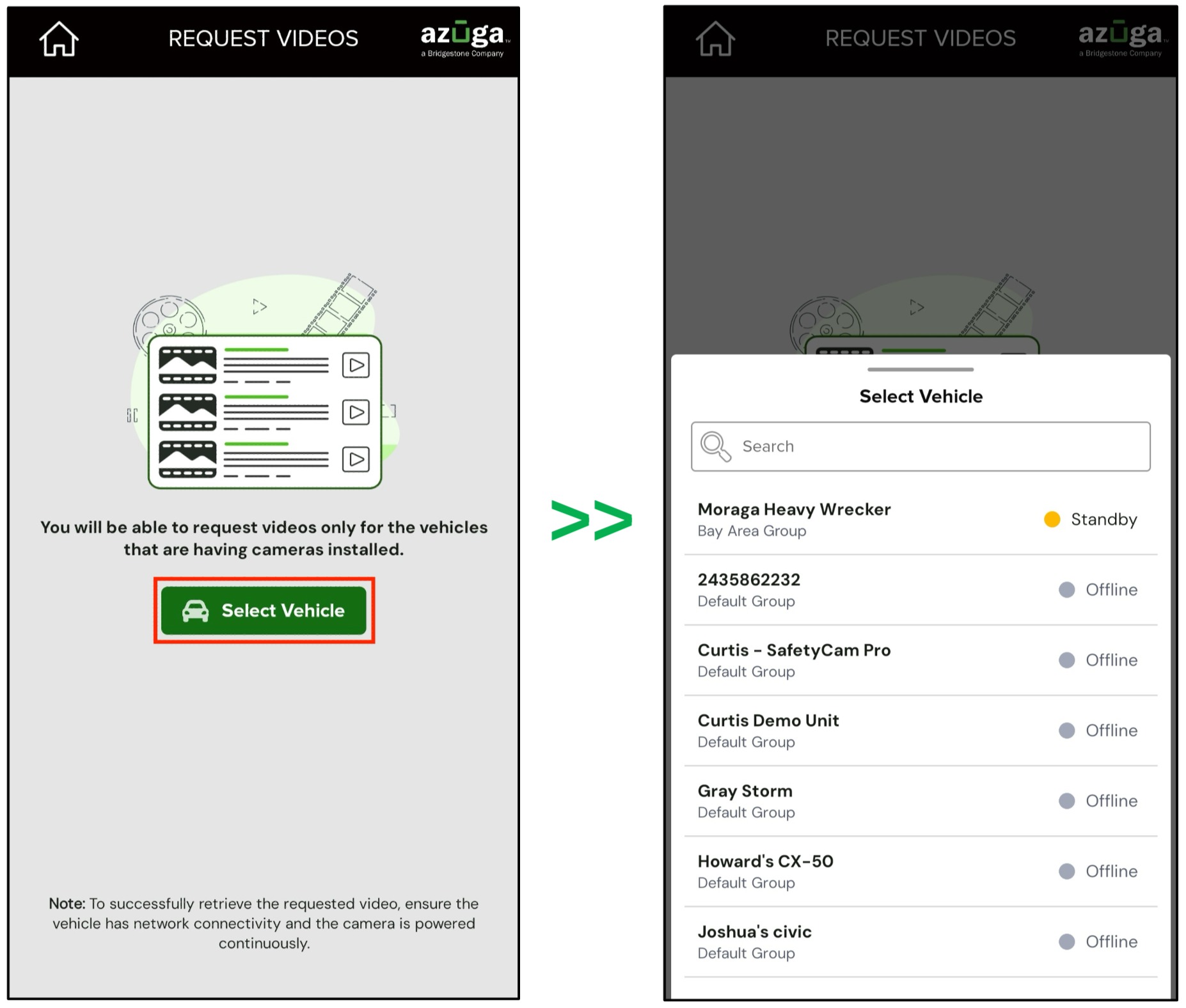
- Click the Request Video(s) button at the bottom of the screen.
- Click Select Vehicle to choose from the available vehicles with installed cameras.
c. Each vehicle displays with the following details:
- Group Name
- Camera Status (Online, Offline. Standby, or No Status)
- Vehicles with no camera status are listed at the bottom of the list.
Camera Status Definitions:
|
NOTE: Users can request videos from any vehicle with a camera, regardless of its status. |
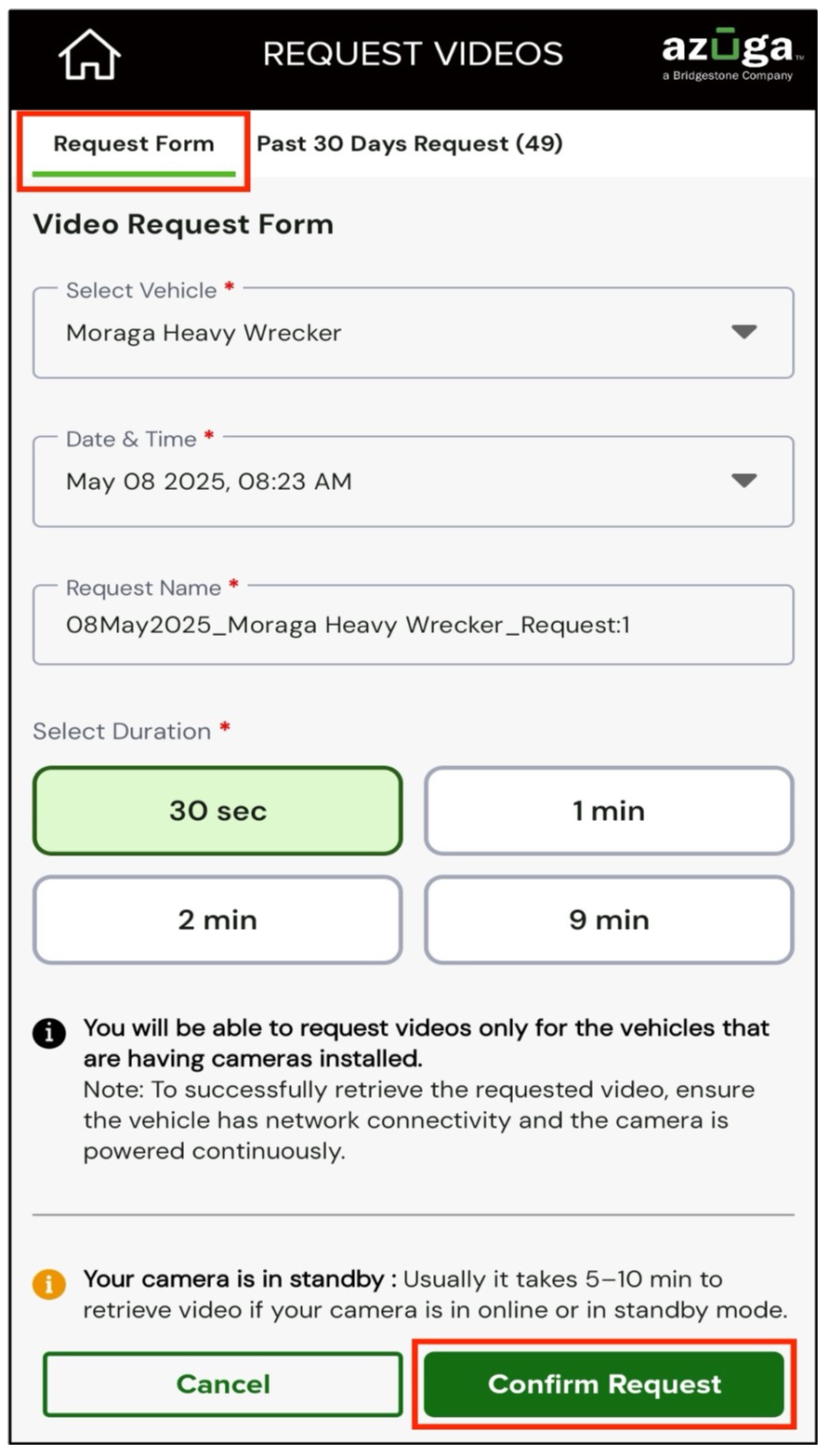
- Enter Details in the Request Form:
- The Select Vehicle details are pre-filled in the Request form.
- Choose the Date, Time, and Time-zone for the requested video.
- The Request Name is auto generated upon selecting the date.
- Select the required Duration from the available options.
- Click Confirm Request to submit.
- A confirmation message appears upon successful submission.
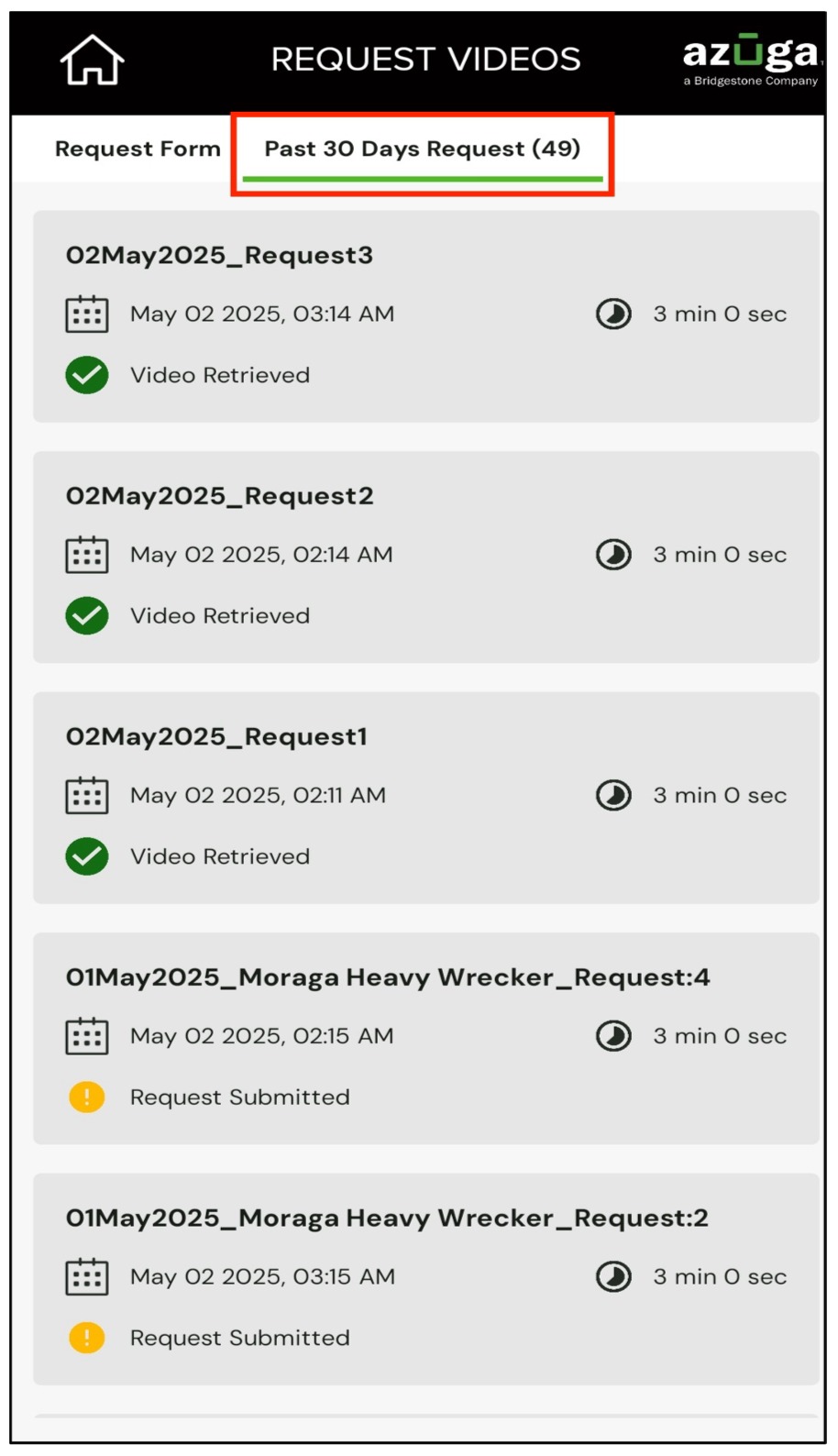
- View the past request for the Requested Video:
Click Past 30 Days Request next to the Request Form. This displays video requests from the past 30 days for the selected vehicle.
The requested video cards include:
- Request Name
- Requested Date and Time
- Request Status
- Duration
Note: This feature has been implemented on both Android and iOS. |
PDF copy of the User Guide: [Customer] The New Video Telematics Experience.pdf
Was this article helpful?
That’s Great!
Thank you for your feedback
Sorry! We couldn't be helpful
Thank you for your feedback
Feedback sent
We appreciate your effort and will try to fix the article