Overview:
The New SafetyCam Experience delivers a faster, smarter, and more intuitive way to manage fleet video safety with an upgraded UI and key enhancements such as improved video retrieval, interactive coaching, and real-time camera status, etc.
Designed to streamline event review and enhance decision-making, this enhanced experience is fully available on both Azuga Fleet Web and Fleet Mobile App, ensuring consistent access to SafetyCam events, video requests, and live streaming whether you’re on a desktop or on the go.
The New SafetyCam Experience: Faster, Smarter, Sleeker
Enjoy a faster, more seamless SafetyCam experience, powered by cutting-edge technology and an upgraded, intuitive UI for enhanced efficiency and user satisfaction.
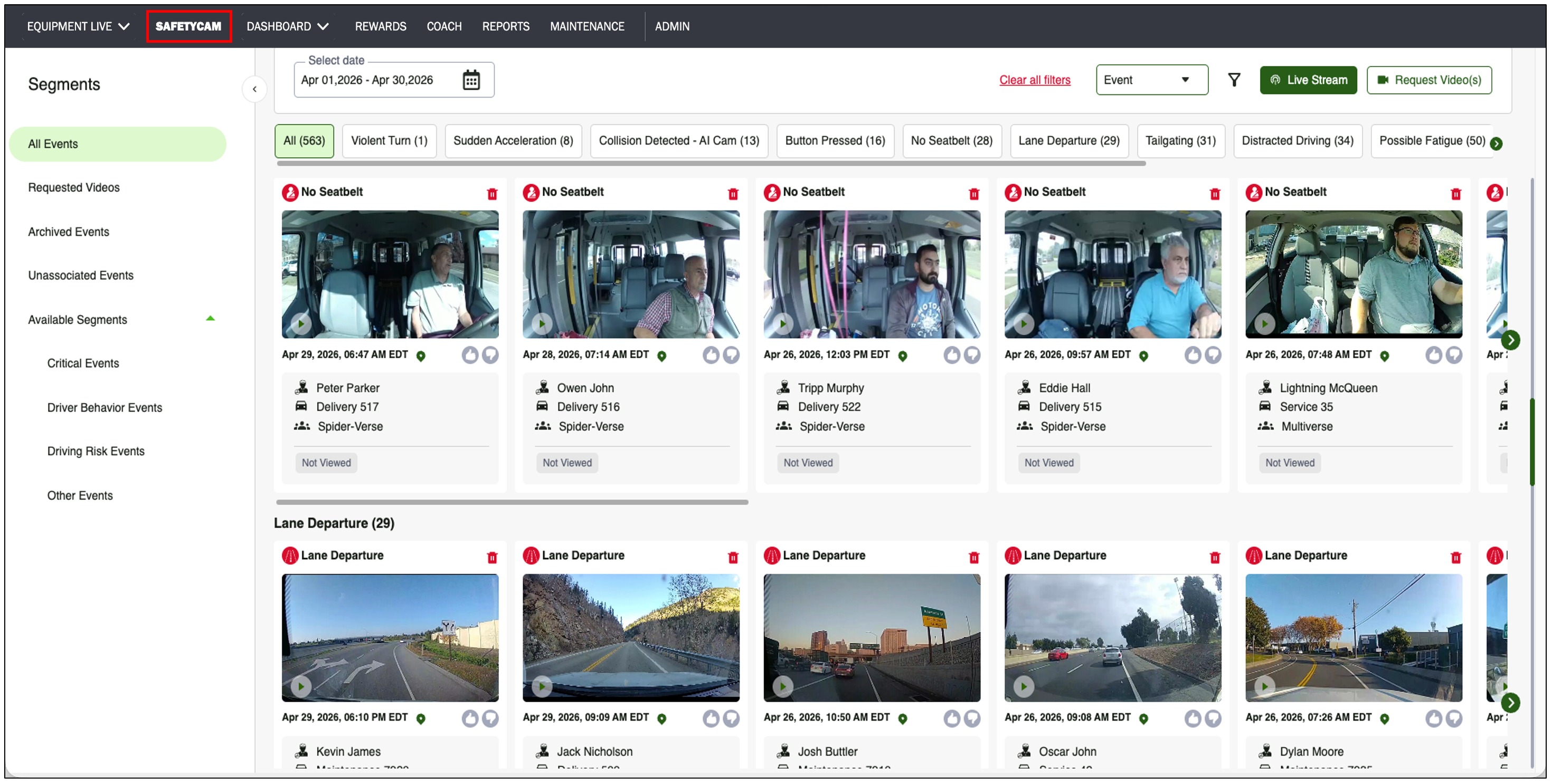
Request Video(s) Timeline & Snapshot Preview: Easily preview events and request videos with precision
Make smarter video requests with Timeline View, an intuitive visual interface that clearly shows when recordings are available and lets you preview events using snapshots, streamlining selection, reducing failed attempts, and enabling confident retrieval of the right clips.
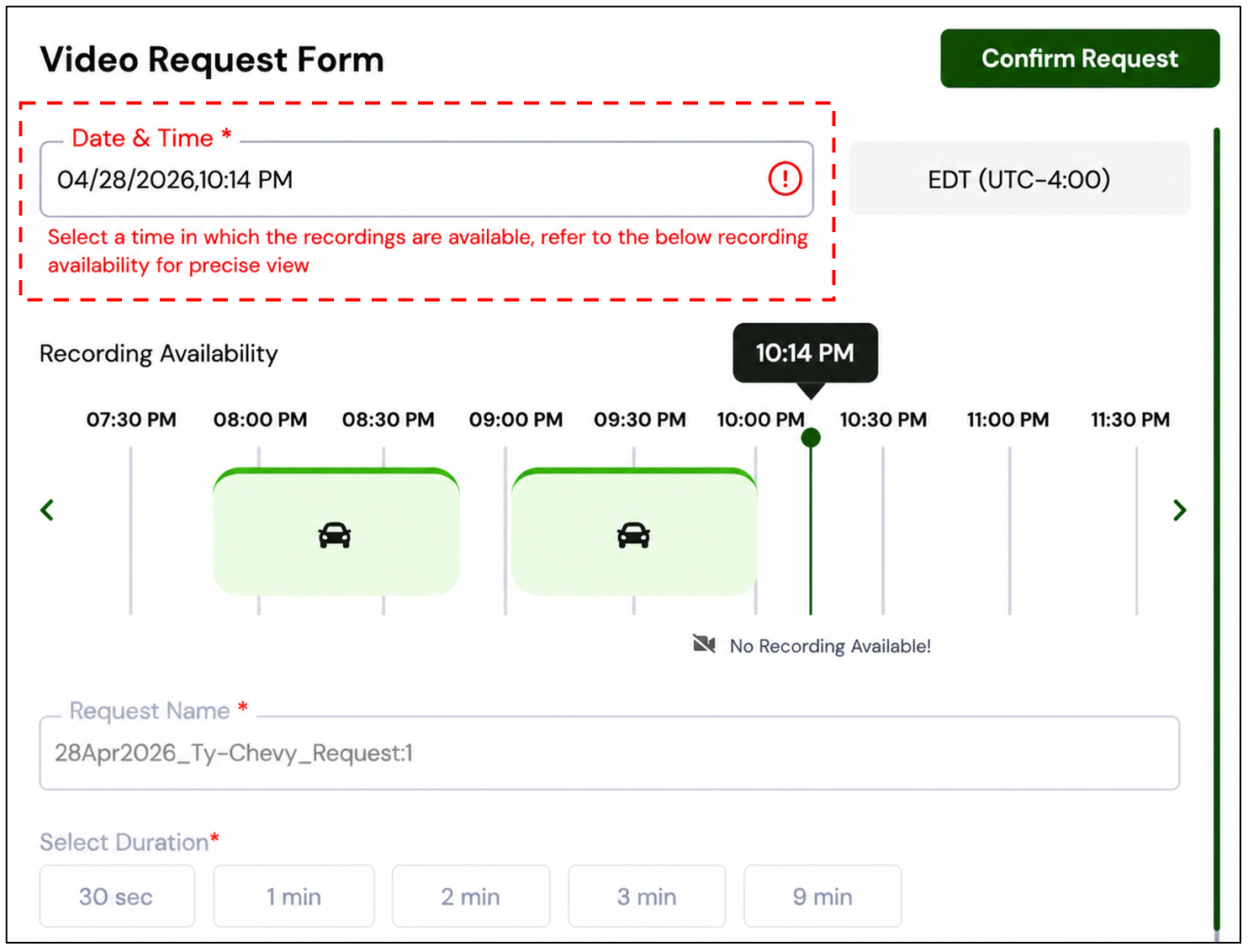
Timeline view shows when recordings are available for cameras that are online or in standby mode, depending on network connectivity. Users can scroll through the timeline to view snapshots of events, helping them quickly select the exact time before requesting a video for faster and more accurate video retrieval.
Navigation:
- From the SafetyCam main page, go to Request Video(s).
In the Select Vehicle panel, search or scroll down to select a camera that is online or in standby mode.
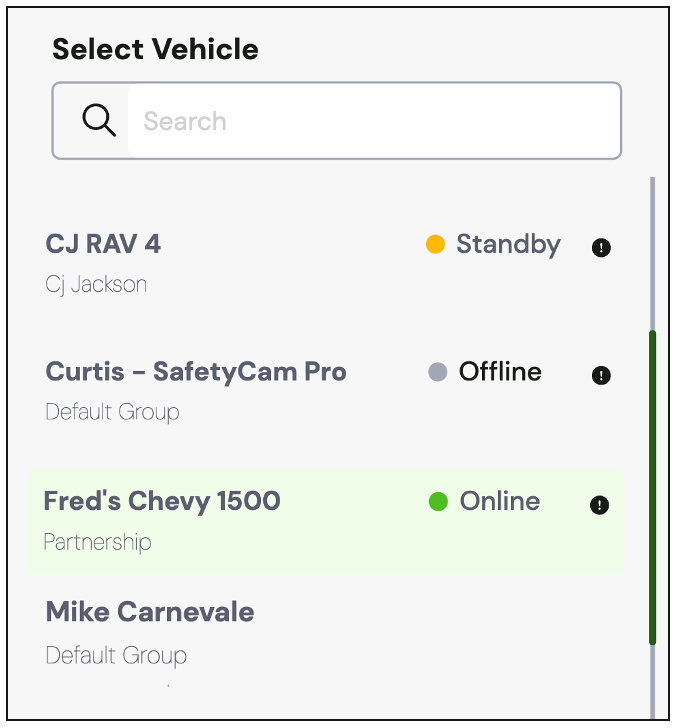
⚠️ IMPORTANT:
|
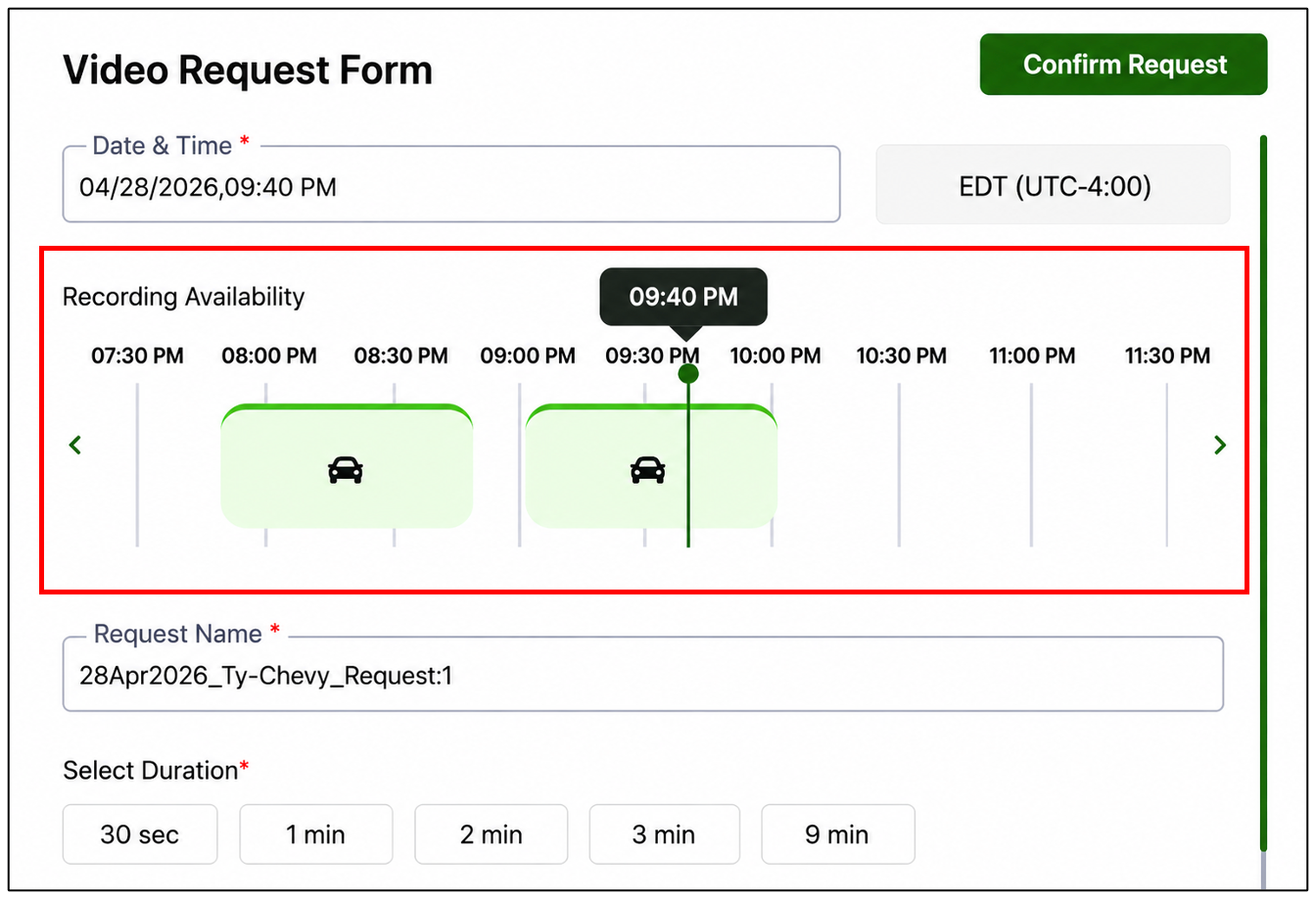
Here’s what the Timeline View feature offers:
- Interactive Timeline with Snapshot Preview:
A sleek, scrollable timeline displays recording availability in six intuitive 4-hour blocks covering the entire day, from 12:00 AM to 11:59 PM.
12:00 AM – 4:00 AM
4:00 AM – 8:00 AM
8:00 AM – 12:00 PM
12:00 PM – 4:00 PM
4:00 PM – 8:00 PM
8:00 PM – 11:59 PM
Users can scroll, drag, or click along the timeline to navigate through the day and view snapshots of events at specific moments, allowing them to quickly identify what happened and select the exact time.
The selected time instantly updates the "Date & Time" field for fast and accurate video requests.
- Real-Time Form Auto-Fill and Tooltip:
The interface responds in real time as users interact with the timeline. Selecting a time automatically updates the request form, while a tooltip displays the selected time.
A snapshot is shown for the selected moment, helping users quickly verify the correct time before requesting the video.
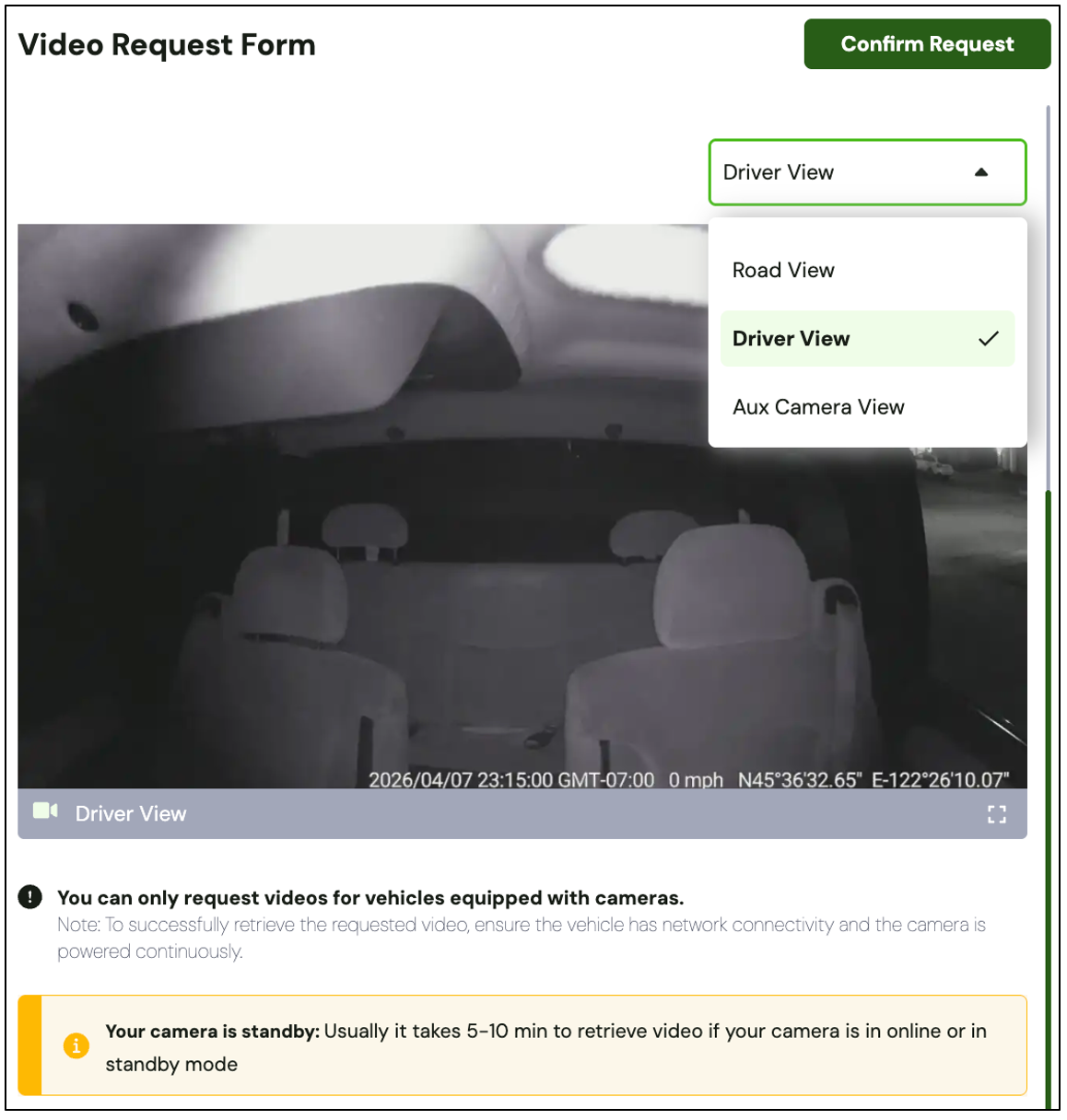
- Multi-View Snapshot Preview:
Preview historical events across multiple camera views (Road, Driver, and Aux) directly through timeline snapshots.
This helps you better understand the situation from different perspectives before requesting the video
⚠️ IMPORTANT: Snapshot Preview is available only on devices running firmware version 20260407 or later. |
- Footage Availability with Visual Context:
- View only the time blocks where recordings are available, along with snapshot of events to understand what happened at that moment. This helps eliminate guesswork and ensures more accurate video requests.
- Validation for Smarter Requests:
- Invalid time selections are blocked with clear validation messages, and snapshots help users verify the correct time before placing a request. This ensures that only valid requests are submitted, improving overall success rates.
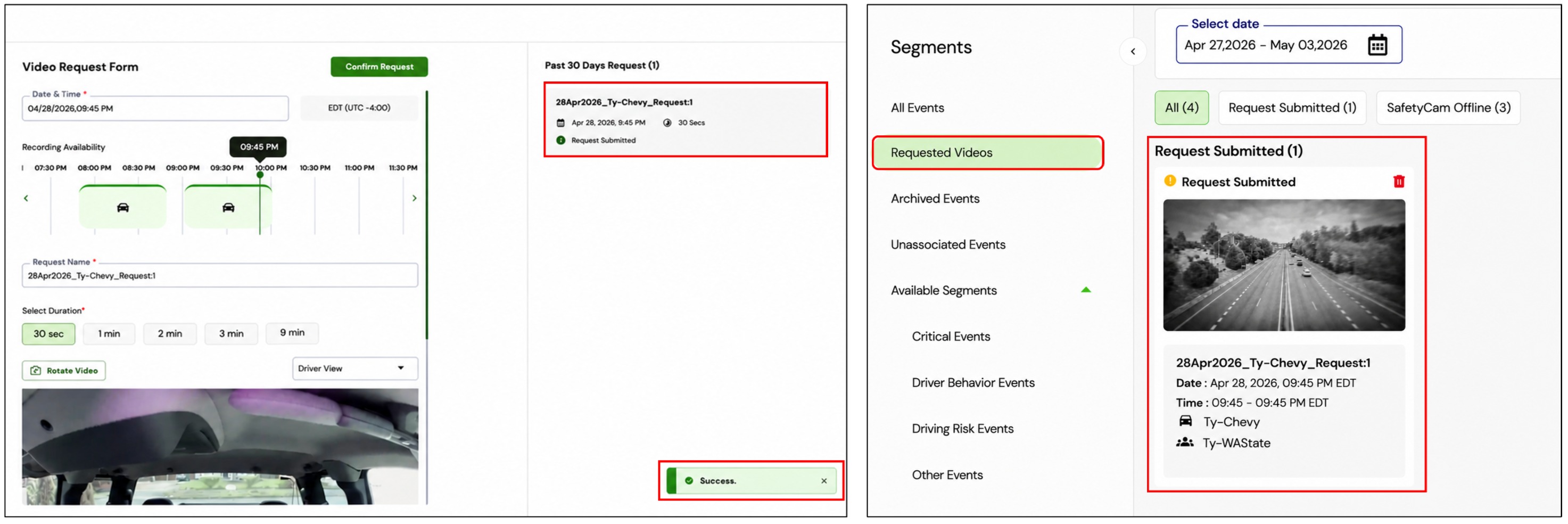
After submitting a video request, a “Success” message appears at the bottom-right corner of the Request Video(s) page. A “Request Submitted” card then appears under Past 30 Days Requests for the selected vehicle.
The same vehicle card is also visible in the Requested Videos section on the main SafetyCam page.
NOTE: As statuses update, the current state of each requested video is reflected in the Requested Videos section. Use quick filters to track progress efficiently. |
TIP: Requests made using timeline snapshots help improve success rates and ensure more relevant video retrieval. |
Unassociated Camera Videos: Access Critical Footage from Unlinked Cameras
Access unassociated camera videos to review footage from unlinked cameras, helping recover crucial clips that might otherwise be missed. The feature streamlines retrieval, reduces failed attempts, and ensures you get the right footage when it matters most.
Easily recover important video clips from unlinked cameras and associate them with the correct vehicles. This capability ensures critical footage is available when needed, improving incident review and overall video coverage.
✅ Recover important video clips
✅ Associate cameras with the correct vehicles
Navigation:
- From the SafetyCam main page, go to the Segments section.
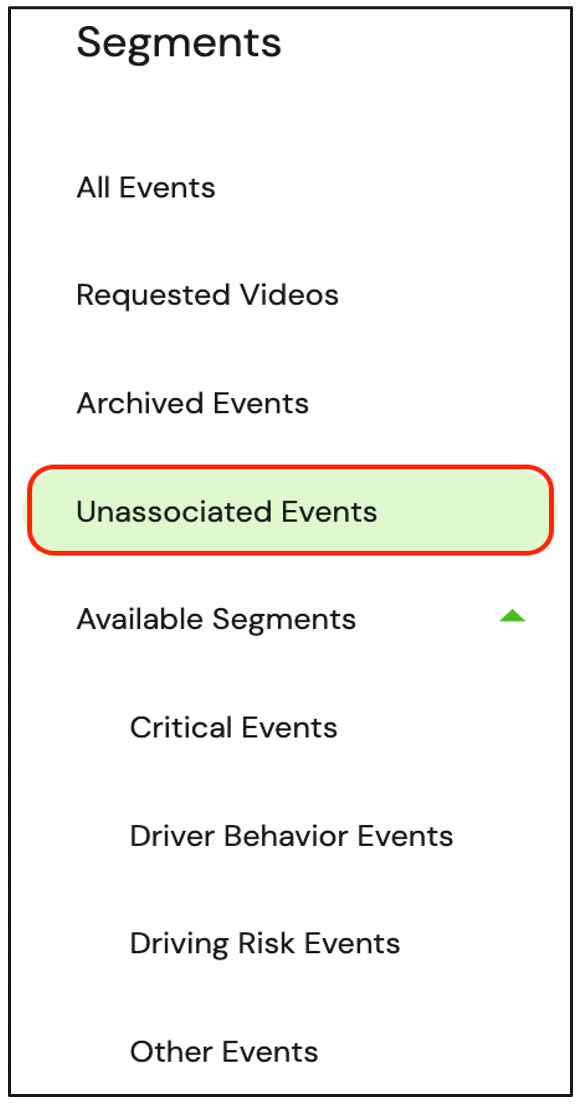
- Select the Unassociated Events segment to view videos from unlinked cameras.
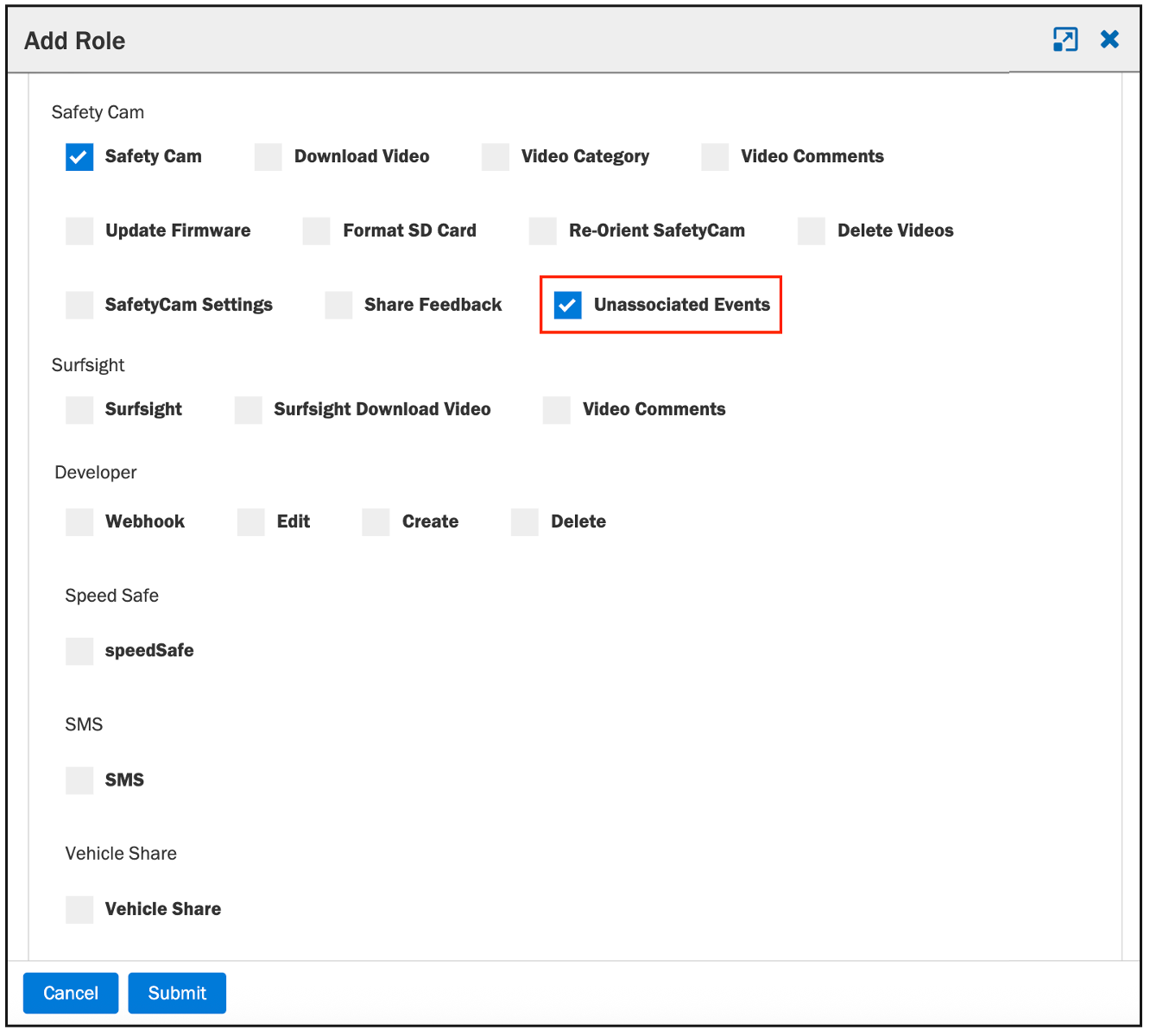
NOTE: The Unassociated Events segment is visible only to users with the “Unassociated Events” privilege enabled under Admin > Roles. |
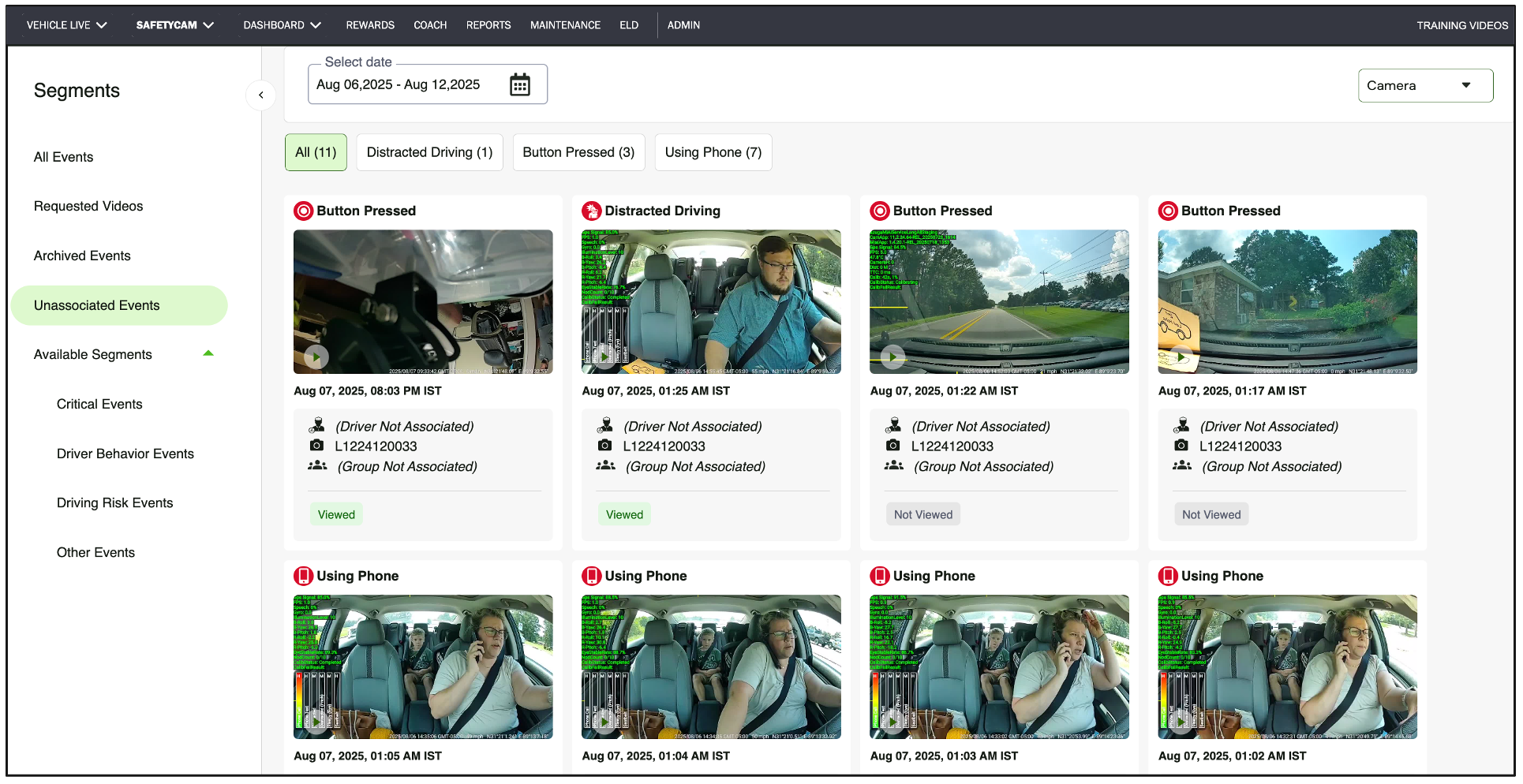
Here’s what this feature brings you:
- Date Selection and Quick Filters:
Easily select dates and apply filters to find relevant footage quickly.
- Group By Options:
Group videos by:
- Event
- Date
- Camera Serial Number, or
- None.
The default view groups by Camera Serial Number.
- Camera Serial Number Display:
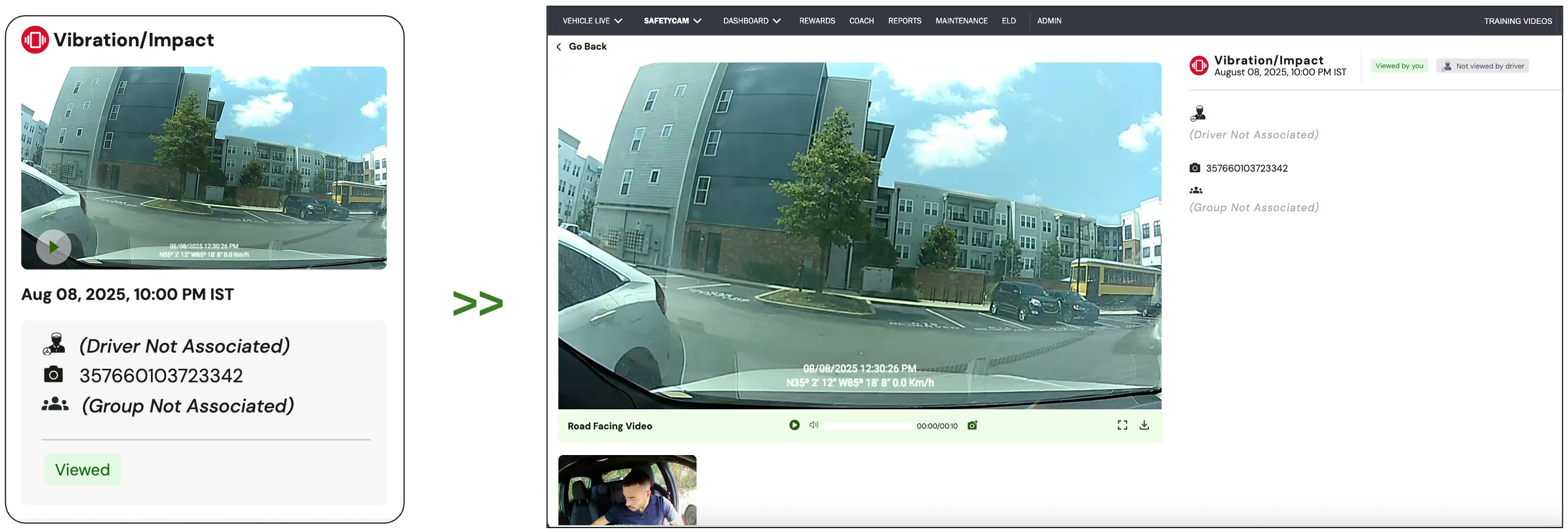
Since these cameras are unlinked, the Camera Serial Number appears instead of the Vehicle name for each video clip.
IMPORTANT: Once a camera is linked to a vehicle, only recordings from that point forward will show the association. Earlier unassociated videos will continue to appear where they are, in the Unassociated Events segment. |
Drill down on an Unassociated Events video card to view its detailed playback, including road-facing and driver-facing video streams along with event details such as type, date, time, and camera information.
Unassociated Events Privilege:
- Only users with the “Unassociated Events” privilege enabled can view the Unassociated Events segment on the new SafetyCam experience page.
- The Unassociated Events privilege can be found under Admin > Roles > Add/Edit Role > Admin tab > SafetyCam > Unassociated Events.
- This privilege is enabled by default for the default Admin role.
Share Feedback: Instantly Review and Give Feedback on SafetyCam Videos
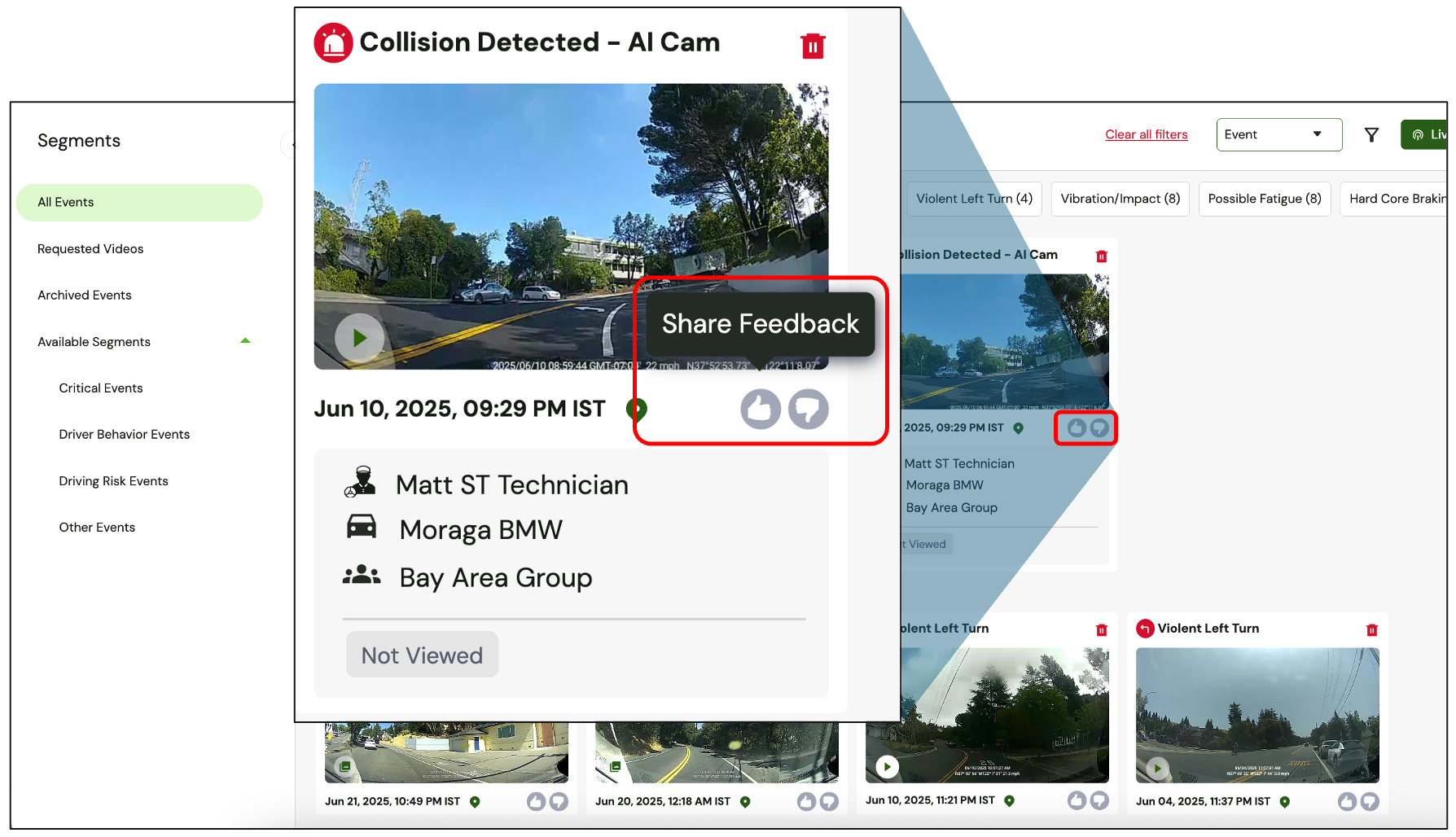
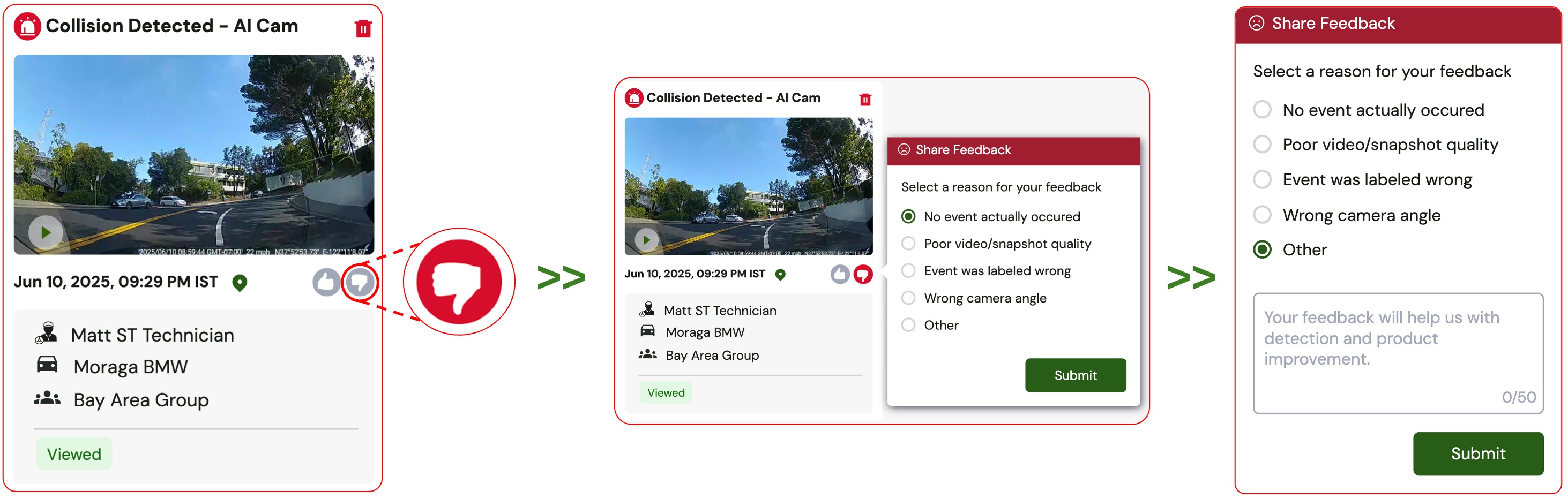
Easily give a thumbs up or down on SafetyCam videos, select a reason from the list, or type your own. Instantly identify important footage, flag concerns, and share valuable insights in real time.
- Hover over ? or ? for each Event video on the main page to view tooltip or feedback.
- Click ? or ? to give a thumbs up or down to the event video.
NOTE: The “Share Feedback” option is visible on the SafetyCam main page and event video player only when the “Share Feedback” privilege is enabled under Admin > Roles. |
- Choose a reason from a list or type your own under “Other” (optional).
- Change your feedback by clicking the opposite icon or re-click to remove it.
- Feedback is captured instantly — no refresh needed!
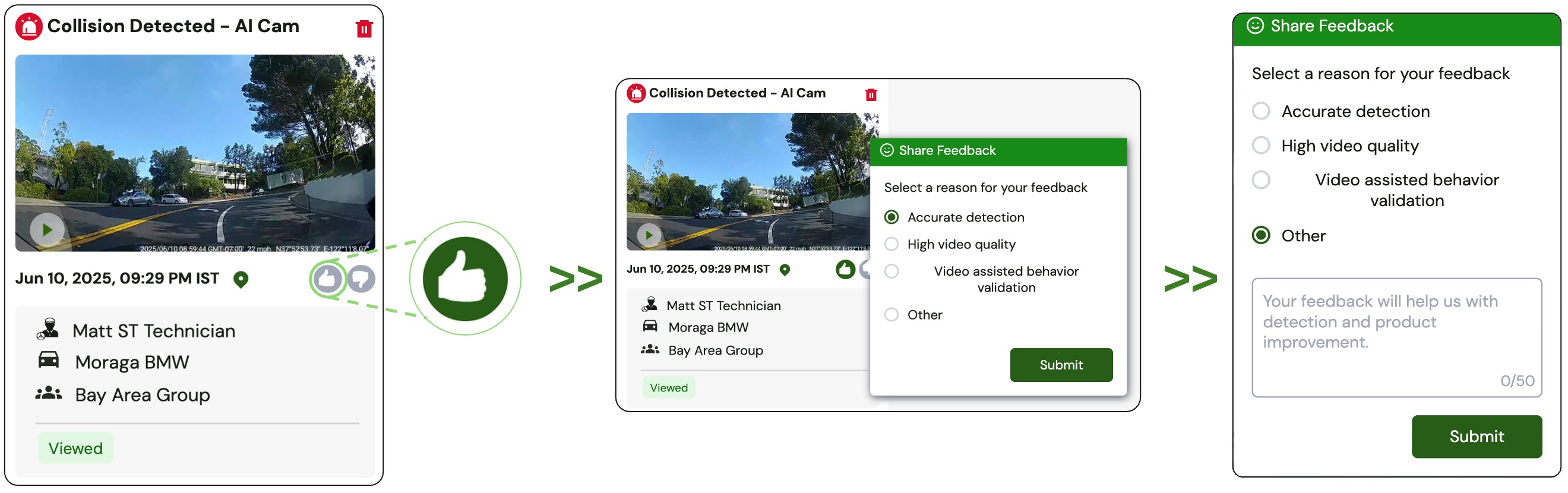
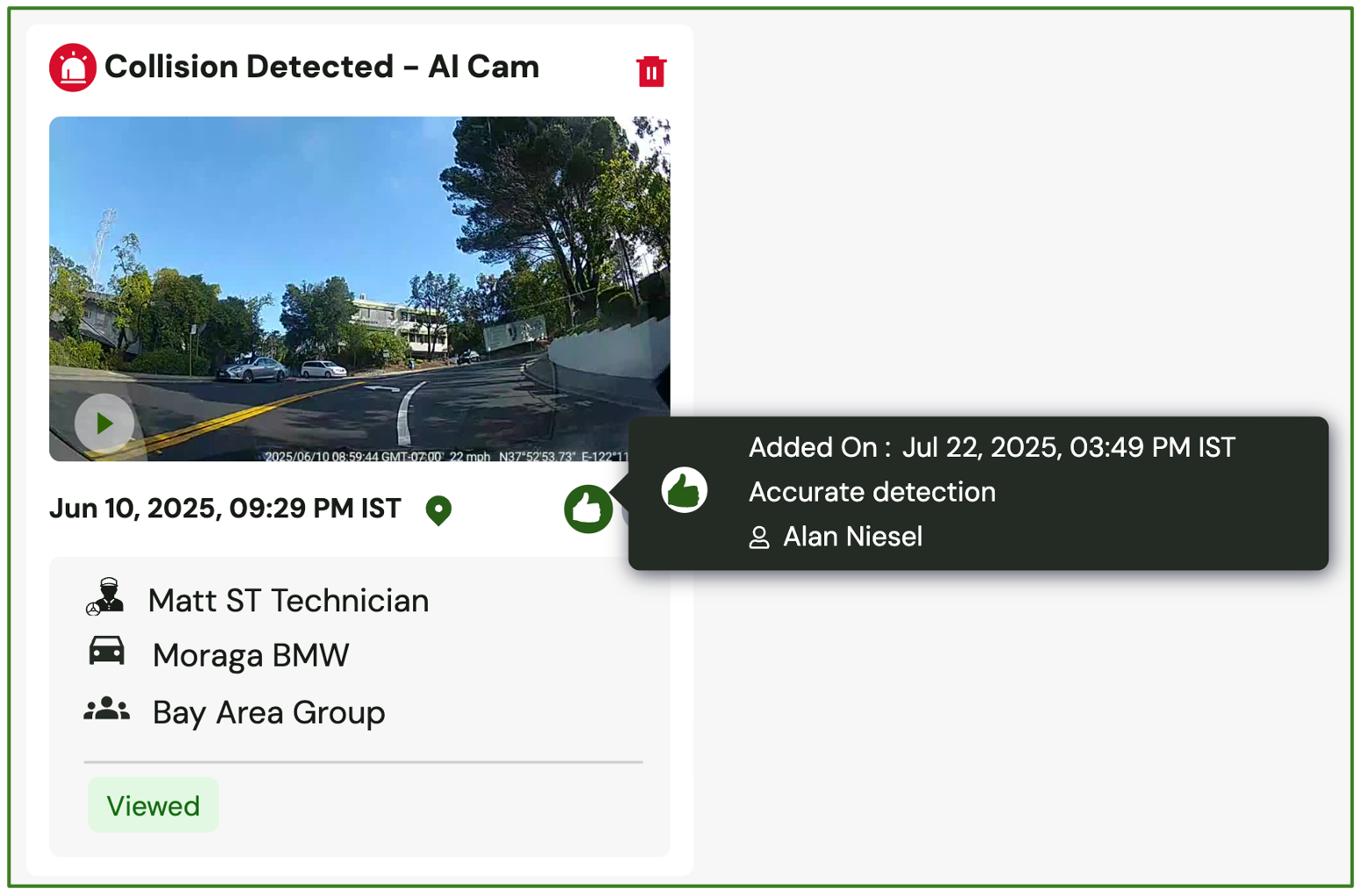
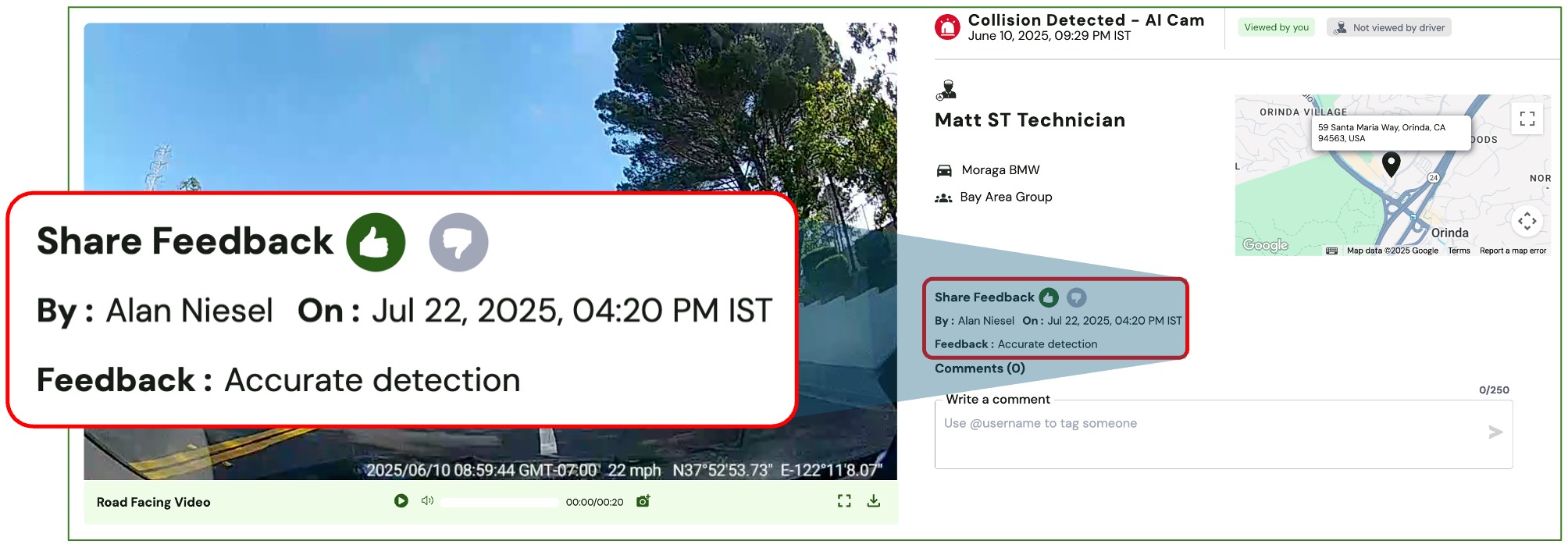
- Feedback is captured at the account level, so only one entry is allowed per video per account.
- If feedback has been provided, hovering over the thumbs up/down icons on the SafetyCam page will display it as a tooltip.
- On the event video page, tooltips are not shown since the feedback is already displayed explicitly.
Share Feedback Privilege:
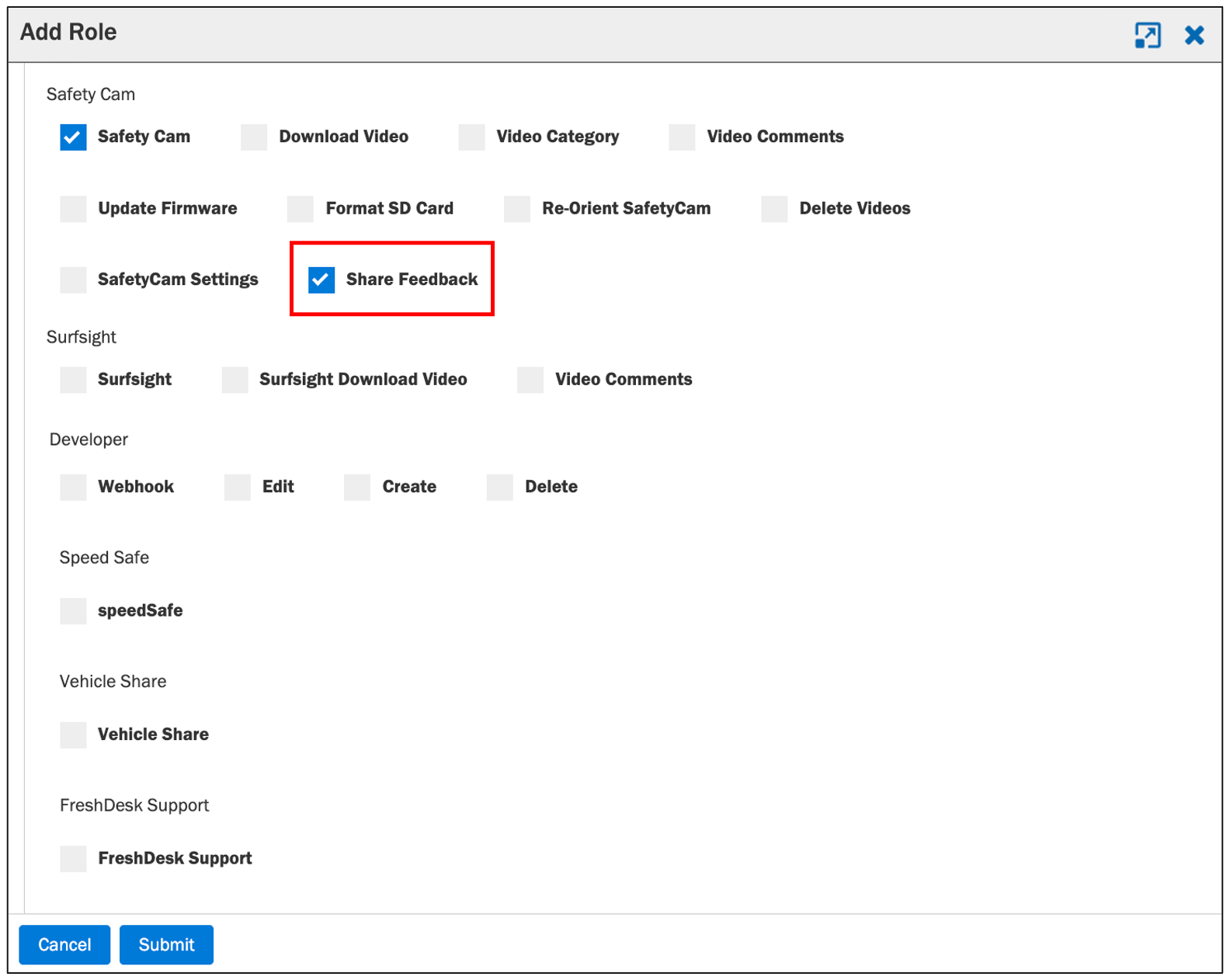
- A new “Share Feedback” privilege is available under Admin > Roles > Add/Edit Role > Admin tab > SafetyCam > Share Feedback.
- This privilege is enabled by default for Admin roles and disabled for Driver roles.
NOTE: The “Share Feedback” option appears on the SafetyCam page and event video player only when this privilege is enabled. |
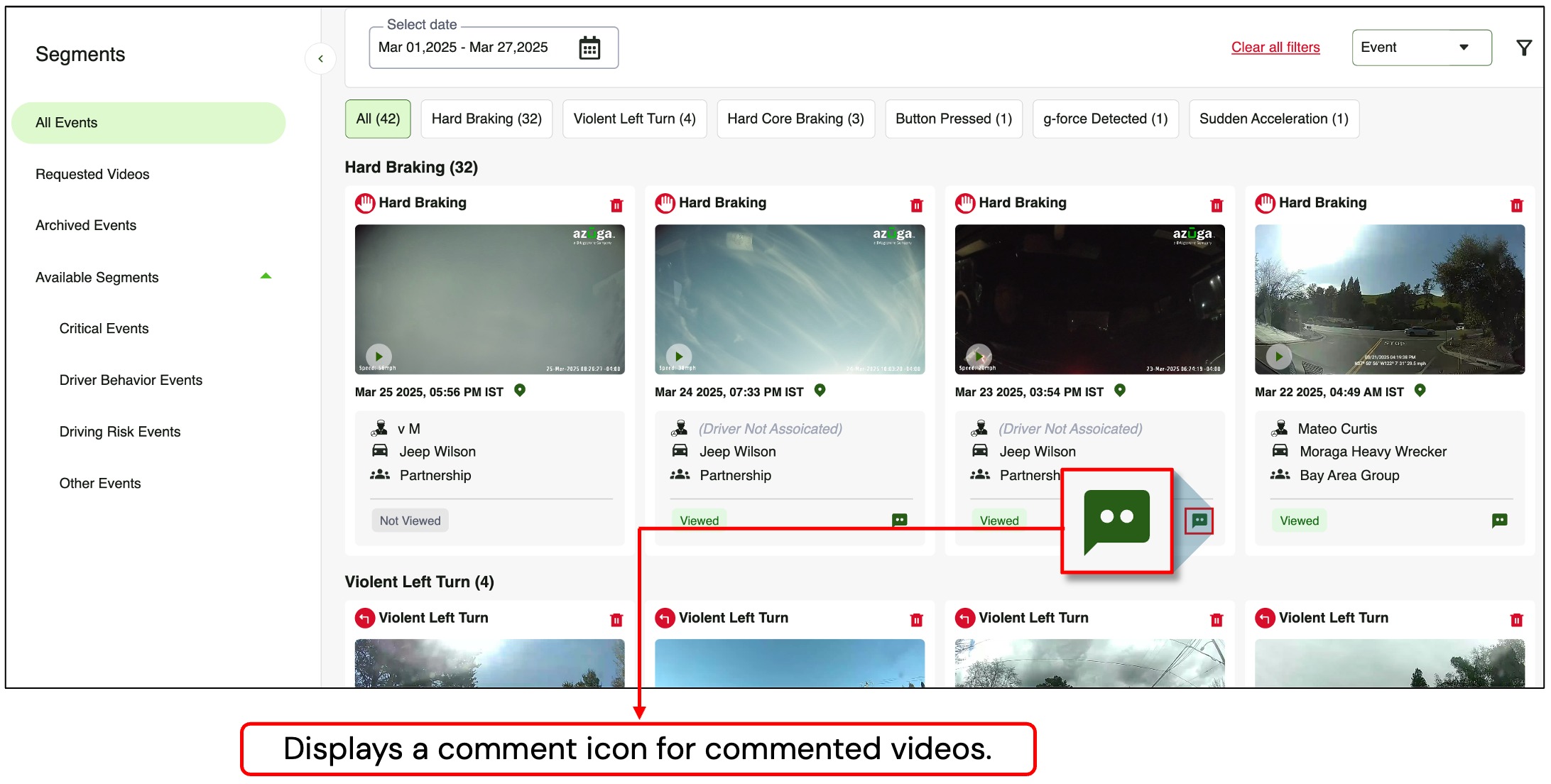
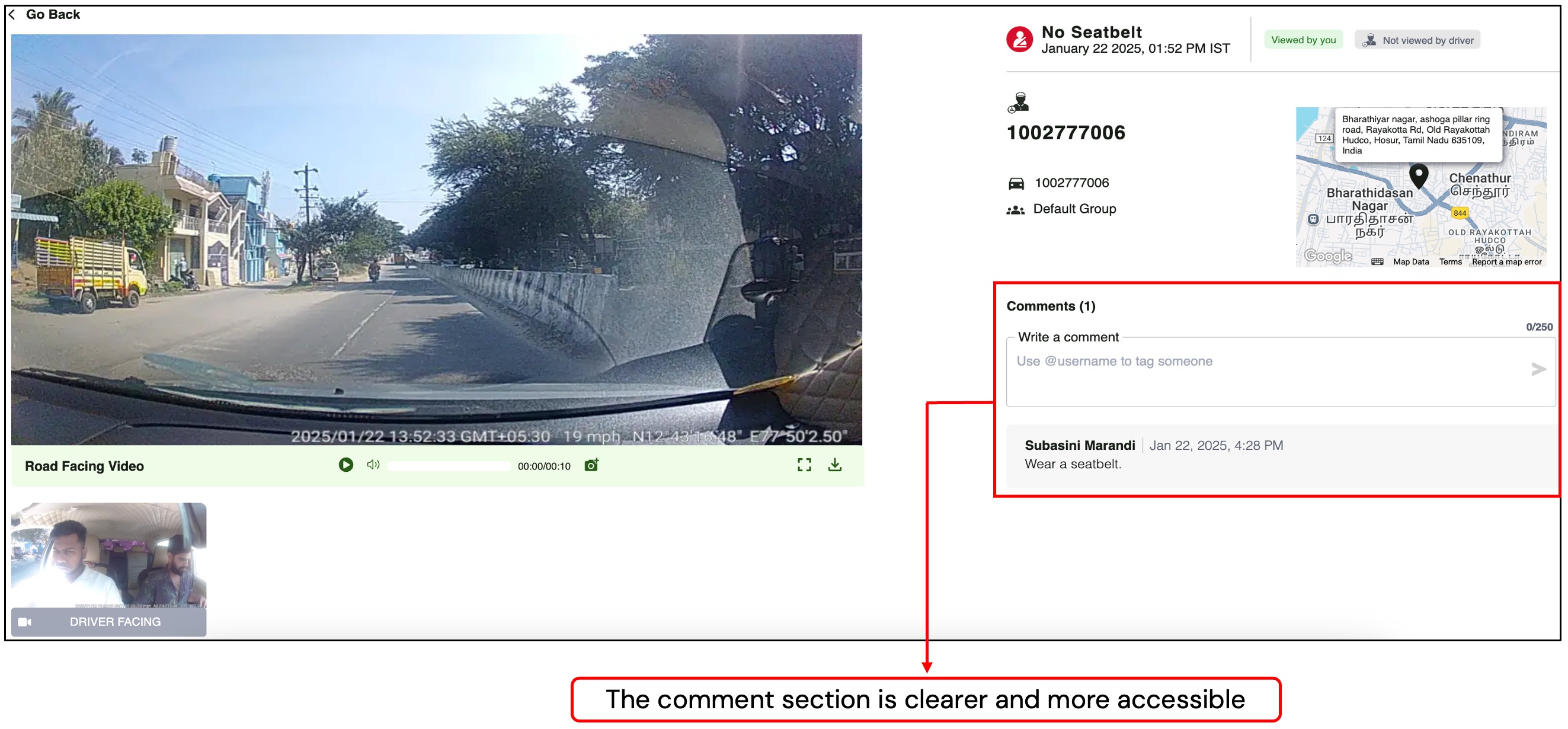
Interactive Coaching: Transforming Fleet Safety with Actionable Feedback
Elevate fleet safety with our interactive, comment-based coaching system. Deliver personalized, actionable feedback to drivers, foster safer driving habits, and boost overall fleet performance.
Tailor Grouping Options to Suit Your Workflow
You can now review videos using various grouping options, tailored to your needs. This flexibility enables you to organize and assess footage in a way that best aligns with your workflow.
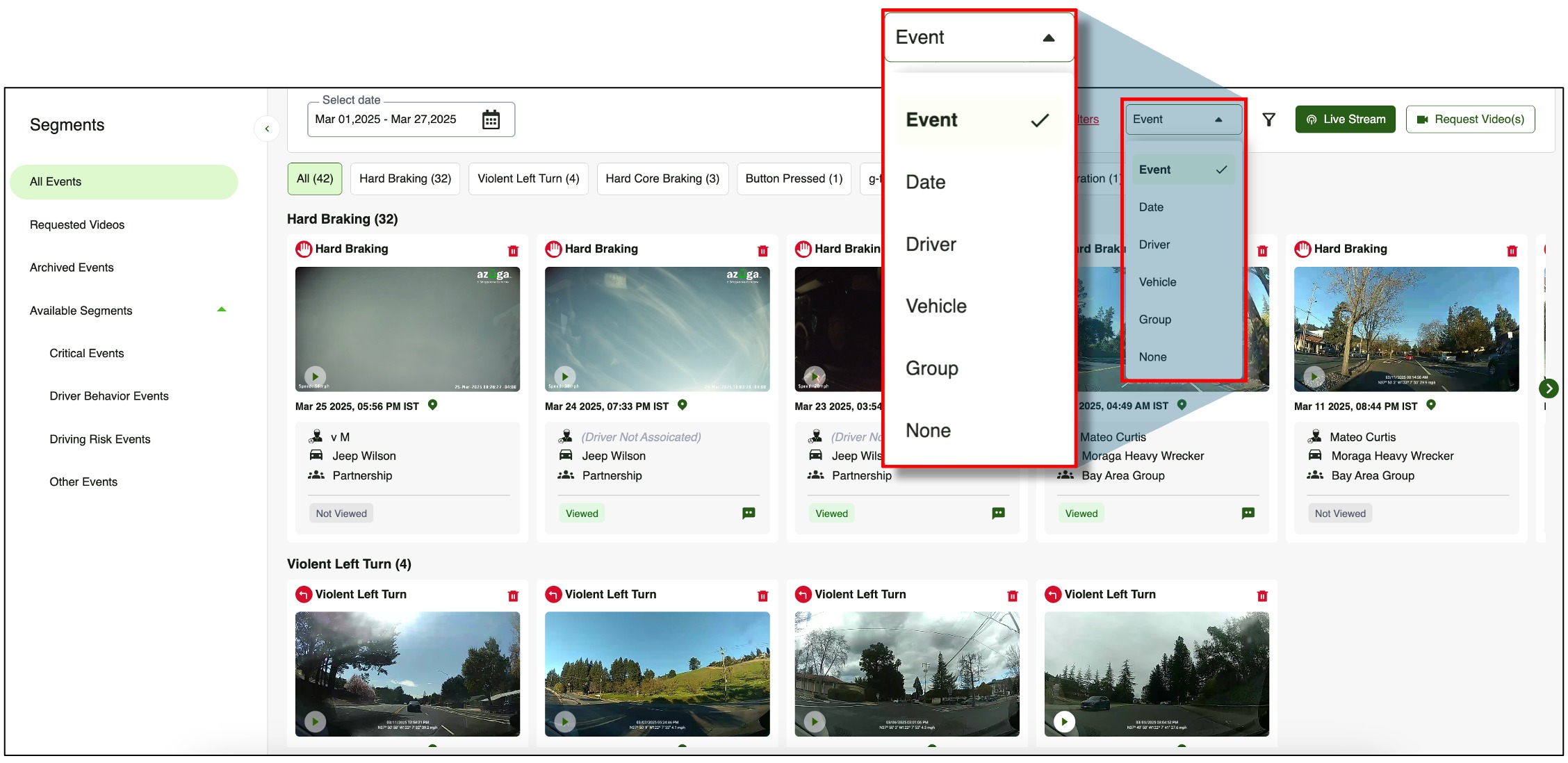
- A diverse selection of "Group by" options is available.
- “Group by" options are much more intuitive and streamlined.
- Event counts for the selected filters and time range are displayed.
Manage Your Events with Archive & Delete
Easily archive, restore, or permanently delete events with a seamless process. Keep your event list organized while ensuring flexibility in managing stored data.
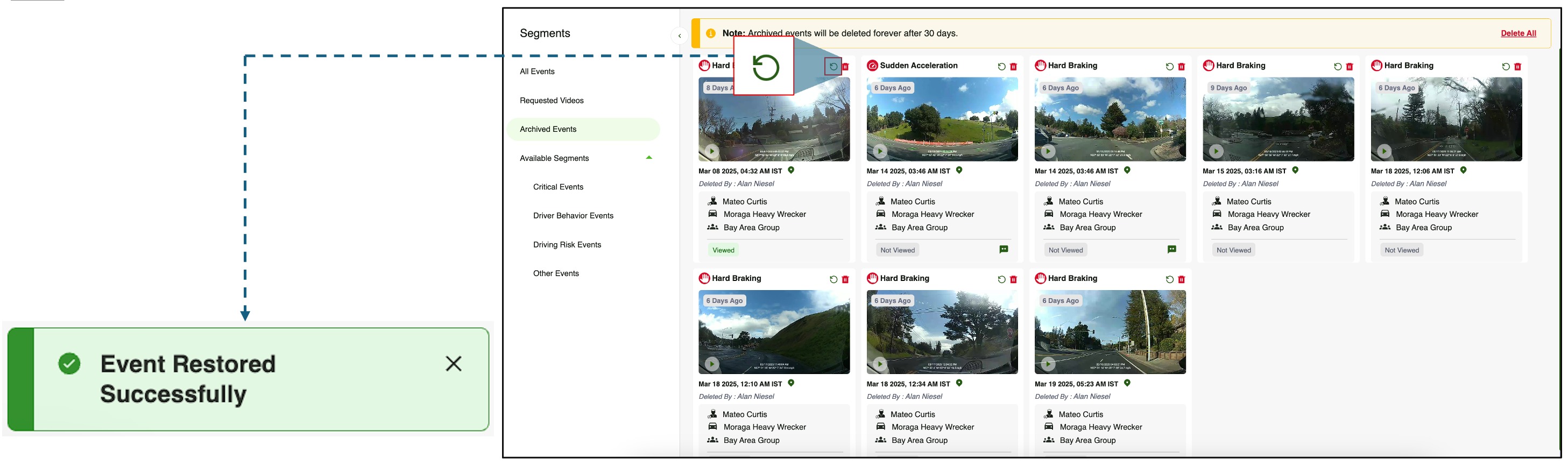
- Move to Archive – Clicking the delete icon on an event moves it to the Archived Events tab.
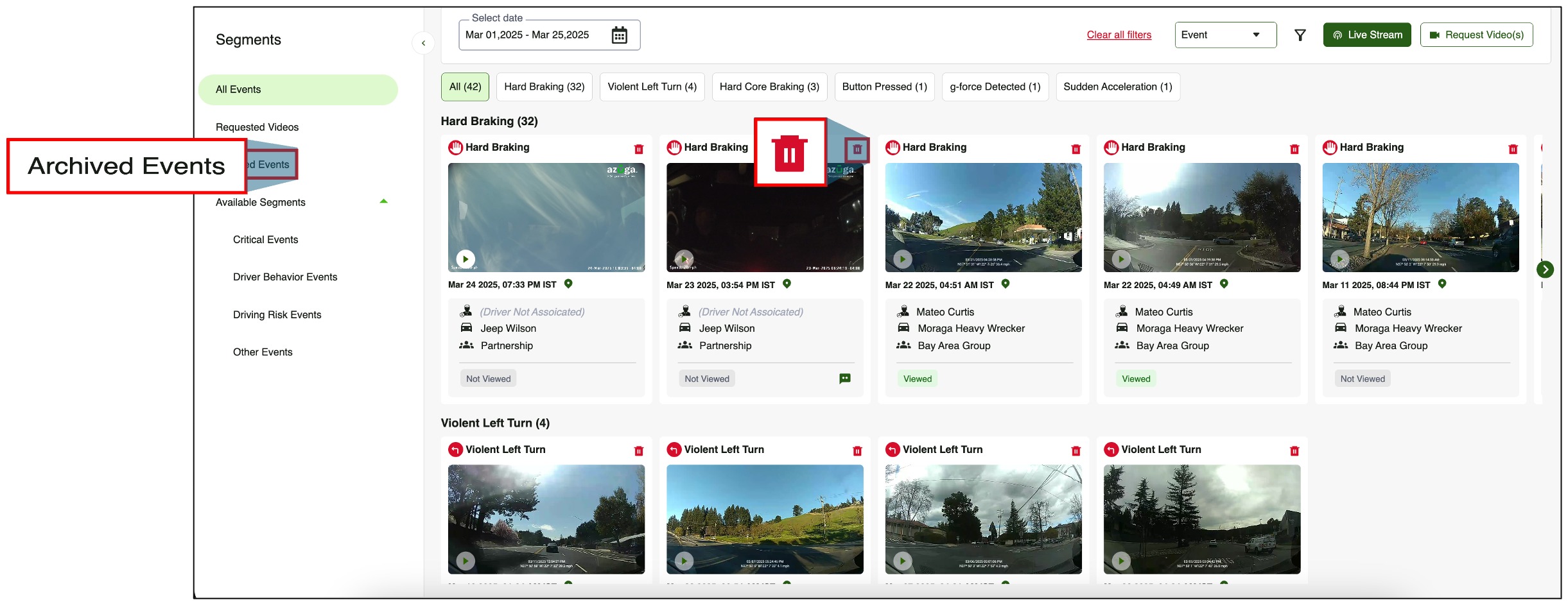
- Restore Events – In the Archived Events tab, click the restore icon to bring an event back to the main list.
- Delete Events:
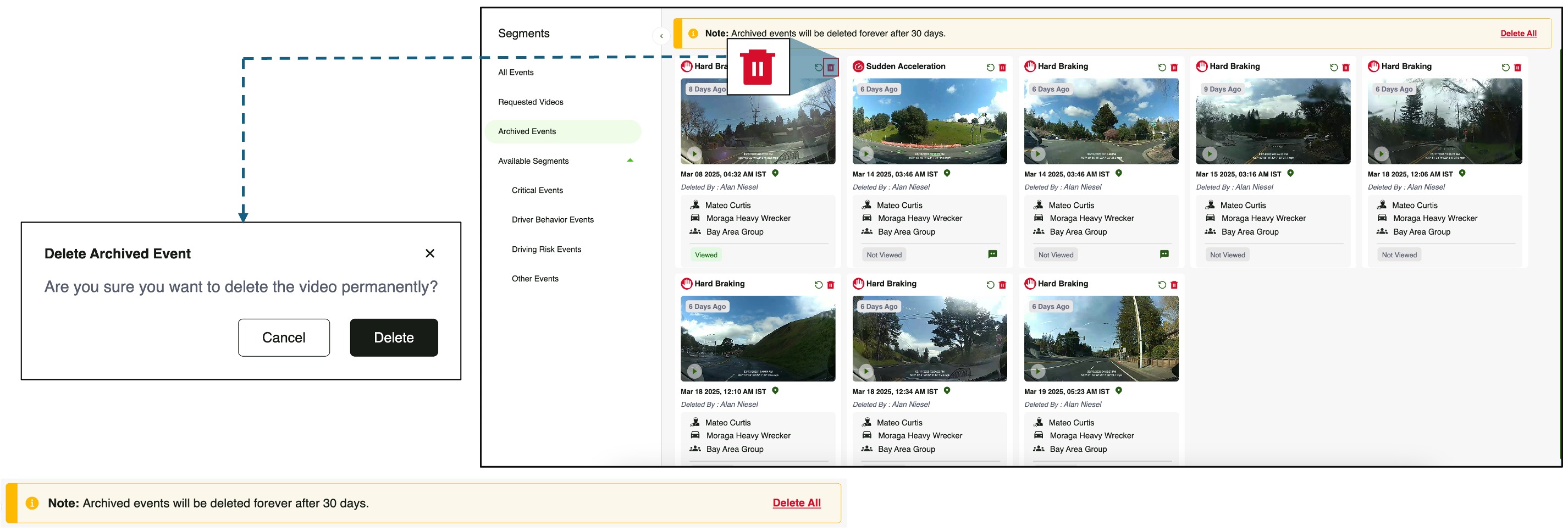
- Permanent Deletion – Click the delete icon in the Archived Events tab to permanently remove an event. A confirmation prompt will appear before deletion.
- Automatic Cleanup – Archived events will be permanently deleted after 30 days if not restored.
Preview Videos Effortlessly with Hover Functionality
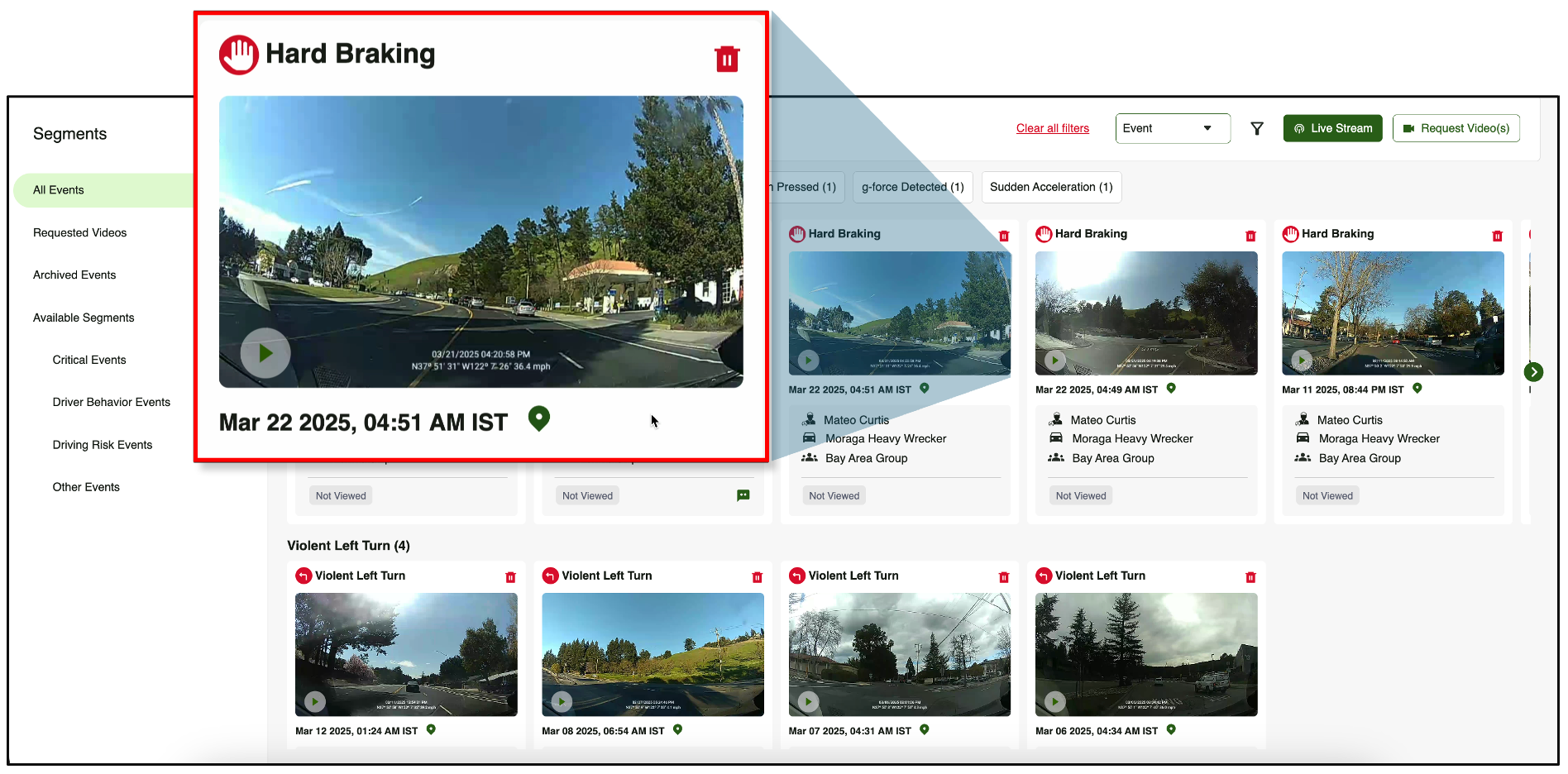
Easily preview videos by hovering your cursor over the event thumbnail. Videos will play in the background, allowing for a quick and efficient preview without extra clicks.
- “Hover to preview” functionality allows quick video preview without clicking.
- Videos start playing automatically in the background when hovered over.
- Enhances efficiency by providing instant previews of recorded events.
Clear Focus with Pre-Defined Event Segments
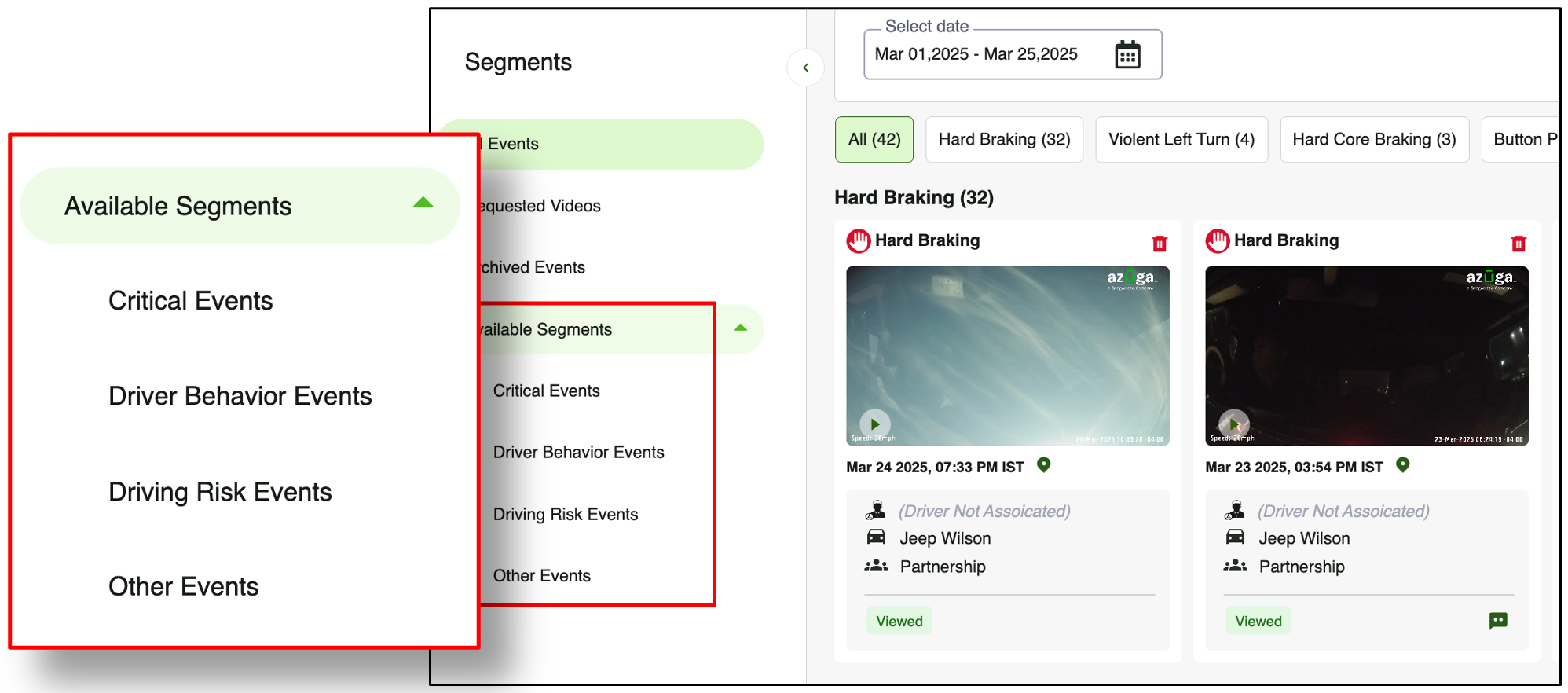
Focus on our predefined event segments to streamline, systematically review, and effortlessly analyze videos, saving time, and enhancing efficiency across your fleet operations.
- A newly introduced segment in the SafetyCam UI.
- Enables customers to focus on high-priority events of severity.
- Easy to use: Customers can quickly navigate and filter critical events.
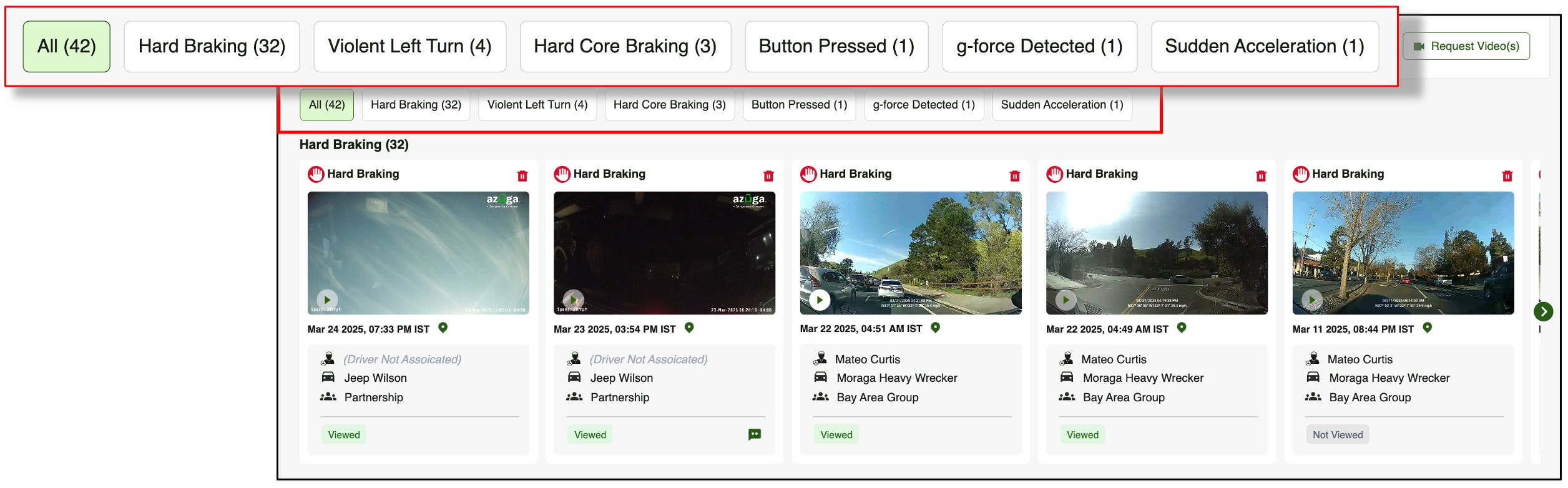
Save Time with Quick Event Filtering
Maximize your time and efficiency with instant access to key events, enabling swift, and accurate risk evaluation.
- Quick filtering is available at the Event level.
- Events can be filtered directly from the current view.
- Quick filtering helps focus on specific events easily.
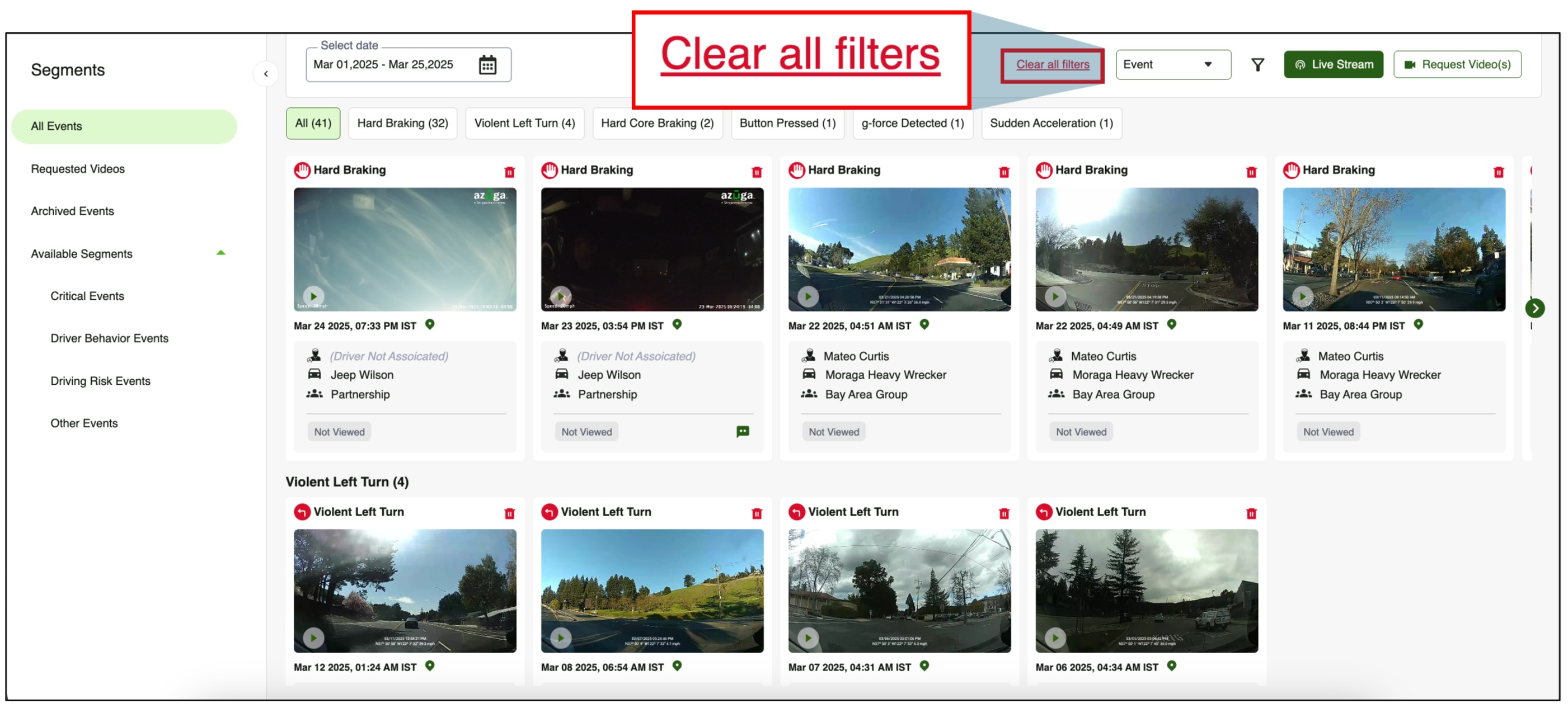
Instantly Reset Filters with "Clear all filters”
Reset filters instantly with a single click, ensuring a hassle-free and efficient way to view all events.
- One-click "Clear all filters" instantly resets all applied filters.
- Saves time by eliminating the need for manual filter removal.
- Enhances usability by providing a quick way to view all events.
Effortlessly Track Viewed and Unviewed Videos for Greater Efficiency
Eliminate redundancy and save time by easily identifying viewed and unviewed videos with our new tracking feature, ensuring a streamlined review process.
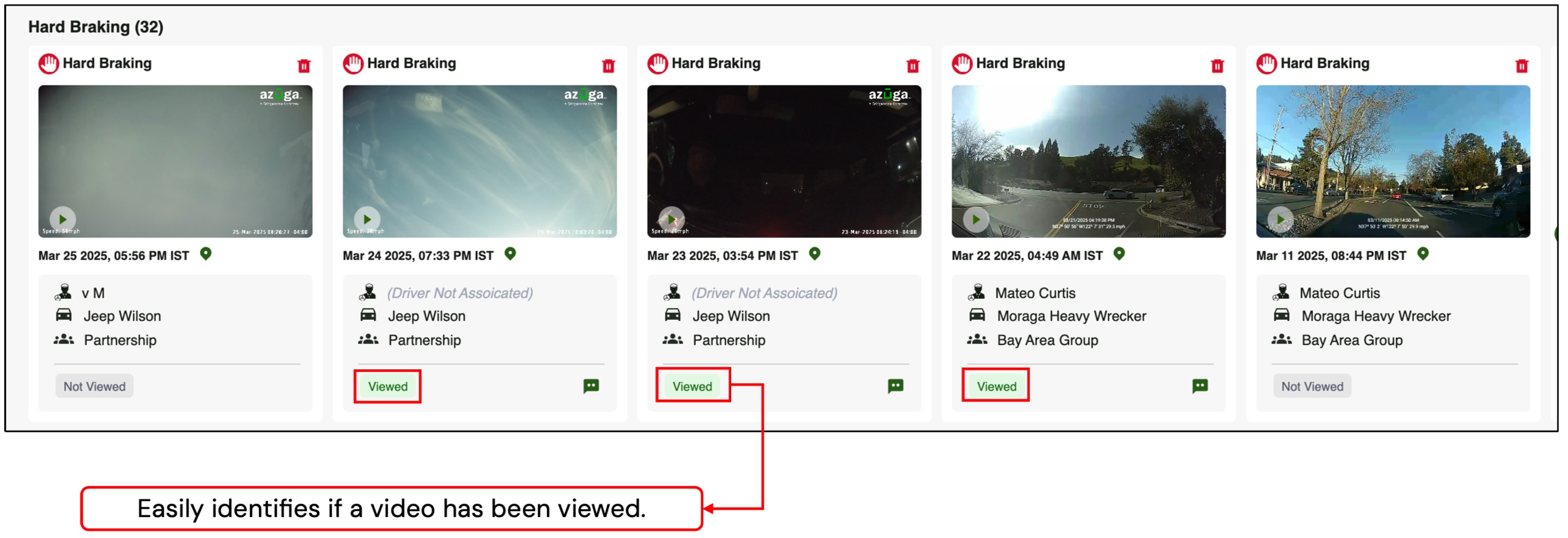
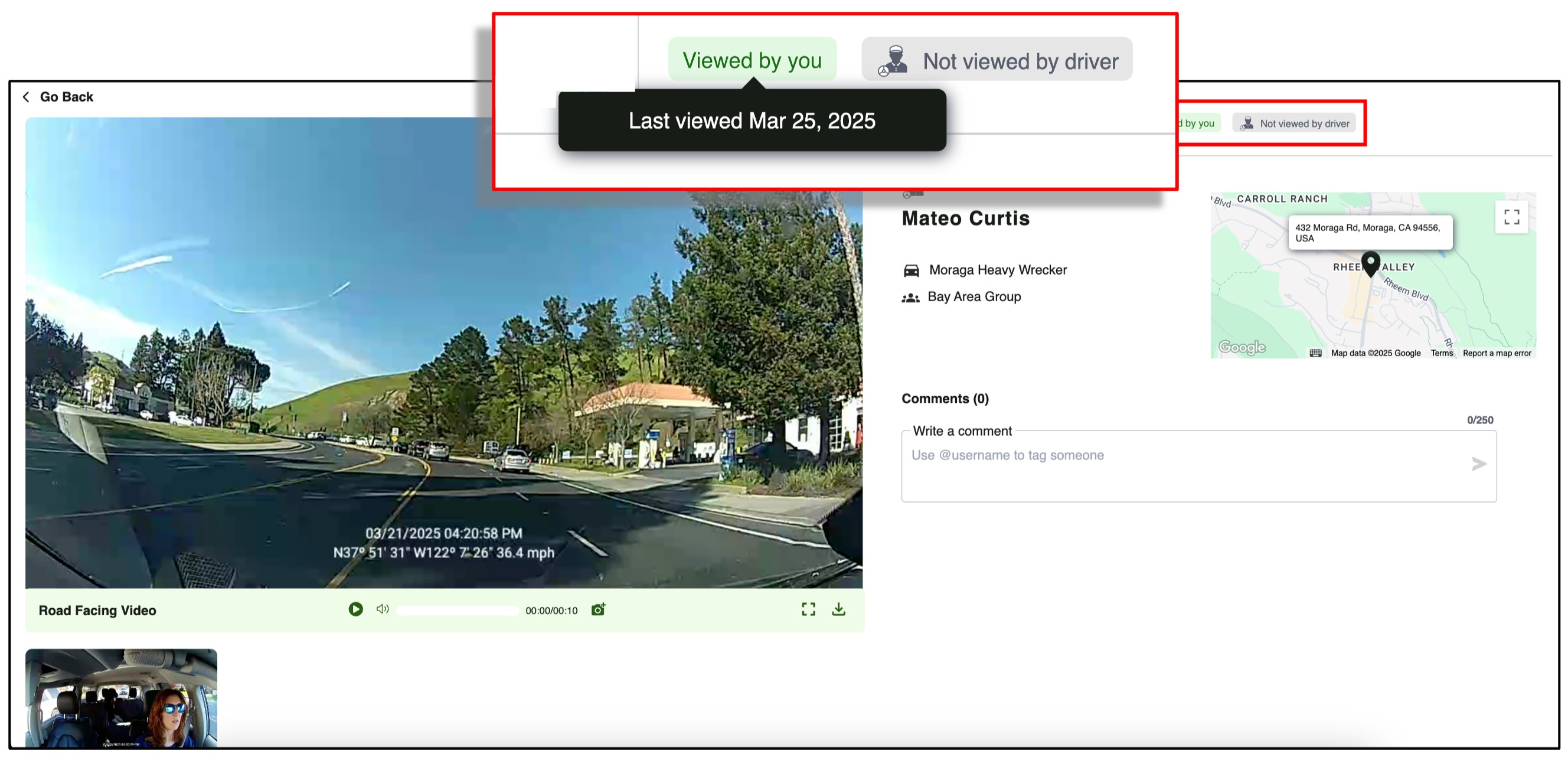
- Displays whether a video has been viewed and its last viewed date.
- Displays whether the Driver has viewed the video and its last viewed date.
Real-Time Camera Status for Live Streaming and Video Requests
We now display the camera status proactively when attempting to live stream or request a video, ensuring clear communication and setting accurate expectations for users.
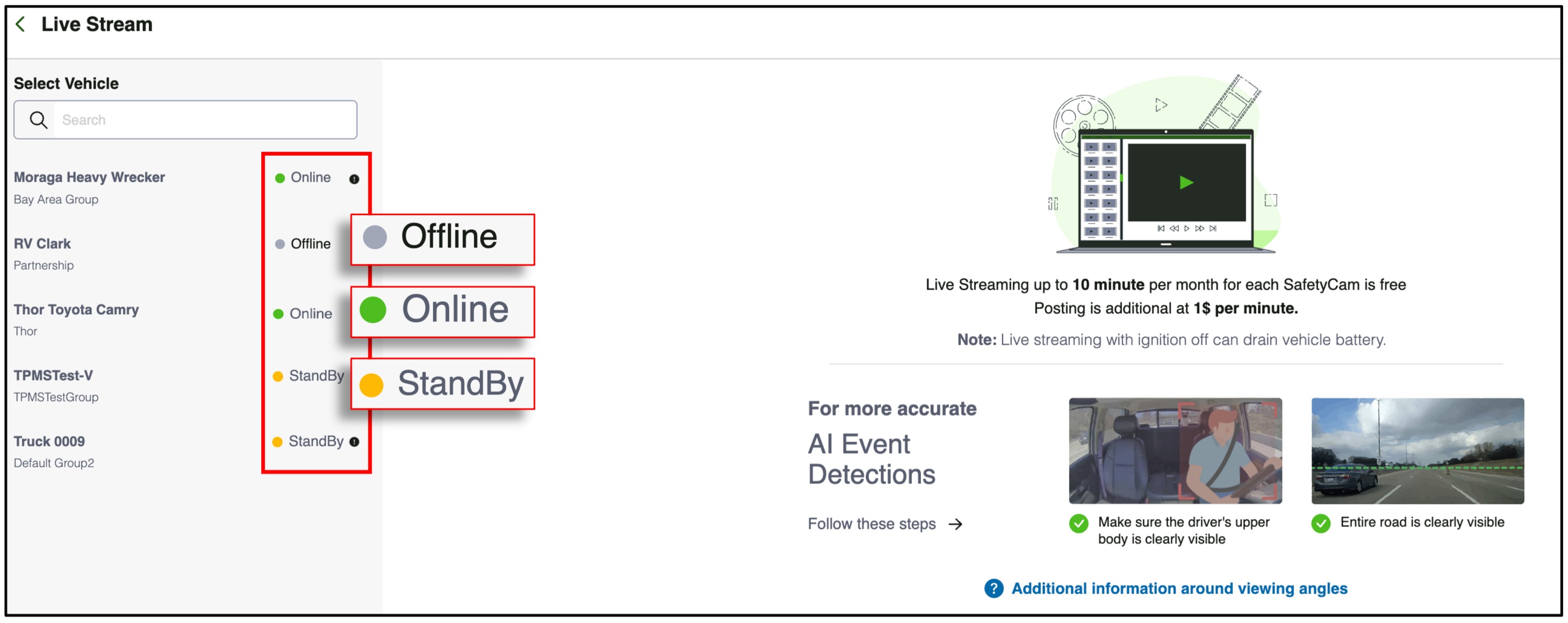
- Live Streaming Feature:
- A redesigned UI for Live Streaming, featuring an improved look and enhanced functionality.
- Clearly displays the SafetyCam’s current status—Online, Offline, or Standby. Allows users to submit Live Streaming requests with clear expectations.
- Request Video(s) Feature:
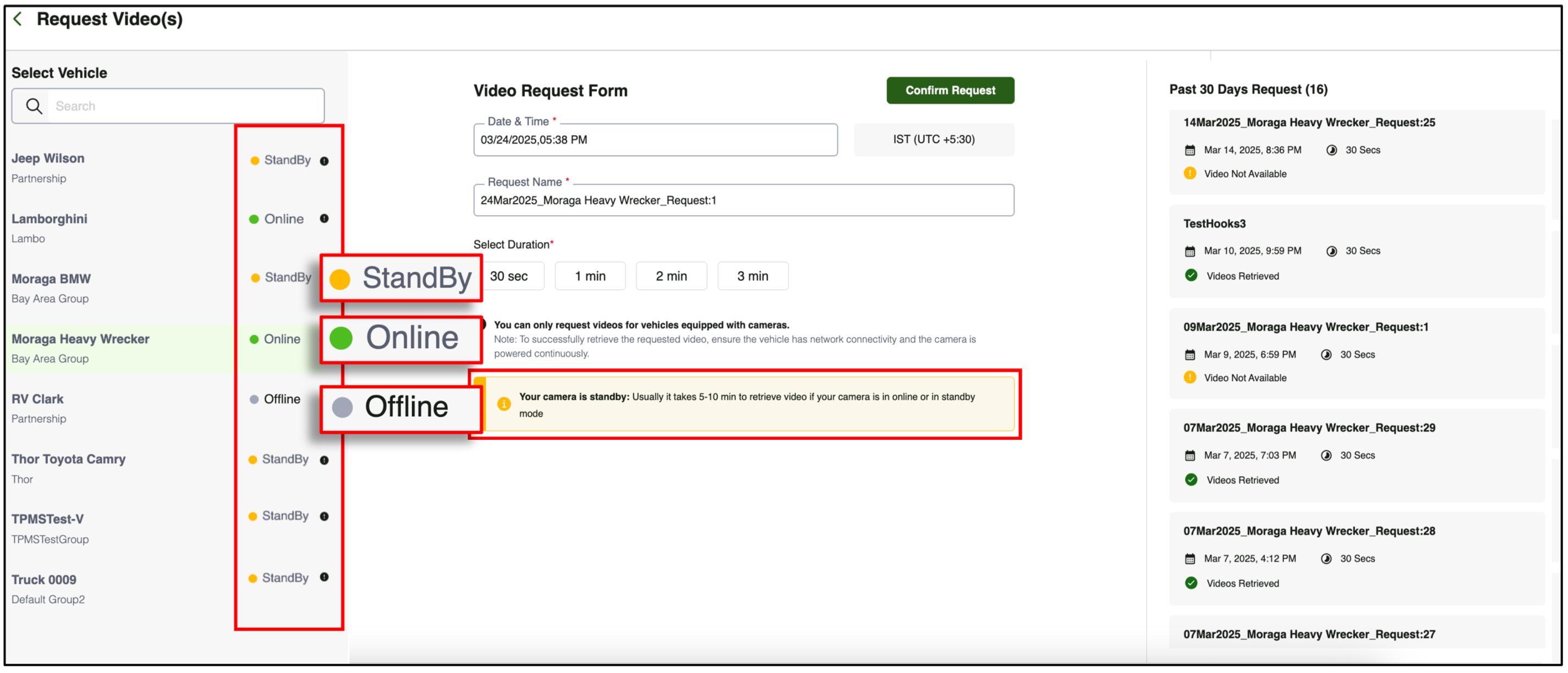
- A redesigned UI for Requesting Video, featuring an improved look and enhanced functionality.
- Clearly displays the SafetyCam’s current status—Online, Offline, or Standby for Requesting Videos.
- Shows the time required to retrieve videos based on the SafetyCam’s current status.
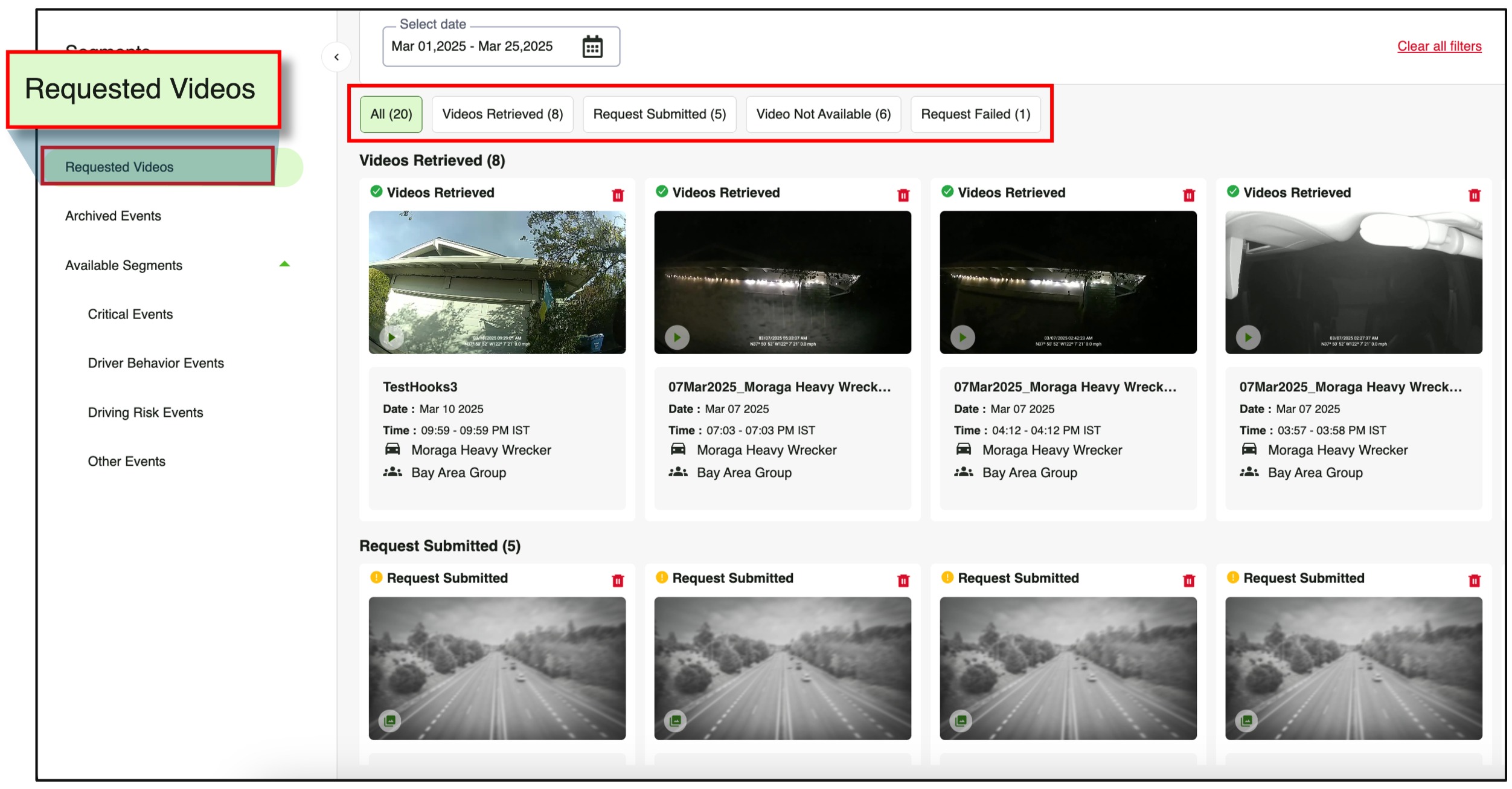
- A separate segment for Requested Videos, ensuring better organization and streamlined access.
- Requested Videos are categorized based on their retrieval status, enabling quick classification and easy access to various events.
Was this article helpful?
That’s Great!
Thank you for your feedback
Sorry! We couldn't be helpful
Thank you for your feedback
Feedback sent
We appreciate your effort and will try to fix the article