Overview of two independent PTO
Azuga utilizes Dual PTO (Power Take-Off) by connecting a specialized JBUS harness cable to the plug-and-play device (such as the Azuga HD 79V). This setup enables the device to receive two independent input signals (ON/OFF) from different PTO sources within the vehicle.
These signals are transmitted to the device and then reported to the Azuga cloud, allowing fleet managers to track and measure two separate PTO activities simultaneously. This is especially useful for monitoring multiple equipment operations within a single vehicle.
Benefits of using Azuga Dual PTO:
1. Track and measure multiple equipment activities:
Fleet managers can monitor two independent events such as crane operation, pump usage, siren activation, or liftgate activity all within the same vehicle.
2. Improved operational efficiency:
By tracking multiple PTO sources, fleet managers can gain better visibility into equipment usage and identify opportunities to optimize operations and reduce idle or unnecessary usage.
3. Improved fuel efficiency:
Monitoring PTO usage helps identify vehicles that are running auxiliary equipment for extended durations, allowing corrective actions to reduce fuel consumption.
4. Improved safety and compliance:
Tracking multiple PTO activities enables better monitoring of safety critical operations (e.g., sirens, lights, or emergency equipment), helping reduce risks and ensure proper usage.
Harness Overview
- JBUS connector – connects to the vehicle JBUS diagnostic port.
- Device connector – connects the harness to the Azuga HD 79V device
- Labeled PTO/I/O wires – used to connect the two PTO sources
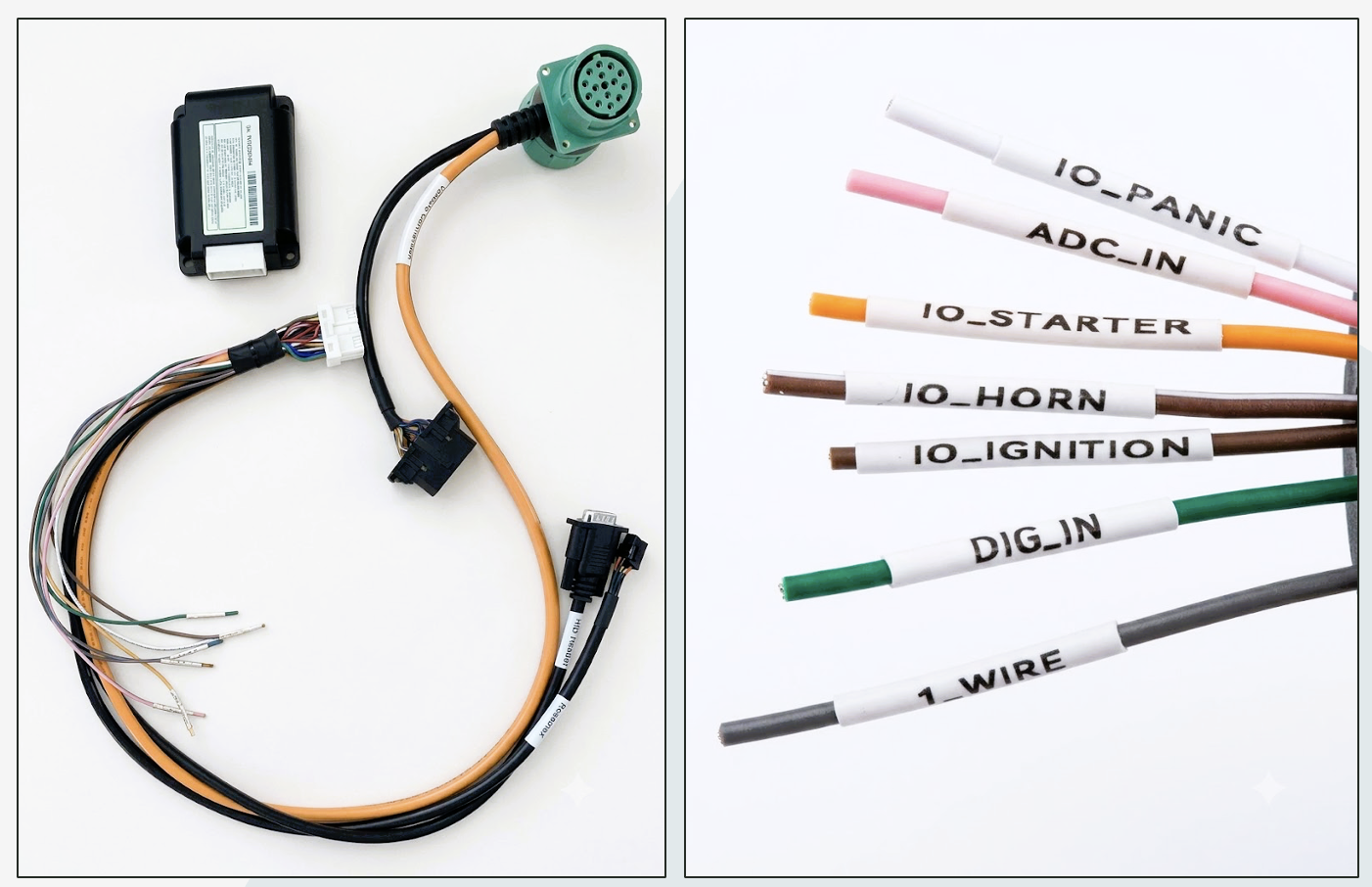
Note: The "Roseman" and "HID Reader" connectors are not currently supported and should be ignored.
PTO Wiring Instructions – Dual PTO
Azuga HD 79V devices support dual PTO monitoring through two dedicated PTO input wires. Proper wire identification and connection are required to ensure accurate PTO activity detection and reporting.
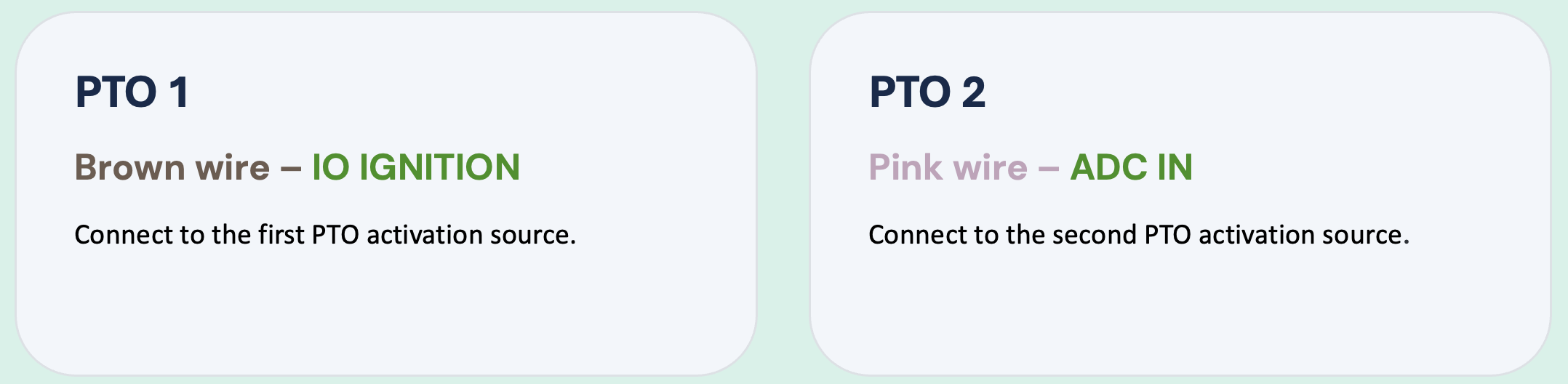
Before installation: verify the PTO activation signal and ensure all connections are secure and insulated.
Installation Steps
The Azuga HD 79V supports the installation of Dual PTO inputs, enabling connection to two independent PTO sources, providing enhanced visibility into multiple equipment activities within a single vehicle.
Note: Be sure to keep track of which connection has been wired to which PTO source so you can name them correctly in Azuga UI. If you are wiring PTO on multiple vehicles, be consistent on all vehicles.
Follow the steps below to ensure a smooth and secure installation:
1. Locate the Azuga HD 79V JBUS harness cable.Identify the JBUS vehicle connector, device connector, and labeled PTO wires.
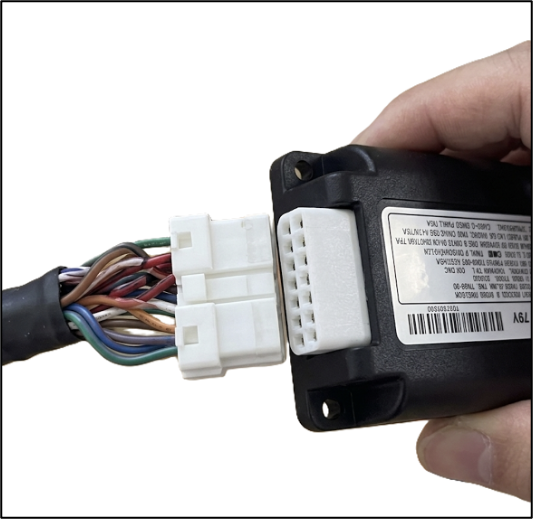
2. Connect the Azuga HD 79V device.
Securely connect the device to the designated connector on the JBUS harness.
3. Identify the PTO input wires from the harness:
- Brown wire (IO IGNITION) → PTO 1
- Pink wire (ADC IN) → PTO 2
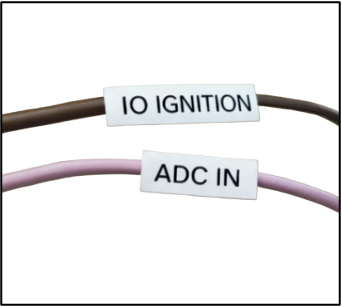
4. Connect the Brown wire (PTO 1) to the first PTO power source that provides 12V when the equipment is active and 0V when inactive (example: crane, liftgate, etc.).
5. Connect the Pink wire (PTO 2) to the second PTO power source that provides 12V when activated and 0V when inactive (example: pump, siren, lights, etc.).
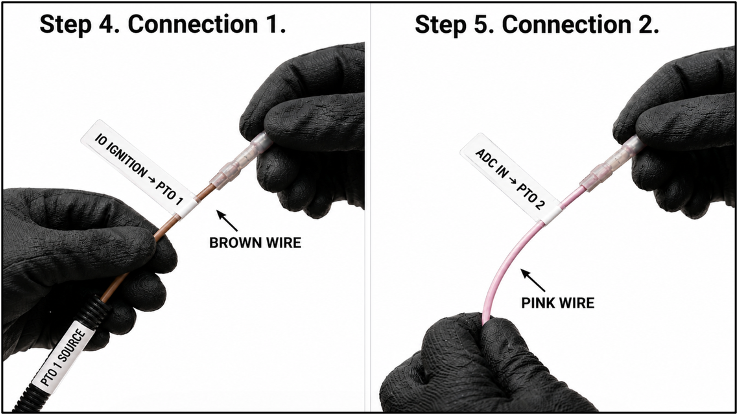
6. Connect the JBUS plug to the vehicle’s JBUS port to provide power and connect the opposite 2 end of the harness to the Azuga HD 79V device and Datalogger.
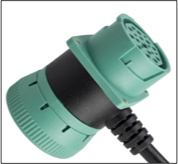
7. Once connected, the Azuga HD 79V device will power on. The device LEDs may illuminate briefly during initialization.
8. Start the vehicle’s ignition and let it run for 30–60 seconds, then turn the ignition OFF. During ignition, LED indicators may flash and then turn off after initialization.
9. Activate each PTO source individually to verify:
- PTO 1 (Brown wire) is detected correctly
- PTO 2 (Pink wire) is detected correctly
Tips to properly organize and secure all cables and devices:
- Use zip ties or twist ties to bundle excess cable neatly.
- Route cables so they are not under stress or tension.
- Keep wiring away from moving parts, pedals, and areas that may become hot.
- Properly insulate all exposed PTO wire connections.
- Secure the Azuga HD 79V device to prevent excessive movement or vibration.
- Replace any vehicle panels removed during installation.
- Keep the JBUS connection accessible for future service or maintenance.
Dual PTO – UI Configuration
After physically installing and wiring the Dual PTO connections, complete the following steps in Azuga to configure and label each PTO source.
Step 1:Navigate to Vehicle Settings
- Log in to Azuga Fleet.
- Go to Admin > Vehicles.
- Select the vehicle where the Dual PTO device is installed.
- Click Edit.
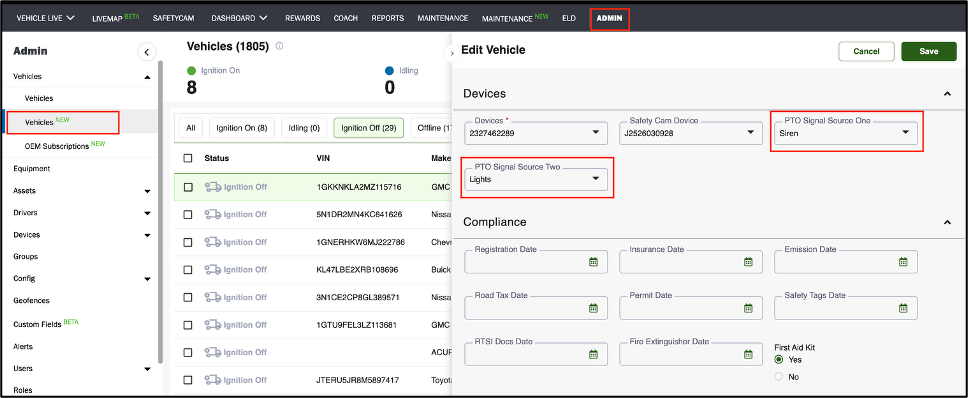
Step 2: Locate PTO Fields
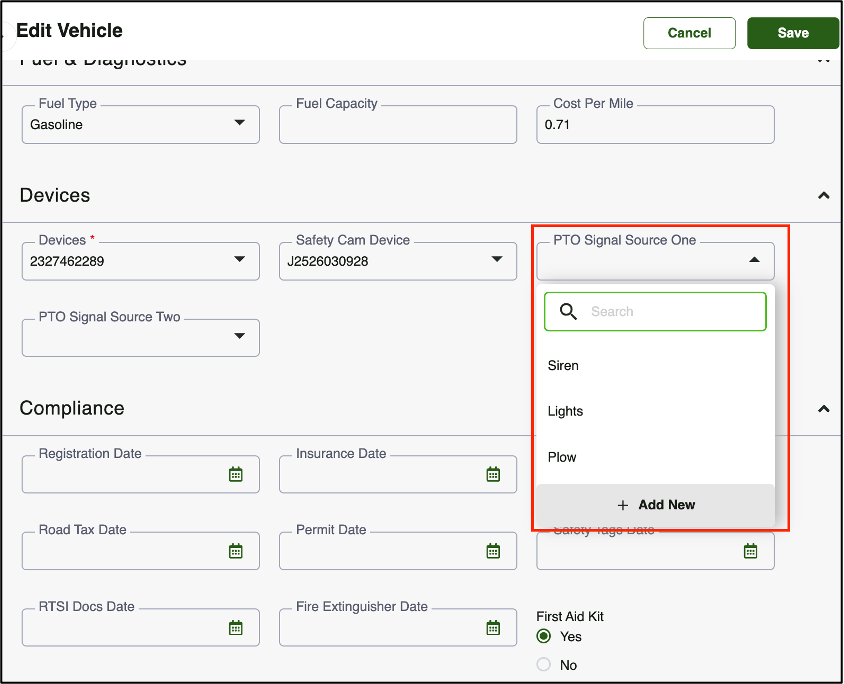
- In the Devices section of the vehicle record, locate the PTO Source fields
- If the installed device supports Dual PTO, you will see:
üPTO Signal Source 1
üPTO Signal Source 2
Note: If PTO fields are not visible, confirm the installed device supports PTO connections.
Step 3: Add a New PTO Source
- Click the dropdown menu for PTO Source 1 or PTO Source 2.
- Select Add New.
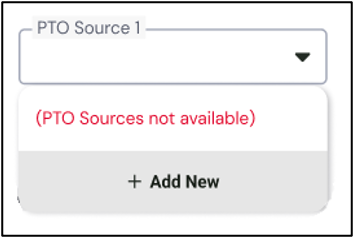
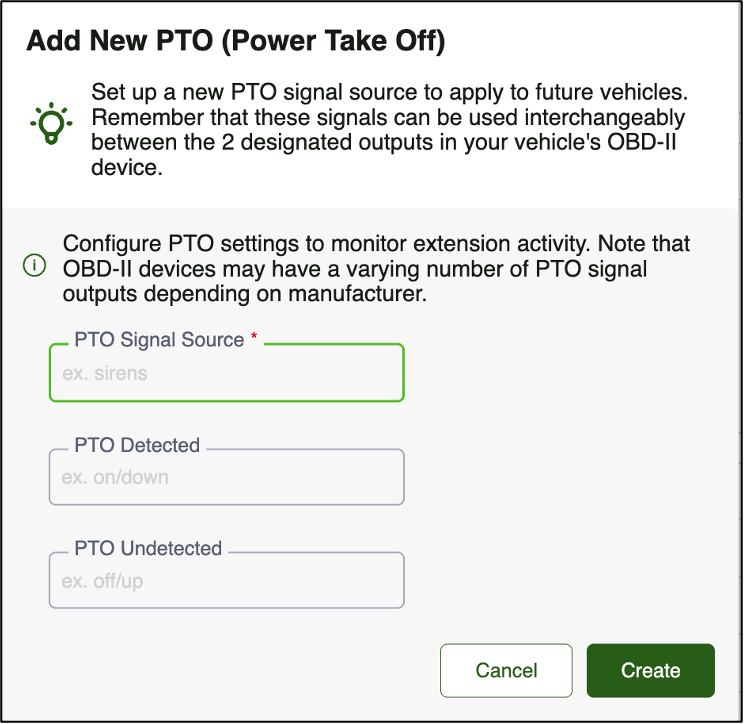
A configuration panel will open and Complete the required fields:
- PTO Signal Source Name: Enter a descriptive name (examples: Lights, Siren, Plow, Bucket Lift, Pump).
- PTO Detected State: Define how the active state will display (examples: On, Down, Engaged).
- PTO Not Detected State: Define how the inactive state will display (examples: Off, Up, Disengaged).
- Click Create.
Step 4: Assign PTO Sources
- After saving, select the newly created PTO source from the dropdown.
- Repeat the process for the second PTO input if applicable.
- Click Save on the vehicle record.
Important Notes:
- Live Map
- Reports
- Alerts (if configured)
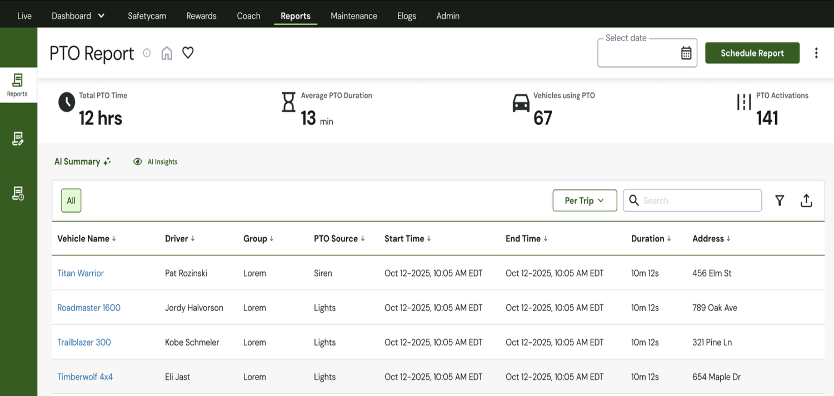
Example Use Case
For an ambulance:
Fleet managers can now monitor both emergency lights and siren activity separately in reports.
For PDF version refer to [Customer] 2 PTO Install Guide - Azuga HD Device JBUS Cable.pdf
Was this article helpful?
That’s Great!
Thank you for your feedback
Sorry! We couldn't be helpful
Thank you for your feedback
Feedback sent
We appreciate your effort and will try to fix the article