How does Pairing using Beacon Button work?
Azuga’s Bluetooth beacon driver ID cards make it easy to identify who is behind the wheel when your vehicle is being driven. Drivers simply carry the ID card in their wallets. The card automatically pairs with the Azuga tracking device via Bluetooth and the driver’s identification is attached to the activities and driving behaviors recorded in Azuga Fleet.
Have multiple drivers in one vehicle? A driver can easily pair to the vehicle by pressing the button on the beacon card at the start of the trip to claim the trip.
This guide will show you how to set up your beacon cards on the Azuga website for an easy and hassle-free driver-vehicle pairing experience.
Assigning Beacons to Drivers on Azuga Fleet
The Beacon card should be associated with the driver using that card on the Azuga Fleet web application. This is required for the system to identify the driver carrying the card.
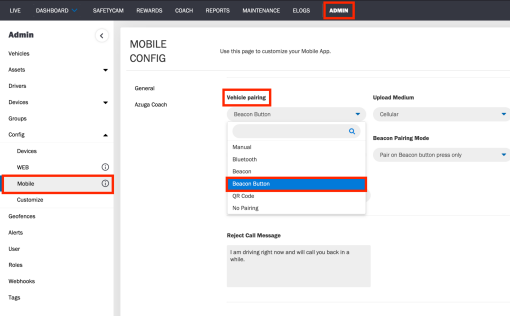
Before proceeding with the beacon-driver association, please ensure that the appropriate pairing method is selected for your account. You can do this by following the below step:
Navigate to Admin >> Config >> Mobile tab on the Azuga Fleet web app, and under the field ‘Vehicle Pairing’, select the option ‘Beacon Button’.
Steps for Beacon-Driver Association
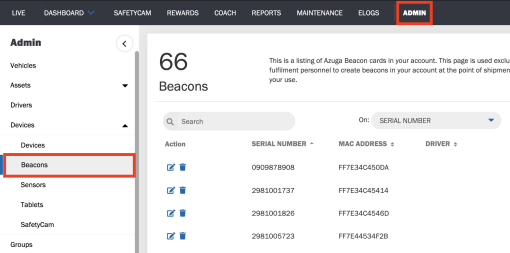
Log In to the Azuga Fleet Web App (azuga.com) and navigate to the Beacon page in the Devices tab under Admin module.
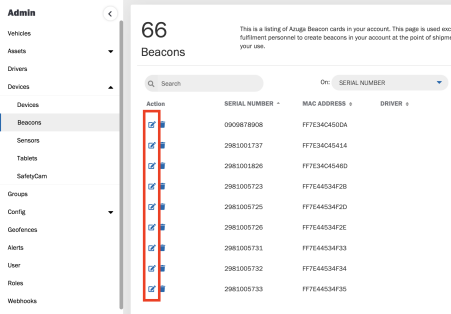
Search for your Beacon using the Serial Number (The serial Number can be found printed on the backside of the beacon card) and click on Edit (the pencil icon).
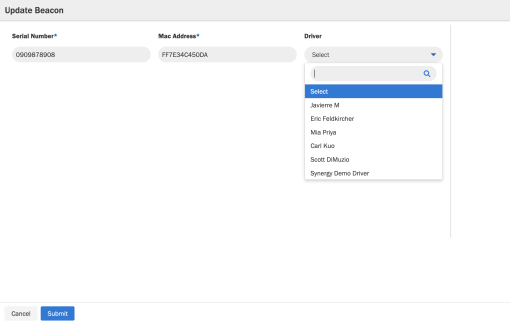
Update the associated driver by selecting the driver name from the dropdown list and clicking on Submit to save the association.
Beacon Pairing Process
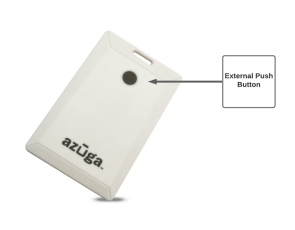
The Beacon card has an external push button at the center. Once the driver enters the vehicle and turns the ignition on, he/she needs to press the button on the beacon card 30 seconds after the trip starts to get paired with the vehicle (a single press of the button is needed). On pressing the button, the driver will observe a red LED on the beacon card.
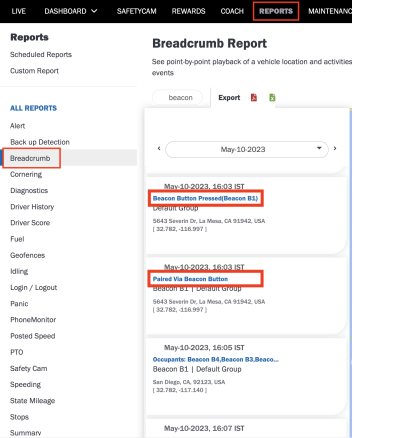
As a fleet manager, you can review the button press, pairing, and unpairing events for your drivers on the Azuga Fleet web app under Live Maps and reports such as Breadcrumb and WWW. The name of the events would be as follows:
● Beacon button pressed: When a driver presses the beacon button (irrespective of successful pairing or not). The name of the driver who pressed the button will be displayed as well.
● Paired via beacon button: On the driver getting paired with the vehicle
● Unpaired via beacon: On driver getting unpaired with the vehicle
Worried about drivers forgetting to press the beacon button? Azuga provides you the option of auto beacon detection, in addition to the button press pairing. To get this activated, please reach out to customercare@azuga.com.

Was this article helpful?
That’s Great!
Thank you for your feedback
Sorry! We couldn't be helpful
Thank you for your feedback
Feedback sent
We appreciate your effort and will try to fix the article