To Generate a Fuel Report:
1. Log in to the Azuga Web application.
2. Navigate to the Fuel page, under the Reports tab.
3. Using the date picker, select a time frame. (Date range should be 93 days or less.)
4. Select Fuel Report or Fuel Location Exception Report or Fuel Quantity Exception Report to run report by.
5. Select the Groups/Vehicles you want to include in the report.
6. Select a Drivers tag from Drop down
7. Click Generate Report.
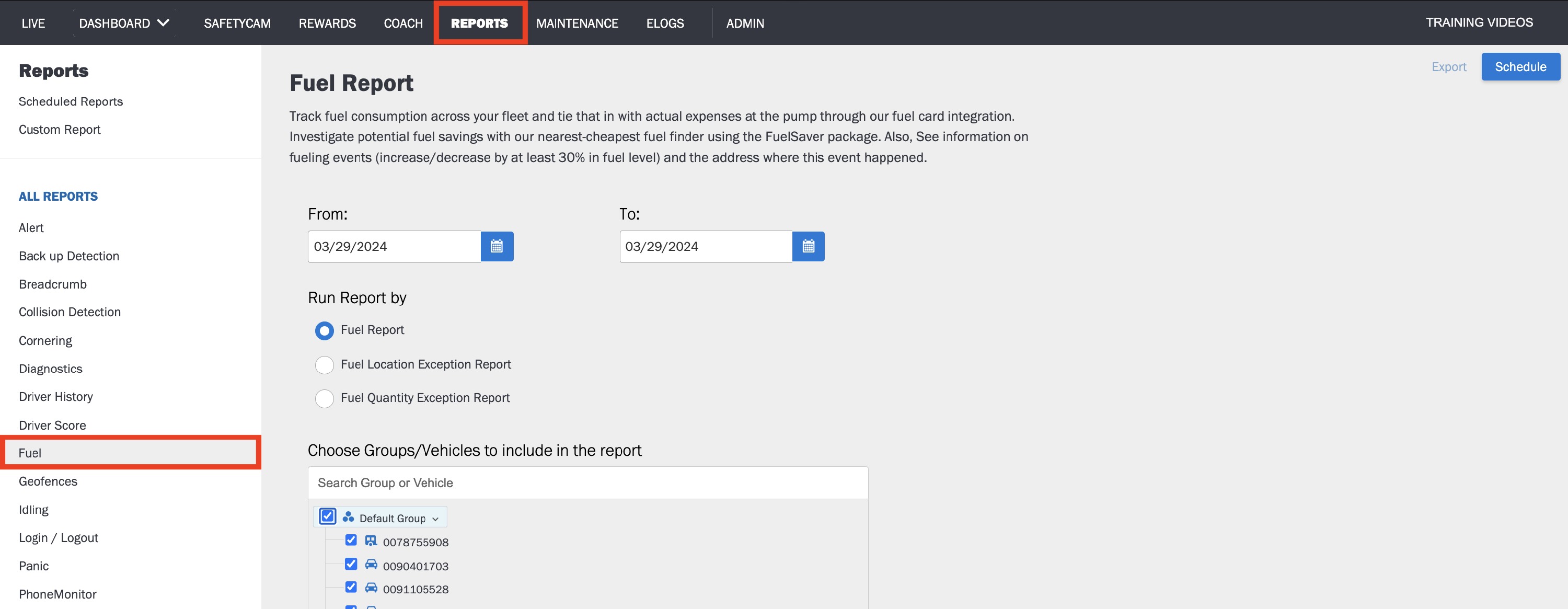

To export the Report in PDF or XLSX format to your system, click the Export button.
Note: This report can be scheduled to run at regular intervals. This will automatically generate the report and send it to you via email.
Was this article helpful?
That’s Great!
Thank you for your feedback
Sorry! We couldn't be helpful
Thank you for your feedback
Feedback sent
We appreciate your effort and will try to fix the article